

Divi Custom Cursor
DiviMotion Custom Cursor swaps the default pointer on your Divi 5 site for one of 16 animated effects or a text, image, icon, or Lottie cursor, so every mouse move feels on brand.
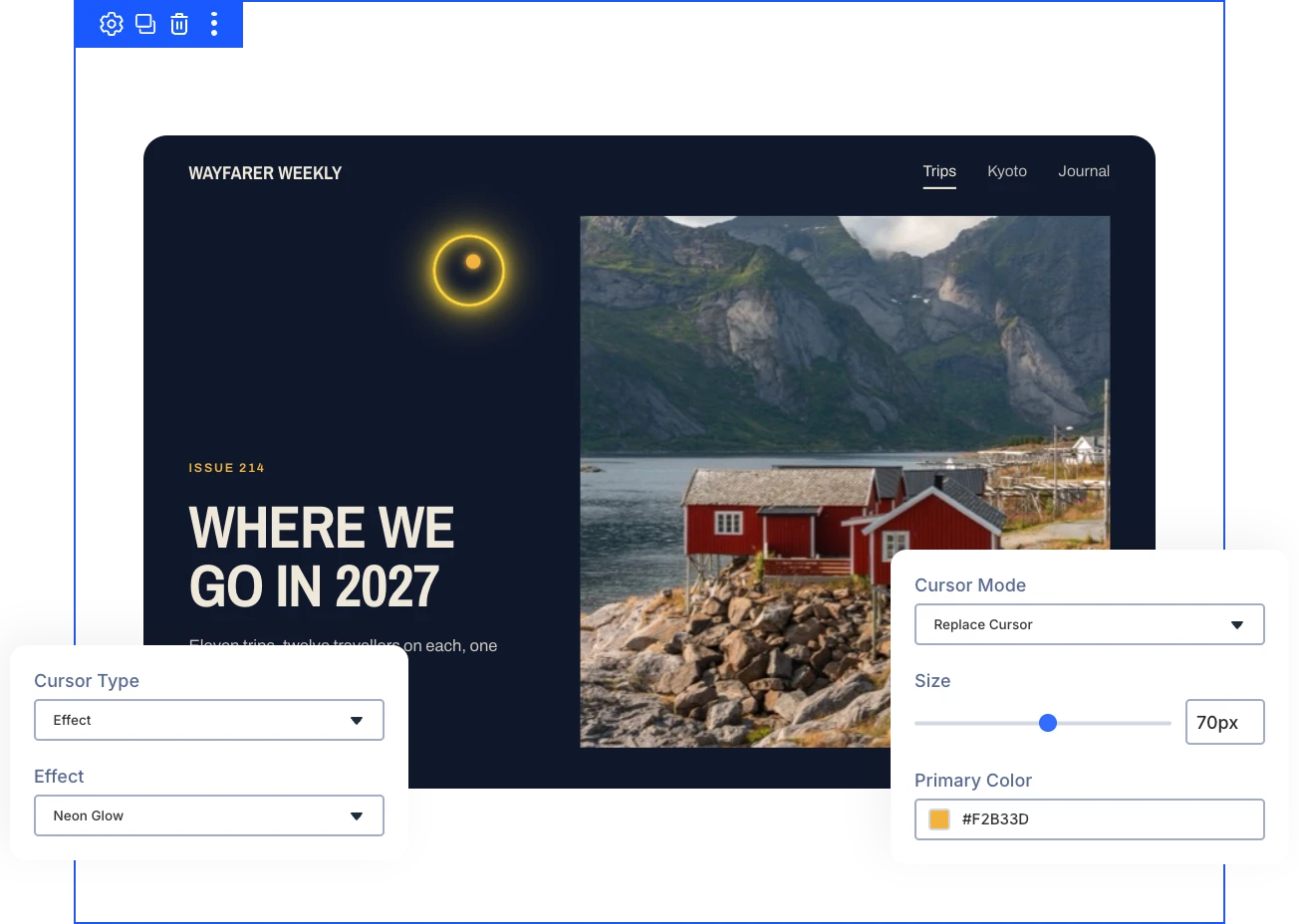
Five Cursor Types
Choose an animated effect, a text label like View, your own image, a Divi or Font Awesome icon, or a Lottie animation as the cursor.
Sixteen Animated Effects
Dot Follower, Ring, Elastic, Magnetic, Neon Glow, Spotlight, Galaxy, and more give the pointer motion that matches your site's look and feel.
Usability Stays Intact
The normal pointer returns over form fields, embeds, and the admin bar, and touch devices skip the cursor, so nothing gets harder to use.
Create a CursorThat Stands Out and Still Stays Easy to Use
Choose Exactly What Appears at the Pointer
- Show a short text label such as View, Drag, or Open right at the pointer.
- Use your logo or any PNG, SVG, GIF, or WebP image from the Media Library as the cursor.
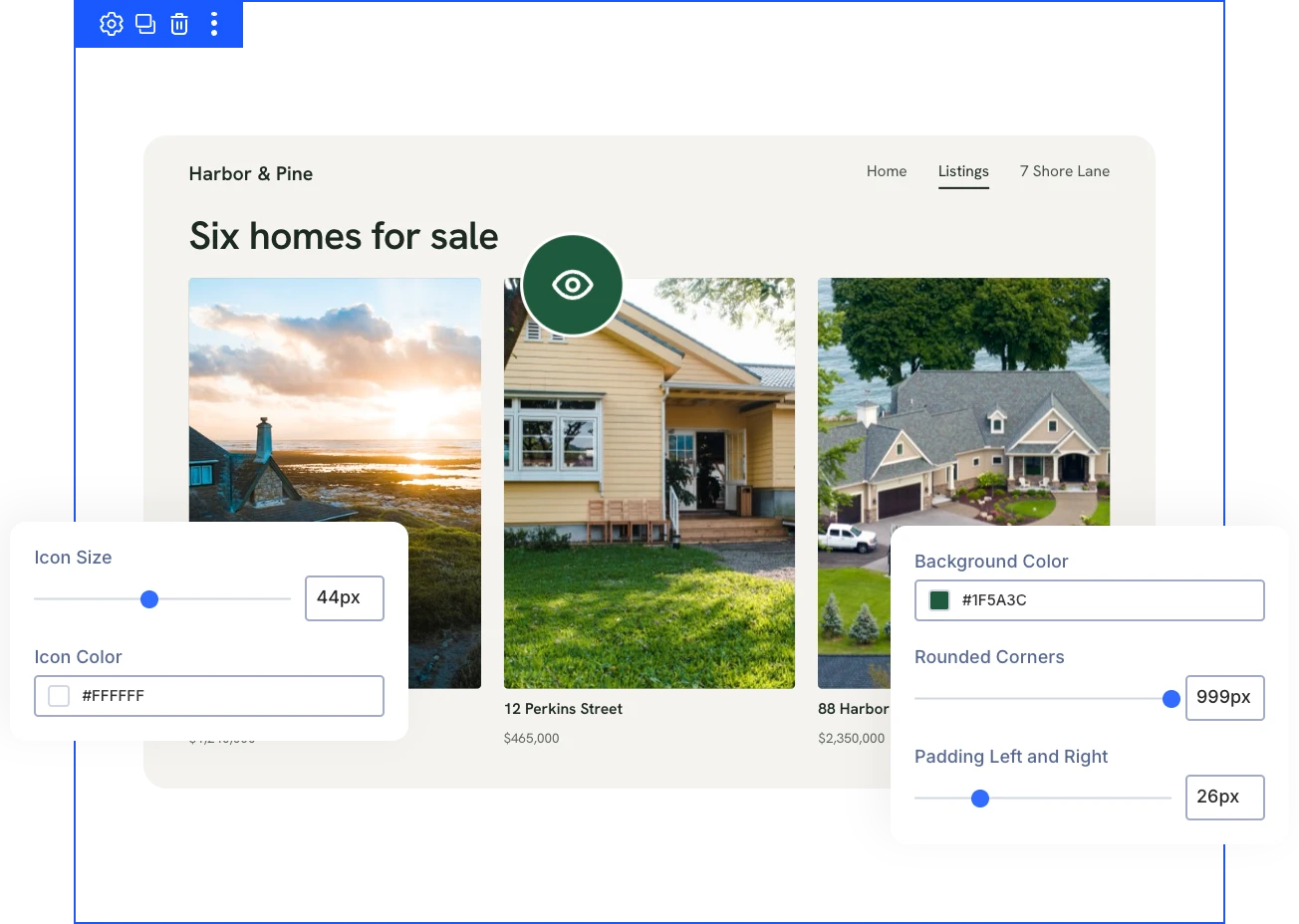
- Pick any Divi or Font Awesome icon from a searchable picker and size it to fit.
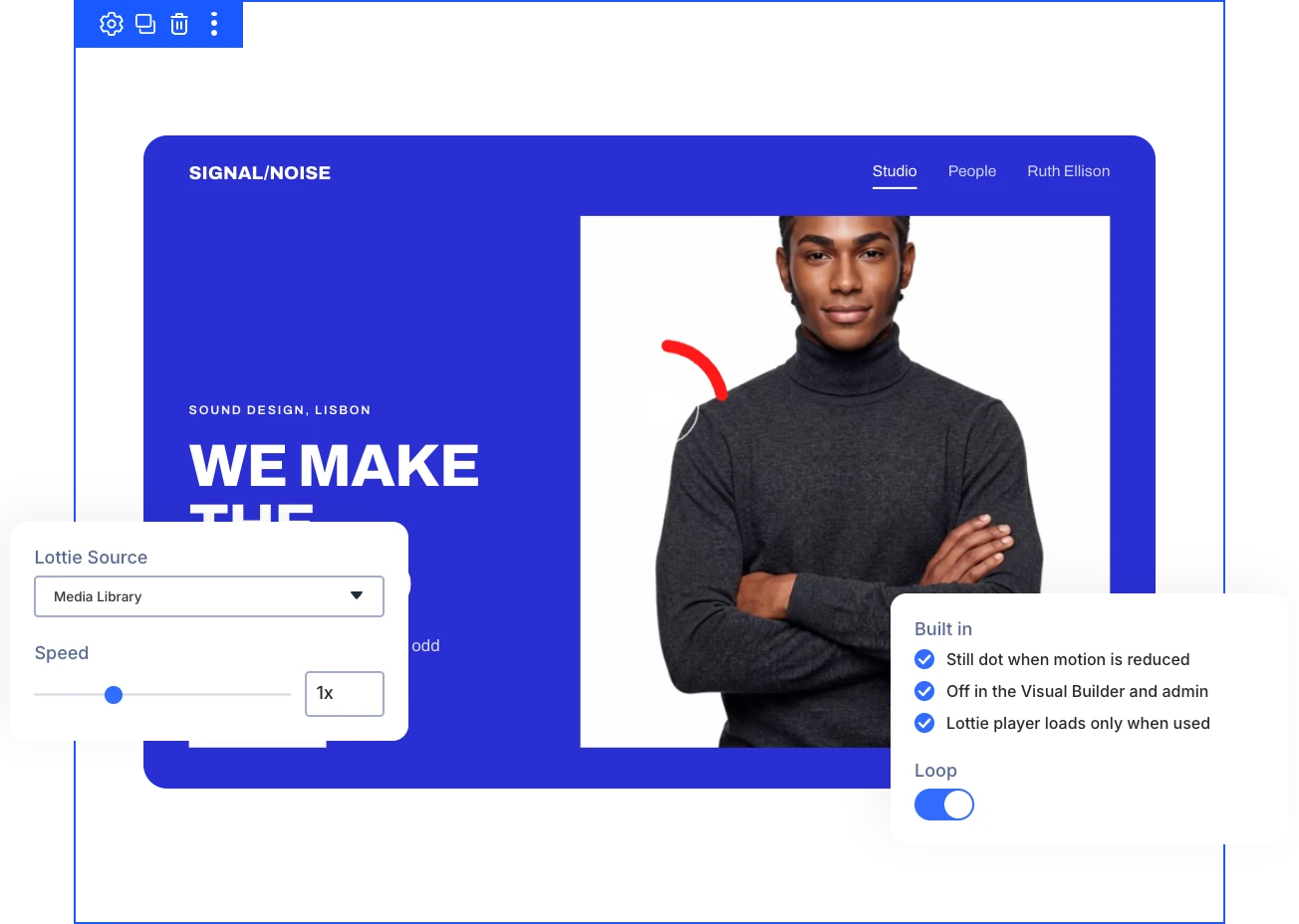
- Play a Lottie animation as the cursor, with loop control and speed from 0.1x to 3x.
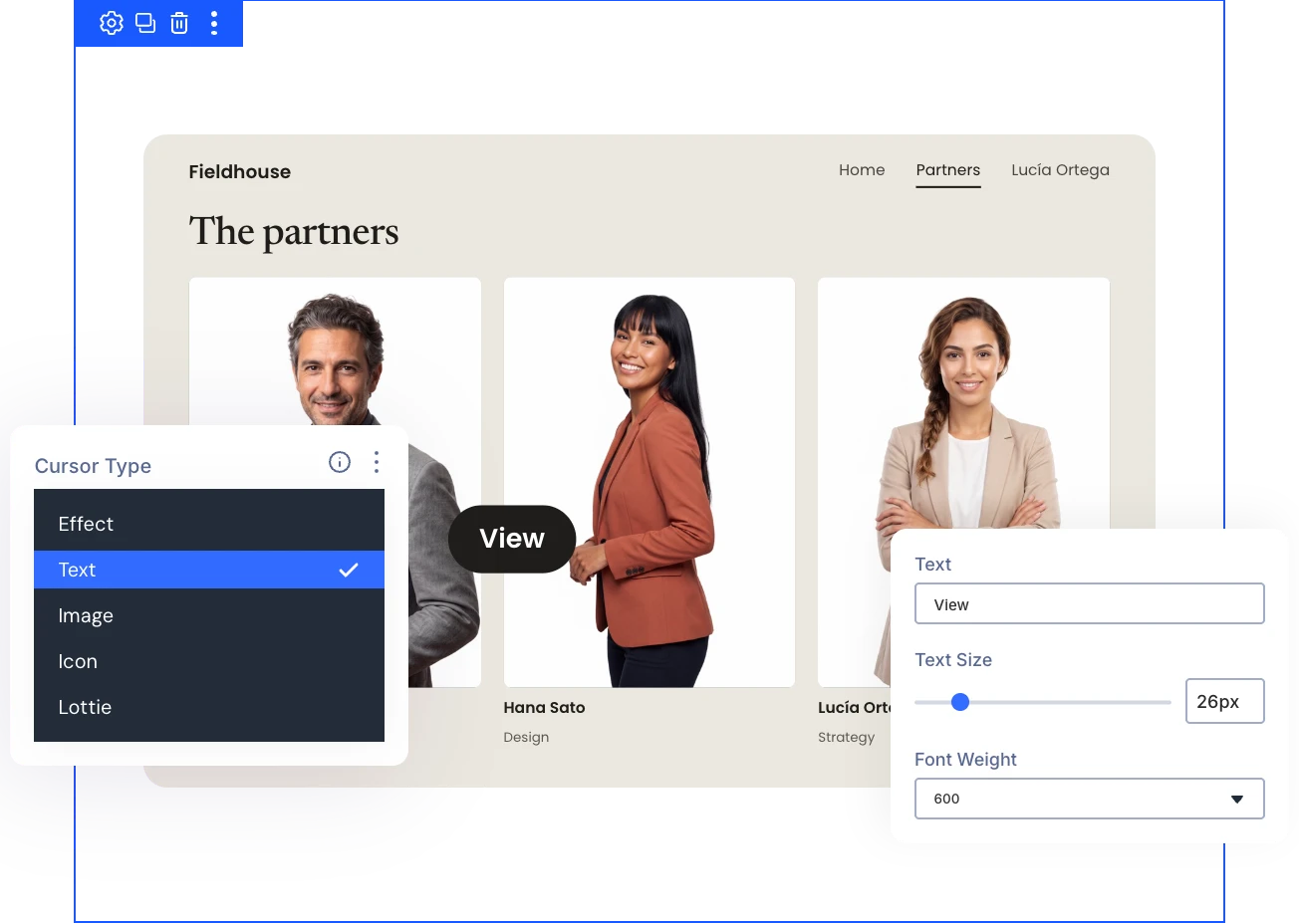
Style Every Cursor to Match Your Site
- Match your palette with primary and secondary colors on two-color effects like Dot Follower.
- Scale effects from 16 to 120 pixels, or widen the lit area of Spotlight.
- Wrap text, image, and icon cursors in a box with its own background, padding, corners, and border.
- Style text cursors with their own color, size, and font weight, from light to extra bold.
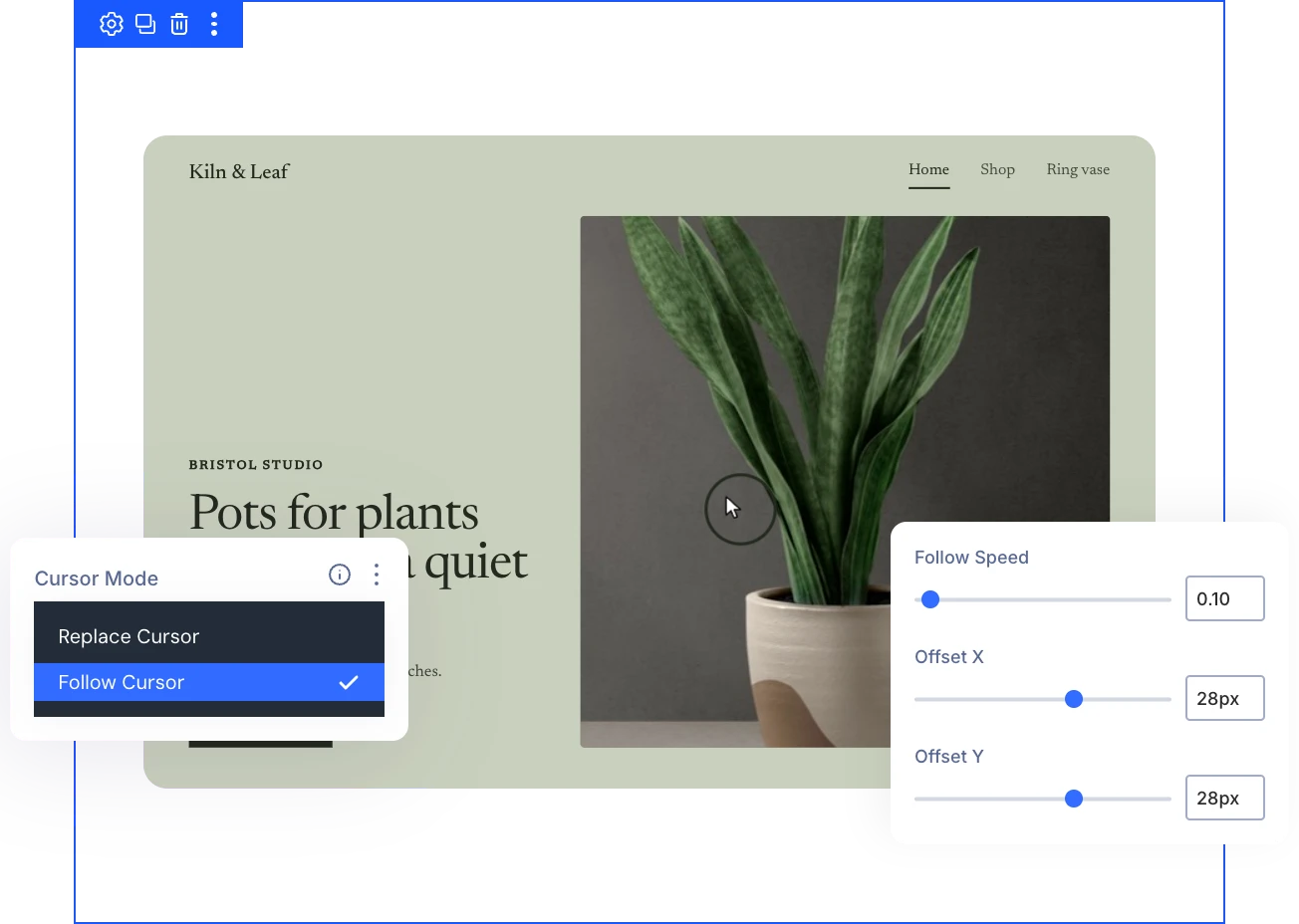
Decide How the Cursor Moves and Follows
- Replace the arrow entirely, or keep it visible and let the custom cursor follow alongside.
- Control how closely the cursor trails the pointer, from a soft delay to an instant follow.
- Offset the cursor up to 120 pixels from the pointer on either axis for clear placement.
- Test every change by moving your mouse over the live preview in the settings panel before saving.
Keep Visitors Comfortable and Editing Distraction-Free
- Calm effects into a still dot, and freeze Lottie on its first frame, for visitors who reduce motion.
- Edit without distraction, because the custom cursor stays out of the Divi Visual Builder and WordPress admin.
- Keep the pointer visible with a small dot that shows until an image or Lottie cursor loads.
- Load the Lottie player only when a Lottie cursor is in use, never for other cursor types.
Ready to Give Your Site a Cursor Visitors Remember?
Helpful Resources
Documentation
Divi Vertical Marquee Overview

Video
How to Use Divi Vertical Marquee Module

Coming Soon
Try DiviMotion Risk-Free for 30 Days
Not sure yet? Every DiviMotion plan comes with a 30-day money-back guarantee. Try it on your site, and if it's not the right fit, you get a full refund — no questions asked.
Frequently Asked Questions
Everything you need to know about Custom Cursor before you get started.
What Is the Divi Custom Cursor?
The Divi Custom Cursor is a DiviMotion extension for Divi 5 that replaces or follows the mouse pointer across your site with an animated effect, text, image, icon, or Lottie cursor.
What's the Difference Between Replace Cursor and Follow Cursor?
Replace Cursor hides the normal pointer and shows the custom cursor in its place. Follow Cursor keeps the normal pointer visible while the custom cursor follows it, with Follow Speed and Offset settings.
Which Cursor Effects Are Included?
Dot Follower, Ring, Solid Dot, Elastic, Blob, Bubble, Magnetic, Neon Glow, Invert, Spotlight, Crosshair, Color Trail, Sparkle, Snow, Galaxy, and Particles, with Dot Follower as the default. Magnetic makes nearby links and buttons lean toward the pointer, and Spotlight darkens the page except around it.
Which Version of Divi Does It Require?
Custom Cursor requires Divi 5, like every DiviMotion feature.
How Do I Turn On Custom Cursor?
Go to DiviMotion → Extensions in your WordPress dashboard, enable Custom Cursor, and click Configure to open its settings.
Which Image Formats Can I Use?
Upload a PNG, SVG, GIF, or WebP image from the WordPress Media Library, then set its width and height from 32 to 260 pixels.
How Do I Use a Lottie Animation as the Cursor?
Set Lottie Source to Media Library to upload a .json file of up to 10 MB without expressions, or to URL to link a file that allows loading. Loop and Speed are set in the Appearance tab.
Can I Use a Different Cursor on Different Pages?
Custom Cursor applies one cursor across the whole site, set once from the DiviMotion dashboard.
Does the Custom Cursor Work on Phones and Tablets?
Phones and tablets keep their normal touch behavior, because the custom cursor turns off on devices without a mouse pointer.
Where Does the Normal Pointer Come Back?
The normal pointer returns over text fields, dropdowns, editable text, embedded content, and the WordPress admin bar, so typing and selecting stay familiar.
How Do I Preview the Cursor?
Move your mouse over the live preview at the top of the settings panel. The cursor doesn't appear in the Divi Visual Builder, so check the final result on the front end.
How Does Custom Cursor Handle Reduced Motion?
When a visitor's device asks to reduce motion, animated effects become a still dot and Lottie shows its first frame. It follows the device setting automatically.