

Divi Vertical Marquee
DiviMotion Vertical Marquee loops images, cards, and other Divi modules in a continuous vertical column, with scroll-reactive speed and nine image hover animations.
Mixed Direction Columns
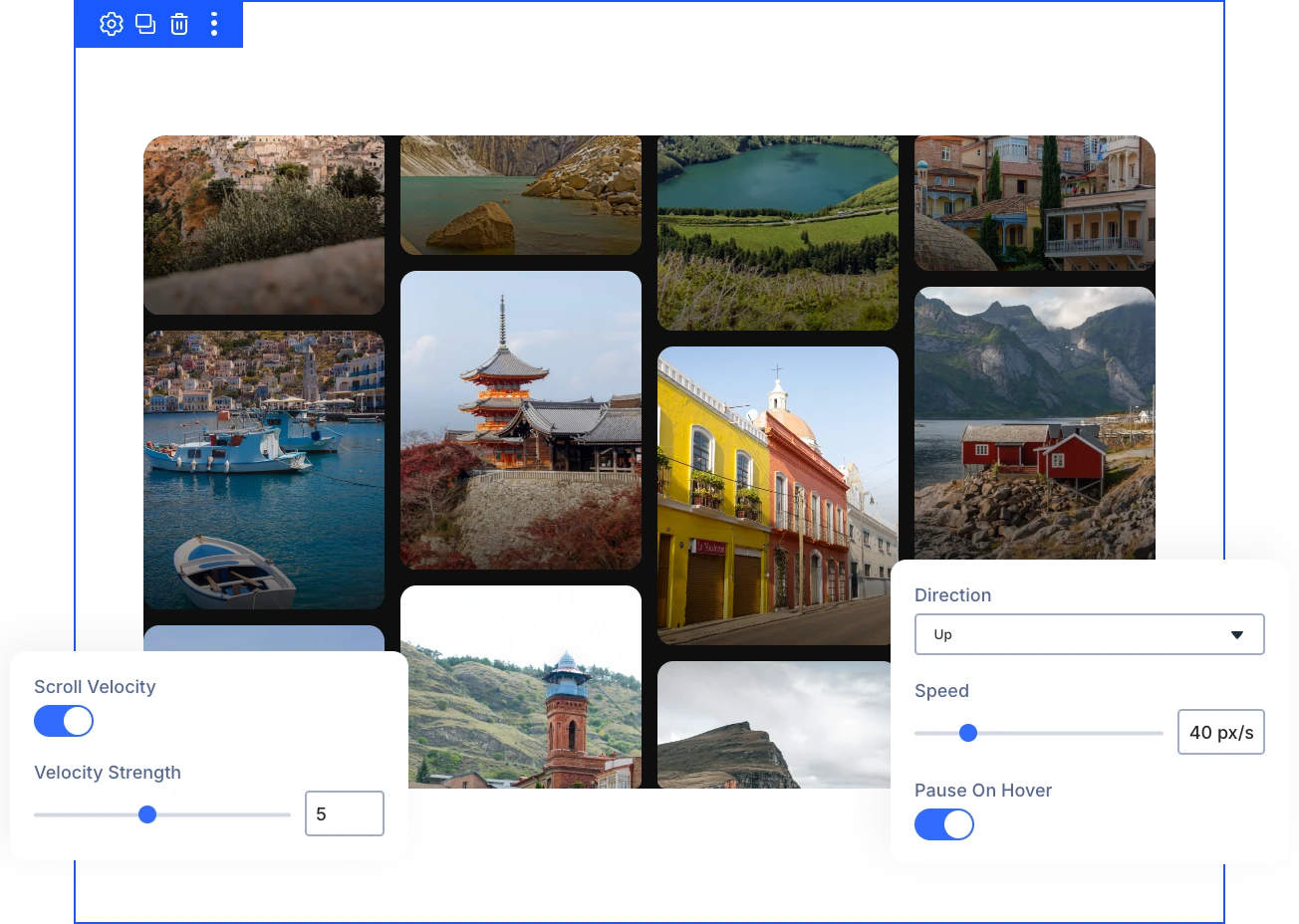
Place several marquees side by side, each moving Up or Down, so one repeatable setup becomes a multi-column wall of moving content.
Speed Follows Scrolling
Items accelerate as visitors scroll and reverse when they scroll back up, then settle to normal speed, so the marquee reacts to every visitor.
Nine Hover Animations
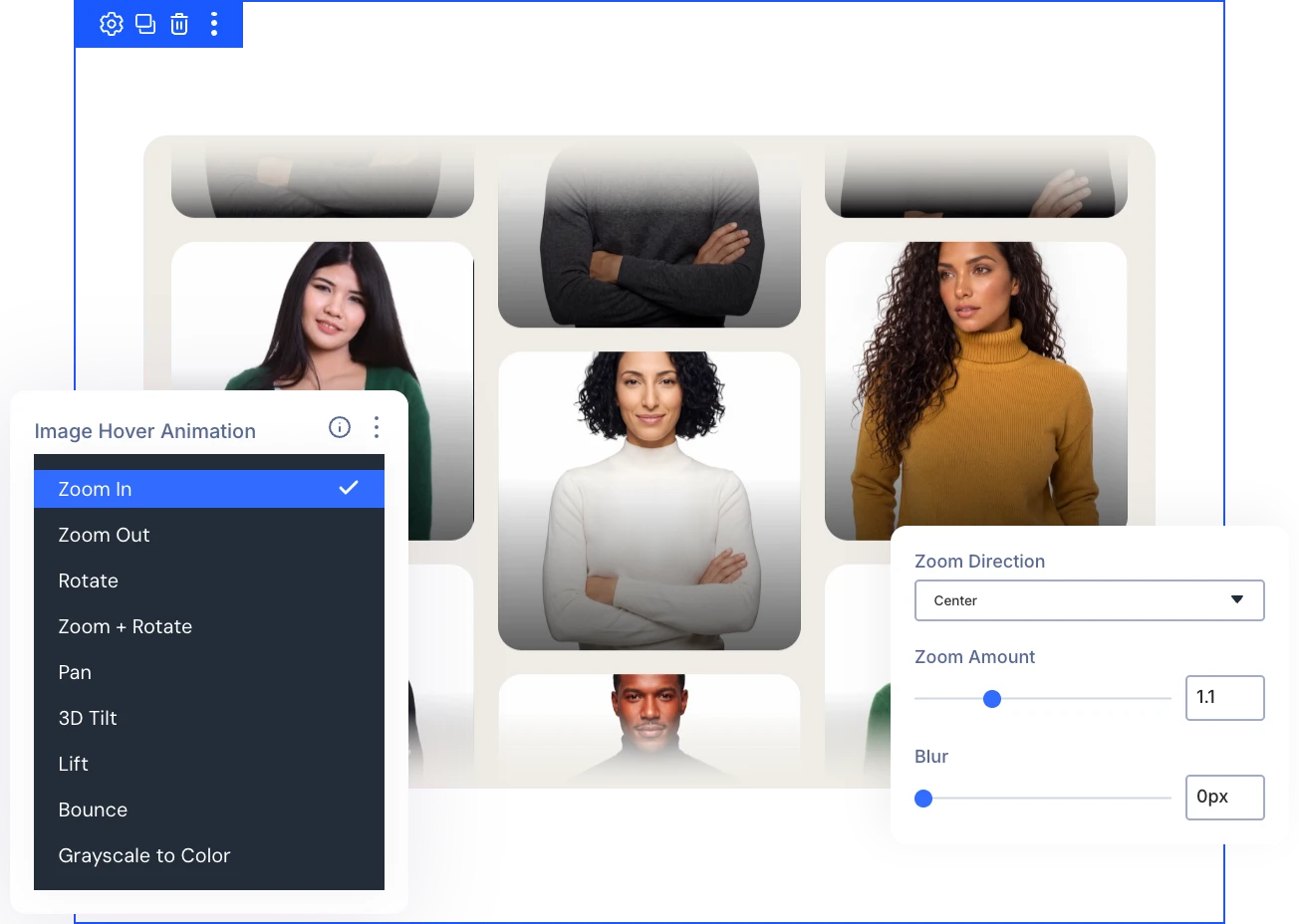
Zoom, Rotate, Pan, 3D Tilt, Lift, Bounce, and more give every marquee image a hover response that rewards visitors who stop to look.
Build Vertical LoopsThat Draw Attention and Still Stay Readable
Build Each Item From Any Divi Content
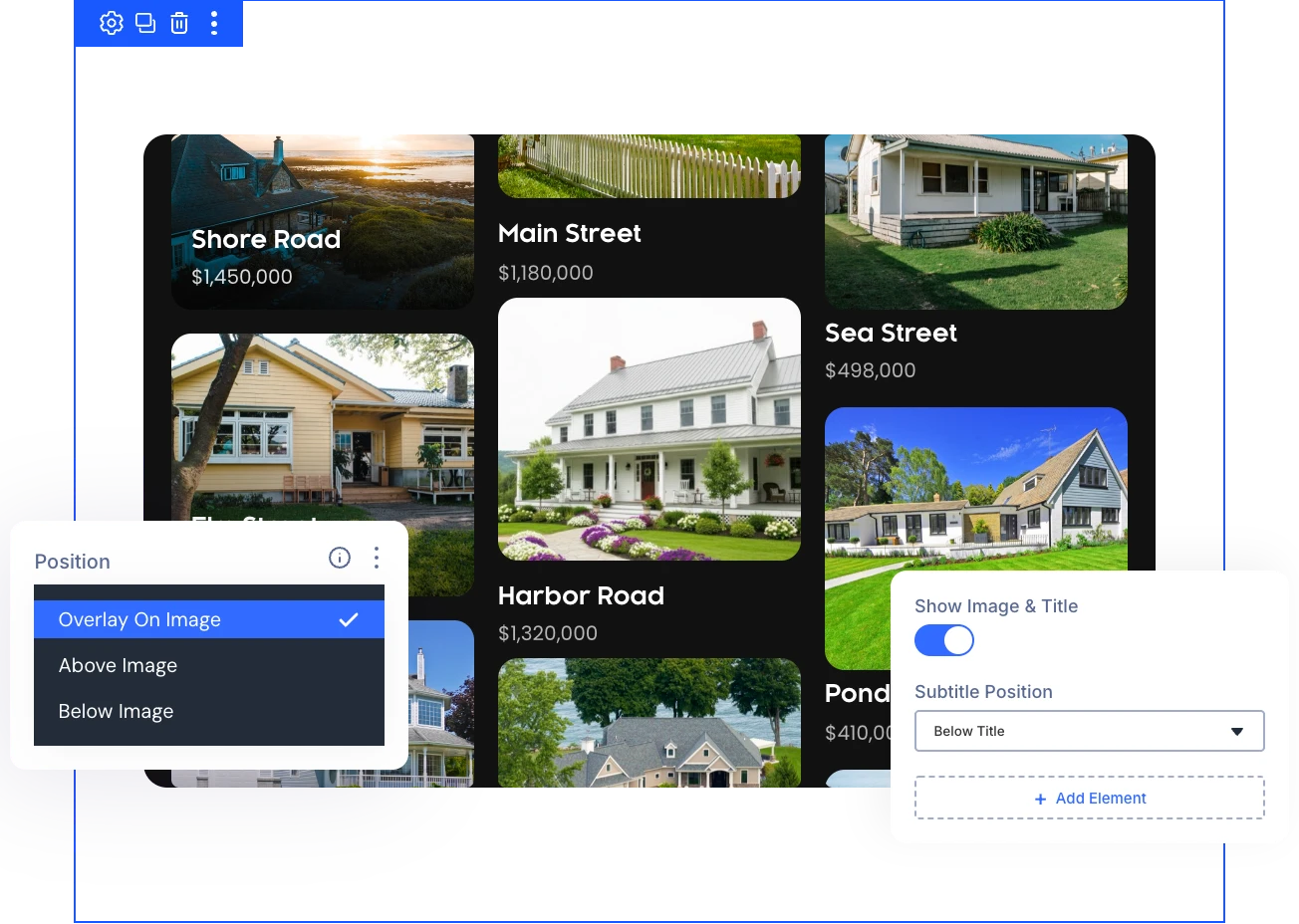
- Give every item a consistent full-width photo, styled with a border, shadow, and color or gradient overlay.
- Place each headline over, above, or below the image, and reveal it always or only on hover.
- Add context with a short subtitle, such as a category, role, or price, above or below the title.
- Build whole cards from Text, Button, Image, or any Divi module, even without the built-in image.
Control How the Marquee Moves and Pauses
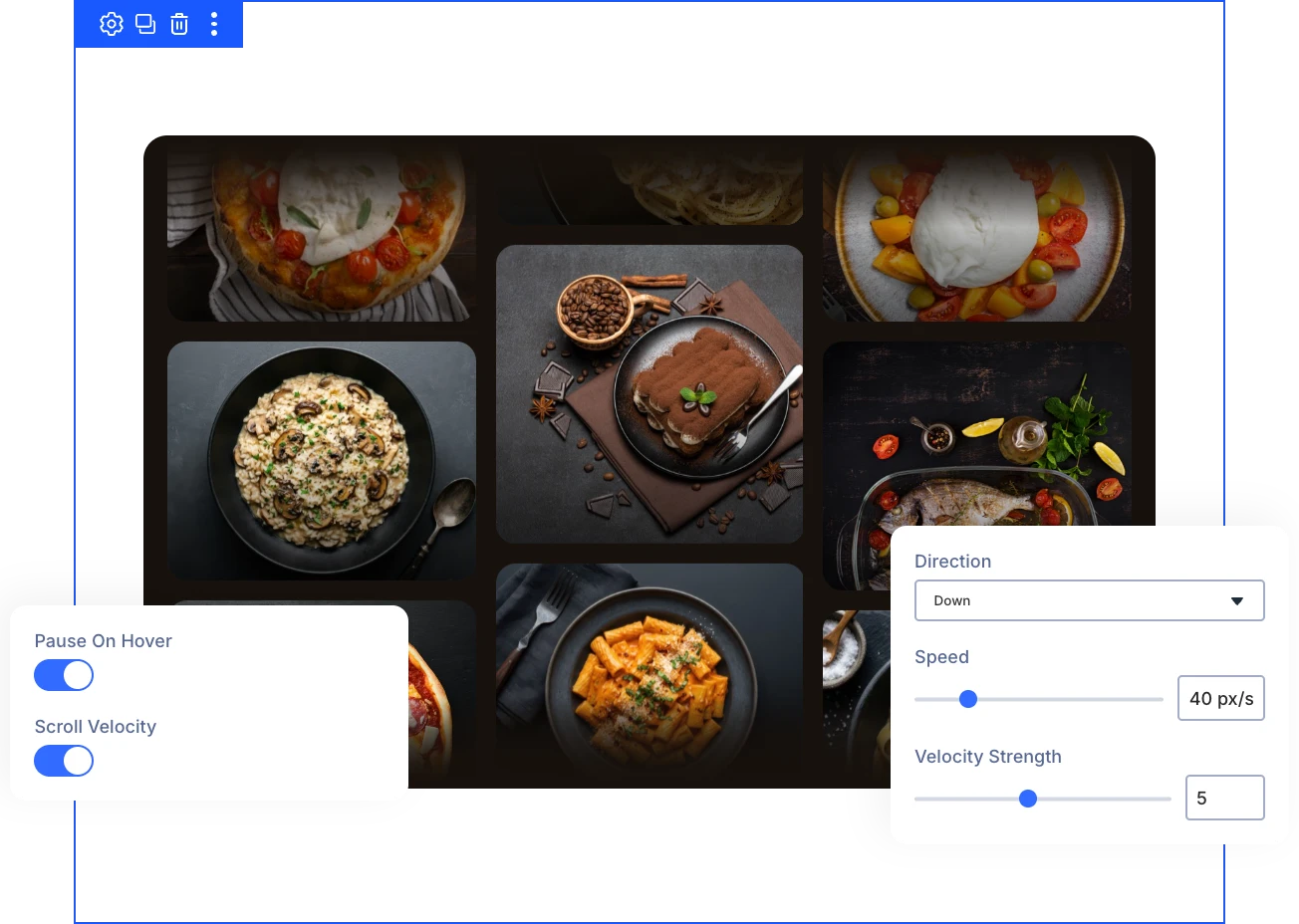
- Match the loop's pace to your content with an exact speed, set in pixels per second.
- Let visitors read and click any item by pausing the whole marquee when the mouse reaches it.
- Control how strongly scrolling accelerates and reverses the loop, from a gentle nudge to a strong reaction.
- Keep every visitor comfortable with Respect Reduced Motion, which swaps the loop for a manually scrollable list.
Tune How Each Image Responds on Hover
- Aim the zoom at any of nine points, from center to corners, and choose how far images zoom.
- Add depth with a 3D Tilt that follows the cursor, in all directions or just one axis.
- Keep overlay text readable by blurring images on hover, with a separate blur value for the resting state.
- Make a featured item stand out with its own hover animation and blur, while the rest keep defaults.
Style Every Edge, Card, and Text Area
- Blend the loop into any section background with a top and bottom fade in your color and size.
- Match every card to your brand with a custom background, spacing, border, and shadow.
- Make titles and subtitles easy to read by styling their text area with its own background and border.
- Fit dense or airy layouts by adjusting the gap between items, with separate values for each device.
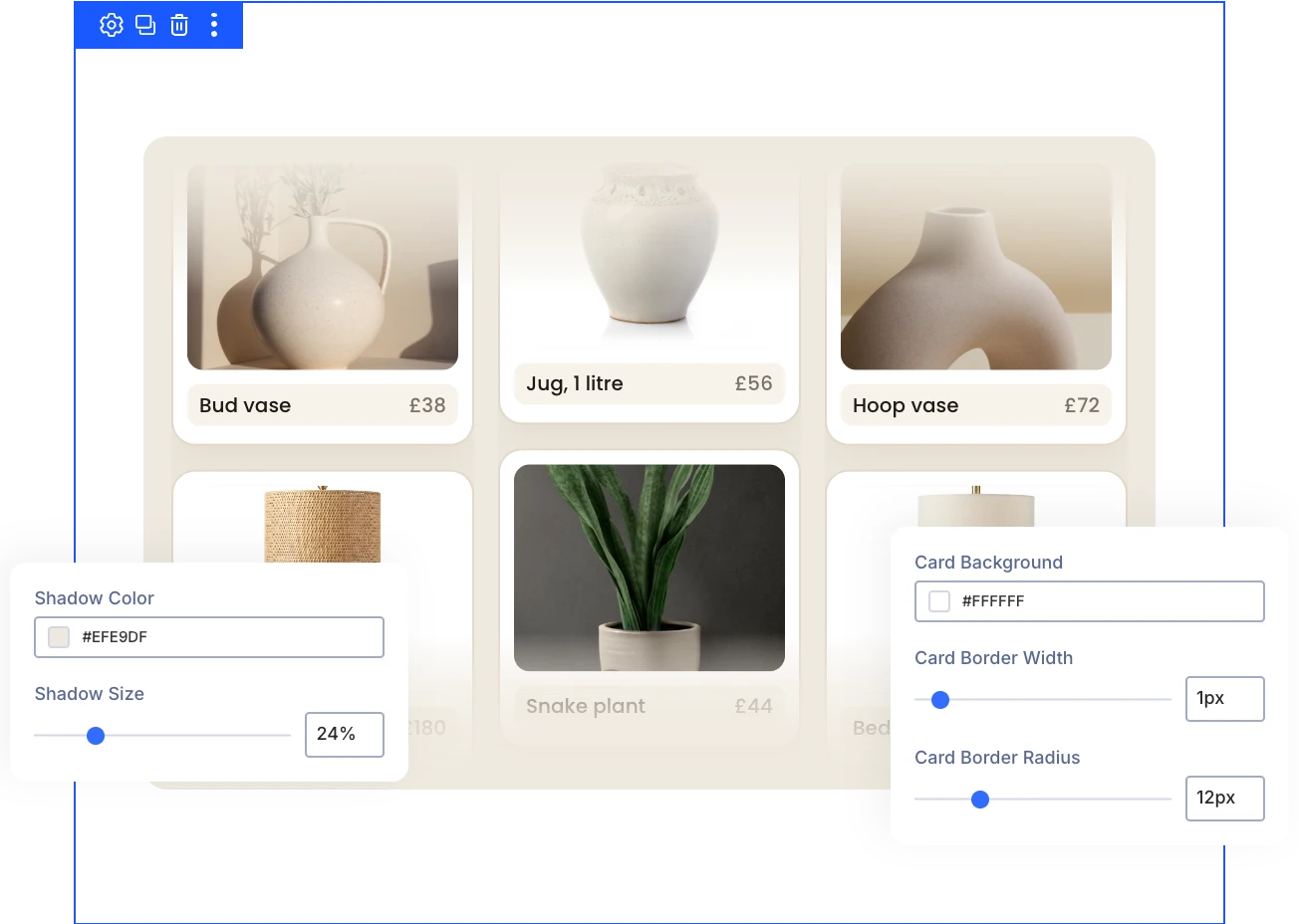
Free Ready-to-Use Vertical Marquee Layouts to Get Started
Skip the blank canvas. Our pre-made Vertical Marquee layouts are fully customizable, responsive on every device, and ready to drop into any Divi page, saving you time from the first click.
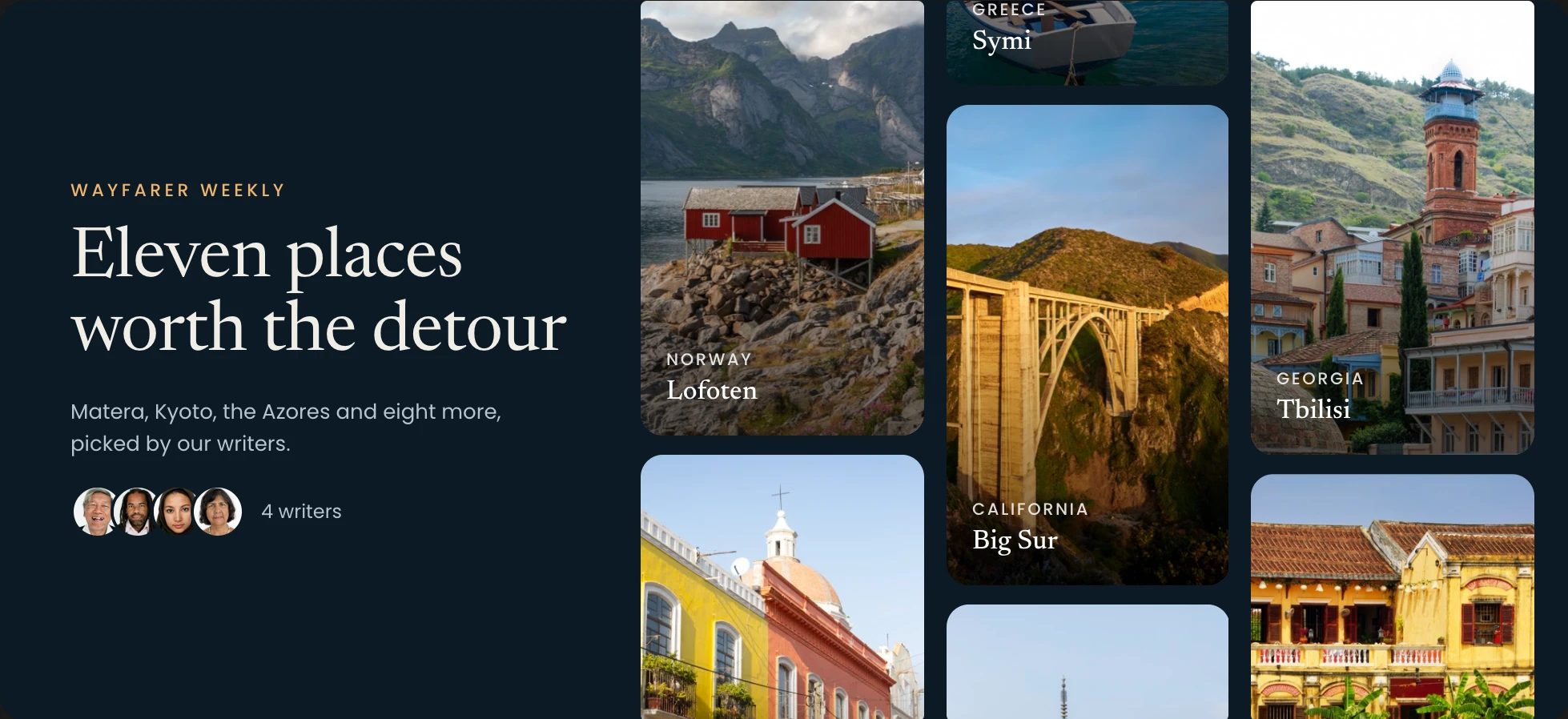
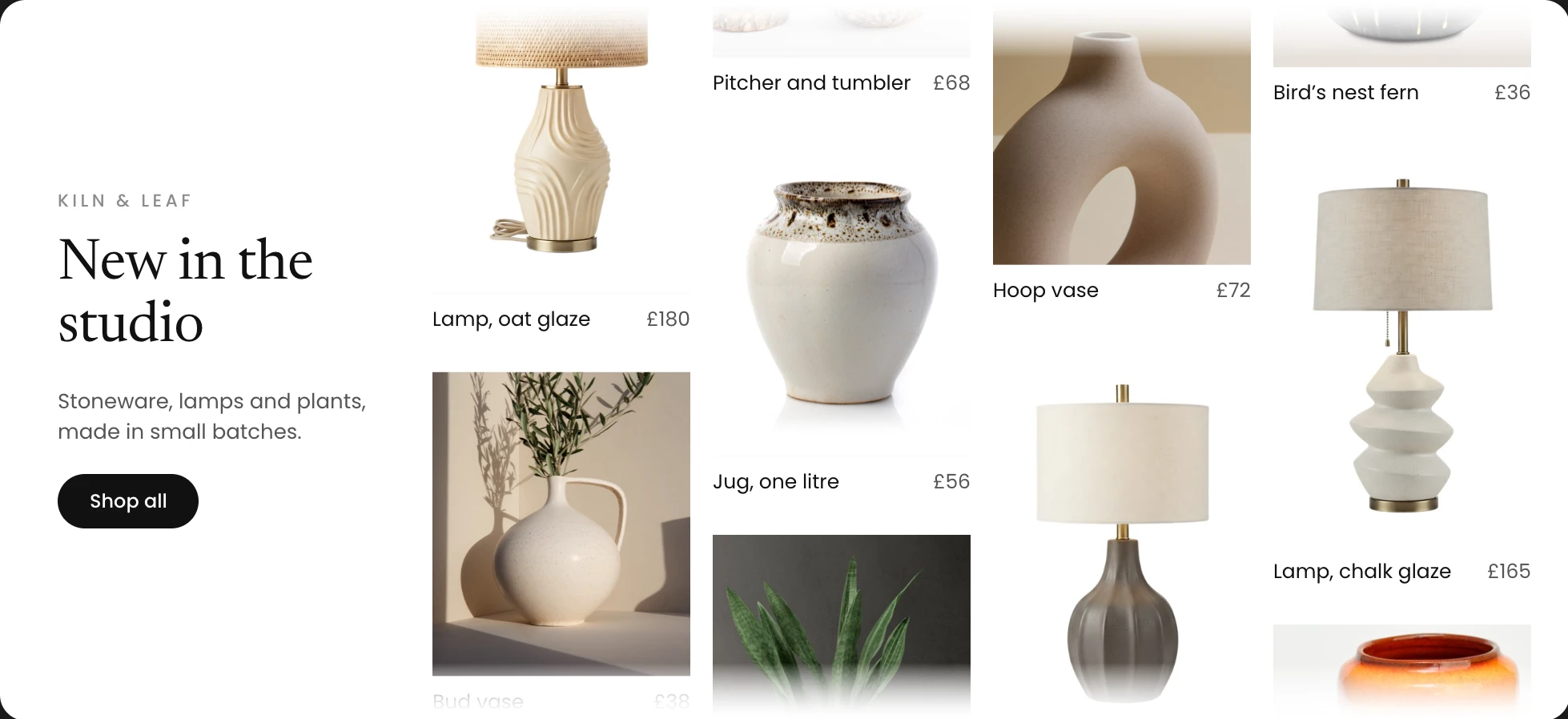
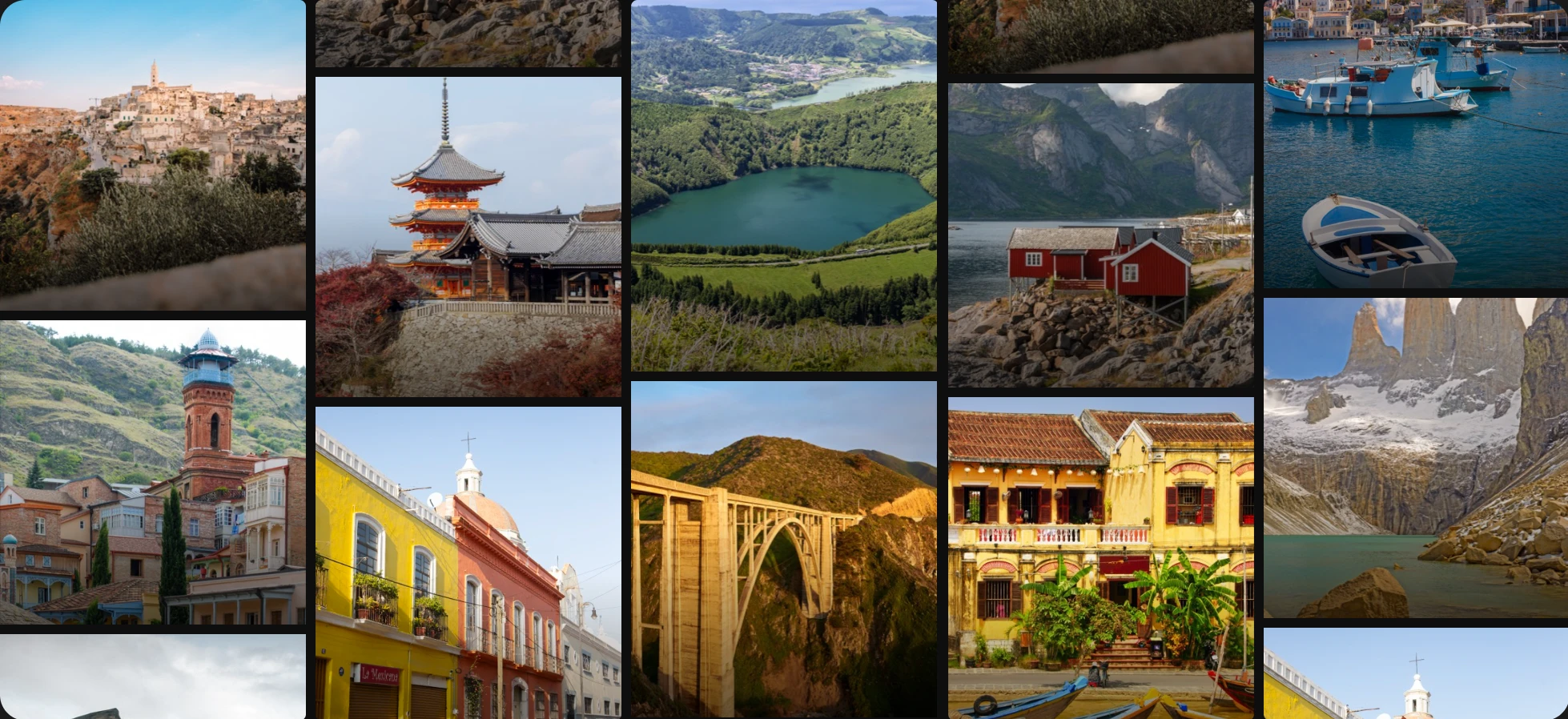
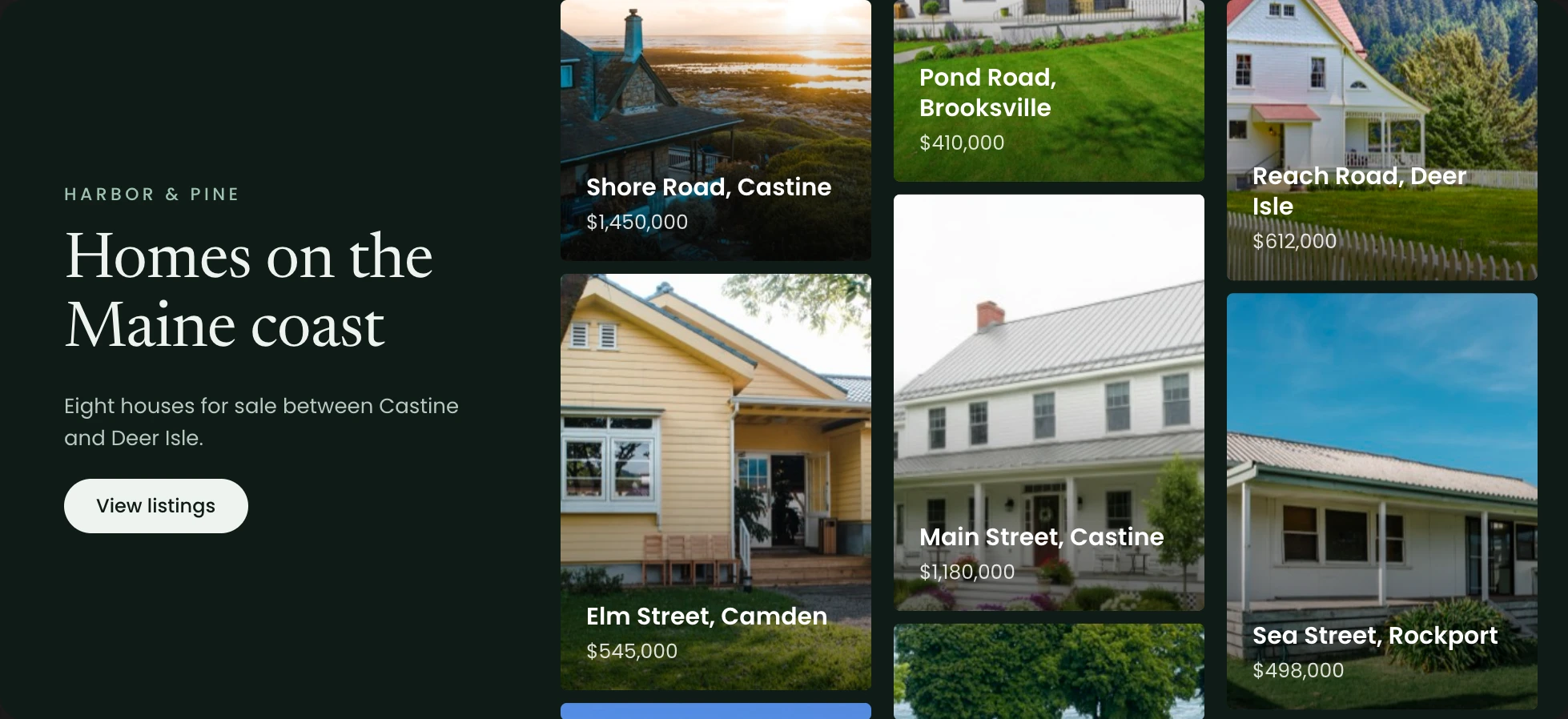
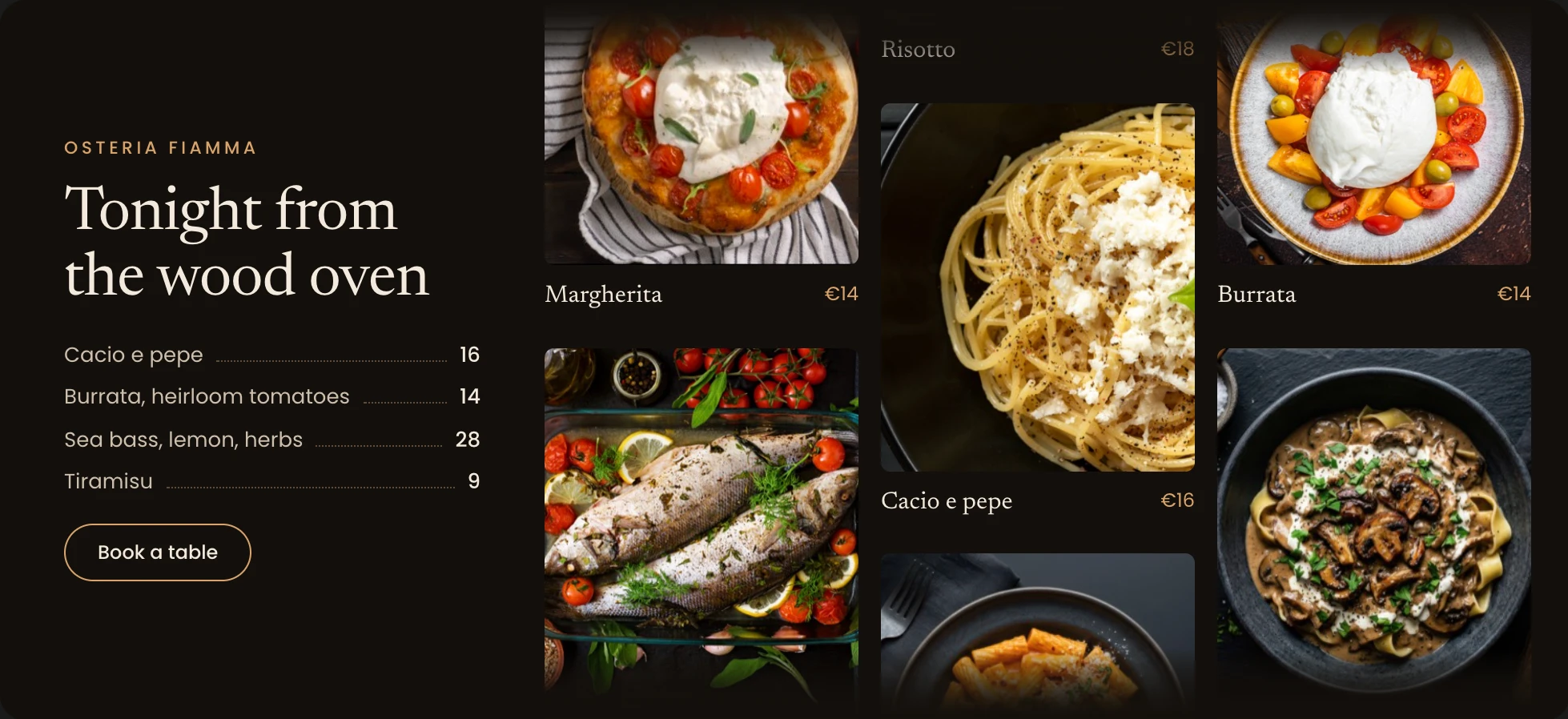
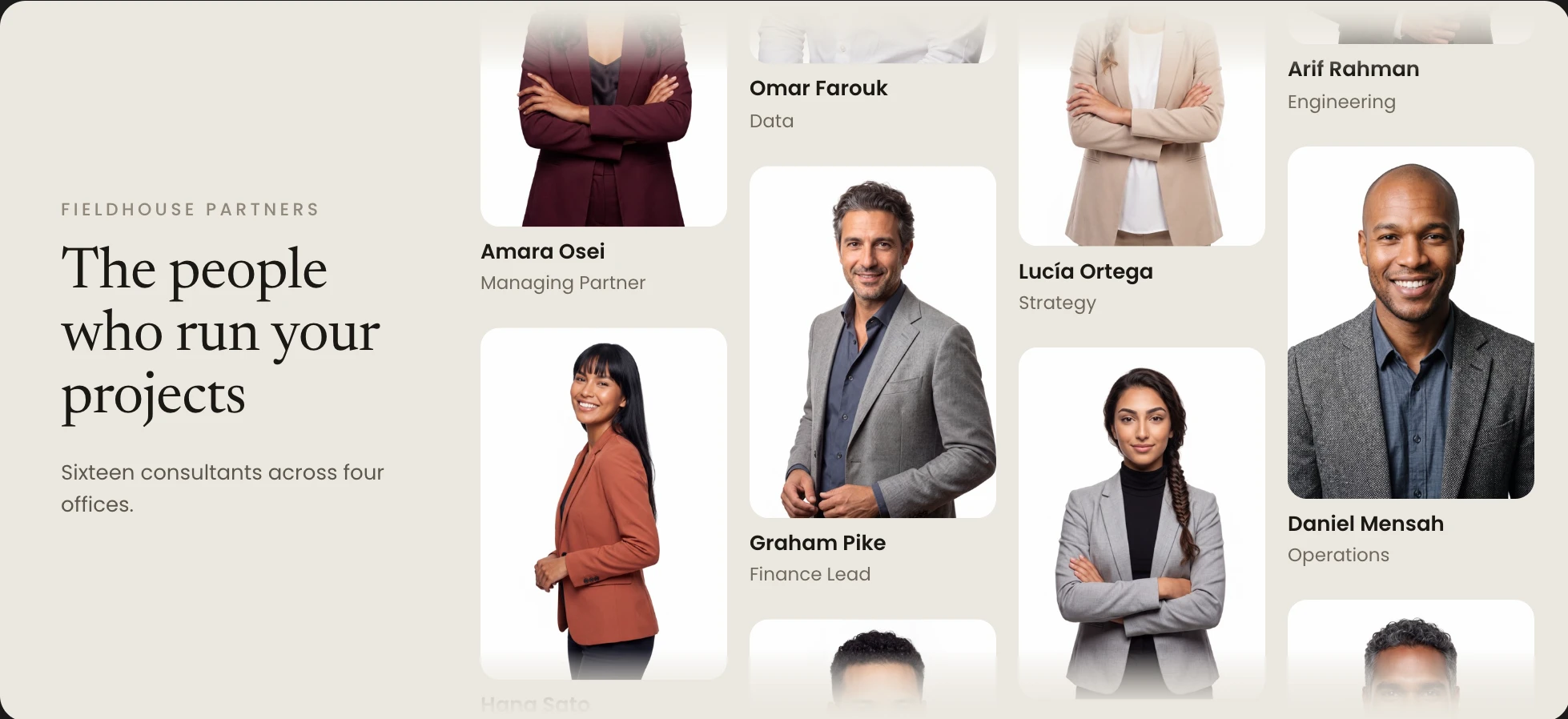
Ready to Build a Moving Wall of Content Visitors Stop to Explore?
Helpful Resources
Documentation
Divi Vertical Marquee Overview

Video
How to Use Divi Vertical Marquee Module

Coming Soon
Try DiviMotion Risk-Free for 30 Days
Not sure yet? Every DiviMotion plan comes with a 30-day money-back guarantee. Try it on your site, and if it's not the right fit, you get a full refund — no questions asked.
Frequently Asked Questions
Everything you need to know about Vertical Marquee before you get started.
What Is the Divi Vertical Marquee?
The Divi Vertical Marquee is a DiviMotion module for Divi 5 that loops images and other Divi modules in a continuous column, moving Up or Down at a speed you set.
What Can I Build With Vertical Marquee?
Logo walls, testimonial columns, portfolios, and product showcases all work. Add each logo as an item image, or build testimonial cards from Text modules with Add Element, then place several marquees side by side.
Which Version of Divi Does It Require?
Vertical Marquee requires Divi 5, like every DiviMotion feature.
How Do I Enable Vertical Marquee?
Vertical Marquee is switched off by default. Enable it under DiviMotion → Modules in your WordPress dashboard, and it appears in the Divi Builder.
How Do I Add Items to the Marquee?
Use Add New Item in the Content tab to add, edit, rearrange, or remove Marquee Items. Each item has its own content and design settings.
How Do I Build a Multi-Column Marquee?
Place several Vertical Marquee modules side by side, set each module's Direction to Up or Down, and give each its own Speed.
How Do I Make Marquee Items Clickable?
Add a Button module to an item with Add Element, then turn on Pause On Hover. The loop stops while the mouse is over the marquee, so visitors can click.
How Do I Turn On Scroll-Reactive Speed?
Turn on Scroll Velocity in the Marquee settings. Items speed up while visitors scroll, turn around when they scroll back up, then ease back to normal speed. Velocity Strength sets how strongly scrolling affects the movement.
How Do I Choose an Image Hover Animation?
Open Image Hover Animation and choose Zoom In, Zoom Out, Rotate, Zoom + Rotate, Pan, 3D Tilt, Lift, Bounce, or Grayscale to Color. None turns the effect off. Controls such as duration and easing appear for the animation you pick.
How Do I Customize One Item Without Changing the Others?
Change any image hover or title or subtitle setting on a single Marquee Item. Leave a field empty or choose Marquee Default to inherit the marquee's value.
Does Vertical Marquee Work on Touch Screens?
Titles and subtitles always show on touch screens, even when Visibility is set to On Hover. Item Gap, Blur, Title and Subtitle Spacing, and Shadow Size also take separate values for tablet and phone.
How Does Vertical Marquee Handle Reduced Motion?
Respect Reduced Motion, in the Advanced settings, replaces the automatic loop with a manually scrollable list and turns off image hover movement for visitors who prefer less motion.