


To add a preloader animation in Divi, you can either use a plugin or add custom HTML, CSS, and JavaScript.
If you prefer a no-code method, DiviMotion makes it easy with its built-in Preloader extension. It adds a full-screen loading overlay with 10+ animation styles, custom logo support, color controls, and more.
In this guide, we are going to show you how to add preloader animation in Divi using both methods.
Let’s get started.
Method 1: Add Preloader Animation in Divi Using a Plugin
We are going to use DiviMotion for this method. It’s an animation plugin for Divi that includes useful extensions like Preloader, Animation Timeline, Horizontal Scroll, and more.
With its Preloader extension, you can display a full-screen Divi loading animation across your website’s frontend pages. Here is how:
Step 1: Install a Preloader Plugin
- Purchase and download the DiviMotion plugin.
- Then, install and activate it like any other premium WordPress plugin.
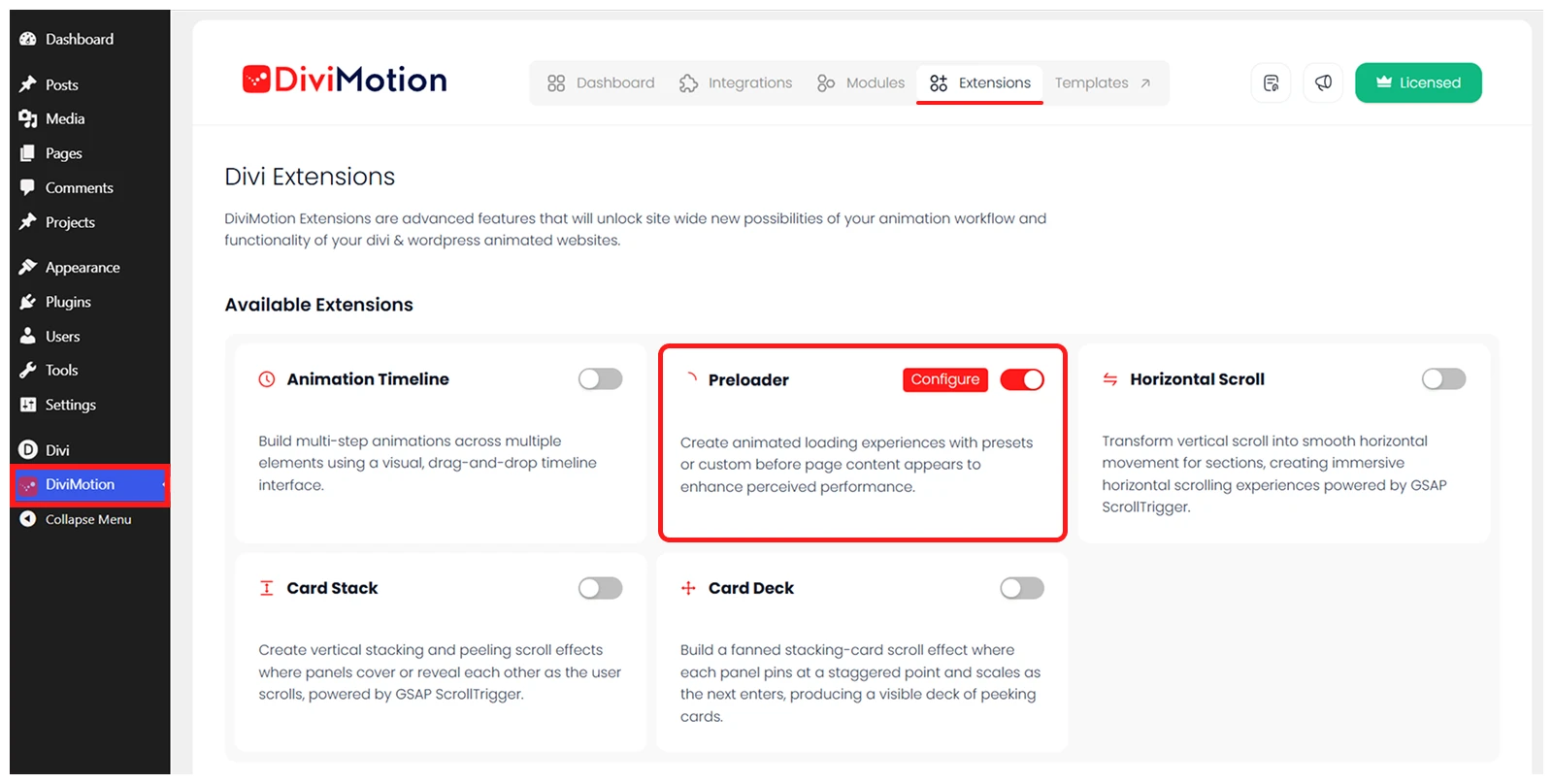
- Navigate to DiviMotion Dashboard > Extension and enable “Preloader”
Step 2: Open Preloader Settings
Click Configure to open the preloader settings, where you will see three tabs:
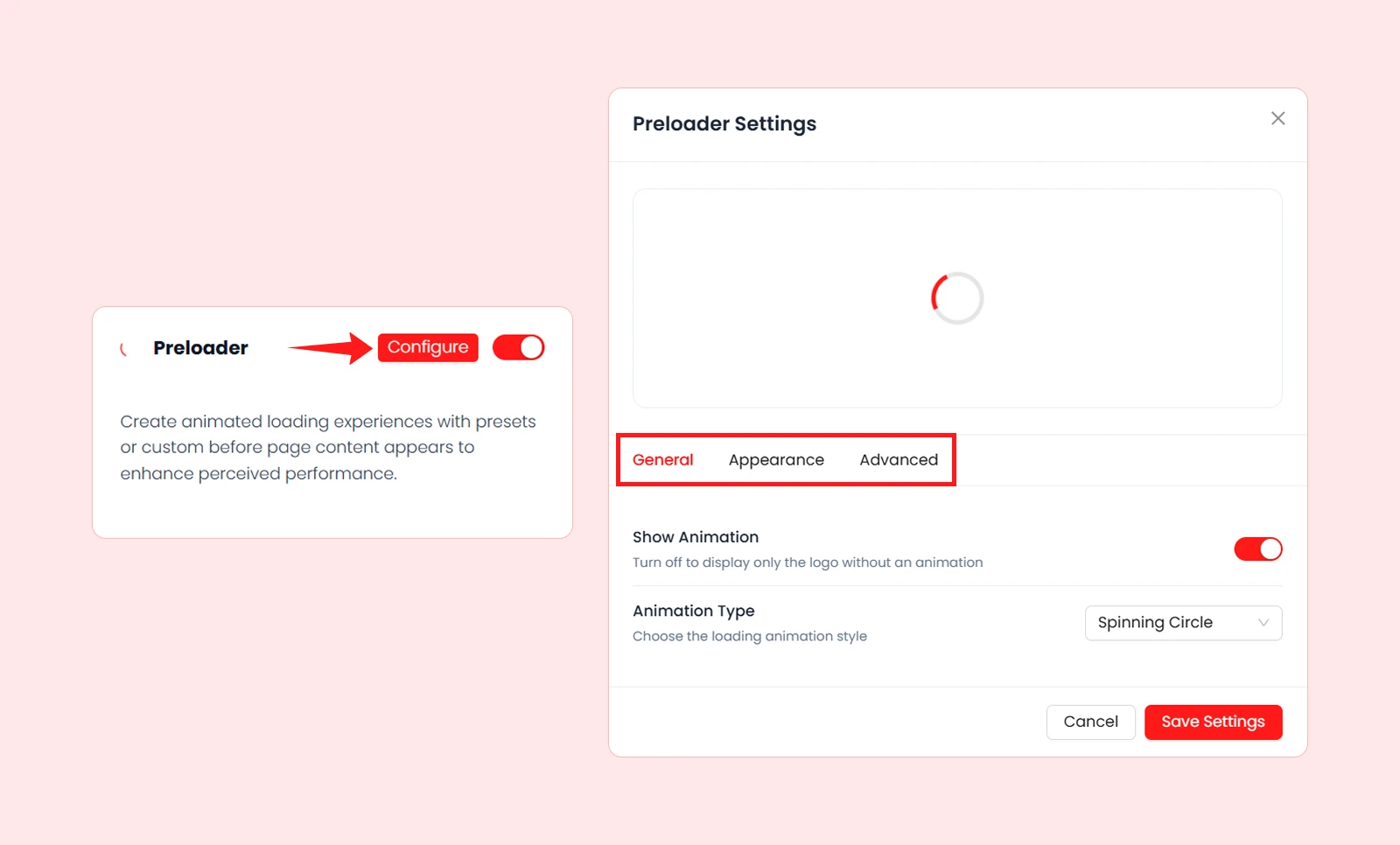
- General
- Appearance
- Advanced
A live preview appears at the top, so you can see your changes instantly.
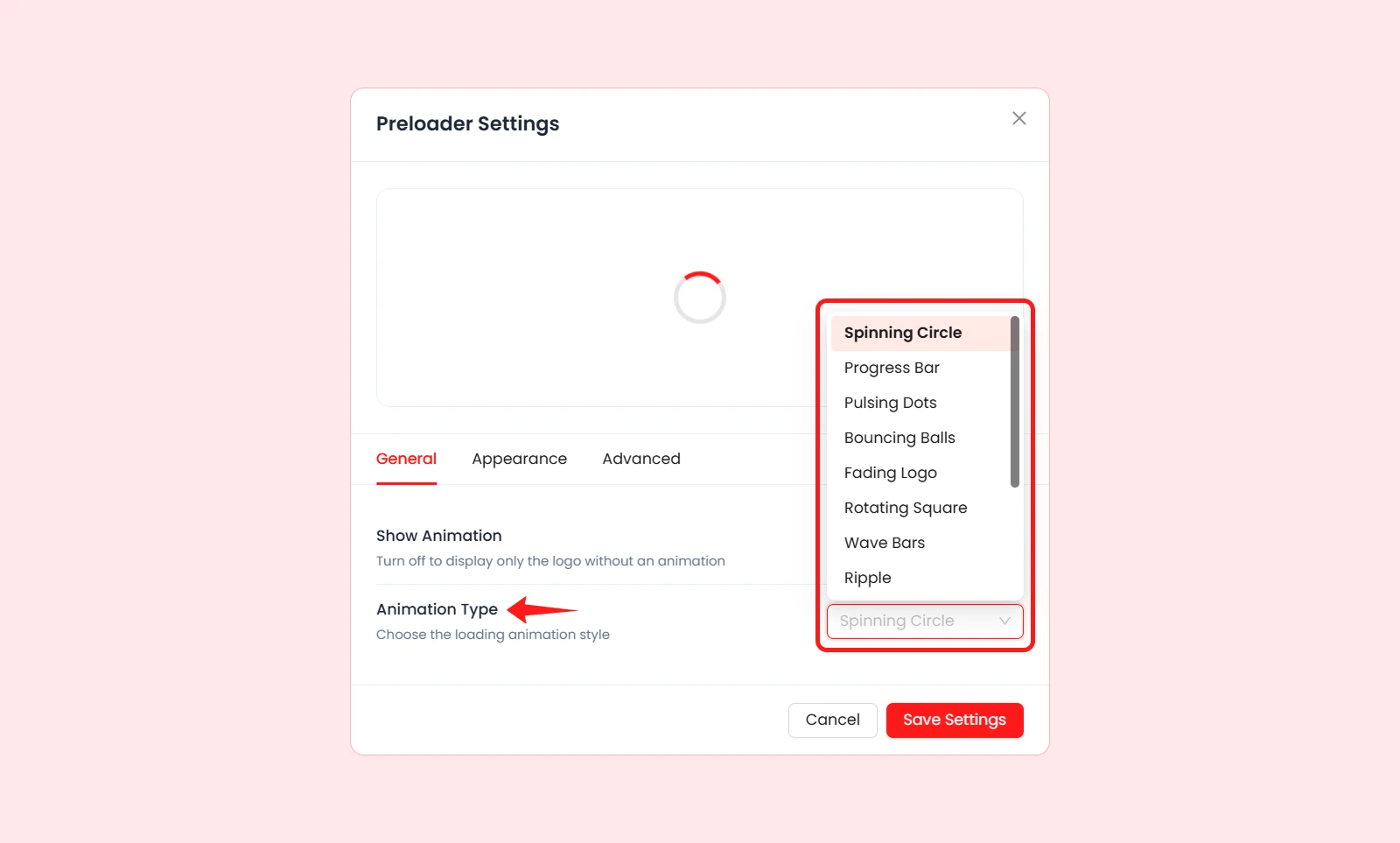
Step 3: Choose the Animation Style
Now it’s time to choose an animation style for the preloader and here is how to do it:
- Navigate to the “General” tab
- Enable “Show Animation” button
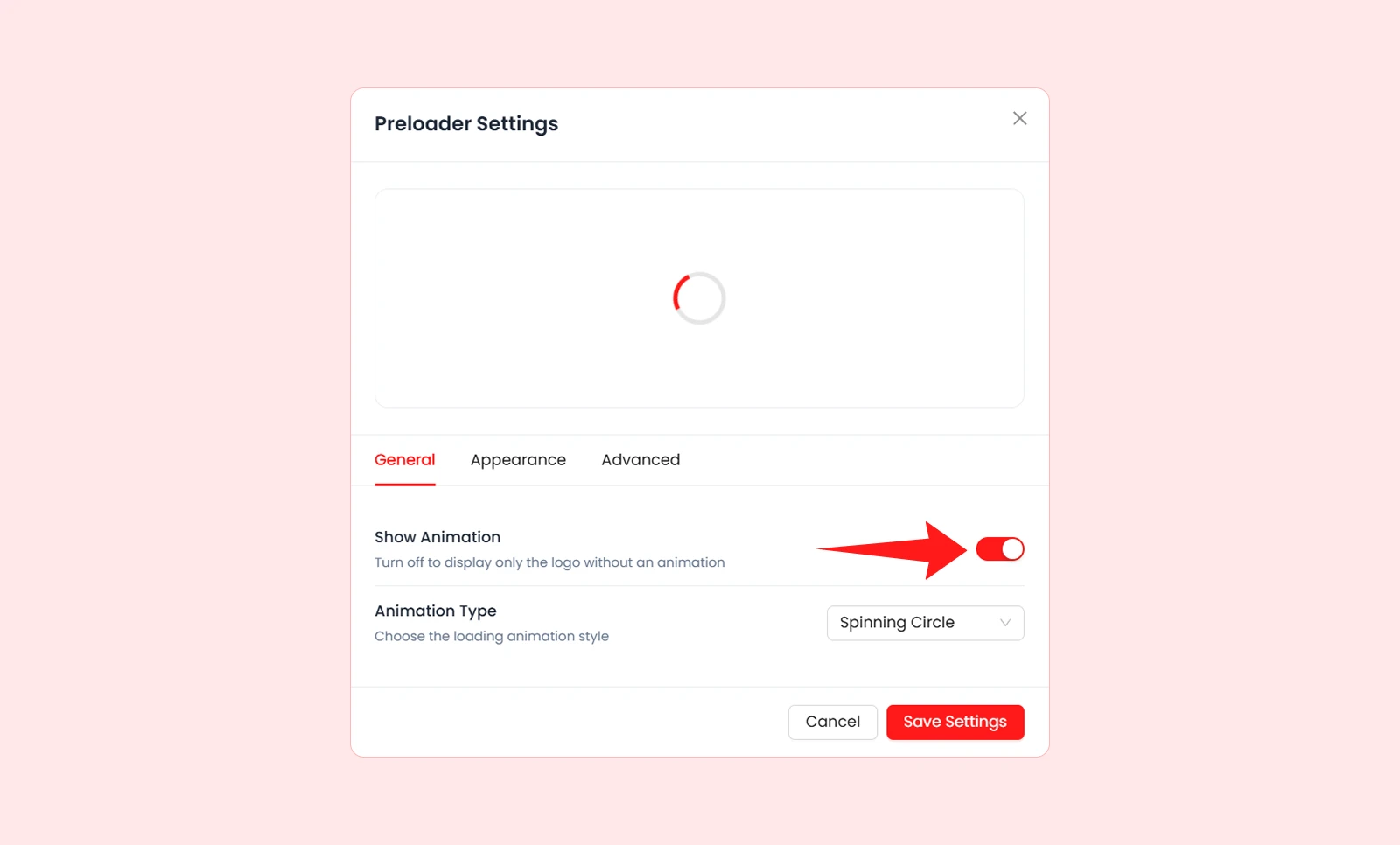
- Click on Animation Type’s dropdown box and choose your loading animation style. There you will find over 13 loading animation styles.
Step 4: Customize the Look
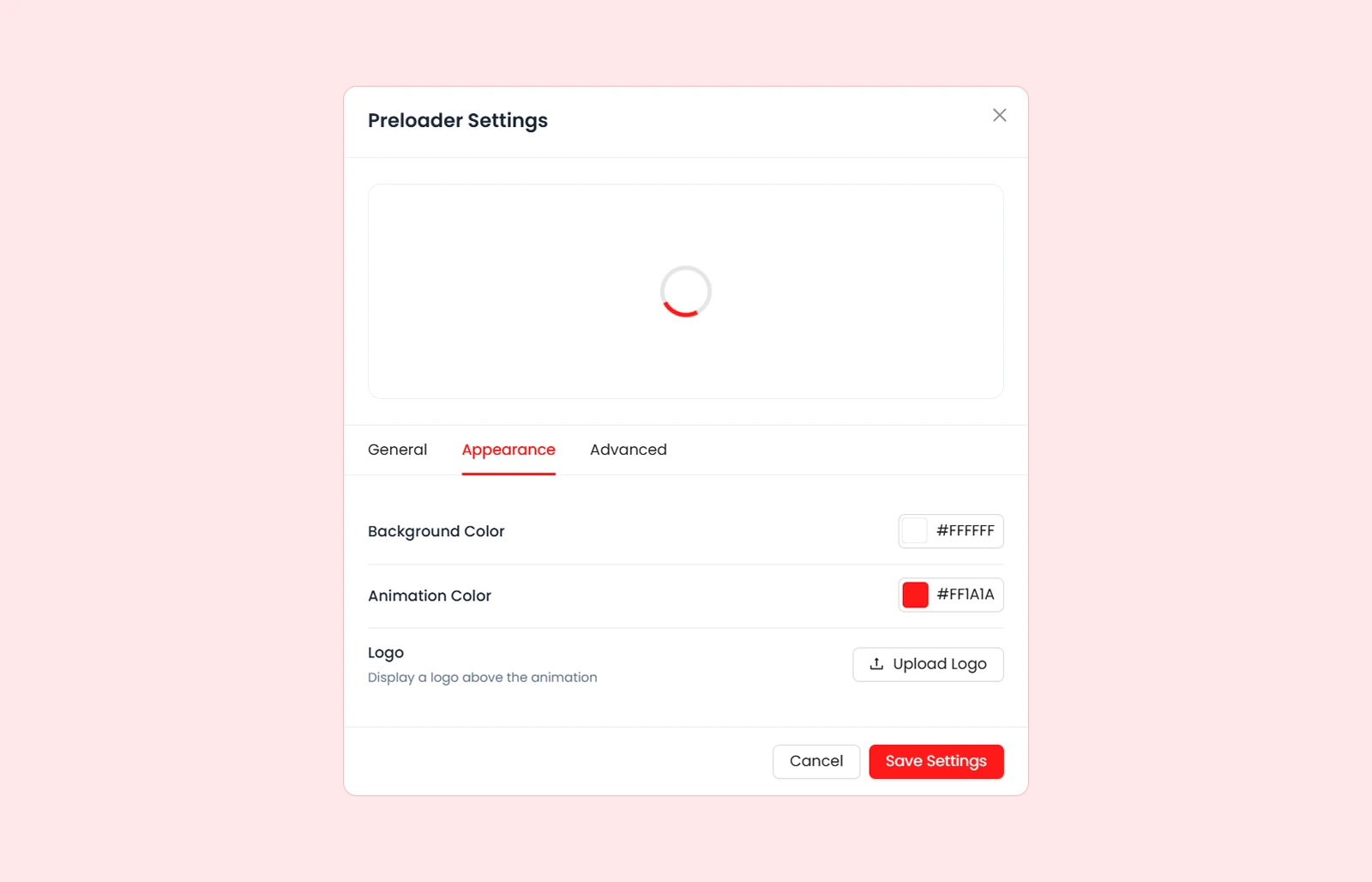
To customize the preloader look, navigate to the Appearance tab. There you can do these:
- Change the full-screen overlay background color
- Change the loading animation color
- Upload a logo to show above the animation (You can upload a SVG logo by enabling DiviMotion’s Draw SVG module)
- Adjust the logo width
If you want more control, open the Advanced tab. There, you can add custom CSS to style the preloader and its child elements.
Step 5: Publish and Test
Once everything is ready, click Save Settings. Now open your website in a new browser tab and refresh the page. Check how the preloader appears before the content loads.
Method 2: Add Custom Preloader Animation in Divi with Code
If you don’t want to use a plugin, you can add a simple animated preloader in Divi using custom HTML, CSS, and JavaScript.
This method gives you more control over the preloader design. You can change the background color, spinner color, animation speed, or replace the spinner with your own logo.
However, this method is better for users who are comfortable working with custom code.
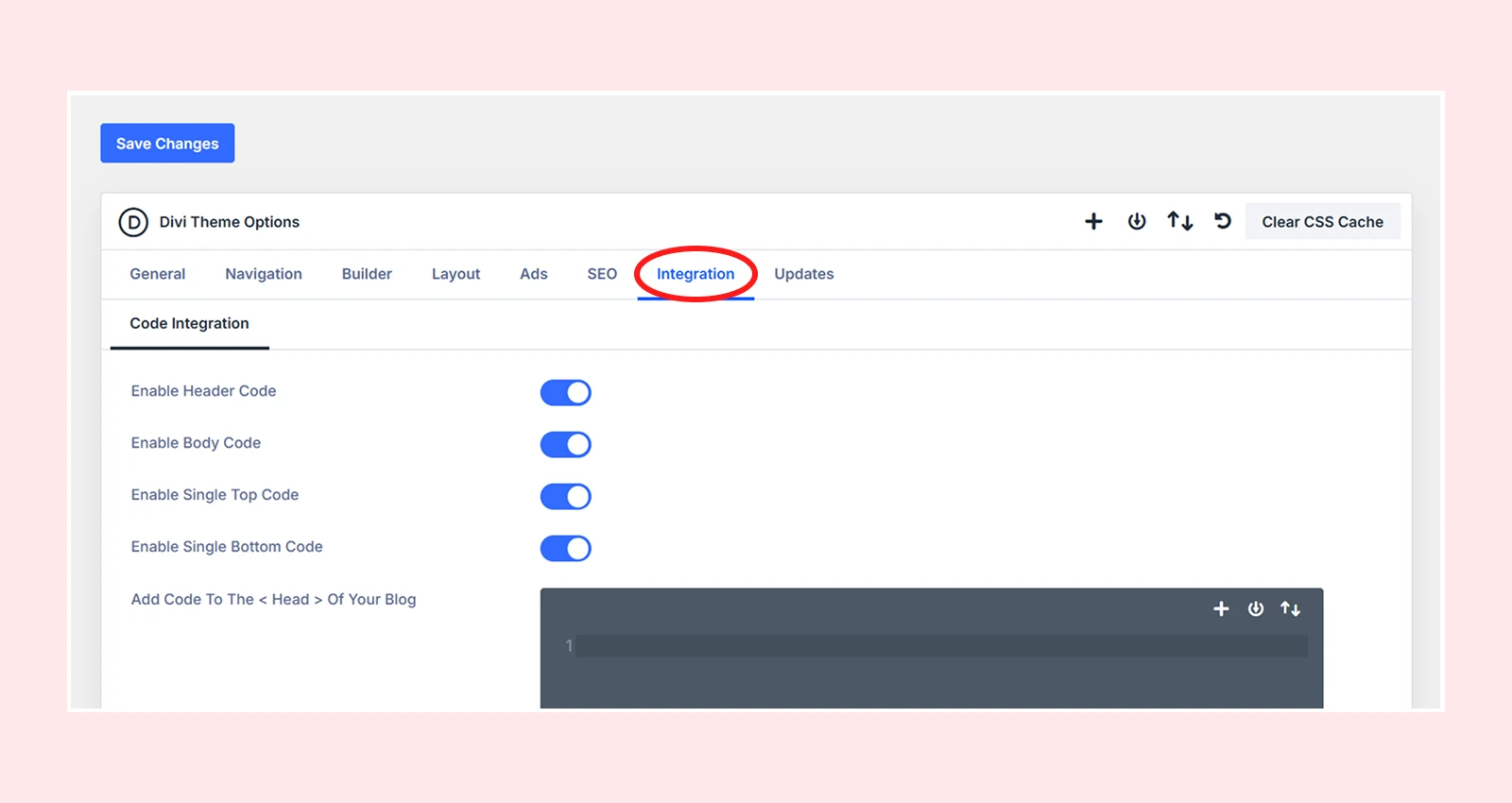
Step 1: Open Divi Integration Settings
From your WordPress dashboard, go to: Divi > Theme Options > Integration
Step 2: Add the CSS
Paste this code in the Add Code To The <head> Of Your Blog field:
<style>
#dfd-preloader {
  position: fixed;
  top: 0;
  left: 0;
  width: 100%;
  height: 100%;
  background: #ffffff;
  z-index: 999999;
  display: flex;
  align-items: center;
  justify-content: center;
  transition: opacity 0.5s ease, visibility 0.5s ease;
}

.dfd-spinner {
  width: 50px;
  height: 50px;
  border: 5px solid #e0e0e0;
  border-top: 5px solid #2ea3f2;
  border-radius: 50%;
  animation: dfd-spin 0.8s linear infinite;
}

@keyframes dfd-spin {
  0% { transform: rotate(0deg); }
  100% { transform: rotate(360deg); }
}

body.dfd-loaded #dfd-preloader {
  opacity: 0;
  visibility: hidden;
}
</style>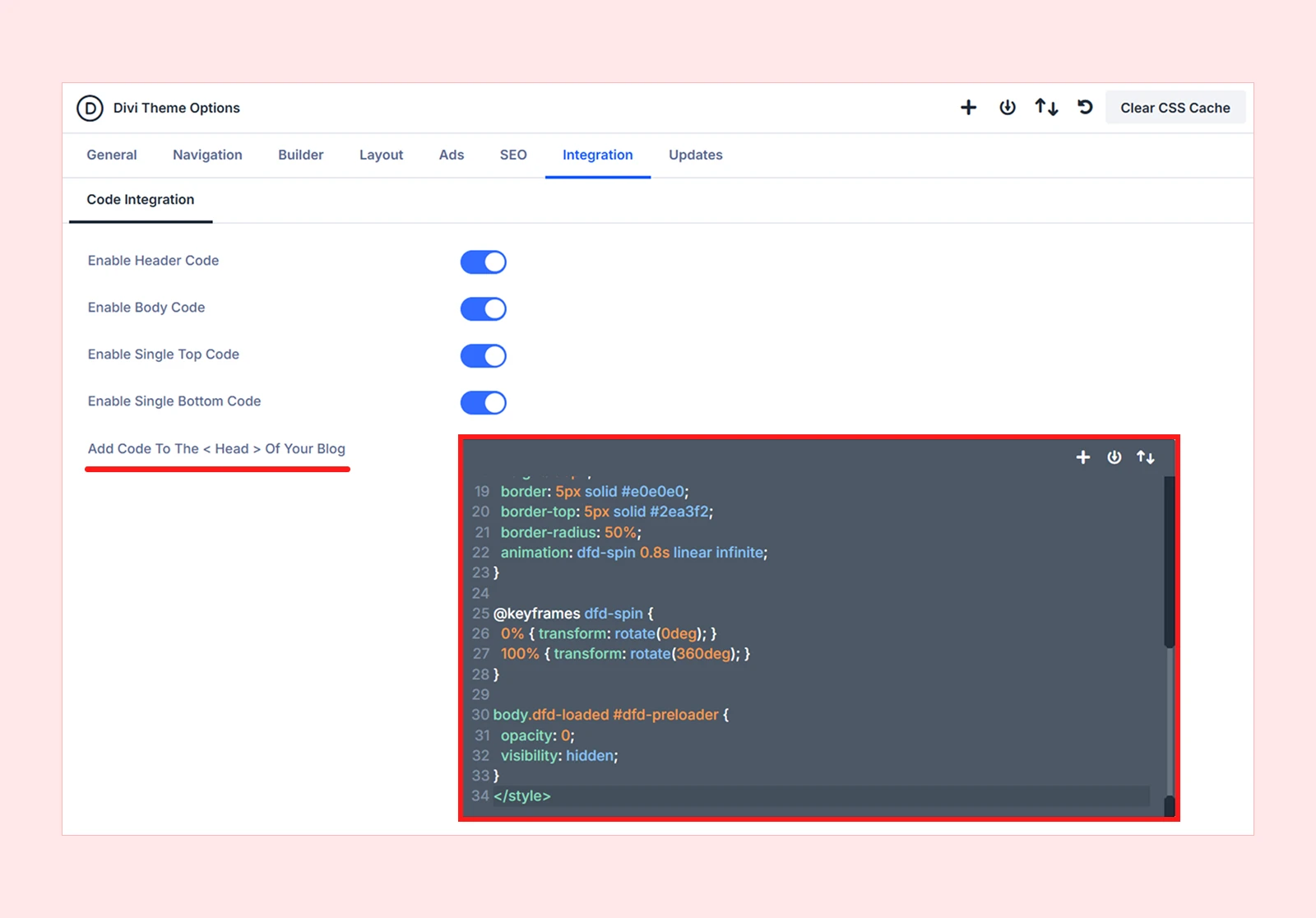
Note: This CSS only styles the preloader. The HTML and JavaScript in the next step will make it appear and disappear properly.
Step 3: Add the HTML and JavaScript
Paste this code in the Add Code To The <body> field:
<div id="dfd-preloader">
  <div class="dfd-spinner"></div>
</div>

<script>
window.addEventListener("load", function () {
  document.body.classList.add("dfd-loaded");

  setTimeout(function () {
    var preloader = document.getElementById("dfd-preloader");
    if (preloader) {
      preloader.remove();
    }
  }, 600);
});
</script>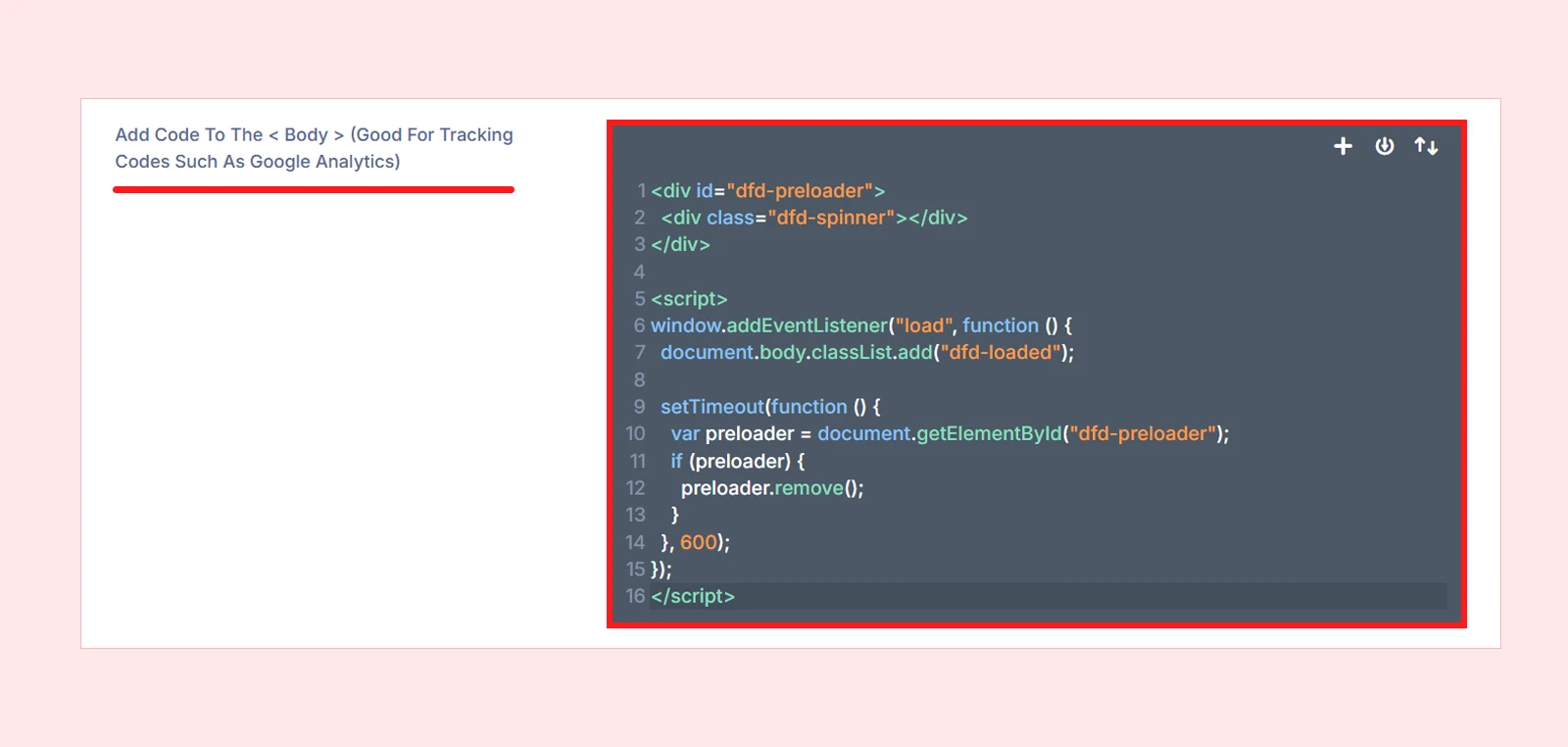
Note: This code adds the preloader to the page and hides it after the site finishes loading.
Step 4: Save and Clear Cache
- Click Save Changes in Theme Options.
- Clear Divi's built-in cache: Divi > Theme Options > General > Clear Cache.
Note: If you are using any caching plugin, server-side cache, or CDN such as Cloudflare, clear those caches as well before testing the preloader.
Step 5: Test It
Open your site on the front end and do a hard refresh (Ctrl+Shift+R / Cmd+Shift+R). You should see the spinner before the page loads. Something like:

Note: This is just a basic preloader example. You don’t have to use the exact same spinner or animation. You can create your own preloader design with custom HTML, CSS, and JavaScript.
Common Types of Preloader Animations for Divi
There are different types of preloader animations you can use on a Divi website. The right option depends on your website style, loading experience, and branding.
Here are some common styles:
- Spinning Circle: A simple rotating circle, ideal for almost any website.
- Progress Bar: Shows loading progress with a moving bar.
- Pulsing Dots: Clean and modern dots animation for minimal websites.
- Bouncing Balls: A playful option for creative or energetic brands.
- Fading Logo: Displays your brand logo while the page loads.
- Rotating Square: A geometric animation for modern and tech-style websites.
- Wave Bars: Moving bars that work well for media, music, or creative sites.
- Ripple: Expanding circle effect for a smooth and elegant look.
- Orbit Dots: Dots moving around a center point for a polished loading effect.
- Typing Dots: Great for chat, AI, support, or interactive websites.
- Hourglass: A familiar waiting animation users can quickly understand.
- Heartbeat: A pulsing effect for health, fitness, or wellness websites.
- DNA Helix: A unique animation for science, medical, or tech-related sites.
Note: All these animation styles are available in DiviMotion’s Preloader extension and can be added without custom code.
When Should You Use a Preloader on a Divi Website?
Use a preloader when your Divi page needs a little time to load content, or visuals. It can make the loading experience feel smoother. A preloader is useful when:
- Your page has large images, videos, sliders, or 3D elements.
- You want to show a branded logo before the page appears.
- Your site uses advanced animations or interactive sections.
- You want to hide unfinished loading states like missing fonts, images, or layout shifts.
However, don’t use a preloader only for decoration. If your website already loads fast, it may make the site feel slower. Keep the preloader simple, lightweight, and quick.
FAQ
What Is a Preloader Animation?
A preloader animation is a loading effect shown before a Divi page fully loads. It can be a spinner, logo, dots, progress bar, SVG, or Lottie animation.
Why Add an Animated Preloader?
An animated preloader makes the loading experience smoother by showing a spinner, logo, or animation before the page fully appears. It is useful for heavy pages with large images, videos, or animations.
What Is the Best Preloader Animation for Divi?
A simple spinner, progress bar, pulsing dots, or logo preloader works best for most Divi websites.
What Is the Best Plugin for Adding a Preloader in Divi?
DiviMotion is a good option. It lets you add a full-screen preloader, choose animation styles, add a logo, change colors, and use custom CSS without code.
Can a Logo Be Used as a Divi Preloader?
Yes. You can use your logo as a Divi preloader with a plugin like DiviMotion or by adding custom HTML and CSS.
How to Customize the Preloader Color and Style in Divi?
You can change the background color, animation color, logo, and logo size from DiviMotion’s Preloader settings or use custom CSS for more control.
What Is the Difference Between a Preloader and Page Transition Animation?
A preloader appears while a page loads. A page transition animation appears when users move from one page to another.
Final Thoughts
A good preloader does more than fill a loading gap. It helps your Divi website feel more professional from the first second.
And as we covered in this guide on how to add preloader animation in Divi, you can use either a plugin or custom code.
DiviMotion is the easier choice if you want ready-made animations, logo support, color controls, and more. The code method is better when you don’t mind working with HTML, CSS, and JavaScript.
Whichever method you choose, keep the preloader clean, lightweight, and quick so it improves the experience instead of slowing visitors down.



0 Comments