

Divi Animated Border
DiviMotion Animated Border draws a moving border around Divi 5 sections, rows, columns, and modules, with 10 effects from spinning gradients to neon glows, so your key buttons and cards catch the eye.
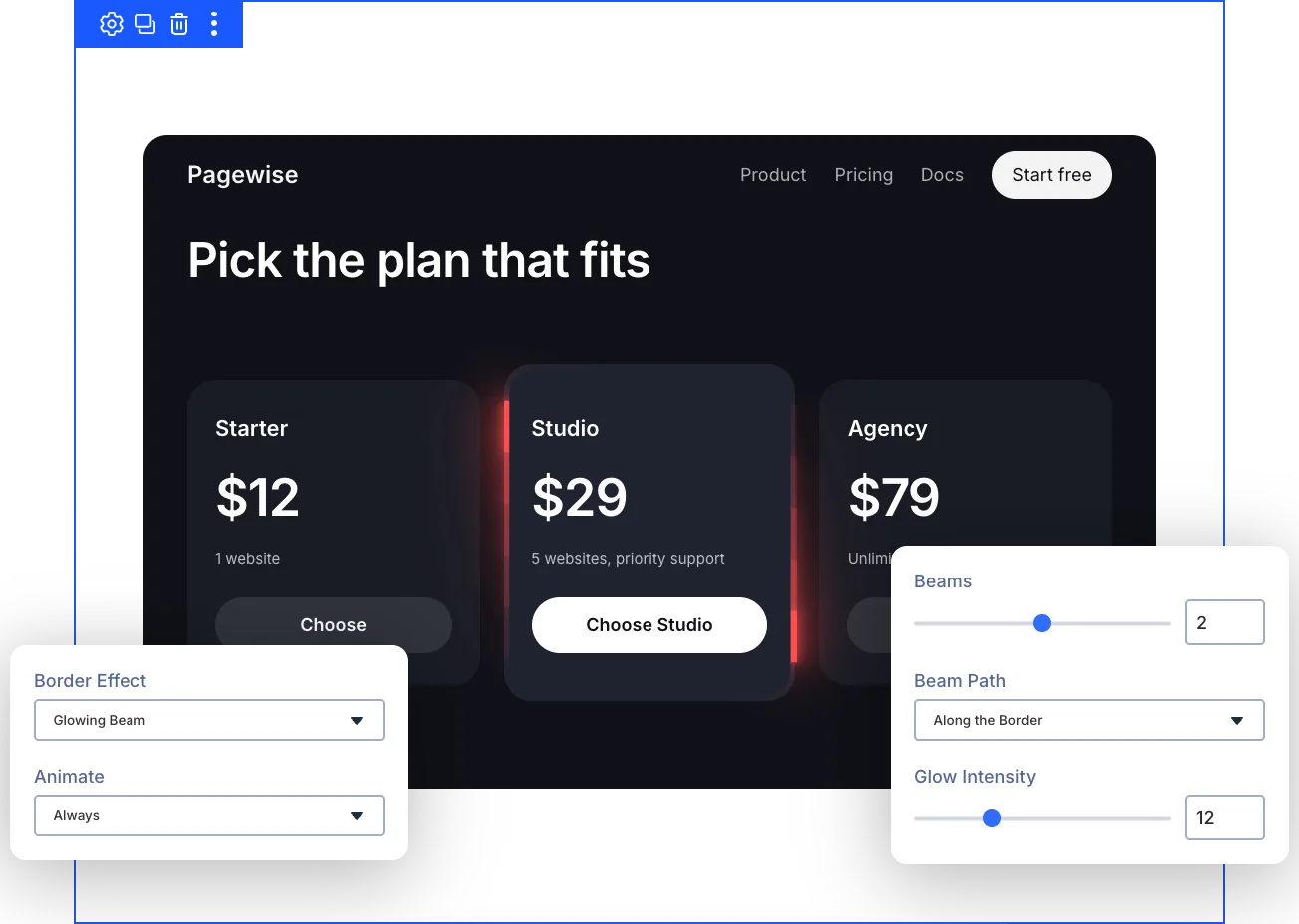
Ten Border Effects
From subtle shimmer to bold neon, each effect fills in its own starting glow and colors, so a polished border takes seconds.
Any Divi Element
Add a moving border to sections, rows, columns, and modules from their own Design tab, with no new module to place or learn.
Plays on Hover
Keep the border still, animate it nonstop, or play it only on hover, with colors, glow, and speed that blend smoothly as visitors arrive.
Build Borders That Stand Out and Still Stay Easy to Style
Pick the Effect That Fits Each Element
- Spin a three-color gradient around the border, or send up to three glowing beams racing along it.
- Flicker a neon line like a real tube, or let a soft glow breathe in and out.
- March dashed lines around the edge, or let two thin lines chase each other in orbit.
- Stretch corner brackets along each side, sweep a shine across, or pulse an outline outward.
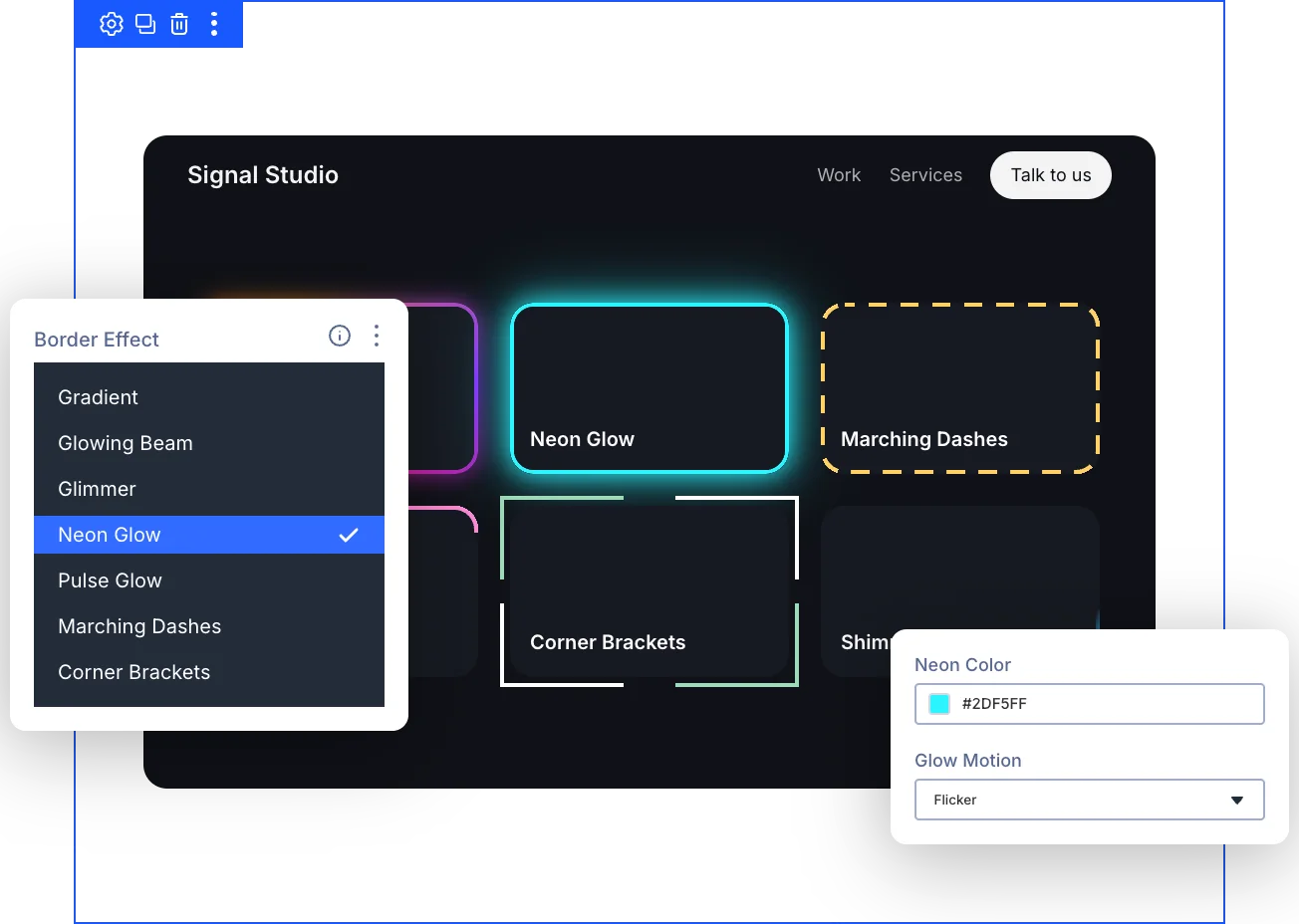
Shape the Border Down to Every Detail
- Set the border from 1 to 10 pixels thick, following the element's own rounded corners.
- Tune beam, line, highlight, and dash lengths, plus the gap between dashes, to fit each element.
- Add a still base border beneath moving beams, lines, or shine at any opacity you choose.
- Pick colors from Divi's global palette, and keep them when you switch to another effect.
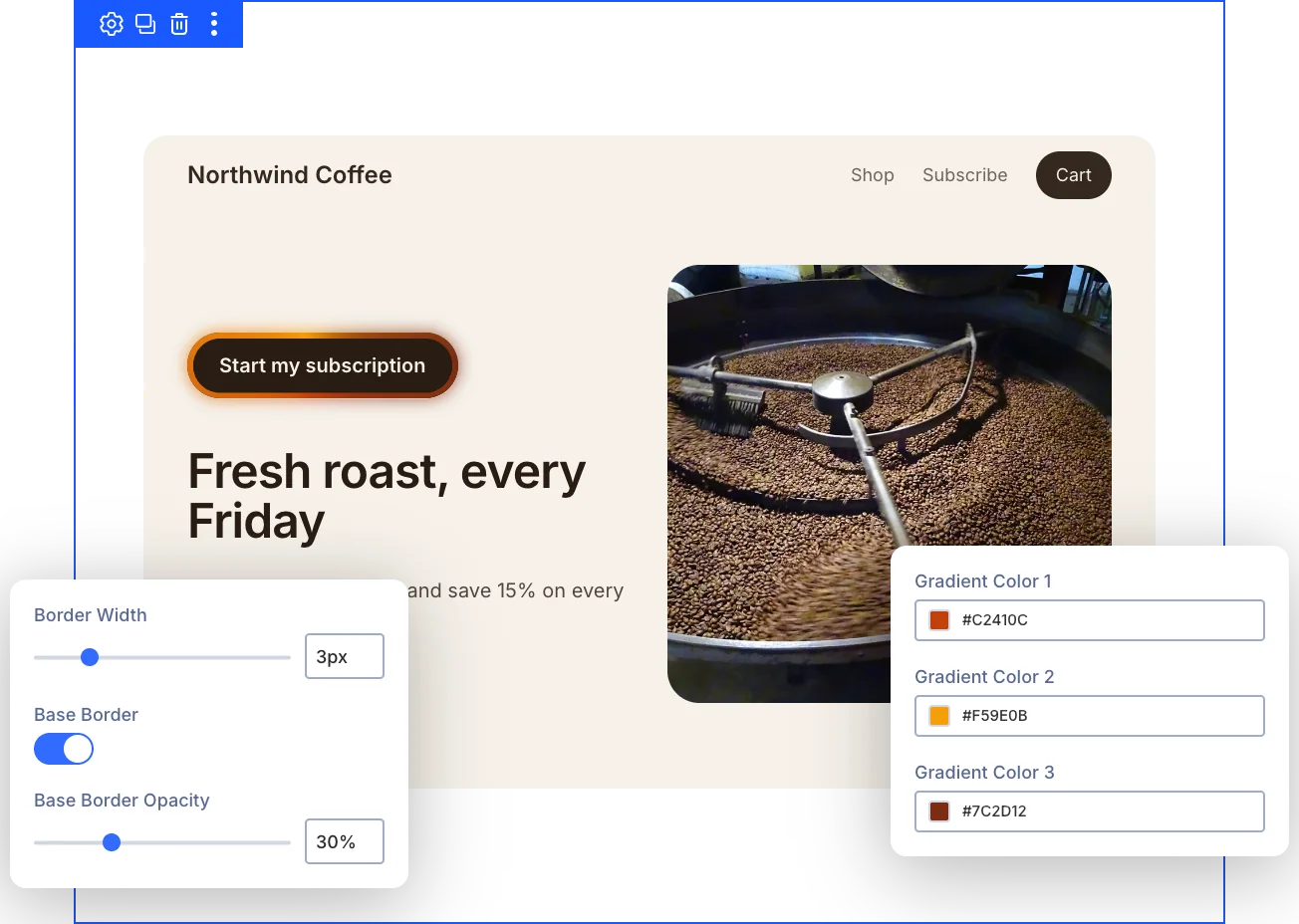
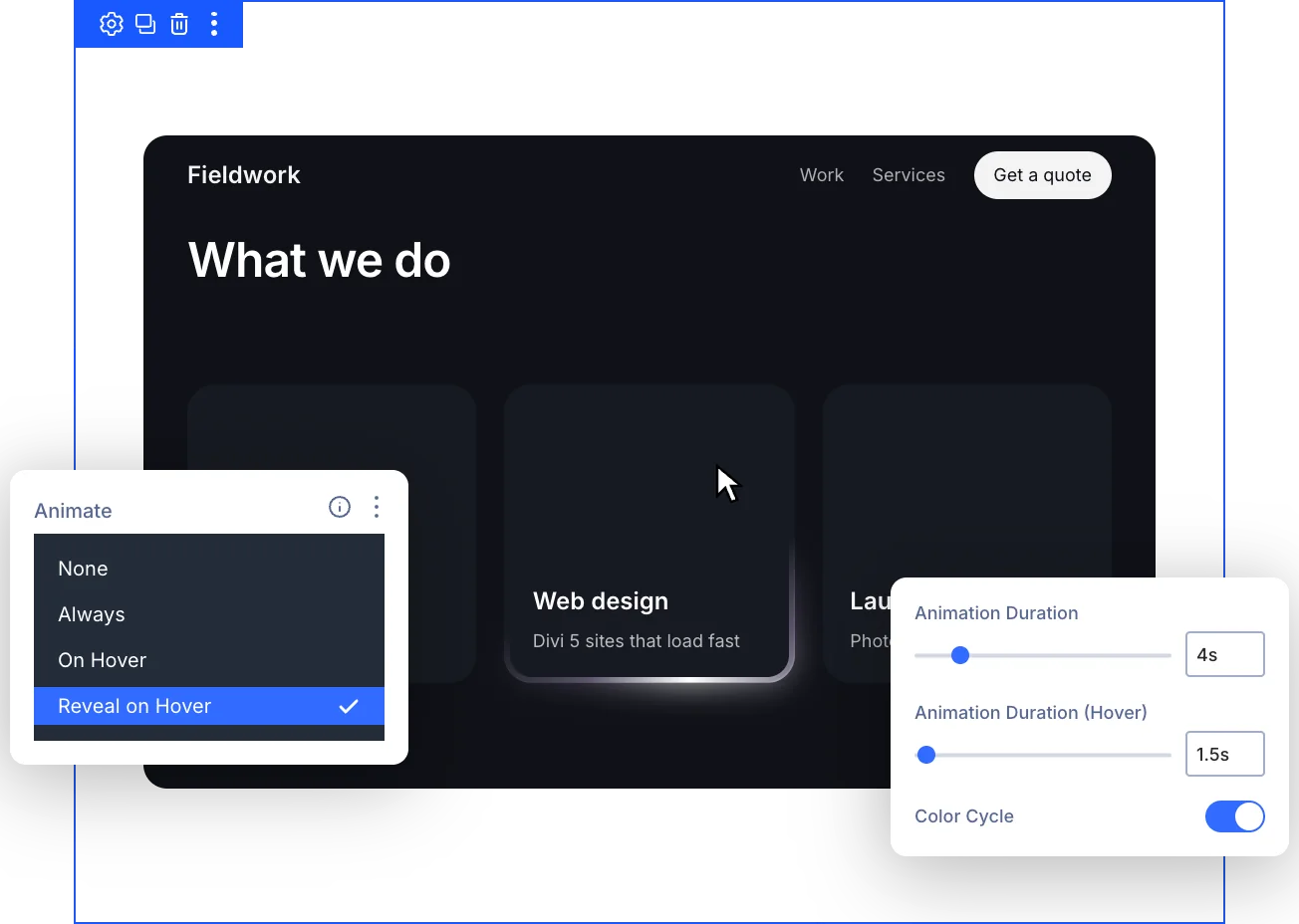
Decide When and How the Border Moves
- Hide the border until hover, then fade it in and play it, for clean layouts at rest.
- Set one loop from 0.5 to 20 seconds, and let it speed up while visitors hover.
- Give hover its own colors, width, and glow, eased in gradually from the default values.
- Cycle the border's colors through the whole spectrum, or let Glimmer's highlight follow the cursor.
Add Glow and Keep Every Visitor Comfortable
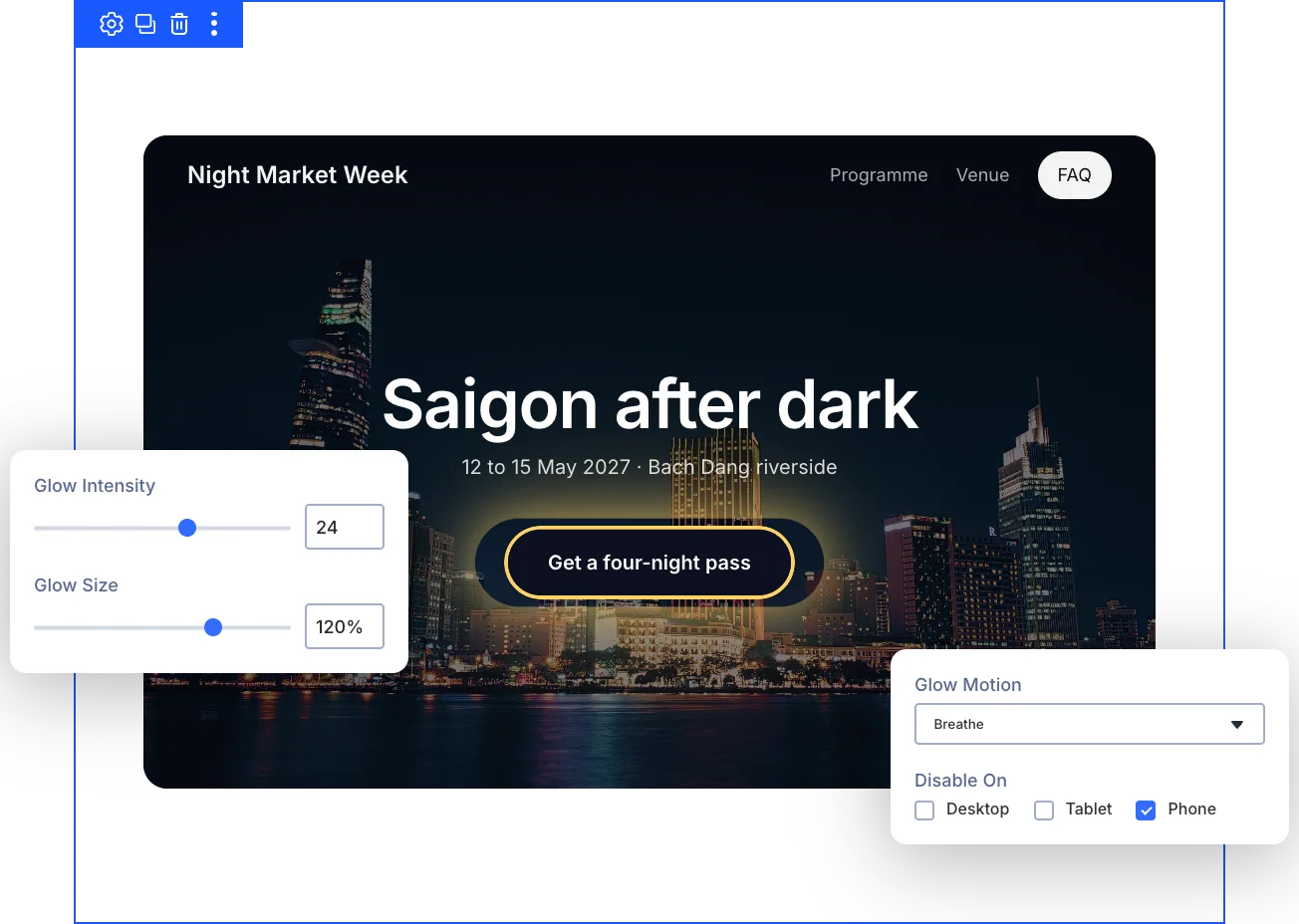
- Add a soft glow outside the border, from 0 to 40, and resize it up to 150 percent.
- Show visitors who prefer reduced motion a still border, so motion never gets in their way.
- Turn the border off on desktop, tablet, or phone, and set most values per device.
- Pause any border that scrolls out of view, then resume it the moment it returns on screen.
Free Ready-to-Use Animated Border Layouts to Get Started
Skip the blank canvas. Our pre-made Animated Border layouts are fully customizable, responsive on every device, and ready to drop into any Divi page, saving you time from the first click.
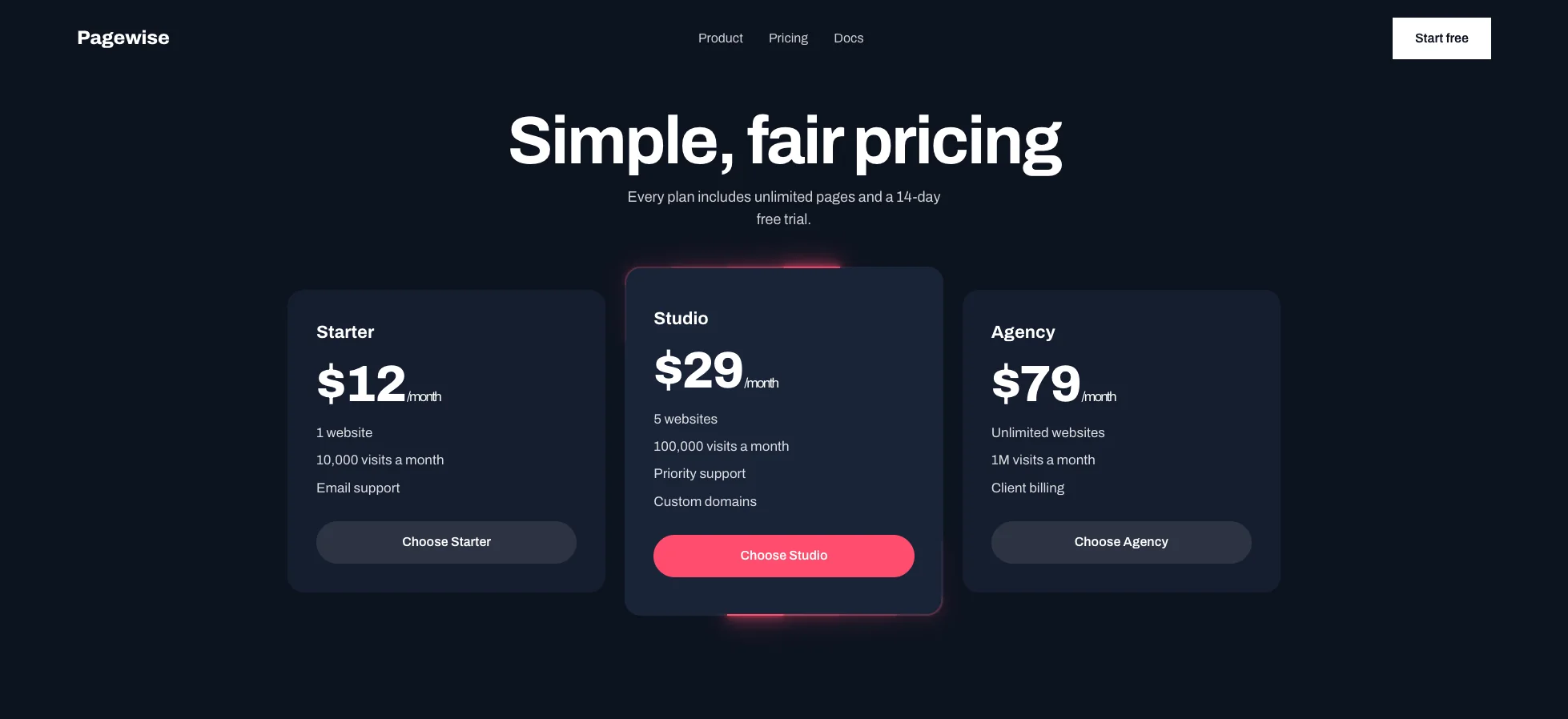
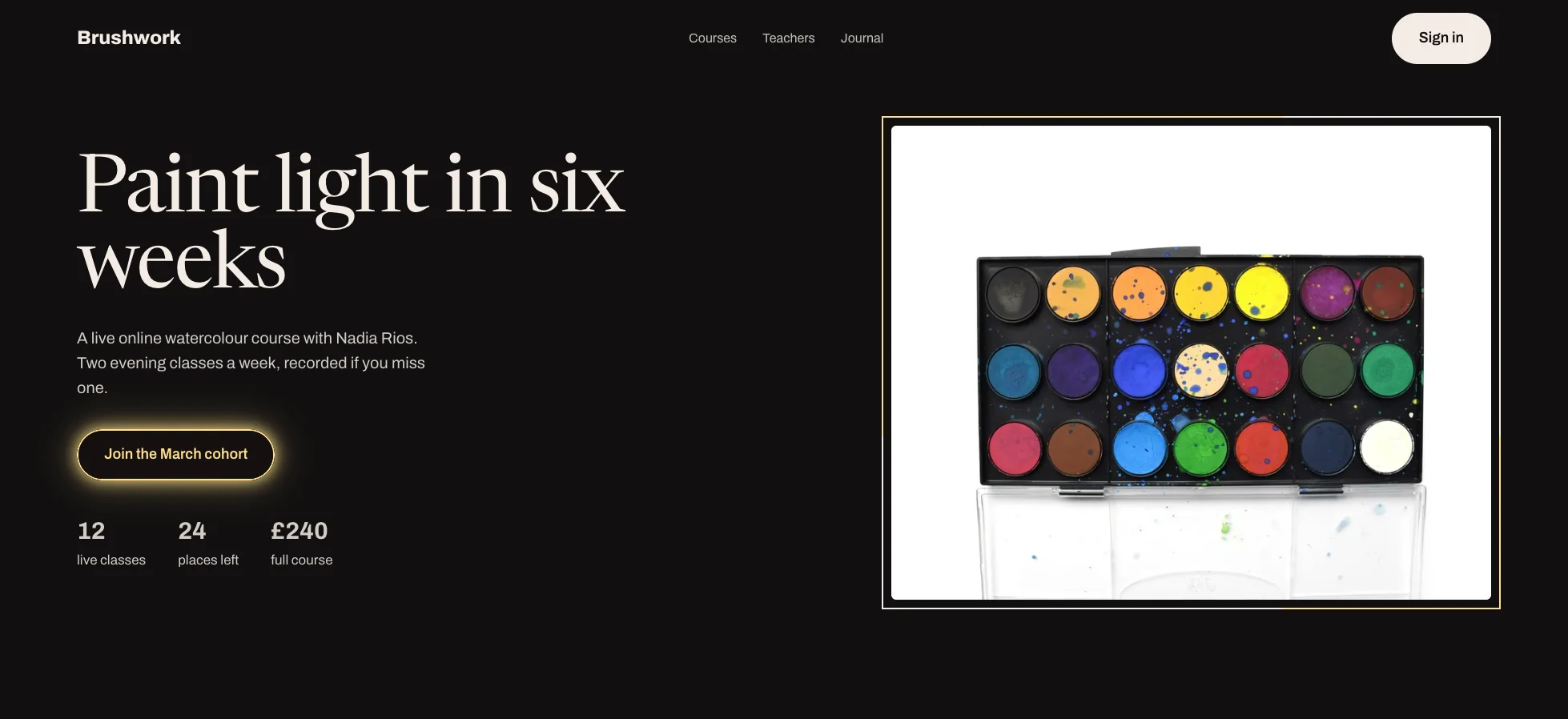
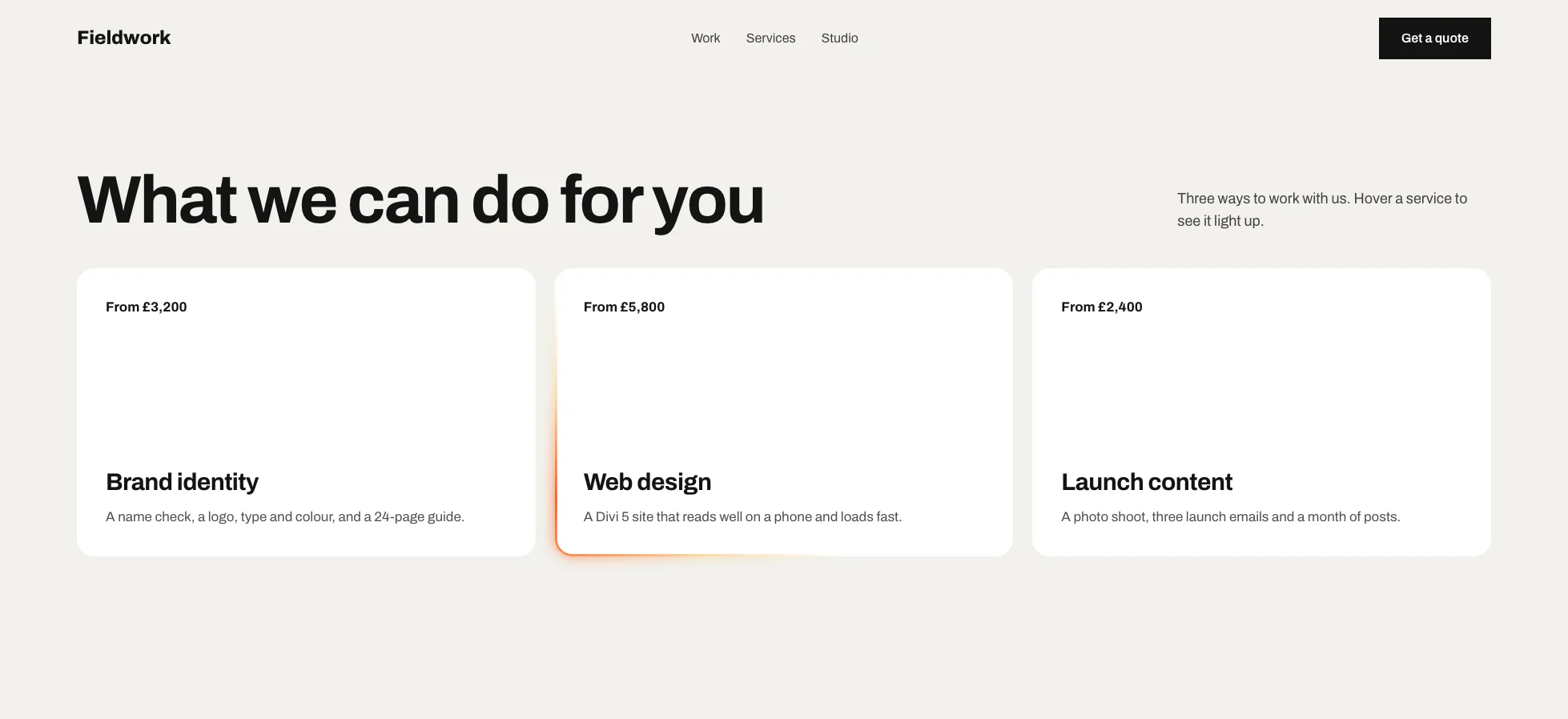

DiviMotion Animated Border vs Divi Border Settings: Which One Gives You More Control?
Ready to Make Your Key Elements Impossible to Miss?
Helpful Resources
Roadmap

What’s New

Documentation

Frequently Asked Questions
Everything you need to know about Animated Border before you get started.
What Is the Divi Animated Border?
The Divi Animated Border is a DiviMotion extension for Divi 5 that draws a moving border around sections, rows, columns, and modules, with 10 effects from spinning gradients to neon glows and marching dashes.
Which Elements Can Use Animated Border?
Sections, rows, columns, and almost every module get an Animated Border group in their Design tab, including DiviFlash's Advanced Button and Dual Button. Menu and Post Slider build their Design tab differently and don't show it.
Which Border Effect Should I Choose?
Pick the effect by the job. Neon Glow and Pulse Glow make calls to action glow. Gradient and Glowing Beam suit pricing cards and featured boxes. Marching Dashes, Orbiting Lines, and Corner Brackets feel techy, while Glimmer, Shimmer Sweep, and Outline Pulse stay subtle.
Which Version of Divi Does It Require?
Animated Border requires Divi 5.0 or later and DiviMotion 2.4.0 or later. It does not work with Divi 4.
Do I Need to Write Any Code?
Every setting lives in the Design tab of the element inside the Divi Builder, so you pick the effect, colors, and motion visually without writing code.
How Do I Turn On Animated Border?
Go to DiviMotion → Extensions in your WordPress dashboard and enable Animated Border. Then open a section, row, column, or module, go to Design → Animated Border, and choose a Border Effect.
How Do I Make the Border Animate Only on Hover?
Set Animate to On Hover to keep the border still until hover, or Reveal on Hover to hide it until then. Keyboard visitors who Tab into the element trigger the hover state too.
How Does Animated Border Work With Rounded Corners?
The border follows the corners you set in Design → Border → Rounded Corners. Glows, Corner Brackets, and Outline Pulse can spill outside the element while its content keeps its rounded shape.
How Does Animated Border Work With Divi's Own Border?
The animated border sits on top of the element's Divi border, along its outer edge. Set the Divi border width to 0 if you want only the animated one.
How Does Animated Border Work on Phones and Tablets?
Most settings take their own tablet and phone values, such as width, glow, and colors. Disable On removes the animated border on any device you choose.
How Does Animated Border Work With Divi Presets?
Animated Border settings save in a module preset like any Design setting. An element's own settings win over the preset's.
How Does Animated Border Handle Reduced Motion?
Visitors who ask their device for less motion see a still border instead of a moving one. It follows the device setting automatically.