

Divi 3D Gallery
DiviMotion 3D Gallery turns your images and videos into an endless gallery in 3D space, with 12 layouts from flat walls to circling panoramas, so visitors explore your work instead of scrolling past it.
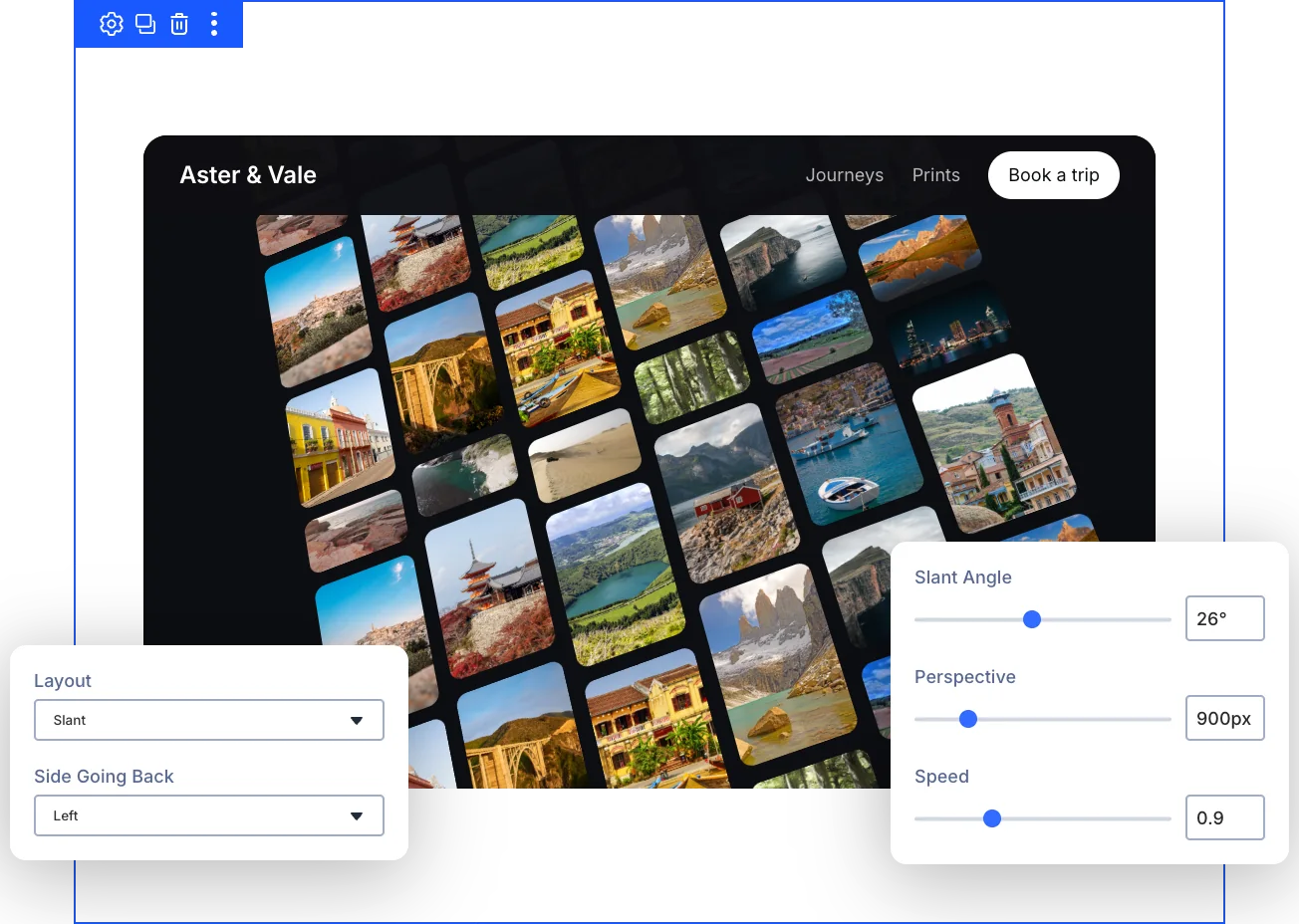
Twelve 3D Layouts
Turn the wall, tilt the table, or circle the visitor: each layout sets a different scene and comes with its own angle controls.
Scrolls Without End
The gallery moves on its own and repeats your items to fill the space, so even a handful of photos becomes an endless loop.
Drag, Hover, Open
Visitors drag or swipe the gallery, tilt it with the cursor, and open any card at full size in a browsable lightbox.
Build 3D Galleries That Feel Immersive and Still Stay Easy to Browse
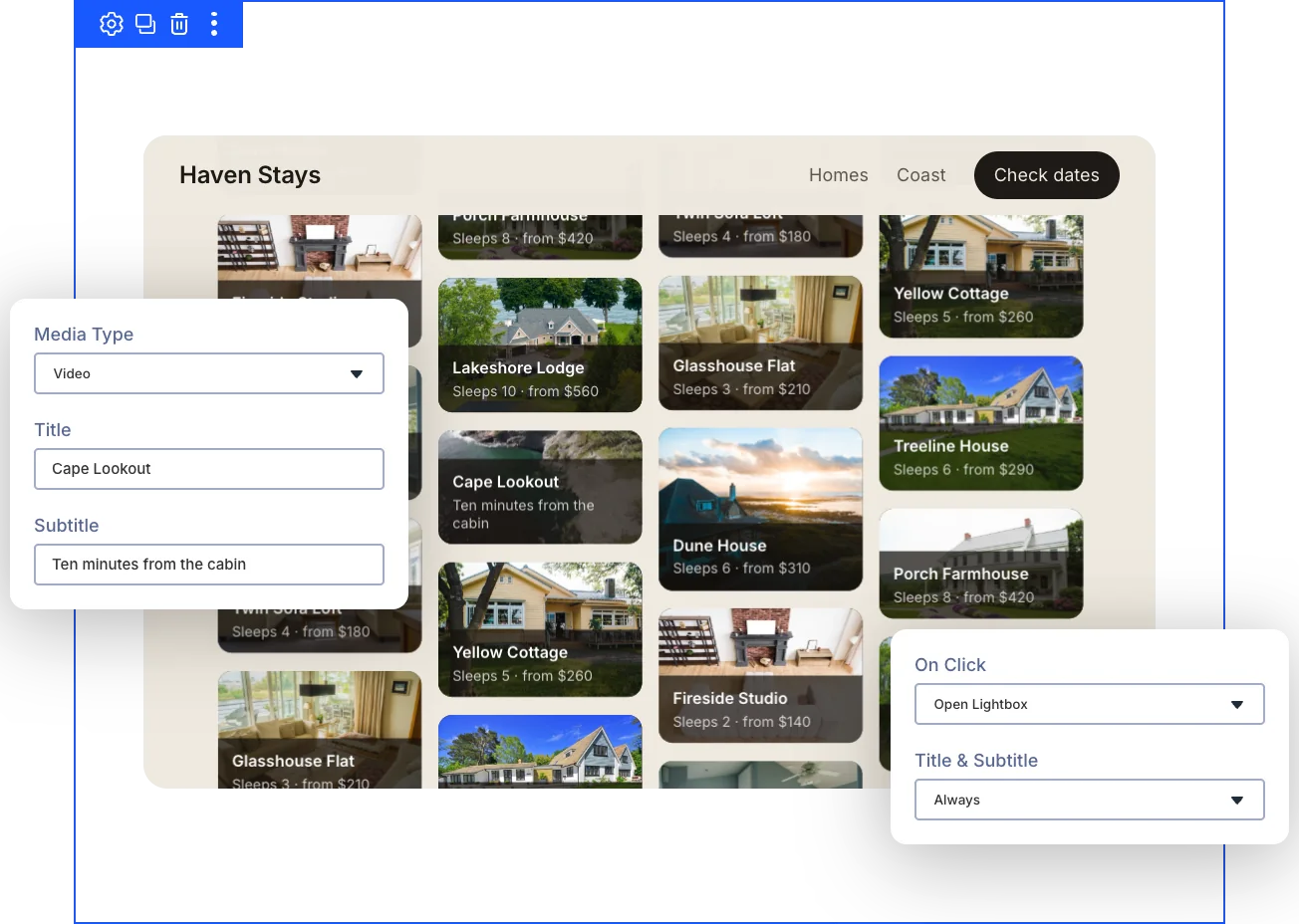
Fill Each Card With Images or Video
- Add an image or an MP4 or WebM video to every card, playing muted on a loop.
- Give each card a title and subtitle, shown always, on hover, or not at all.
- Open a card in the lightbox, send it to any page, or keep it purely visual.
- Describe images for screen readers with alt text, filled from the Media Library when left empty.
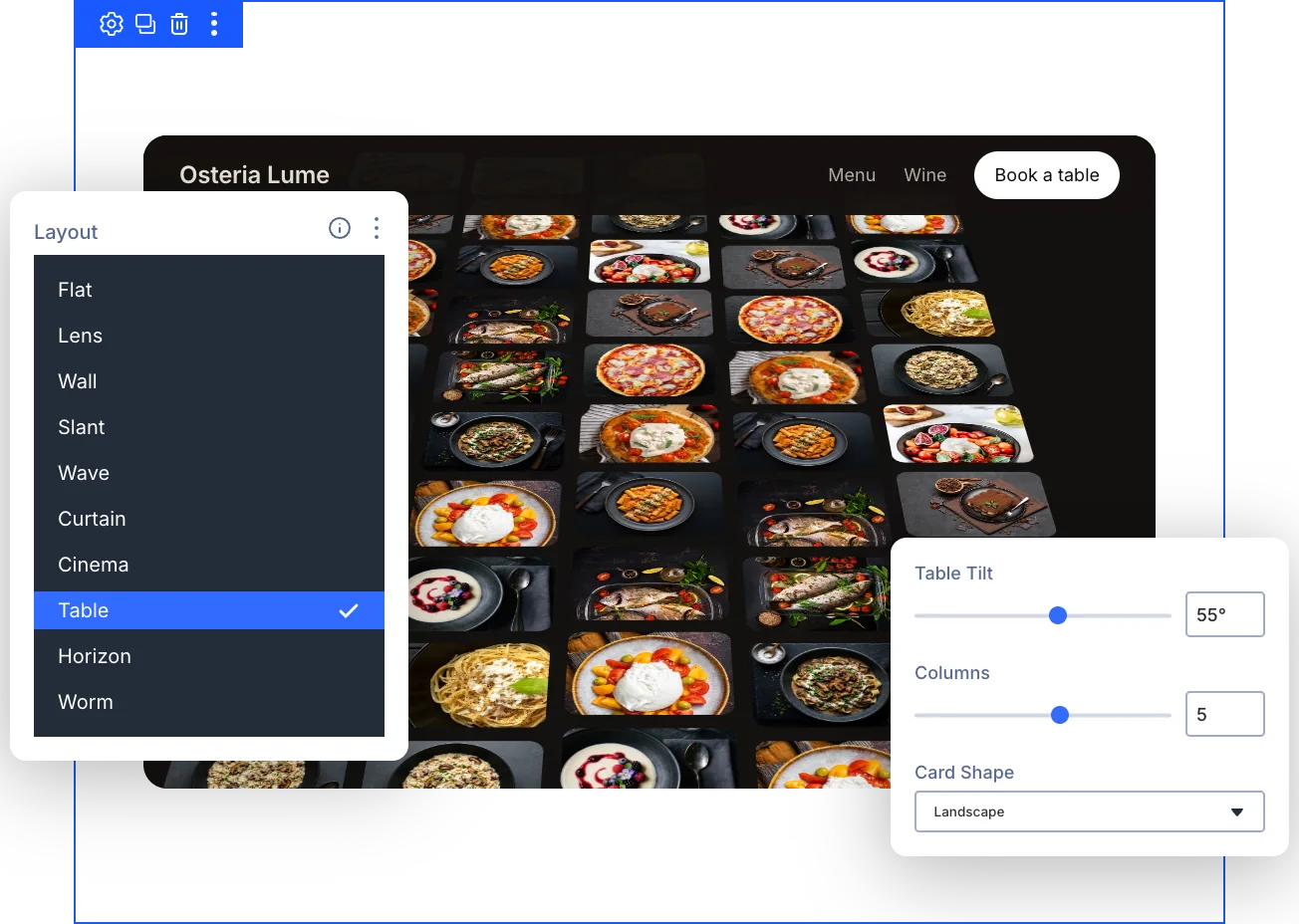
Set the Scene With a 3D Layout
- Choose 1 to 8 columns, and card shapes from natural masonry to square, landscape, or portrait.
- Adjust perspective from 500 to 2,400 pixels for a stronger or flatter 3D effect.
- Tune each layout's own angle, from wall turn and table tilt to wave height and lens strength.
- Set columns, perspective, gap, and every layout angle separately for desktop, tablet, and phone.
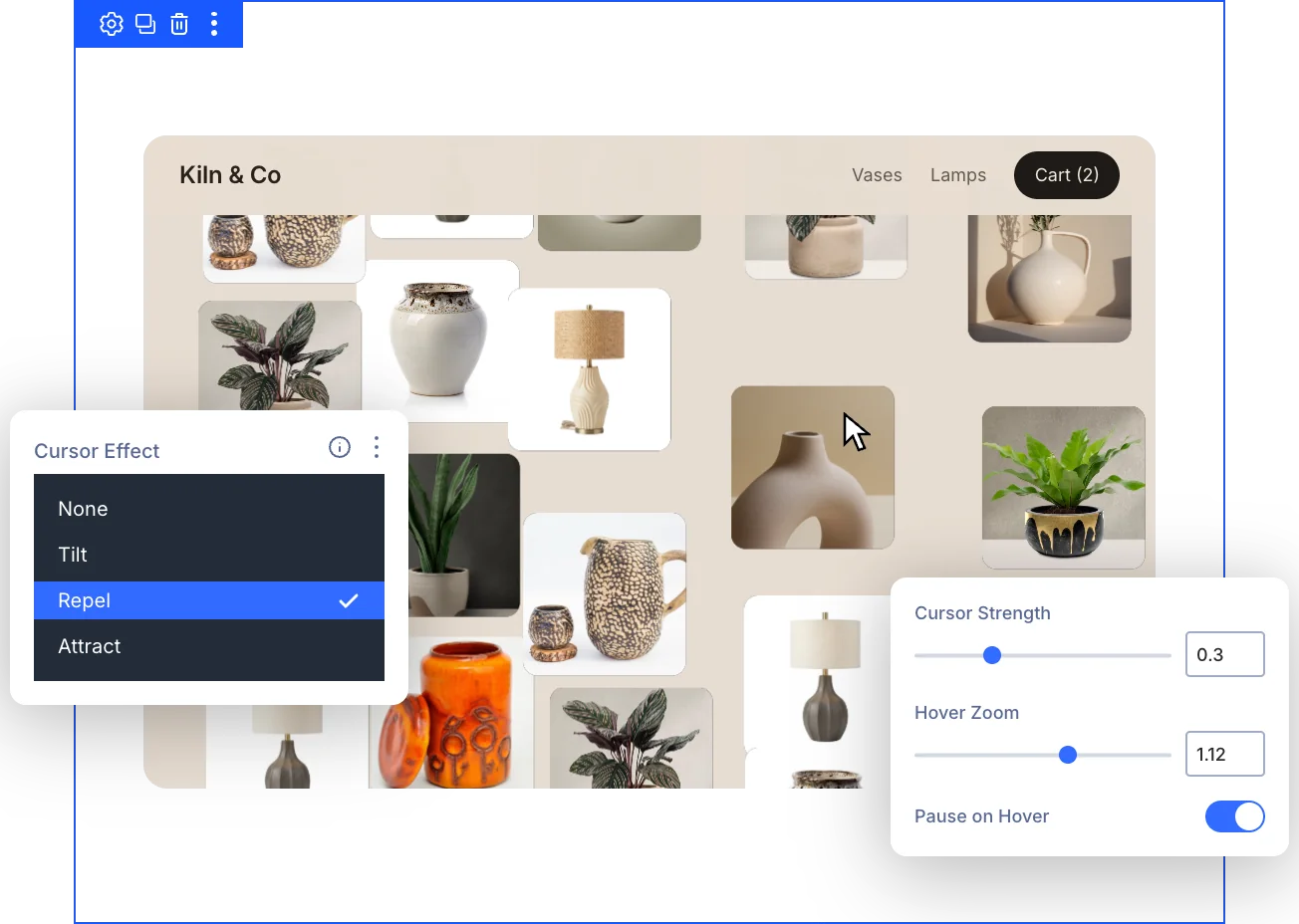
Control How the Gallery Moves and Reacts
- Auto-scroll at the speed you choose, with every second column moving the opposite way for depth.
- Tilt the gallery toward the cursor, or let cards push away or pull in on Flat and Floating.
- Pause the loop while visitors hover, and choose whether the mouse wheel moves the gallery or the page.
- Grow hovered cards up to 1.2 times their size so the active image comes forward.
Style Every Card and Set the Mood
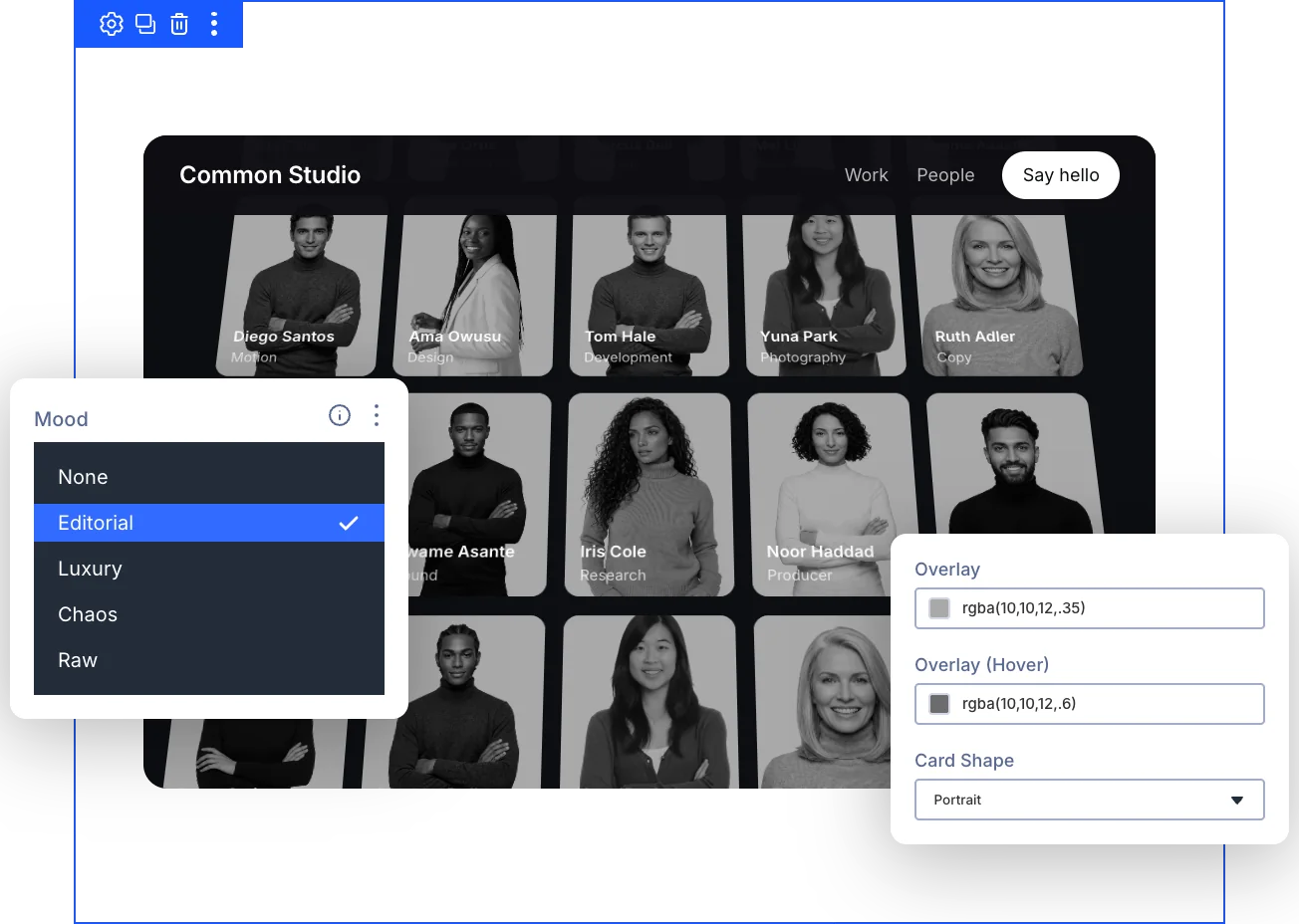
- Grade every image with Editorial, Luxury, Chaos, or Raw moods, carried through to the lightbox.
- Lay a color or gradient overlay on every image, with a stronger hover state for readable text.
- Style card borders, shadows, titles, and subtitles, plus a text box behind them with its own hover state.
- Override the title, border, shadow, filters, or transform on a single card to feature it.
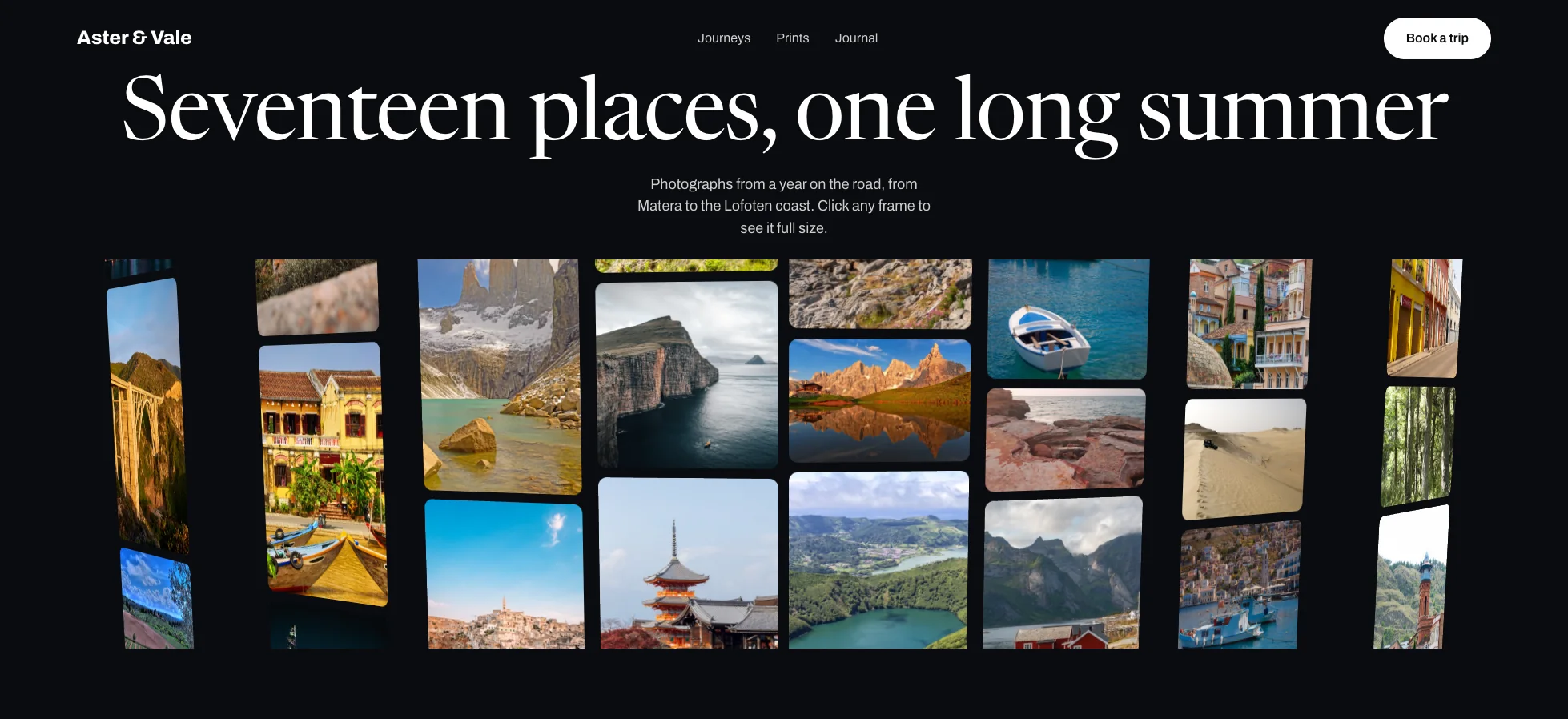
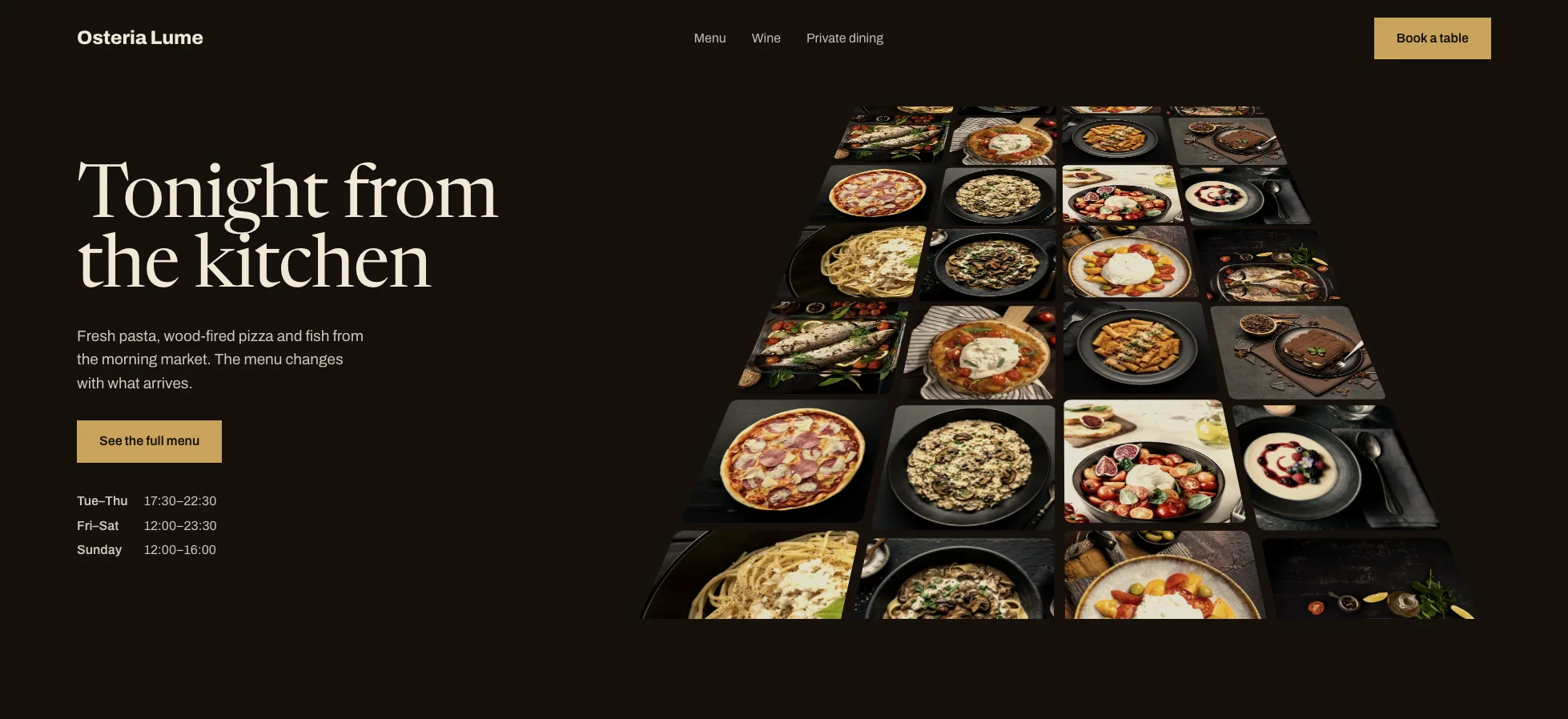
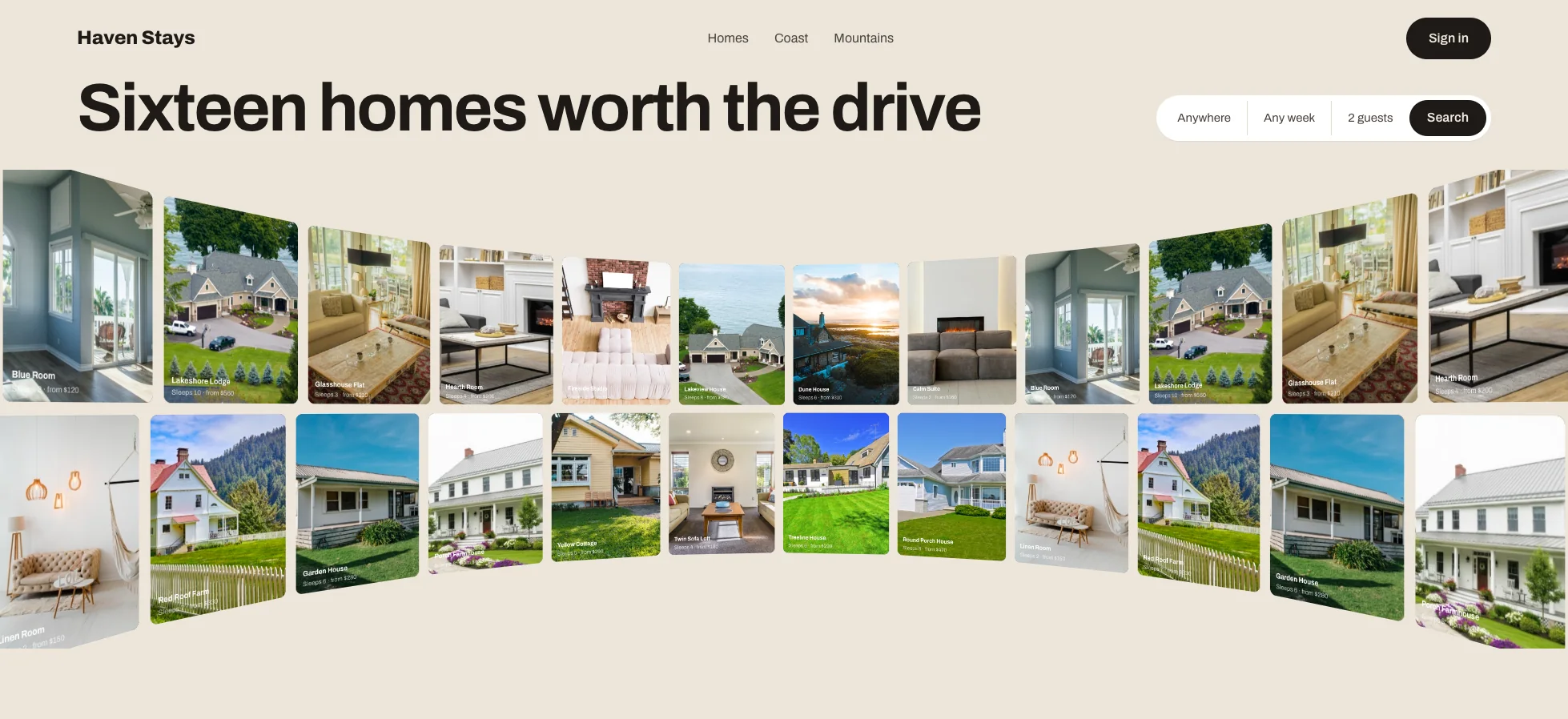
Free Ready-to-Use 3D Gallery Layouts to Get Started
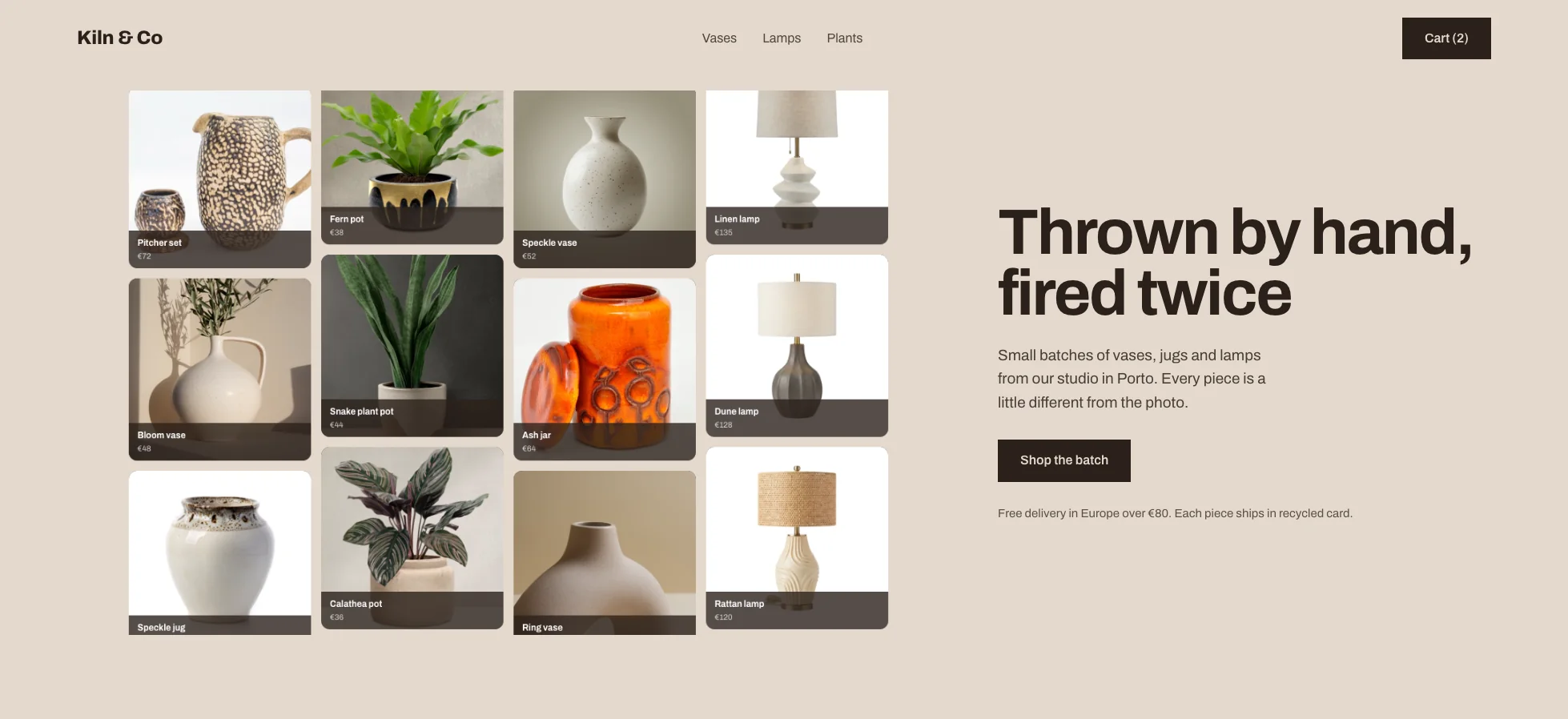
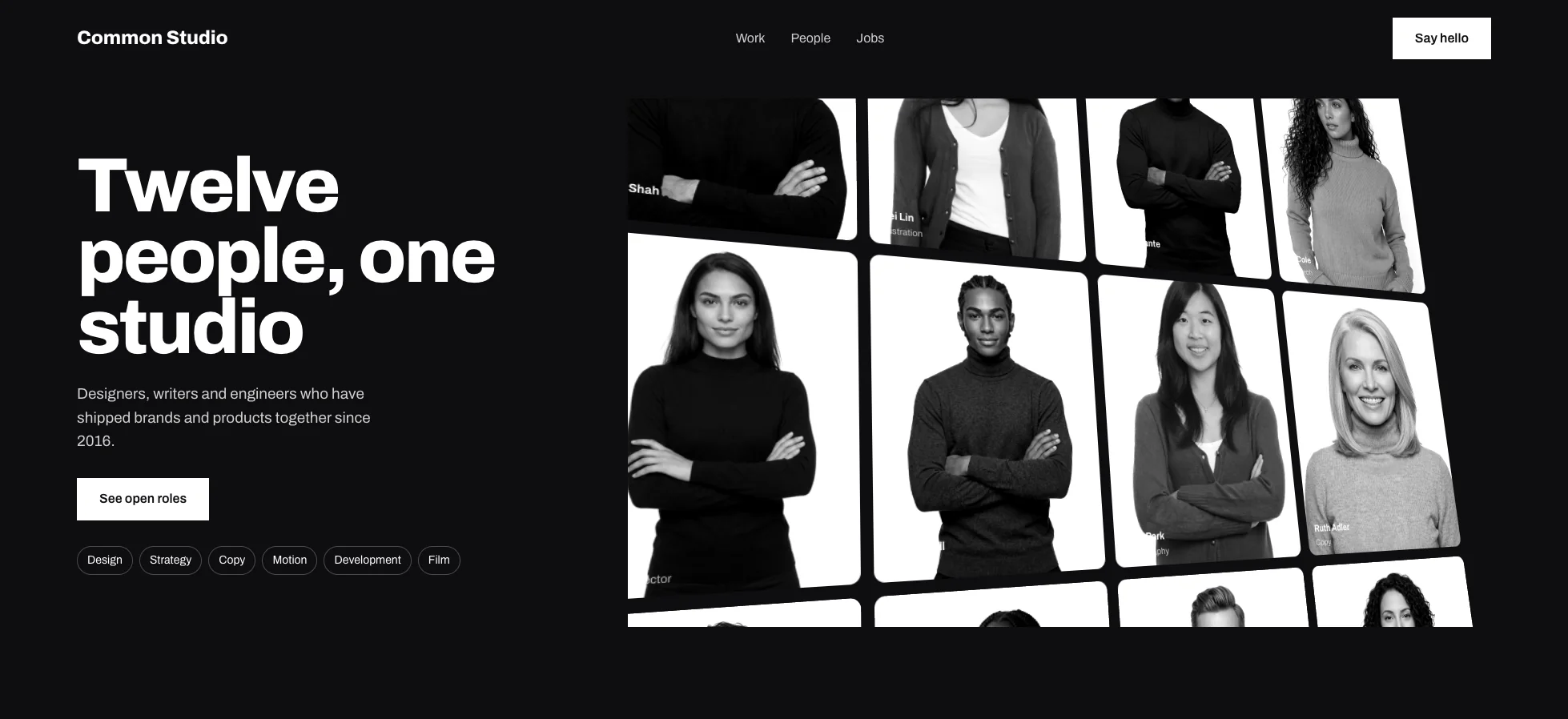
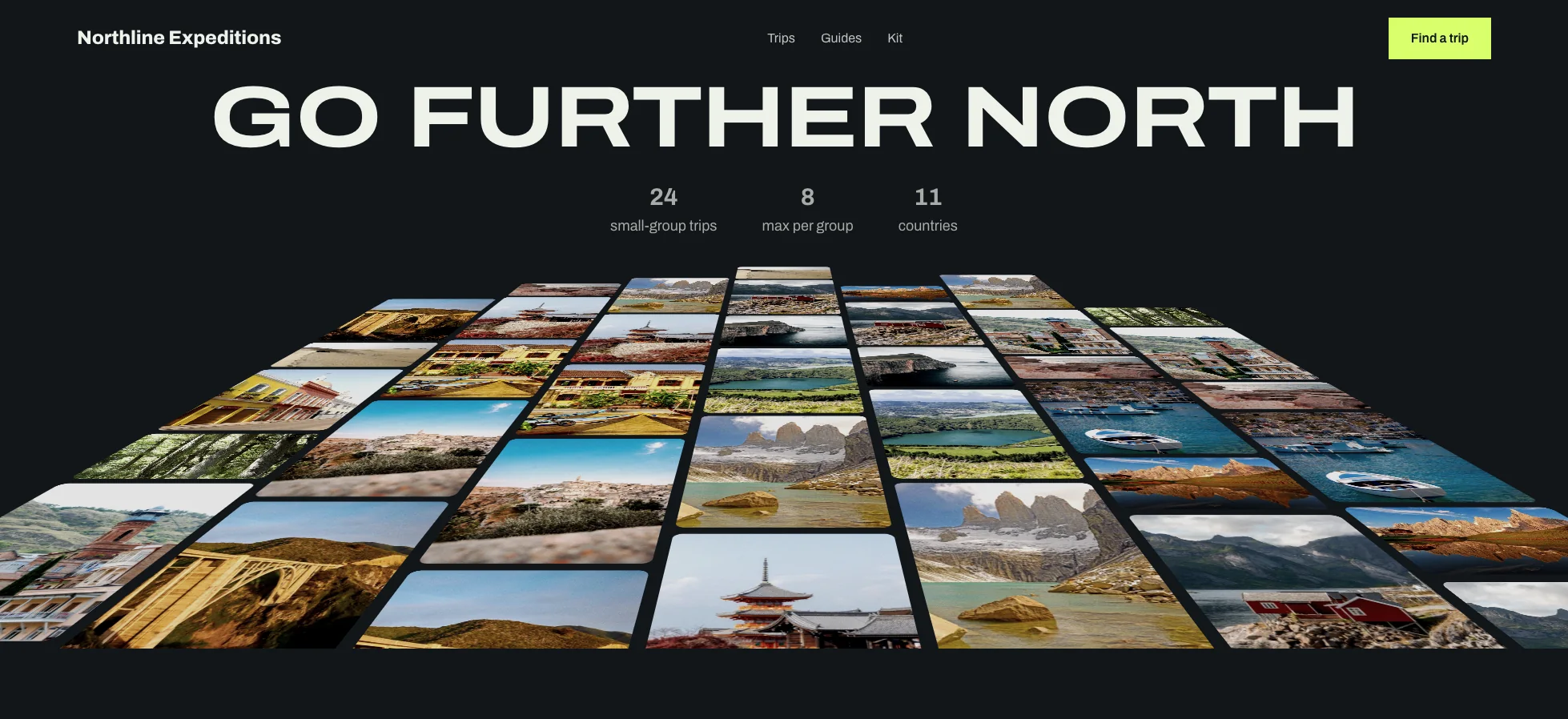
Skip the blank canvas. Our pre-made 3D Gallery layouts are fully customizable, responsive on every device, and ready to drop into any Divi page, saving you time from the first click.
DiviMotion 3D Gallery vs Divi Gallery: Which One Gives You More Control?
Ready to Give Your Best Work a Stage in 3D?
Helpful Resources
Roadmap

What’s New

Documentation

Frequently Asked Questions
Everything you need to know about 3D Gallery before you get started.
What Is the Divi 3D Gallery?
The Divi 3D Gallery is a DiviMotion module for Divi 5 that shows images and videos as cards in a 3D space that scrolls on its own, with 12 layouts, color moods, cursor effects, and a built-in lightbox.
What Can I Build With 3D Gallery?
Use it for portfolio showcases, photography and product galleries, event recaps, and video reels. Cinema or Curtain makes a big hero wall, and Panorama surrounds visitors with your work.
Which Layout Should I Choose?
Pick the layout by the scene you want. Flat and Slant give a clean scrolling grid. Wall, Curtain, and Cinema move as one large wall. Table, Horizon, and Worm add dramatic camera angles. Lens, Wave, Panorama, and Floating feel more playful.
Which Version of Divi Does It Require?
3D Gallery requires Divi 5.0 or later, like every DiviMotion feature. It does not work with Divi 4.
Do I Need to Write Any Code?
Every setting lives in the 3D Gallery module inside the Divi Builder, so you choose the layout, motion, and styling visually without writing code.
How Does 3D Gallery Work on Phones and Tablets?
3D Gallery works on touch screens, where visitors swipe to move it. Height, columns, perspective, gap, card width, and every layout angle can take their own tablet and phone values.
How Do I Add a 3D Gallery to a Page?
Add the 3D Gallery module to a row. It starts with eight placeholder items. Pick an image or video for each, choose a Layout, then set the height under Design → Sizing (600px by default).
How Many Images Do I Need?
A few items are enough. The gallery repeats them, up to 60 cards, so the loop never runs out.
How Do Videos Work in the Gallery?
Videos play muted and looped, with no controls, and show their first frame until playback starts. Use MP4 or WebM files. Up to six videos nearest the center play at once, and only while the gallery is on screen.
How Does the Lightbox Work?
The lightbox opens a card's full image or video with its title, subtitle, and an item counter. Visitors browse with the arrow buttons, arrow keys, or a swipe, and close it with Esc or a click outside. Any card can open a link or do nothing instead.
How Does 3D Gallery Support Keyboard and Screen Reader Users?
3D Gallery works with keyboards and screen readers. Tab reaches every clickable card, Enter or Space opens it, and the arrow keys move the gallery. Images use their alt text, and video cards are announced by their title.
How Does 3D Gallery Handle Reduced Motion?
Respect Reduced Motion is on by default. Visitors who ask their device to reduce motion see no auto-scroll or cursor motion, and videos show their first frame. Dragging still works.