

The Gravity Box module turns Divi elements into interactive physics objects that fall, collide, bounce, and stack while letting visitors drag and throw them.
Important Note: The Gravity Box module is disabled by default. To enable it, go to WordPress Dashboard > DiviMotion > Modules and enable Gravity Box.
Let’s take a quick look at the available settings and how they work.
Content Tab
The Content tab includes settings for adding elements and controlling the physics, interactions, and triggers of the Gravity Box.
Elements
Add Divi elements such as images, blurbs, buttons, icons, text, and more. Each element becomes an individual physics object in the Gravity Box.
Note: In the Divi Builder, elements stay in a normal layout to make editing easier. The physics effect only runs in preview and on the live page.
Physics
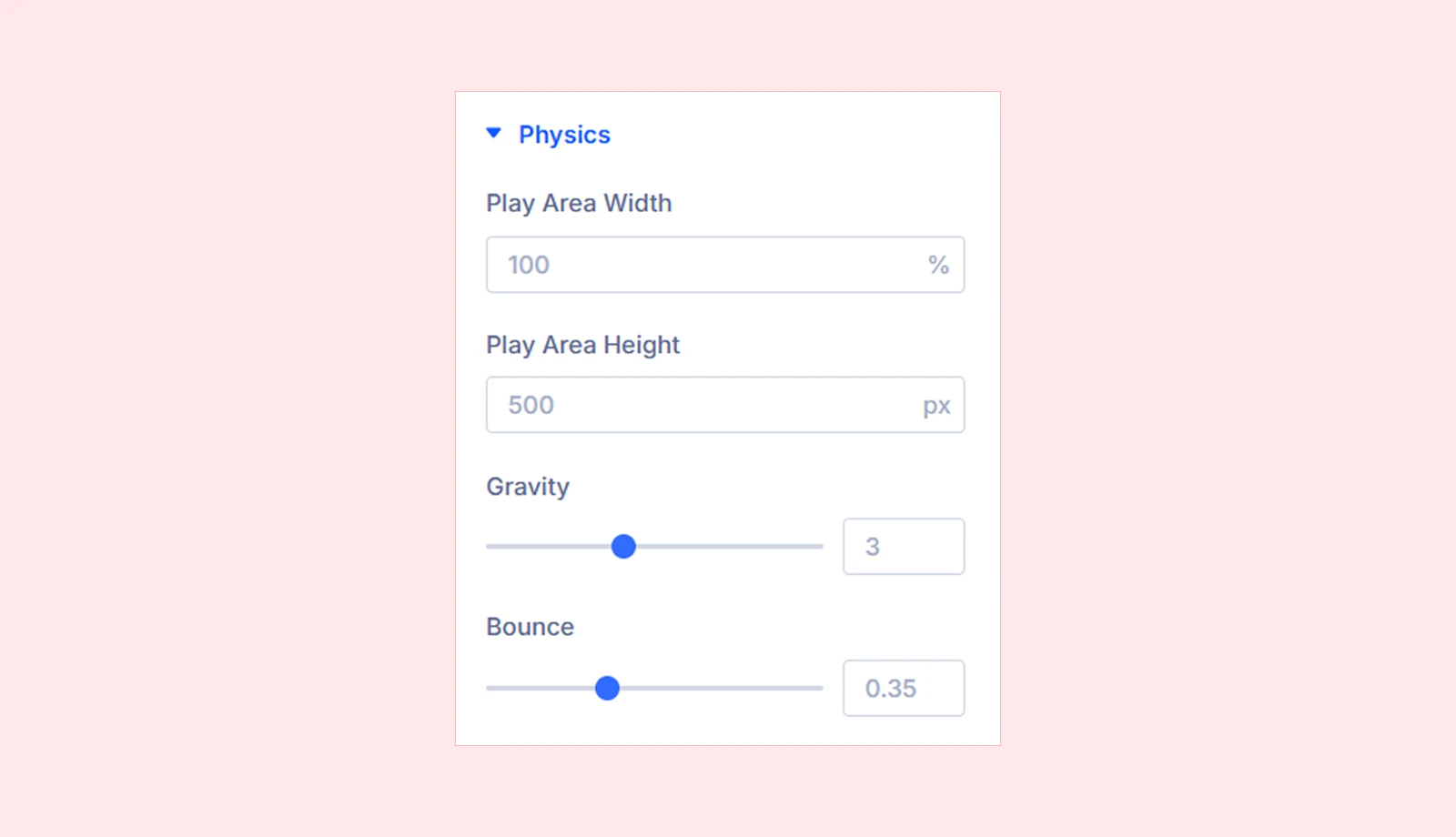
- Play Area Width: Set the width of the area where the elements can move. This will create the left and right boundaries for collisions.
- Play Area Height: Set the height of the play area. A taller area will give the elements more space to fall and stack.
- Gravity: Control how strongly the elements are pulled downward. Lower values make them fall more slowly, while higher values make them fall faster.
- Bounce: Control how much the elements bounce after collisions. Lower values create softer bounces, while higher values produce stronger bounces.
Interaction
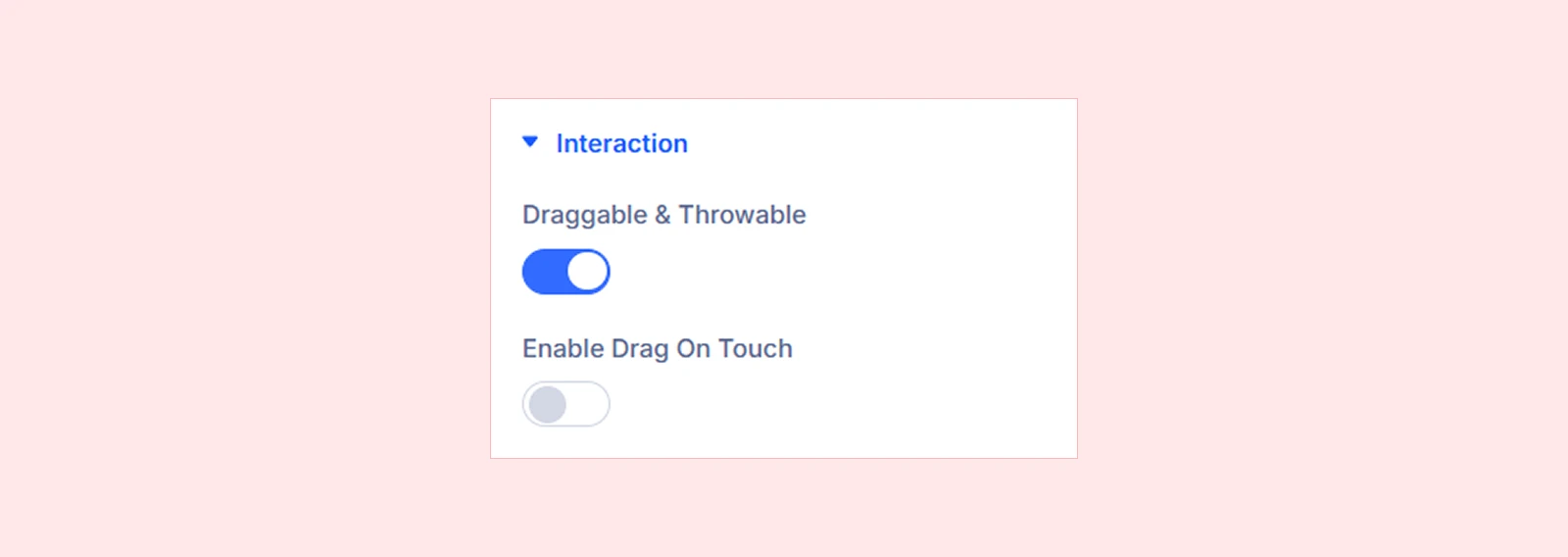
- Draggable & Throwable: Allow visitors to grab, drag, and throw elements. When released, an element continues moving based on the force and direction of the throw before gravity pulls it downward.
- Enable Drag on Touch: Allow visitors to drag elements on touch devices. This is disabled by default to prevent dragging from interfering with normal page scrolling.
Trigger
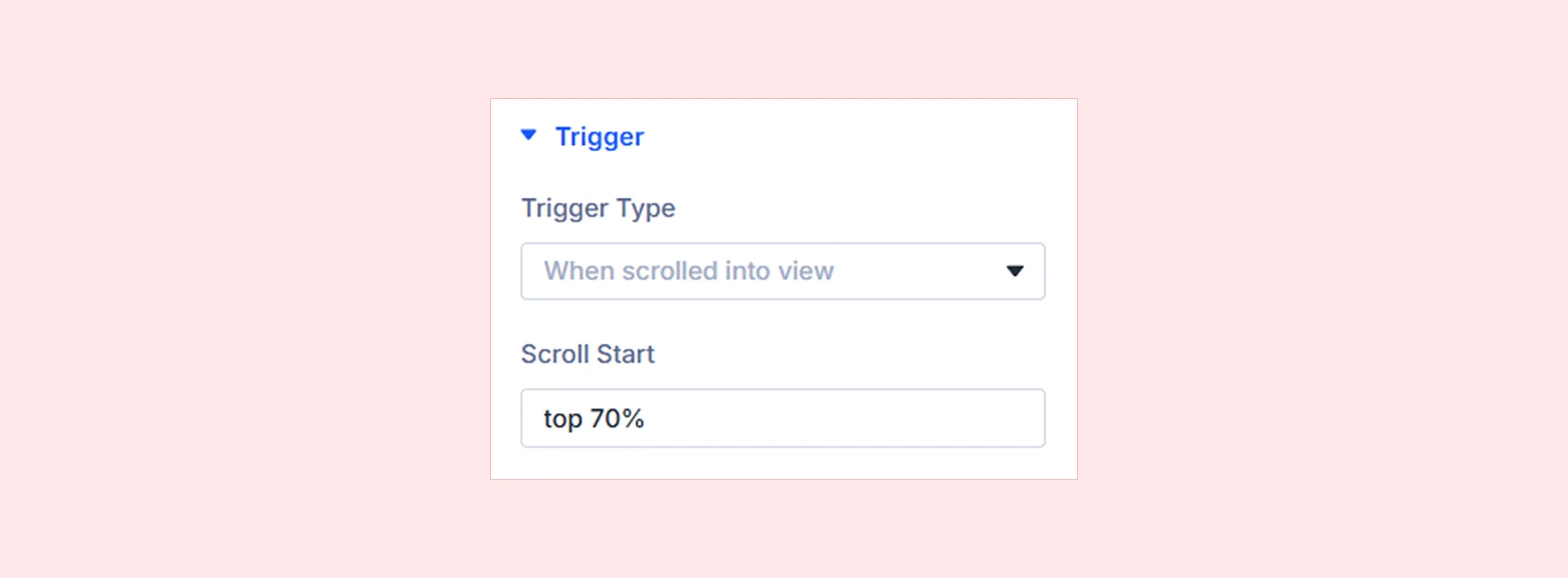
- Trigger Type: Select how the animation begins:
- When Scrolled Into View: Start the effect when the Gravity Box reaches the selected position in the viewport.
- On Page Load: Start the effect as soon as the page loads.
- On Mouse Hover/Movement: Start the effect when the visitor moves their mouse over the Gravity Box.
- Scroll Start: Set the point in the viewport where the effect starts when the module enters the visible area. (Available only when Scroll is selected as the Trigger Type.)
Advanced
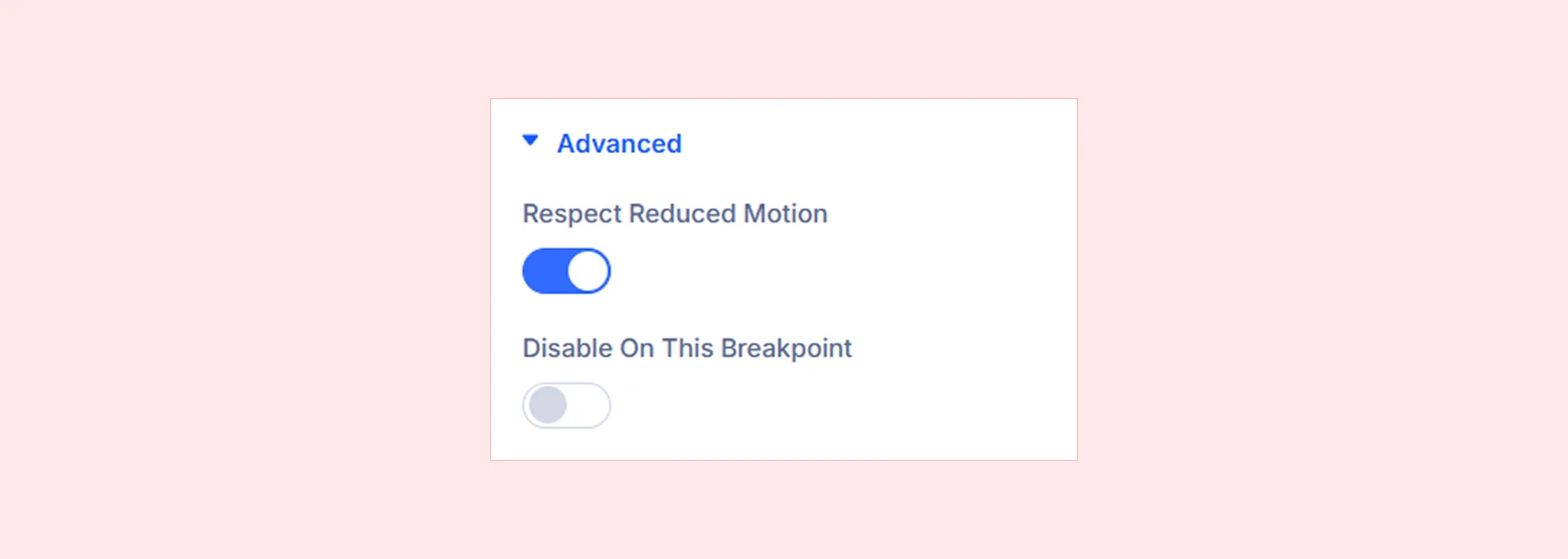
- Respect Reduced Motion: Keep the elements static for visitors who have reduced-motion preferences enabled on their device.
- Disable On This Breakpoint: Disable the Gravity Box physics effect on specific device sizes, such as Desktop, Tablet, or Phone.
Background: Add a background color, gradient, image, video, pattern, or mask to the module.
Element Label: Rename the module for easier identification inside the Divi Builder. (Visible only to you.)
Design Tab
The Design tab lets you customize the appearance, sizing, spacing, motion, and other visual properties of the Gravity Box module.
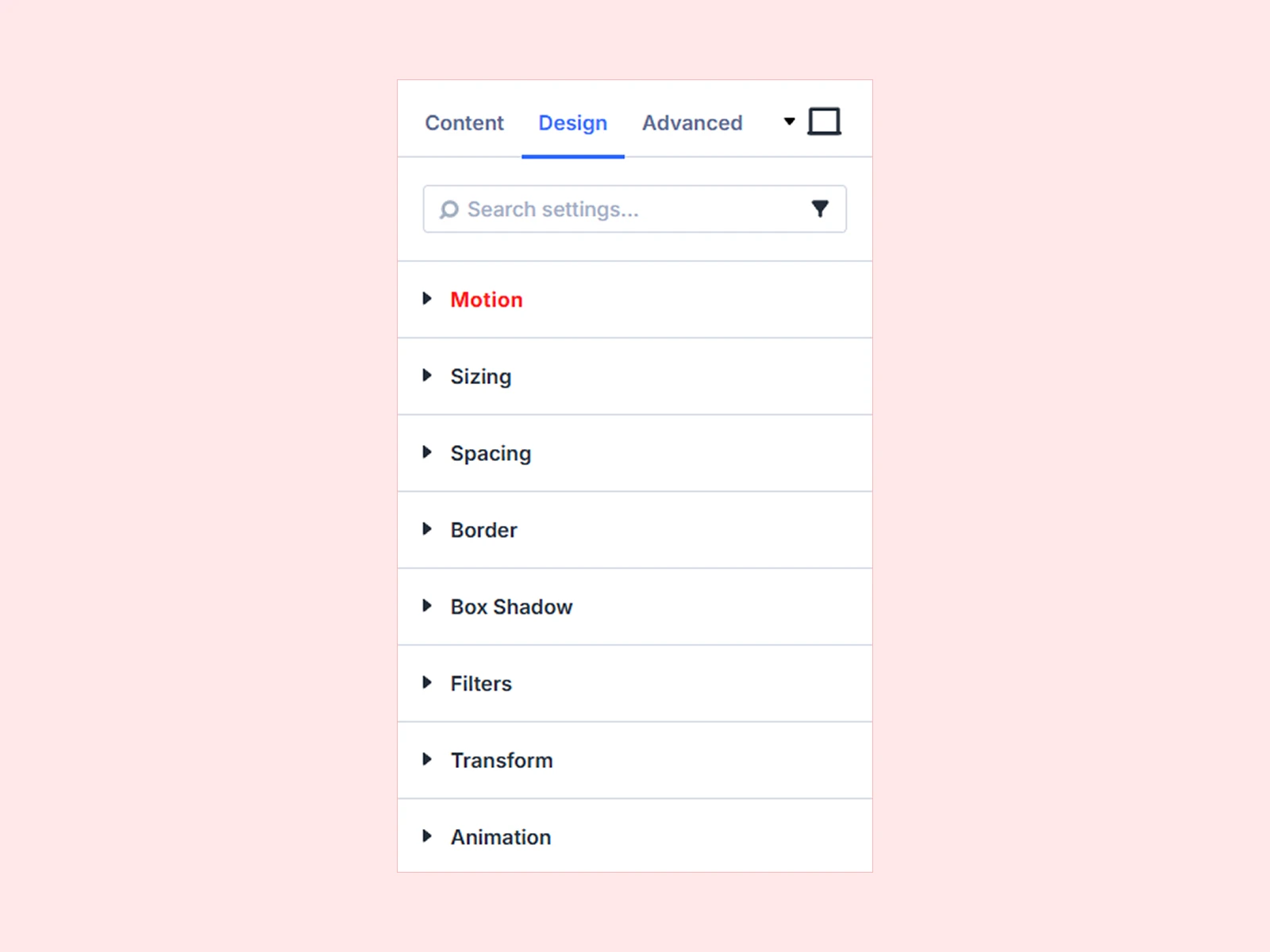
Motion: Add and customize DiviMotion’s interactions and actions within this module.
Sizing: Adjust the Gravity Box module's width, height, and alignment.
Spacing: Configure the Gravity Box module's margin and padding.
Border: Customize the Gravity Box module's border radius, style, width, and color.
Box Shadow: Add shadow effects to the Gravity Box module.
Filters: Apply visual effects to the Gravity Box module.
Transform: Scale, rotate, move, or skew the Gravity Box module.
Animation: Apply Divi's built-in entrance animations to the Gravity Box module.
Advanced Tab
The Advanced tab provides the standard Divi settings for custom CSS, visibility conditions, transitions, attributes, positioning, and other advanced controls.
Need Help?
If you have any questions or need assistance, contact our support team: [email protected]


