

Click Trigger lets you create animations that activate when users click or tap on elements. Unlike animations that play on scroll or page load, Click Triggers give users direct control to decide when the animation happens through their interaction.
This guide covers everything you need to know about click-based animations, from basic setup to advanced techniques like toggle controls and multi-target animations.
How to Access Click Trigger
To create a click-based animation:
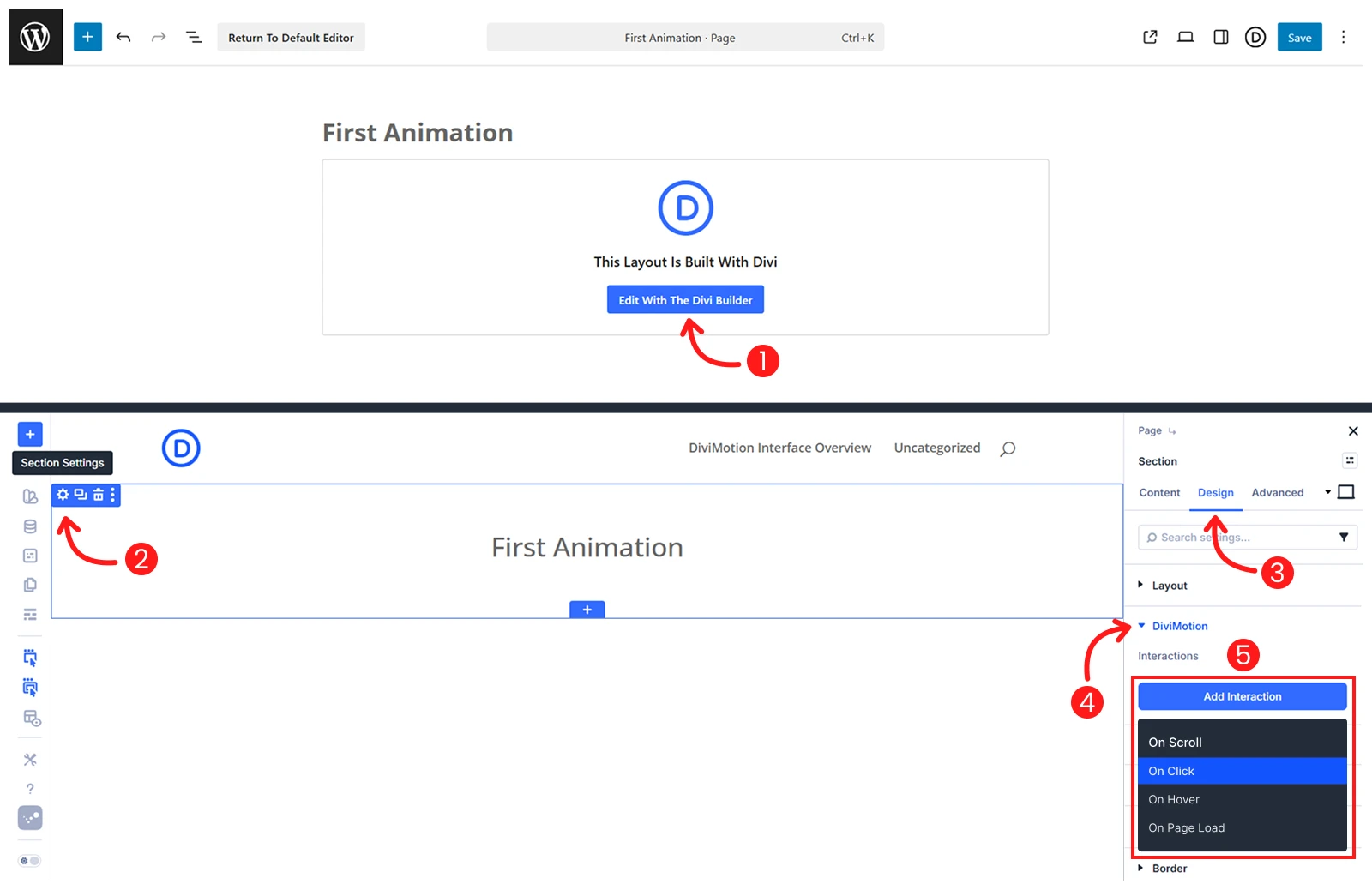
- Open your page in the Divi Visual Builder
- Click the settings icon (gear) on any section, row, column or module
- Go to the Design tab → scroll to DiviMotion and expand it
- Click + Add Interaction
- Choose Click trigger type
You're now ready to configure which element triggers the click and what happens when it's clicked. Click the Trigger Settings icon on the interaction card to open the Click Trigger Settings panel on the left side.
Click Trigger Settings
Click Trigger settings let you define which element users click, what element animates, and what action occurs on click.
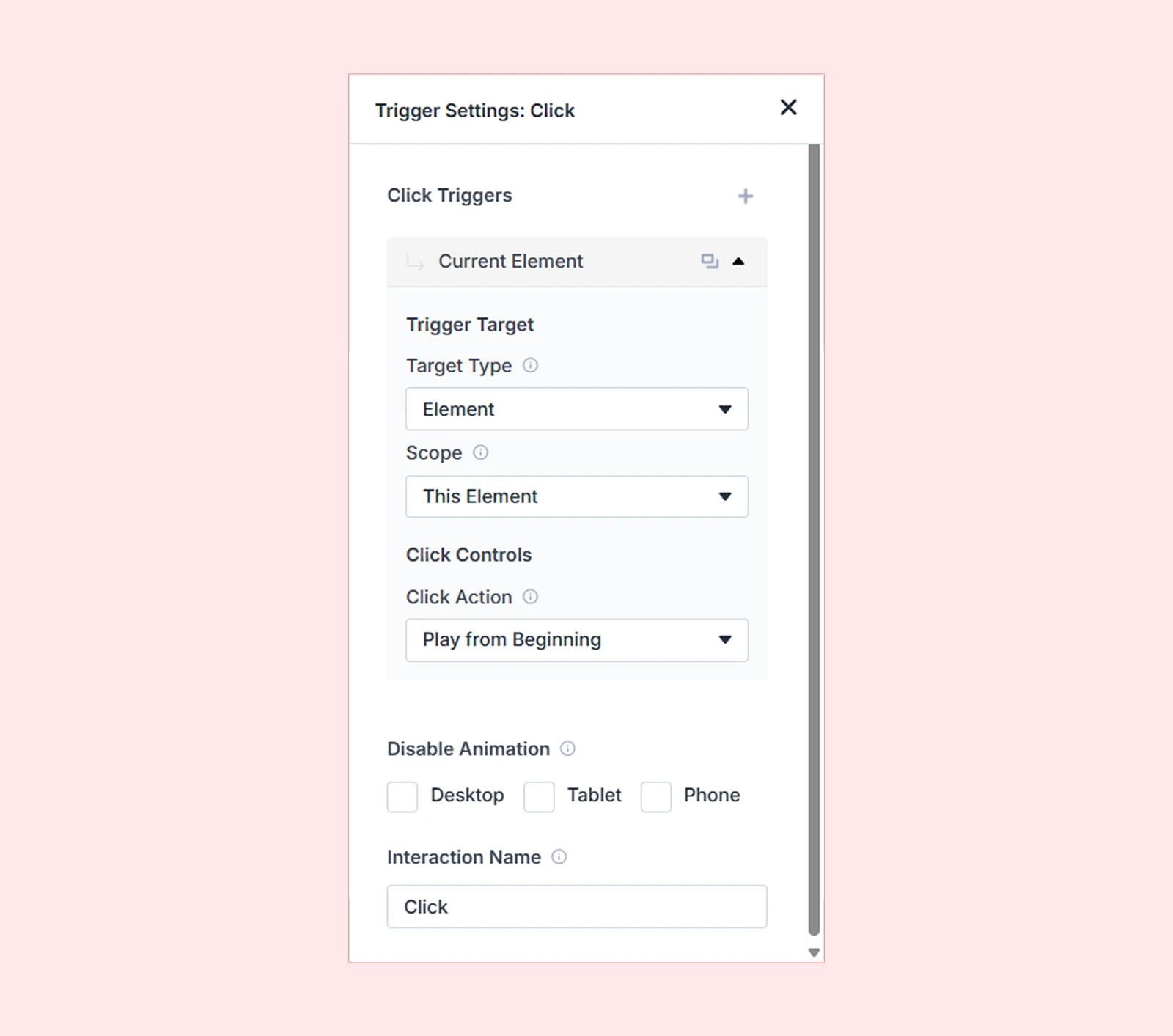
Trigger Target
These settings define which element users click to trigger the animation and what element gets animated.
Target Type
Choose what element should detect the click:
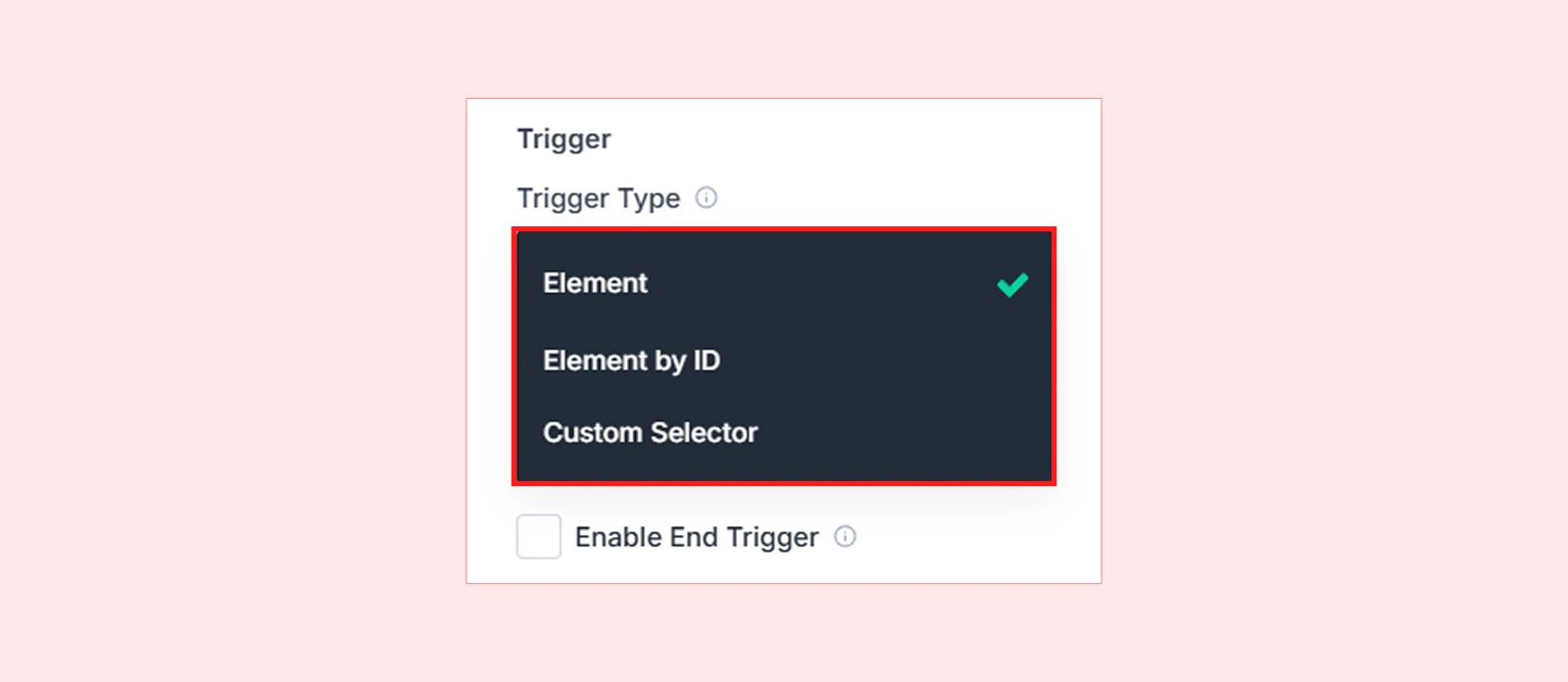
Element (Default): Targets the current element you're currently editing (section, row, or column).
Example: You're editing a button module and want that button to trigger an animation when clicked.
Element by ID: Targets a specific element on the page by selecting it from a dropdown list. This lets you choose any module, section, row, or column.
Example: You're editing a section but want a specific button module to be the clickable trigger.
Pro tip: Rename elements using the Admin Label feature to make them easier to find in the dropdown.
Custom Selector: Targets elements using CSS selectors like .class-name or #id-name. This allows you to:
- Target elements outside the current context
- Animate multiple elements with the same class
Example: Use .card to animate all elements with the "card" class at once.
| Note: When using Custom Selector: - Use . prefix for class selectors (e.g., .my-class) - Use # prefix for ID selectors (e.g., #my-id) |
Scope
Scope determines which related elements can be clicked to trigger the animation. It's especially important when using Custom Selector or targeting multiple clickable elements.
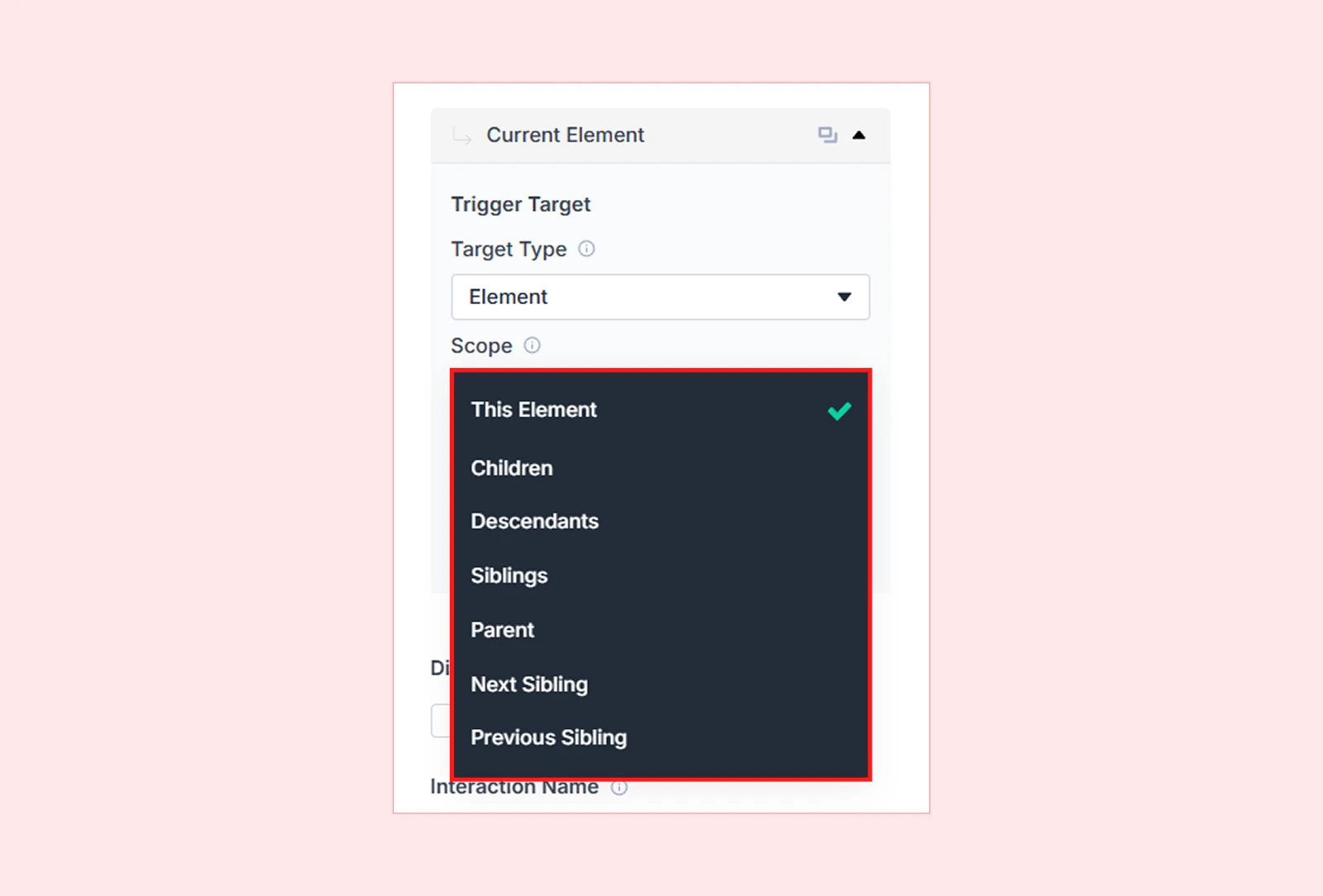
| Scope Option | What It Targets | Example Use Case |
| This Element | Only the selected element | A single button triggers animation |
| All Matching Elements | Every element matching the selector | Animate all .card elements on the page |
| Children | Direct children of the trigger | Animate buttons inside a container |
| Descendants | Any nested element (with HTML tag selector) | Animate all <button> tags inside a section |
| Siblings | Elements with the same parent | Animate other columns in the same row |
| Parent | The container holding the trigger | Animate the card when a child is clicked |
| Next Sibling | The element immediately after | Show the next item in a list |
| Previous Sibling | The element immediately before | Slide in previous testimonial |
Click Controls
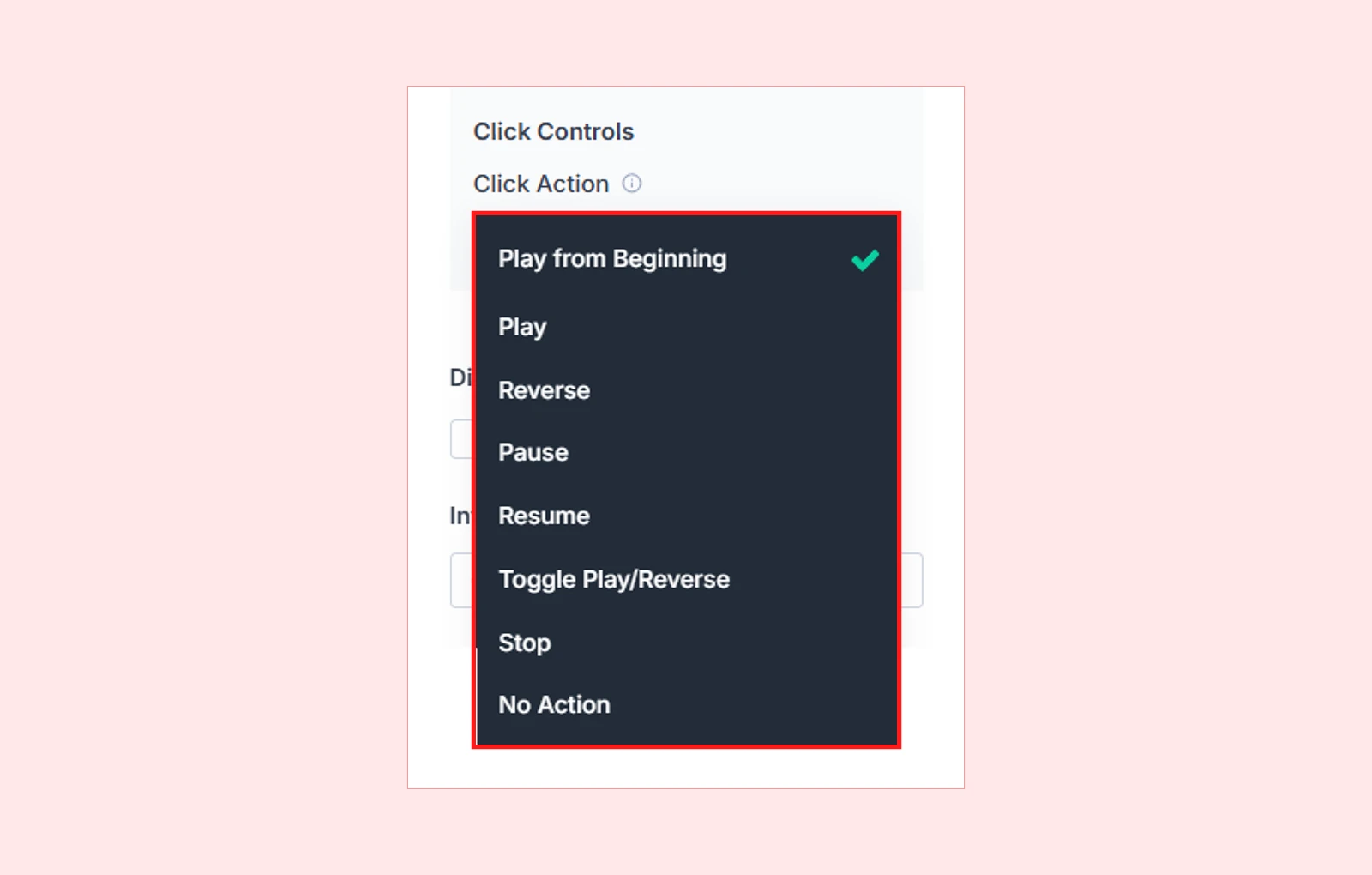
Click Controls define what happens when the targeted element is clicked. Choose one of these actions to control animation behavior:
| Action | Behavior |
| Play from beginning | Starts animation from the start, even if already playing |
| Play | Plays animation from current position |
| Reverse | Plays animation backward |
| Pause | Pauses animation at current frame |
| Resume | Continues from where paused |
| Toggle play/reverse | Alternates between play and reverse on each click |
| Stop | Stops animation and resets to start |
| No action | Click does nothing (useful for complex setups) |
Pro tip:Use Toggle when building collapsible content, modals, or repeat interactions.
Target Multiple Elements
DiviMotion lets you add multiple targets to a single click interaction.
Example: Click a "Menu" button to slide in a navigation panel AND fade in an overlay backdrop—both triggered by one click.
How to Add Multiple Targets
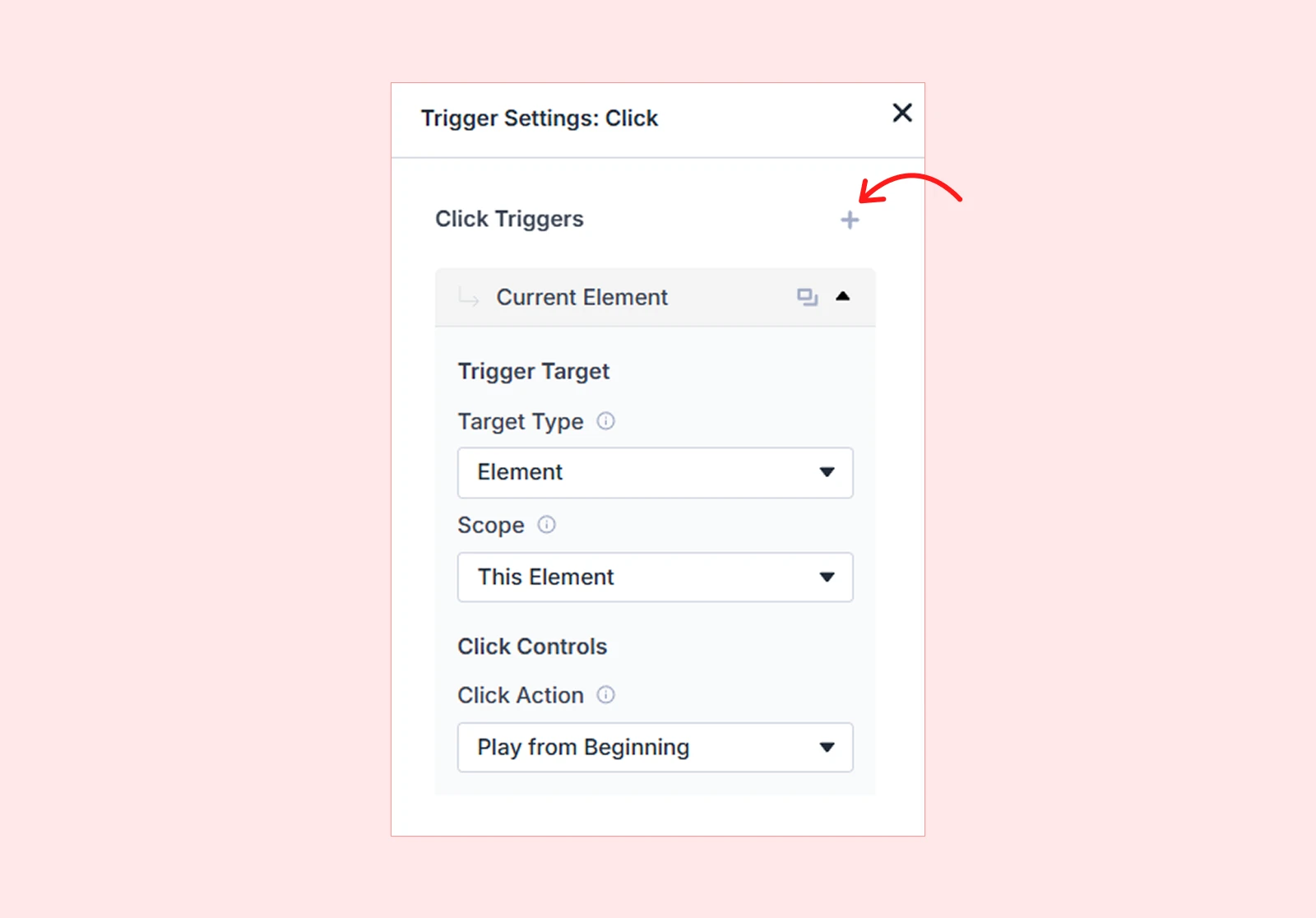
- Configure your first click target using the settings above
- Click the + icon below the click controls
- A new target card appears
- Configure the additional target with its own Target Type, Scope, and Click Controls
Disable Animation
Turn off click animations for specific devices if needed:

- Desktop
- Tablet
- Phone
| Common use case: Disable complex click effects on mobile where tap interactions might conflict with scrolling. |
Interaction Name
Give your click trigger a descriptive name for easy identification.

What's Next?
Now that you understand Click Triggers, you’re ready to add interactive click effects to your site.
Open the Visual Builder, add your first Click Interaction to a CTA module, icon, or collapsible element, and start clicking!


