

Card Stack (introduced in DiviMotion 1.1.0) is a scroll effect for Divi 5 that turns content inside a Section, Row, or Column into stacked cards. As the user scrolls, each card stays fixed on the screen while the next card moves over it in sequence. When scrolling back up, the cards return to their original positions.
How to Enable Card Stack
Here is how to activate the extension:
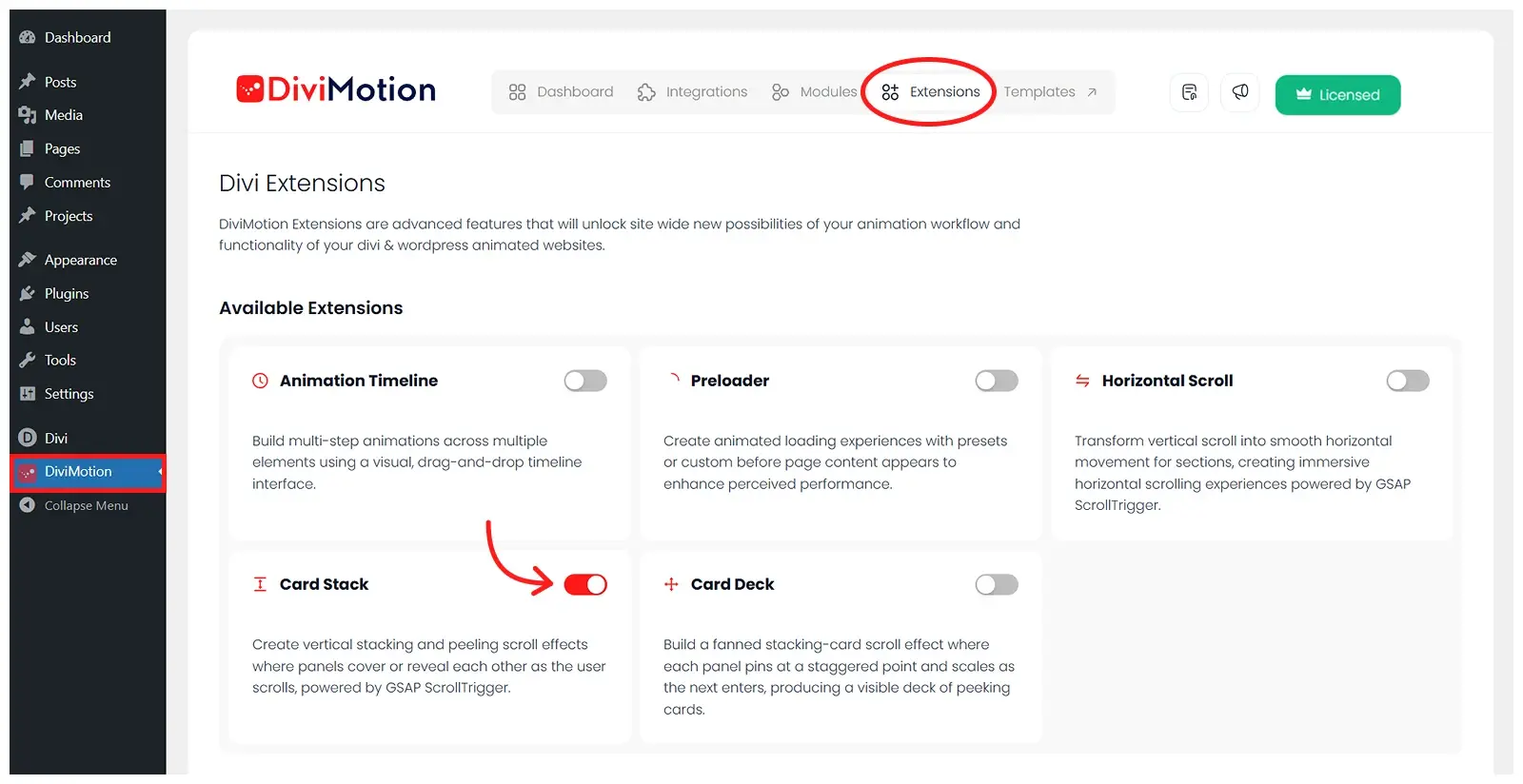
- Go to your WordPress Dashboard.
- Navigate to DiviMotion > Extensions.
- Toggle on Card Stack.
How to Use Card Stack
After enabling the extension, you can apply the card stack scroll effect to any parent container, like Section, Row, or Column.
Here is how to use it:
- Open an existing or create a new one using the Divi Visual Builder
- Click on section, row, column or module's setting
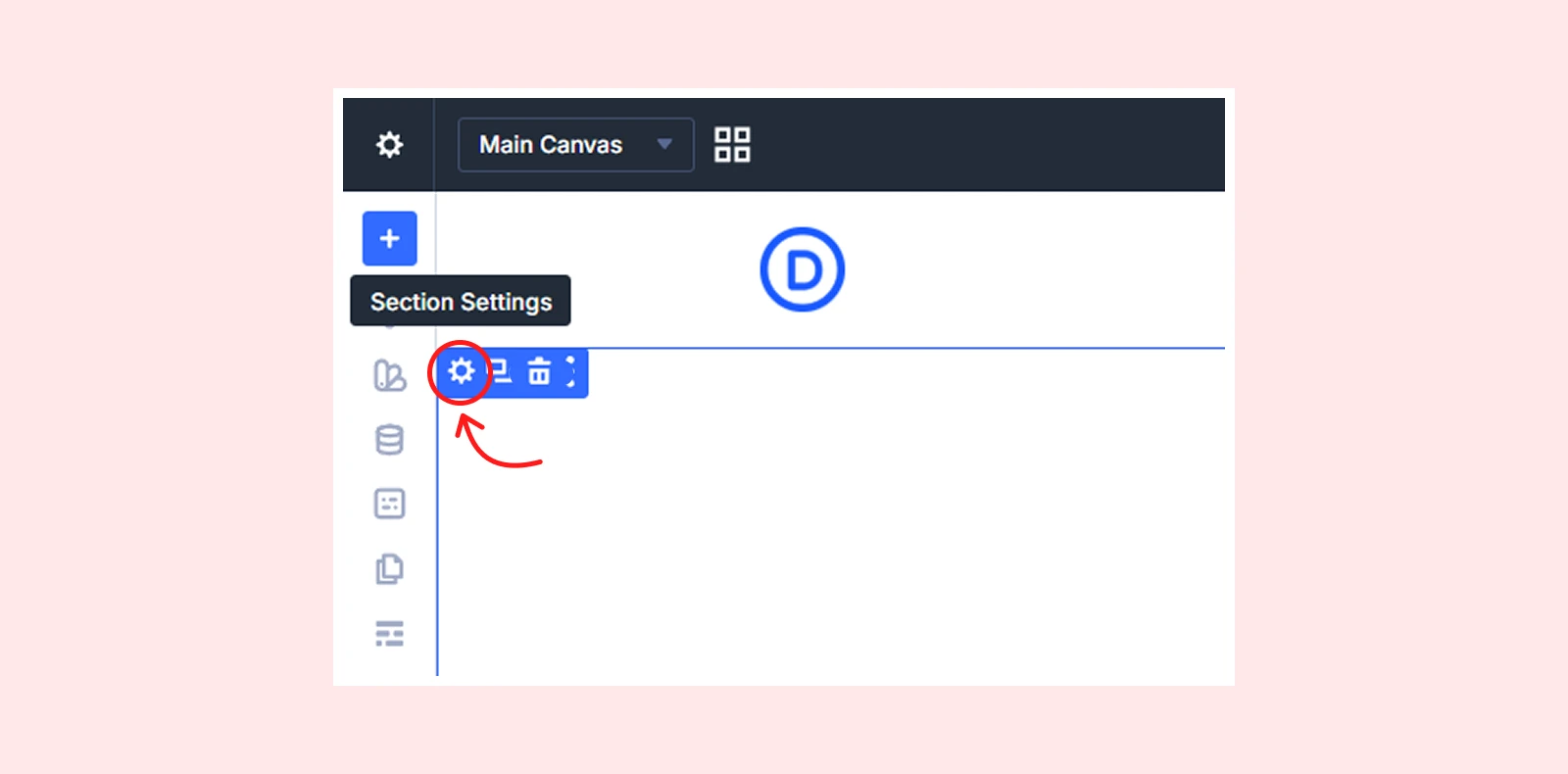
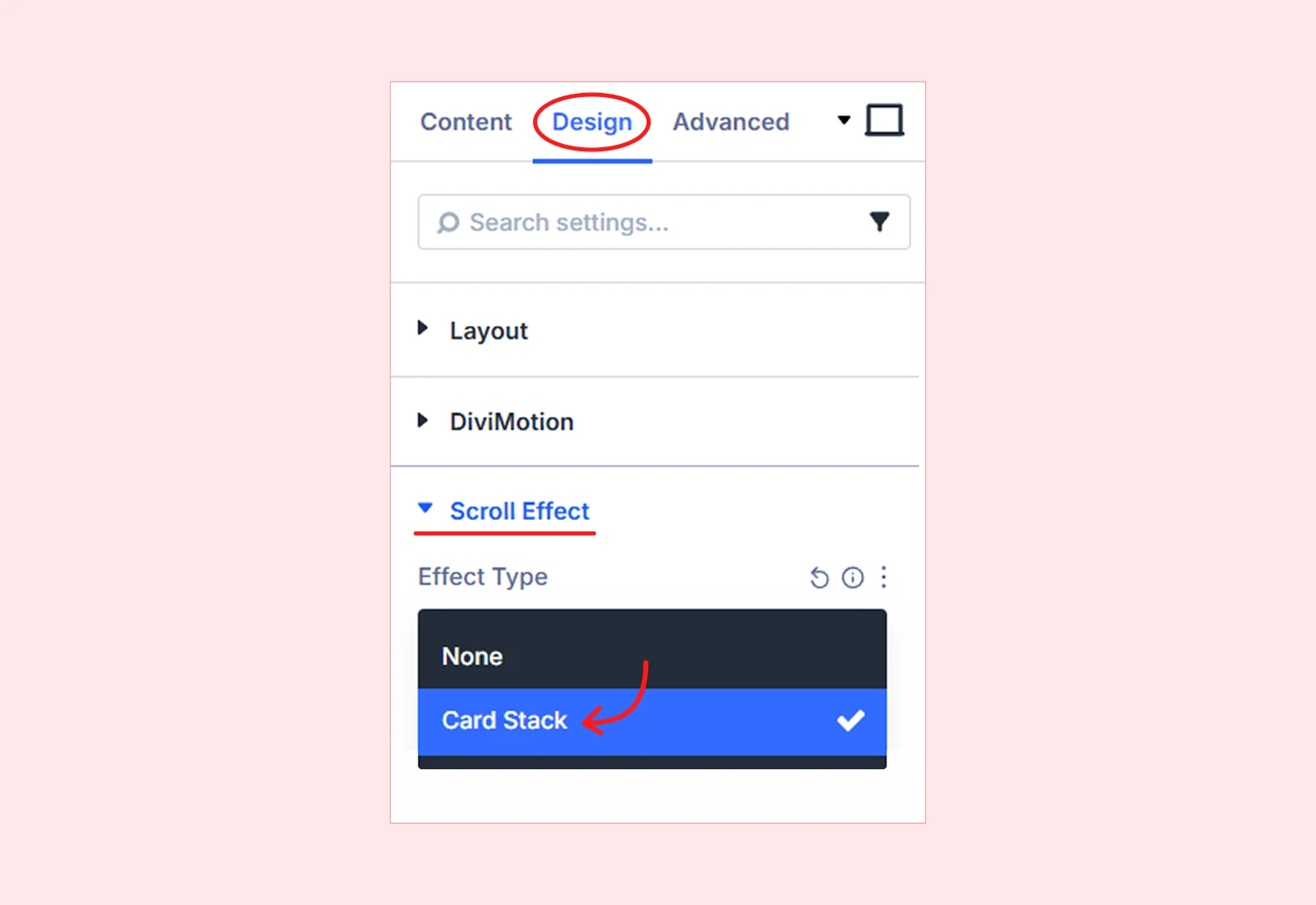
- Go to the Design tab > Scroll Effect.
- From Effect Type, select Card Stack.
Card Stack Settings
After selecting Card Stack, you will see the following options:
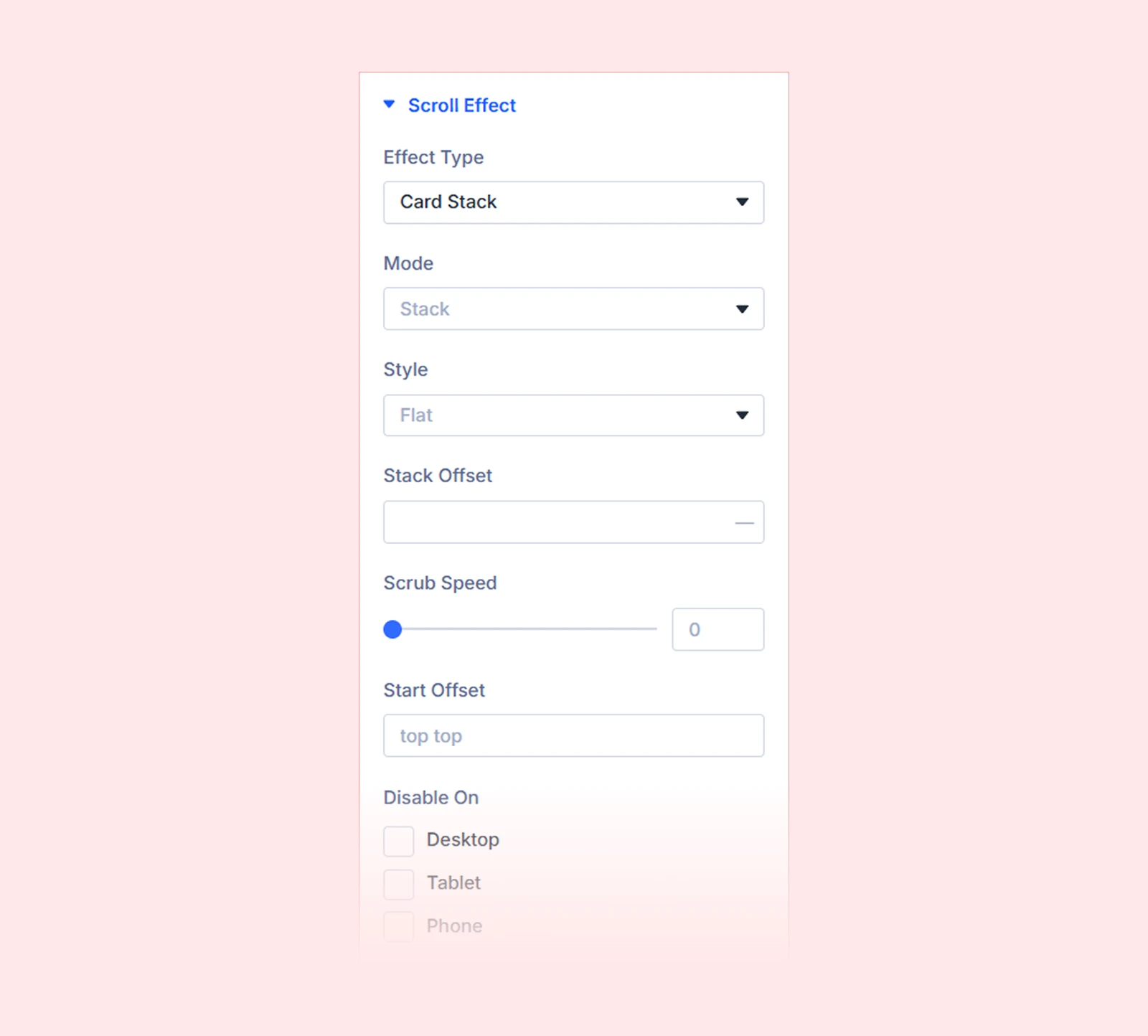
1. Mode
Mode is the main setting that controls how the cards move while scrolling. It defines the overall animation style of the card effect.
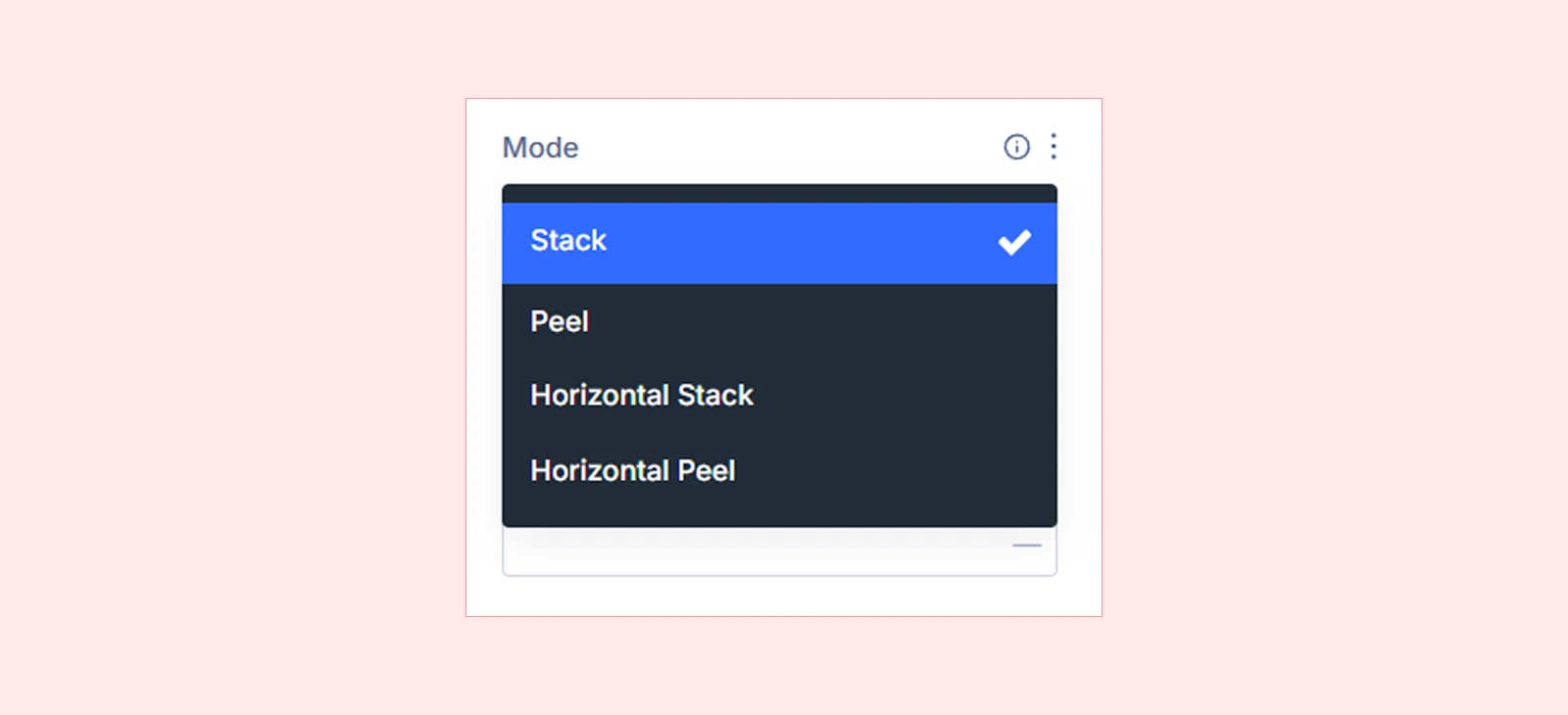
- Stack: Cards move up one by one and stack on top of each other as you scroll down. When you scroll up, they move back to their original positions.
- Peel: Cards start stacked in the same place. As you scroll down, the top card moves away to reveal the next card underneath. When you scroll up, they return to the original stacked position.
- Horizontal Stack: Cards move from right to left and line up next to each other as you scroll. When you scroll up, they return to their starting positions.
- Horizontal Peel: Cards start stacked in the same place. As you scroll, the top card peels off to the left and moves out of view, revealing the next card underneath. When you scroll back up, the effect reverses and the cards return to their original stacked position.
2. Style
Style is an optional visual setting that changes how the cards look during the animation. It adds movement effects as the cards scroll.
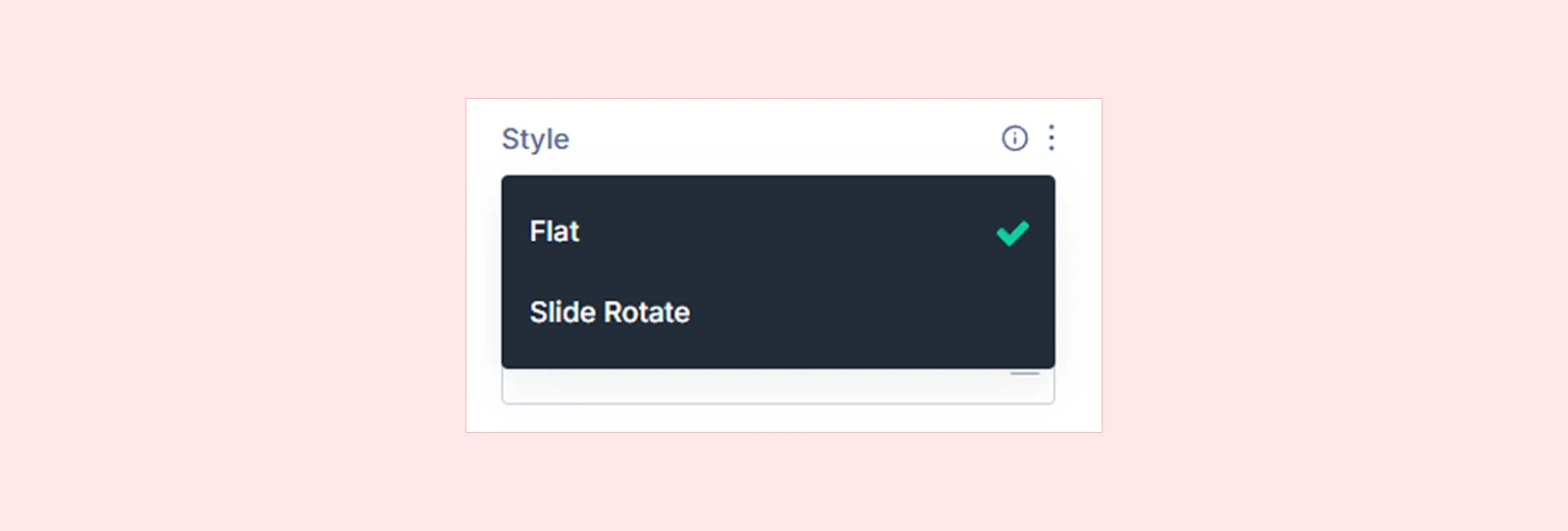
- Flat: Cards keep their original look. They don’t tilt, or change size during the animation, so the motion stays clean and simple.
- Slide Rotate: Cards move with simple effects while scrolling. They will slightly shift, scale, and rotate, adding a sense of depth and motion.
3. Stack Offset
Controls how close or far the cards appear when stacked on top of each other. It lets you decide how much each card overlaps the one below it.
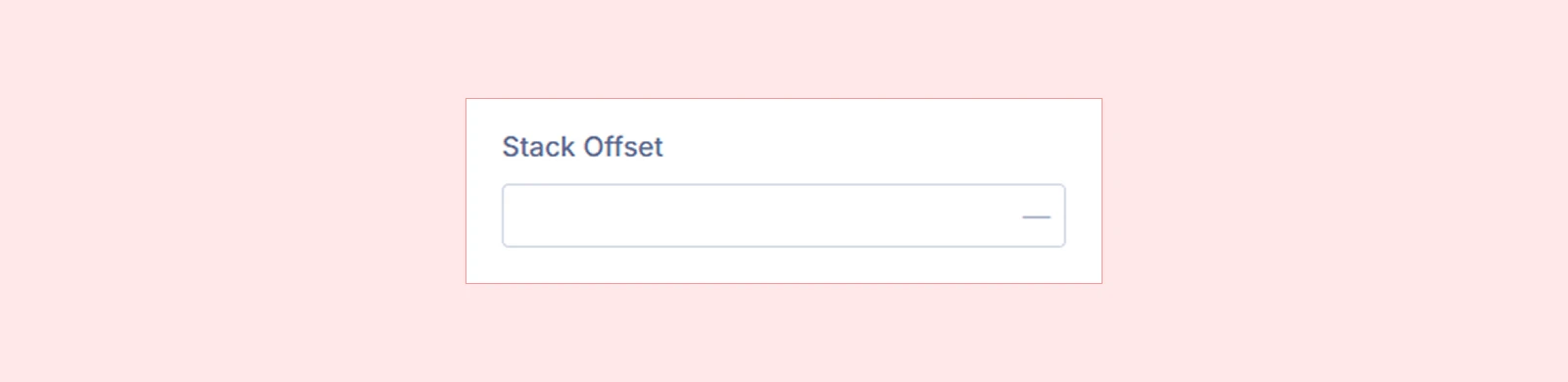
- Lower value will make the cards stay closer together or overlap more.
- Higher value will add more space between the cards and make each card easier to see.
| Note: Use a value between 0 and 200px to control the spacing between cards in the stack. |
4. Scrub Speed
Controls how smoothly the horizontal movement follows the user’s scrolling.
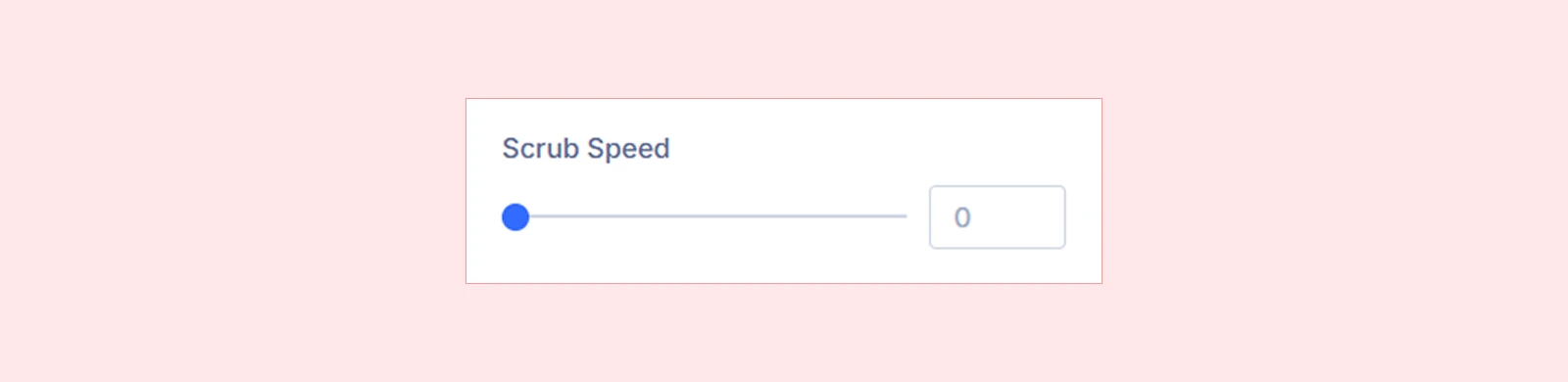
- Lower value will make the animation move faster relative to the user's scroll.
- Higher value will make the animation move more slowly and feel smoother.
| Note: Use a value between 0.1 and 5 to control how fast or smooth the animation follows the scroll. |
5. Start Offset
Set where the card stack animation begins. You have to set two values: one for the section position and one for the viewport position. When the section reaches the chosen position in the viewport, the animation will start.
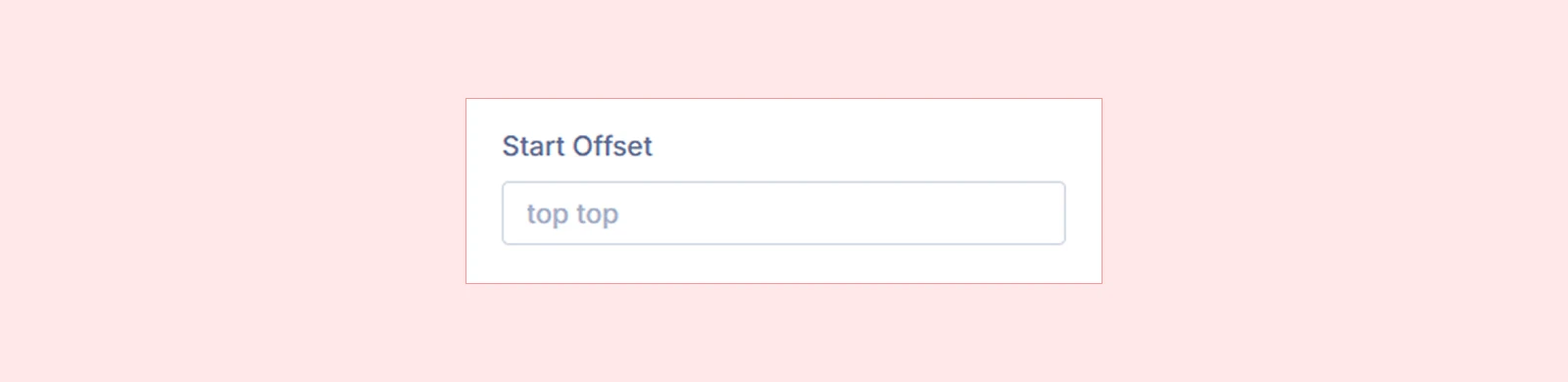
Common examples are:
| Setting | When the Animation Starts |
| Top Top | When the top of the section reaches the top of the browser viewport |
| Top Center | When the top of the section reaches the middle of the viewport |
| Bottom Center | When the bottom of the section reaches the middle of the viewport |
| Top 20% | When the section reaches about 20% from the top of the viewport |
6. Disable On
Lets you disable the Card Stack animation on specific devices, like:
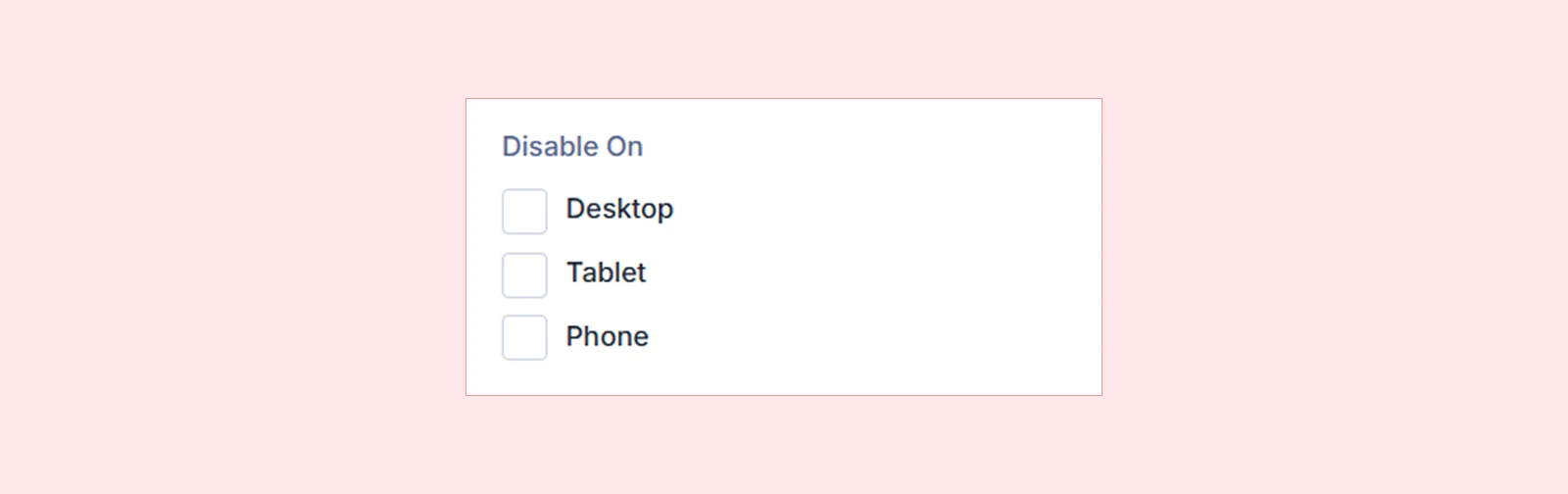
- Desktop
- Tablet
- Mobile
| Note: If you disable the Card Stack animation on a specific device, the content will display in a normal layout without animation on that device. |
What's Next?
Now that you understand how the Card Stack works, you can start using it to create more engaging scroll effects on your pages. Enable the extension, and experiment with different settings to build layered animations that make your content visually interesting as users scroll.


