

Understanding the DiviMotion interface is essential to bringing modern animation to your Divi websites. DiviMotion is fully integrated into the Divi Visual Builder, so you never have to leave your workflow to create, preview, or manage animations.
This overview introduces how to access the DiviMotion panel and highlights the key settings you'll use when working with animations. Detailed guides for each setting will be covered in their own dedicated docs.
Accessing the DiviMotion Panel
To open the DiviMotion panel for a specific element on your page, follow these steps:
- Open any page you want to animate using the Divi Visual Builder.
- Hover over any section, row, column, or module, including third-party modules, and open its settings.
- Switch to the Design tab and scroll down until you see the DiviMotion section.
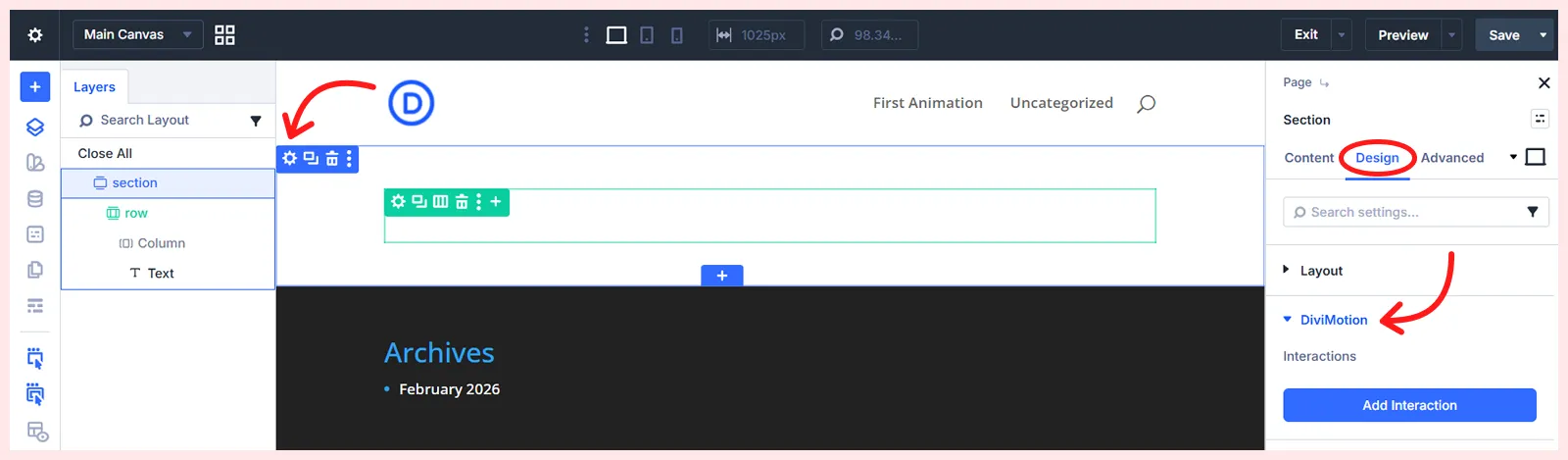
This is where you’ll create and manage animations for that specific element.
DiviMotion Panel Settings Overview
Once the DiviMotion panel is expanded, you’ll see an interface containing several key controls and options. Here’s a quick overview of what they do:
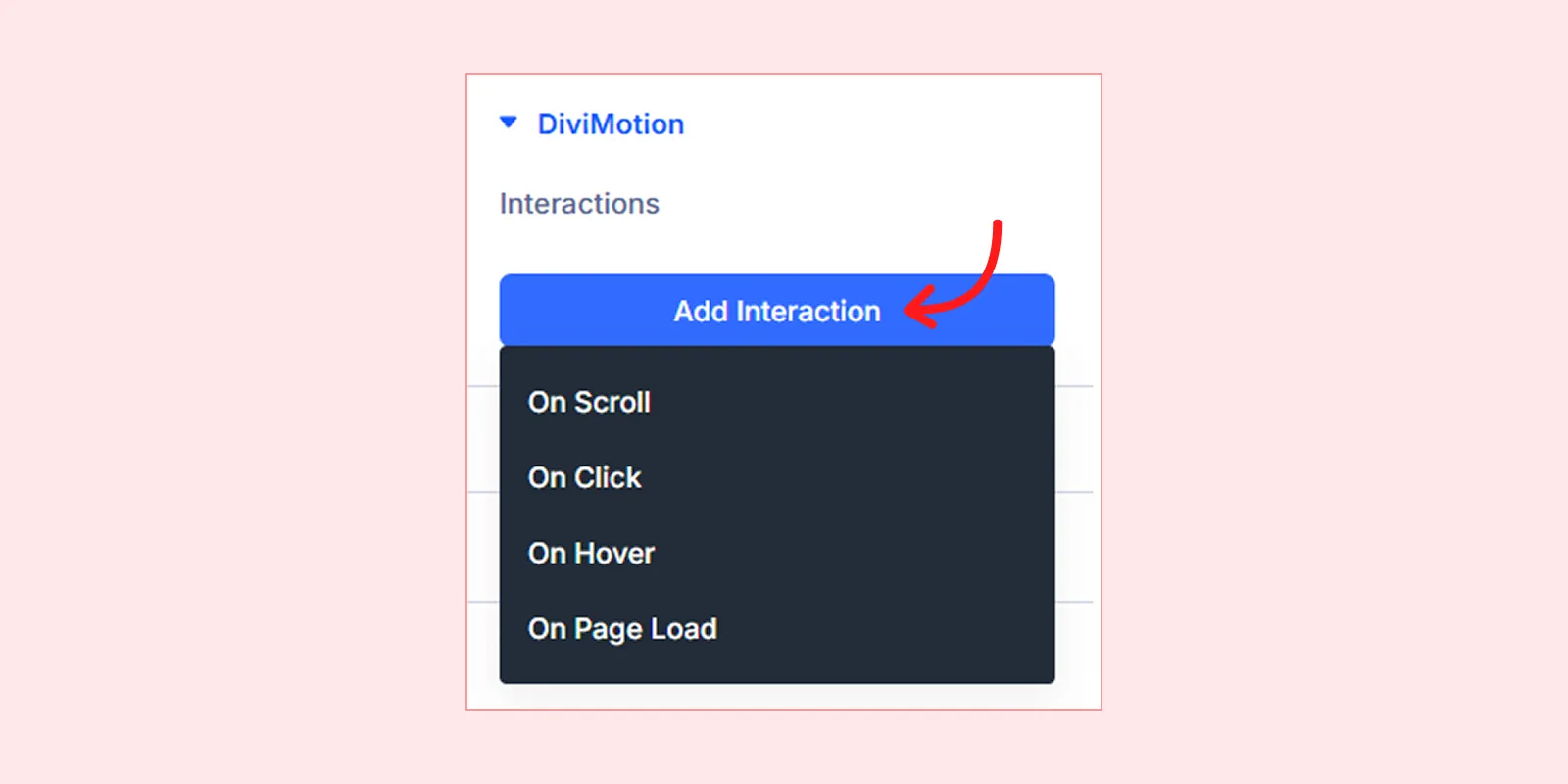
Interactions: This is when should the animation happen? Choose triggers like scroll, hover, click, or page load by clicking the + Add Interaction button. After selecting a trigger, an interaction panel will appear where you can define the animation sequence and configure how and when it should run.
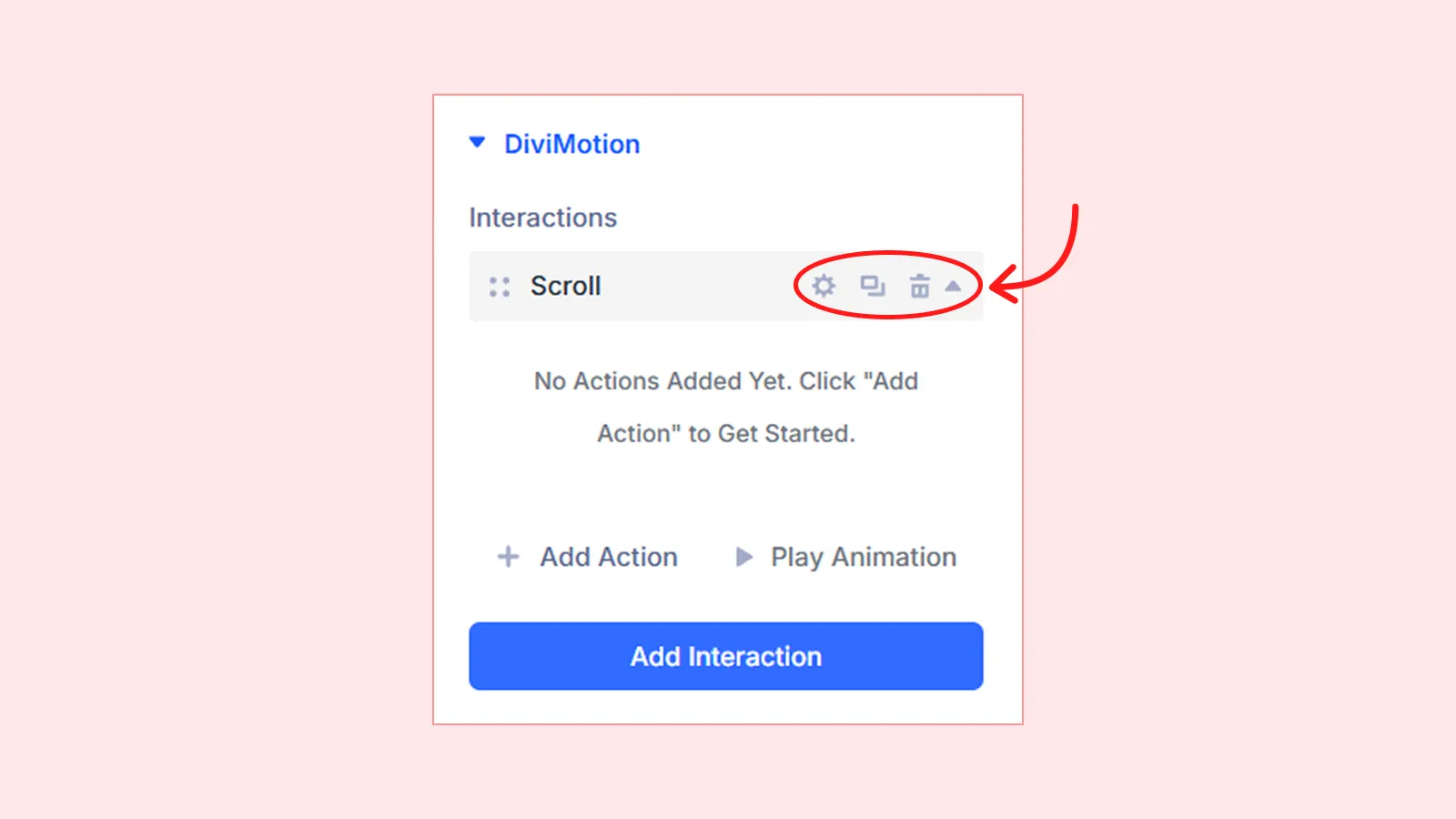
Interaction Cards: Each interaction is represented as a collapsible card. The card header shows the trigger name and includes icons to reorder, duplicate, delete, or access additional settings.
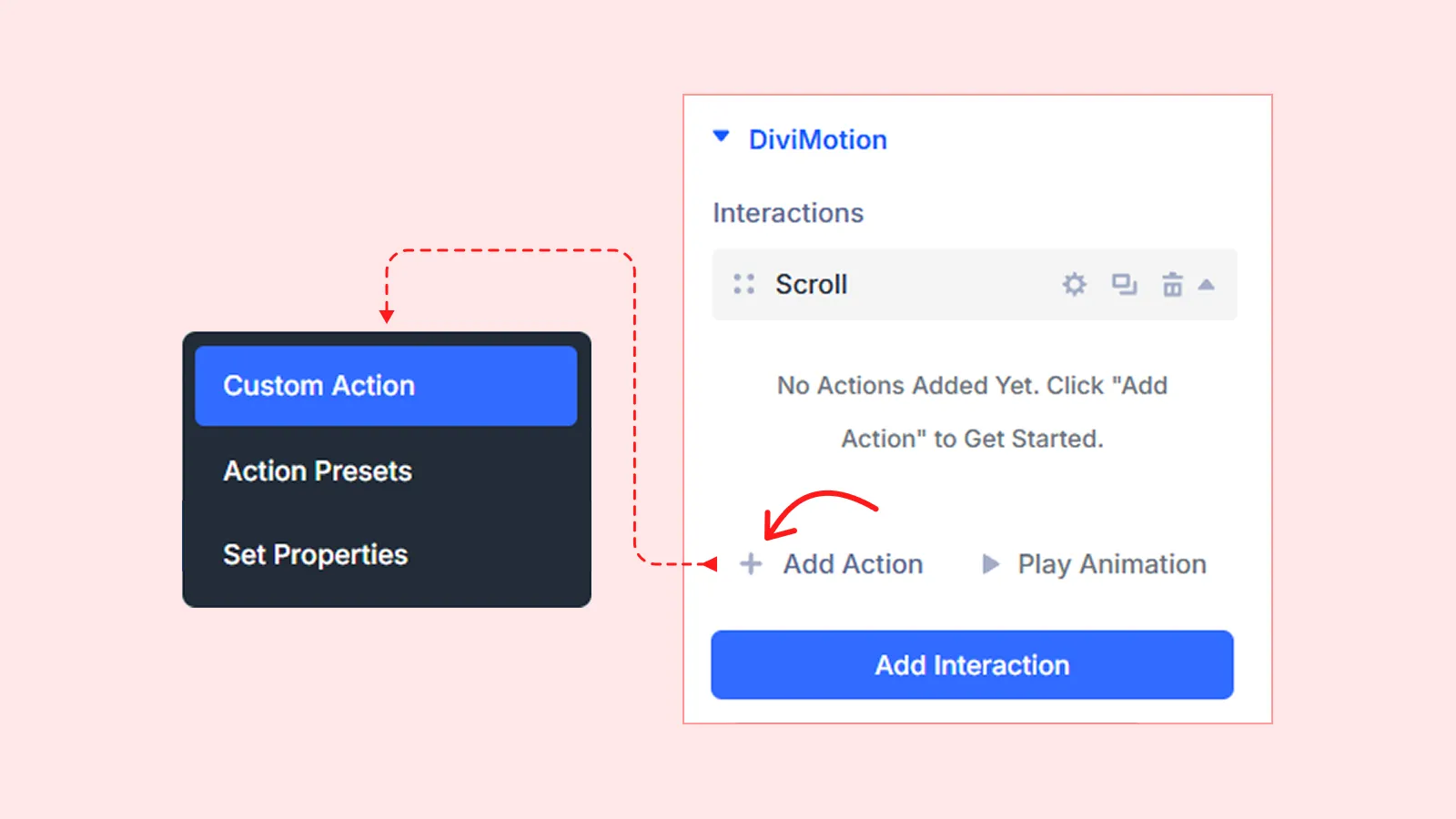
Actions: This is what should happen when the trigger fires? Inside each interaction, you can add one or more actions using either preset effects or custom-defined animations. Each action includes controls for target, scope, duration, delay, animation properties, and more — allowing you to define what the animation does and what elements it affects.
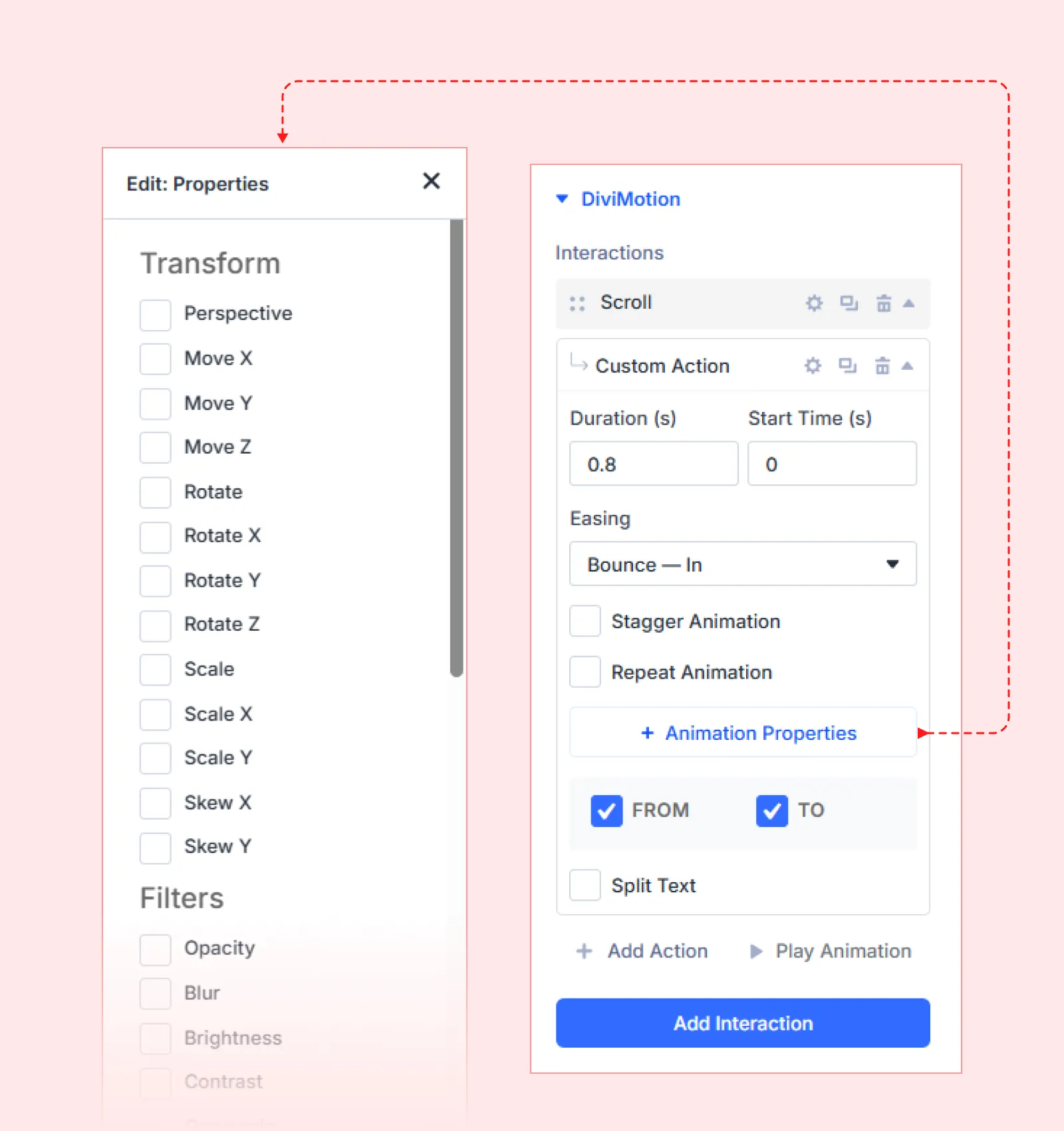
Animation Properties: These settings define how the element moves or transforms. Preset actions come with default values that you can adjust. For custom actions, you’ll manually define the animation property values.
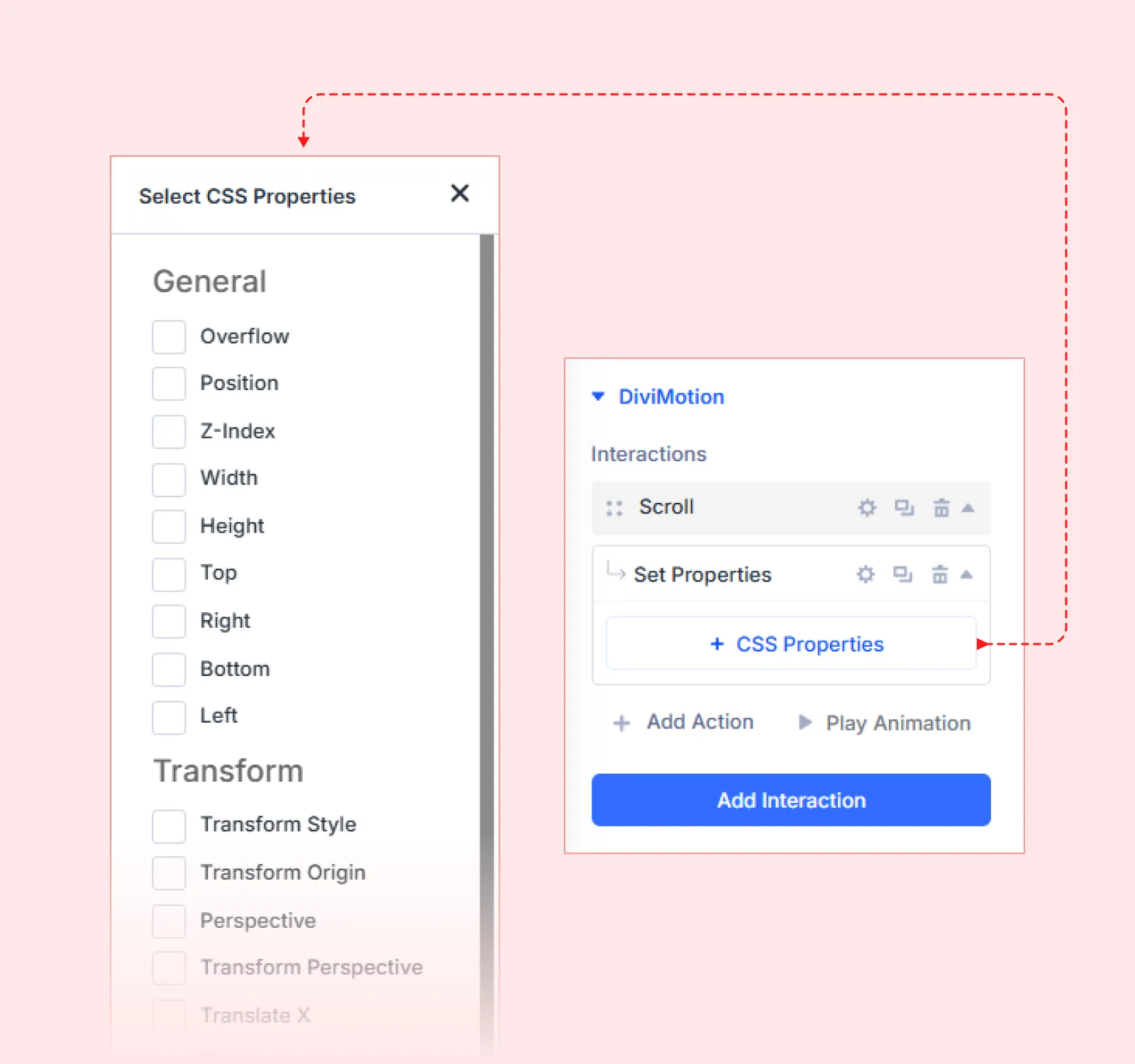
CSS Properties: You can also configure additional CSS properties like overflow, position, or z-index. These options help fine-tune visual behavior — especially useful for scroll-based or layered designs.
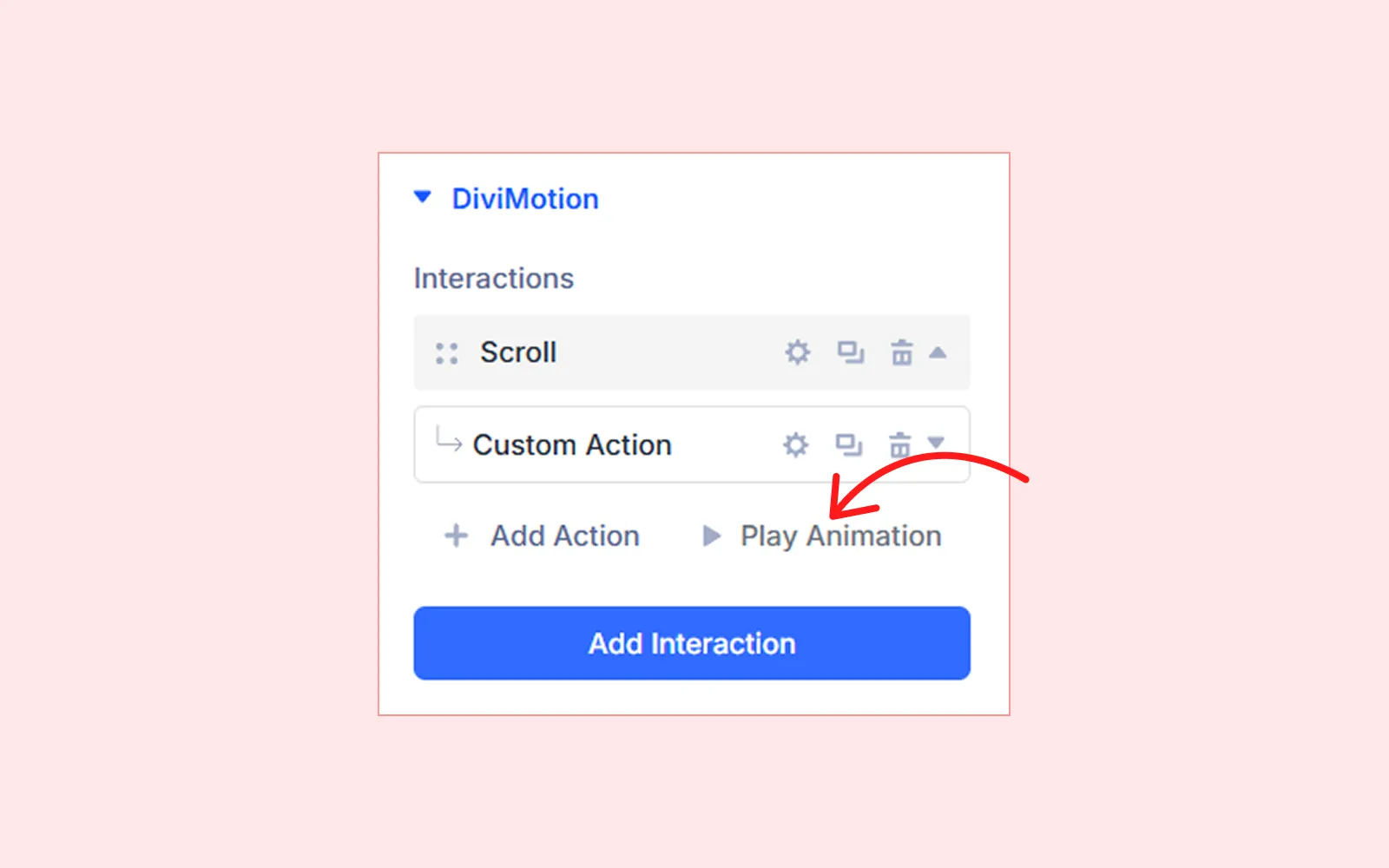
Play Animation: The Play Animation button allows you to preview your animation directly inside the Divi Builder without needing to refresh or publish the page. It’s great for real-time adjustments while designing.
Global DiviMotion Animation Overview Panel
DiviMotion also includes a Global Overview Panel that displays every animation currently active on the page; so you can jump directly into the corresponding section, row, or column to make edits.
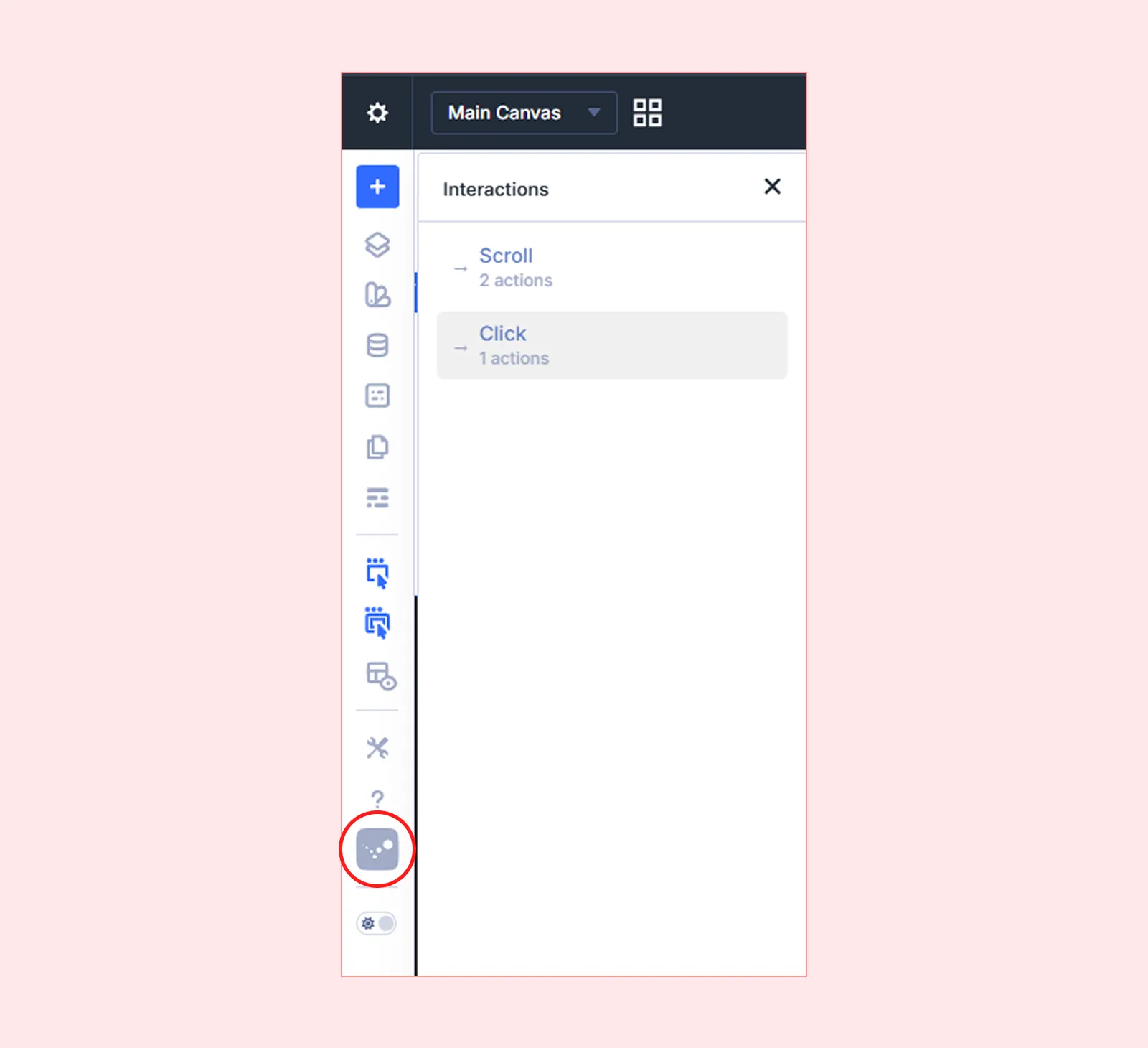
This panel is especially helpful on motion-heavy layouts, keeping your page organized and making it easier to debug or refine animations.
What's Next?
Ready to experiment? Open the Visual Builder and try adding your first animation!


