

Page Load Trigger lets you create animations that play automatically when the page loads. Unlike Scroll Triggers that respond to scrolling, Click Triggers that need user interaction, or Hover Triggers that activate on mouse movement, Load Triggers start immediately when visitors arrive on your page.
This guide covers everything you need to know about page-load animations, from basic setup to best practices for creating impactful entrance effects.
How to Access Page Load Trigger
To create a page load-based animation:
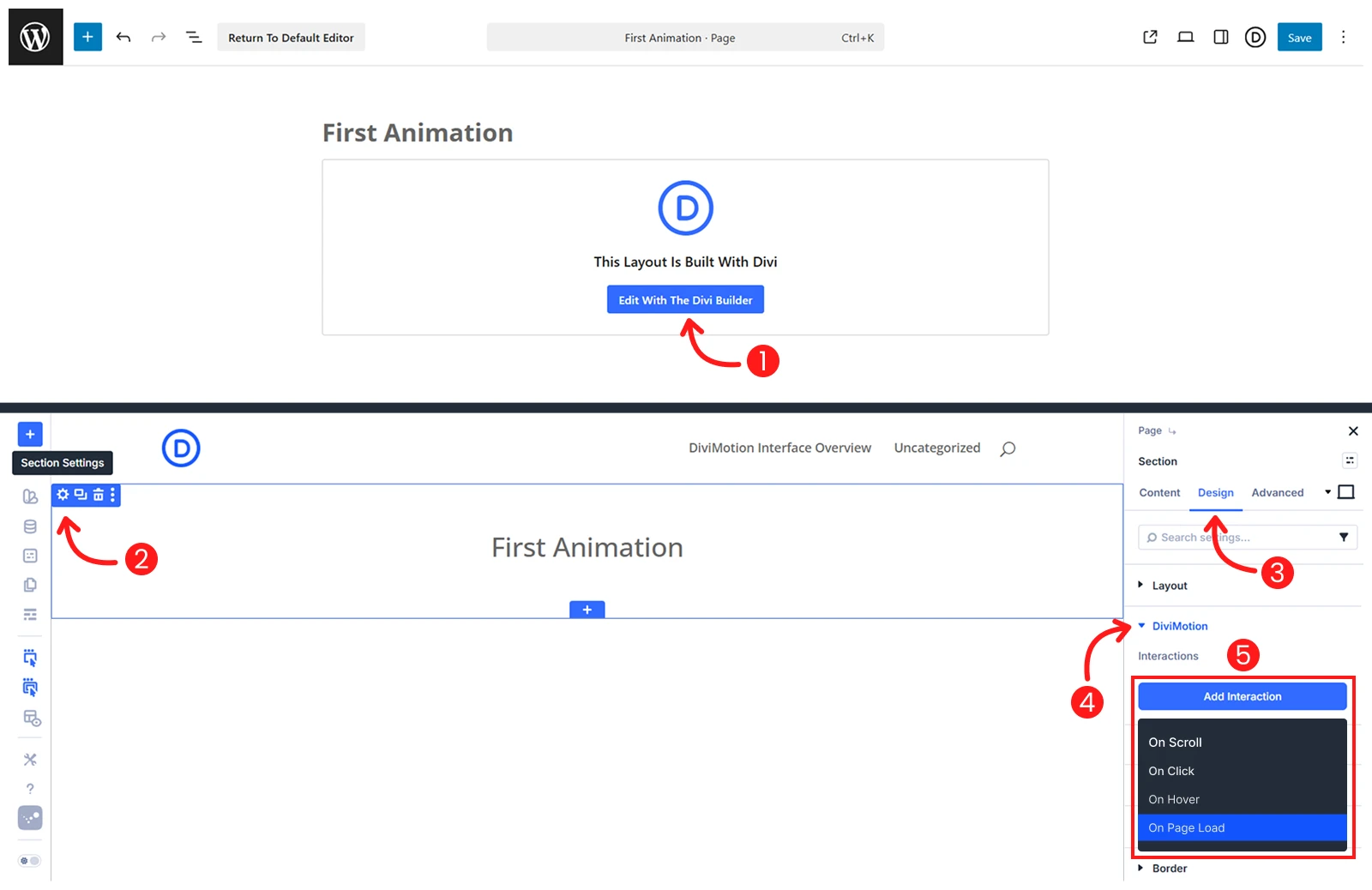
- Open your page in the Divi Visual Builder
- Click the settings icon (gear) on any section, row, column or module
- Go to the Design tab → scroll to DiviMotion and expand it
- Click + Add Interaction
- Choose Page Load trigger type
You're now ready to configure what happens when the page loads. Click the Trigger Settings icon on the interaction card to open the Load Trigger Settings panel on the left side.
Load Trigger Settings
Load Trigger settings are the simplest of all interaction types because animations automatically play on page load. You only need to configure two organizational and device-specific options.
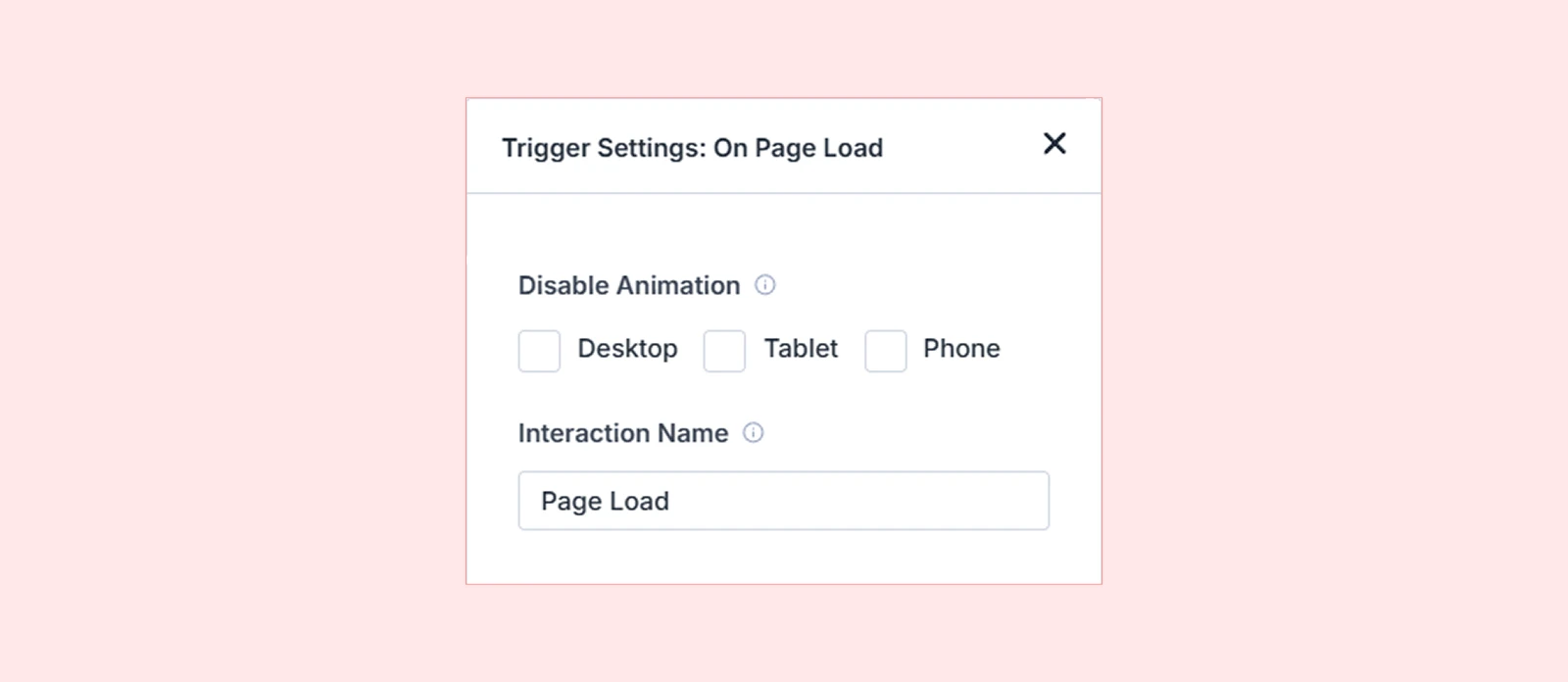
Disable Animation
Turn off page load animations for specific devices if needed:

- Desktop
- Tablet
- Phone
| Common use case: Mobile users often have slower connections. Consider disabling load animations on the phone to prioritize content visibility over visual flair. |
Interaction Name
Give your page load trigger a descriptive name for easy identification.

What's Next?
Now that you understand page load Triggers, you’re ready to add entrance animations to your site.
Open the Visual Builder, make a grand entrance!


