

The Page Transitions extension lets you add animations when visitors navigate between pages on your website. Choose from seven transition effects and configure them site-wide from the DiviMotion dashboard.
Important Note:
- Transitions only work when visitors click links to other pages on the same website. External links, forms, page reloads, and browser Back/Forward navigation are excluded.
- Transitions work in Chrome, Edge, and Safari 26.2 or newer. Other browsers load pages normally.
- If the Preloader extension is enabled, it appears on the first page visit, while page transitions play instead when visitors navigate to another page.
How to Enable Page Transitions
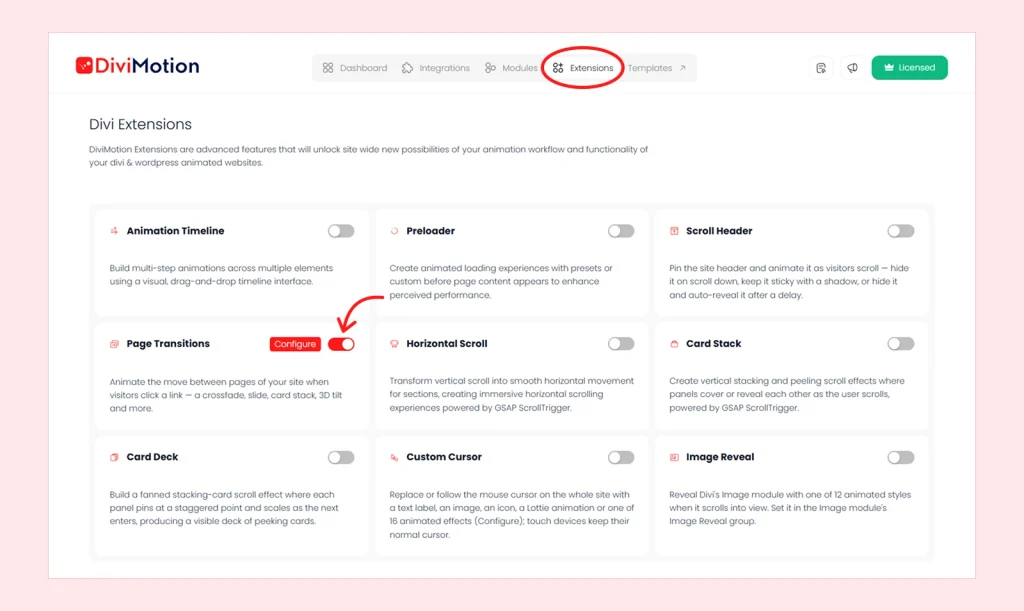
- Navigate to WordPress Dashboard > DiviMotion > Extensions.
- Enable Page Transitions.
- Click Configure to open the Page Transitions settings.
Page Transitions Settings
Here is what each setting does.
Transition Style
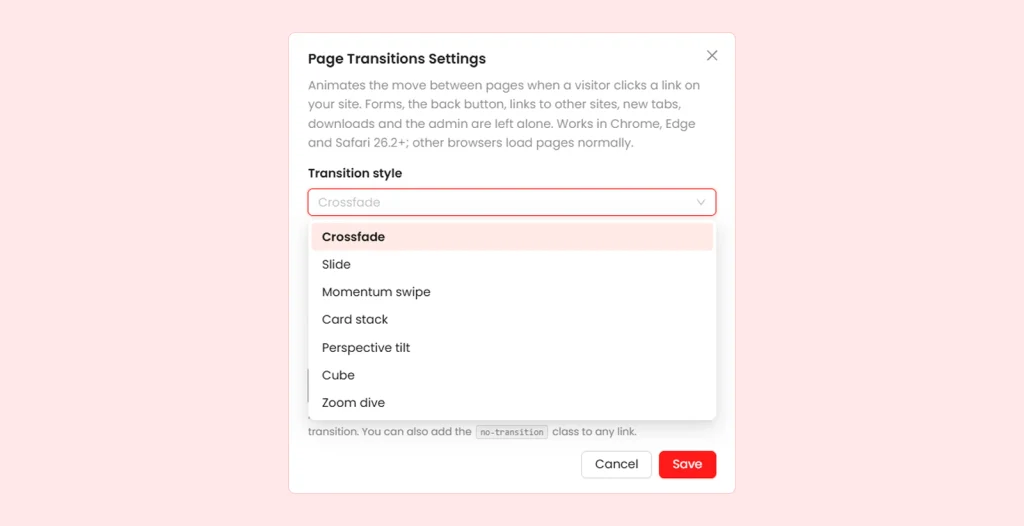
The Transition Style setting controls how the current page disappears and the next page appears. You can choose from seven effects:
| Style | What It Does |
| Crossfade | The current page fades out while the new page fades in. |
| Slide | The new page slides in from the right as the current page moves slightly left and darkens. |
| Momentum Swipe | The current page swipes left with a slight tilt, while the new page enters with a small bounce. |
| Card Stack | The current page shrinks and moves up like a card, while the new page rises from below and fills the screen. |
| Perspective Tilt | The current page tilts backward and darkens, while the new page tilts forward into view. |
| Cube | The pages rotate like two sides of a cube, with the new page coming up from below. |
| Zoom Dive | The current page zooms toward the visitor and fades away, revealing the new page underneath. |
Tip: Use Crossfade for a subtle transition, or try Card Stack, Perspective Tilt, or Cube for a more noticeable effect.
Duration
The Duration setting controls how long the page transition takes. Lower values make the transition faster, while higher values make it slower.
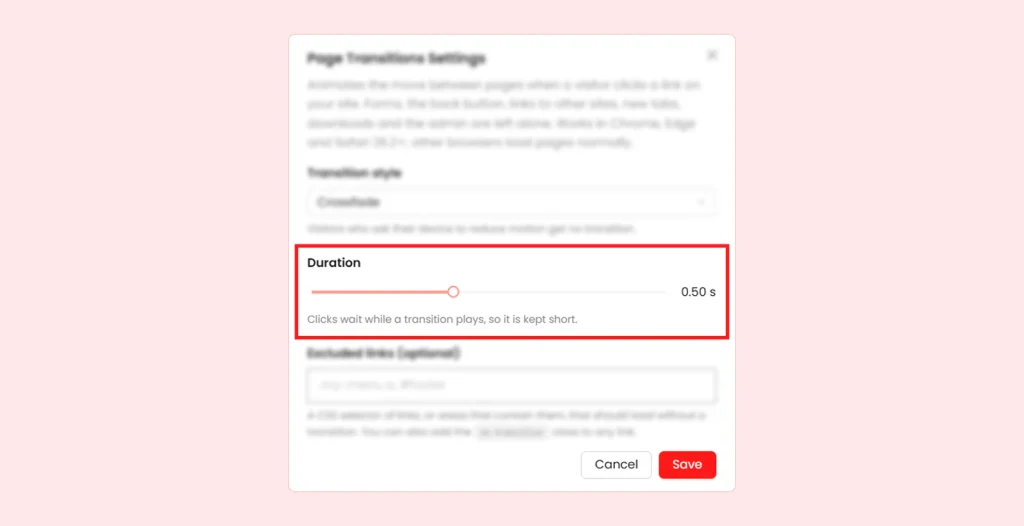
- Range: 0.30–0.80 seconds
| Value | Result |
| 0.30 s | A quick transition |
| 0.50 s | A balanced transition (default) |
| 0.80 s | A slower, more noticeable transition |
Note: Card Stack and Perspective Tilt may take slightly longer to complete their animations. If visitors click another link during a transition, navigation waits until the current transition finishes.
Backdrop Colour
The Backdrop Colour setting lets you choose the colour that appears behind the pages during a transition. You can use a colour that complements your website's design.
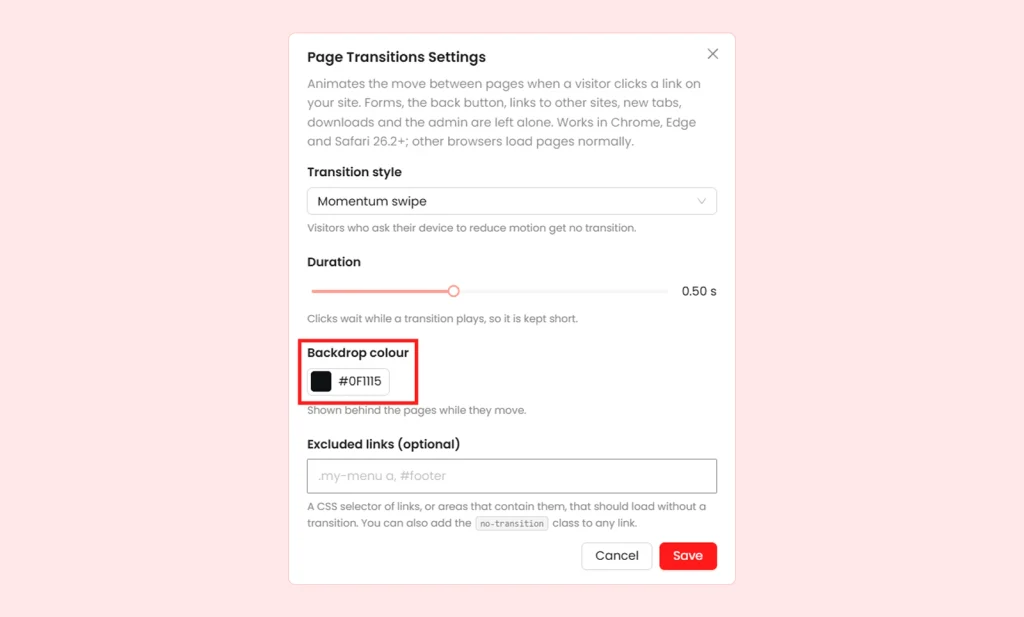
Note: This setting is only available for Momentum Swipe, Card Stack, Perspective Tilt, and Cube.
Excluded Links (Optional)
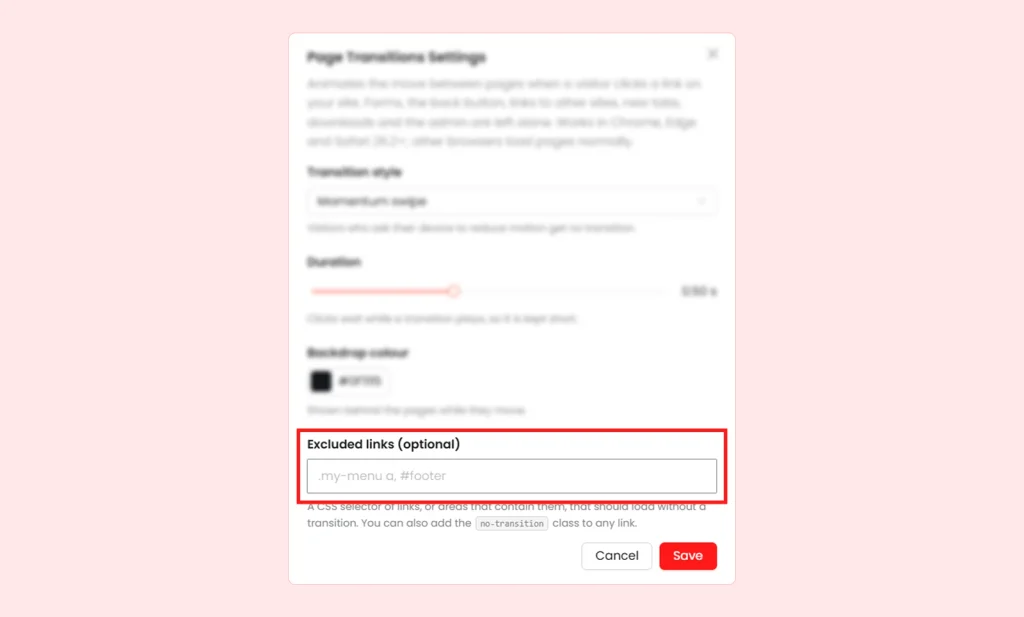
The Excluded Links setting lets you prevent page transitions on specific links or all links within a section, such as a menu or footer.
You can exclude links in two ways:
- Using CSS selectors: Add a CSS ID or class name to the link or section in Divi, then enter its selector in the Excluded Links field. For example, set your footer's CSS ID to footer and enter #footer in Excluded Links to disable transitions for all footer links. Separate multiple selectors with commas.
- Using a CSS class: Add no-transition to a link, module, or section under Advanced > CSS ID & Classes in Divi. This will exclude that link or all links within the selected element.
Note: Invalid CSS selectors are ignored and there is no separate per-page disable option.
What's Next?
After saving your settings, open your website on the frontend and click links between different pages to preview the effect. Try a few transition styles and duration values to find what works best for your site's design.


