

DiviMotion DrawSVG module lets you display and animate SVG graphics in Divi with customizable drawing effects, fill animations, and interactive triggers.
Important Note: DrawSVG module is disabled by default. To enable it, go to WordPress Dashboard > DiviMotion > Modules, then enable DrawSVG.
Here is an overview of the DrawSVG module settings.
Content Tab
The Content tab contains the essential settings for adding and configuring your SVG animation.
DrawSVG
- SVG Source: Choose how you want to add the SVG to the module: SVG Code or Upload SVG.
- If you chose SVG Code
- SVG Markup: Paste the complete SVG markup directly into this field.
- If you chose SVG Code
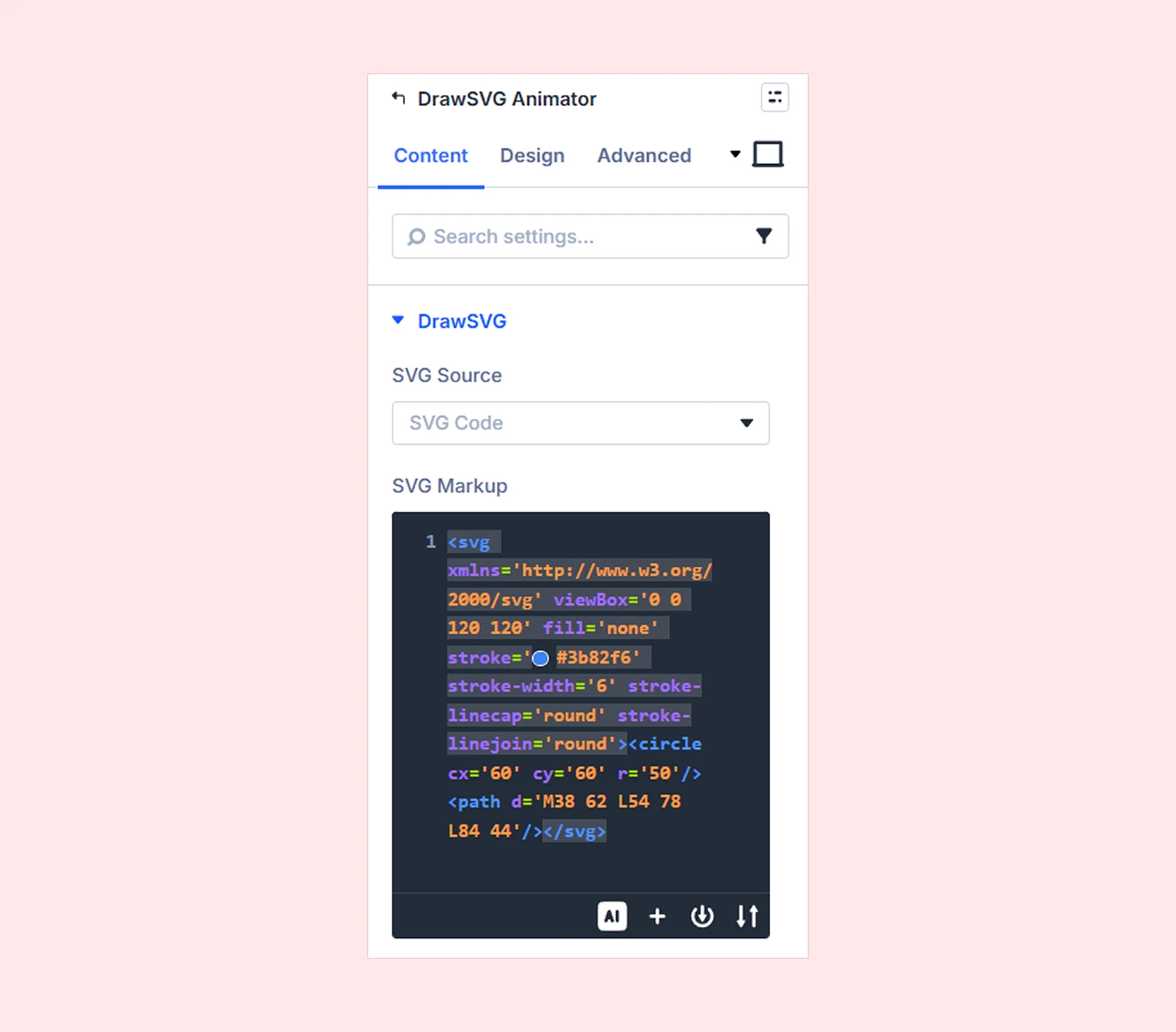
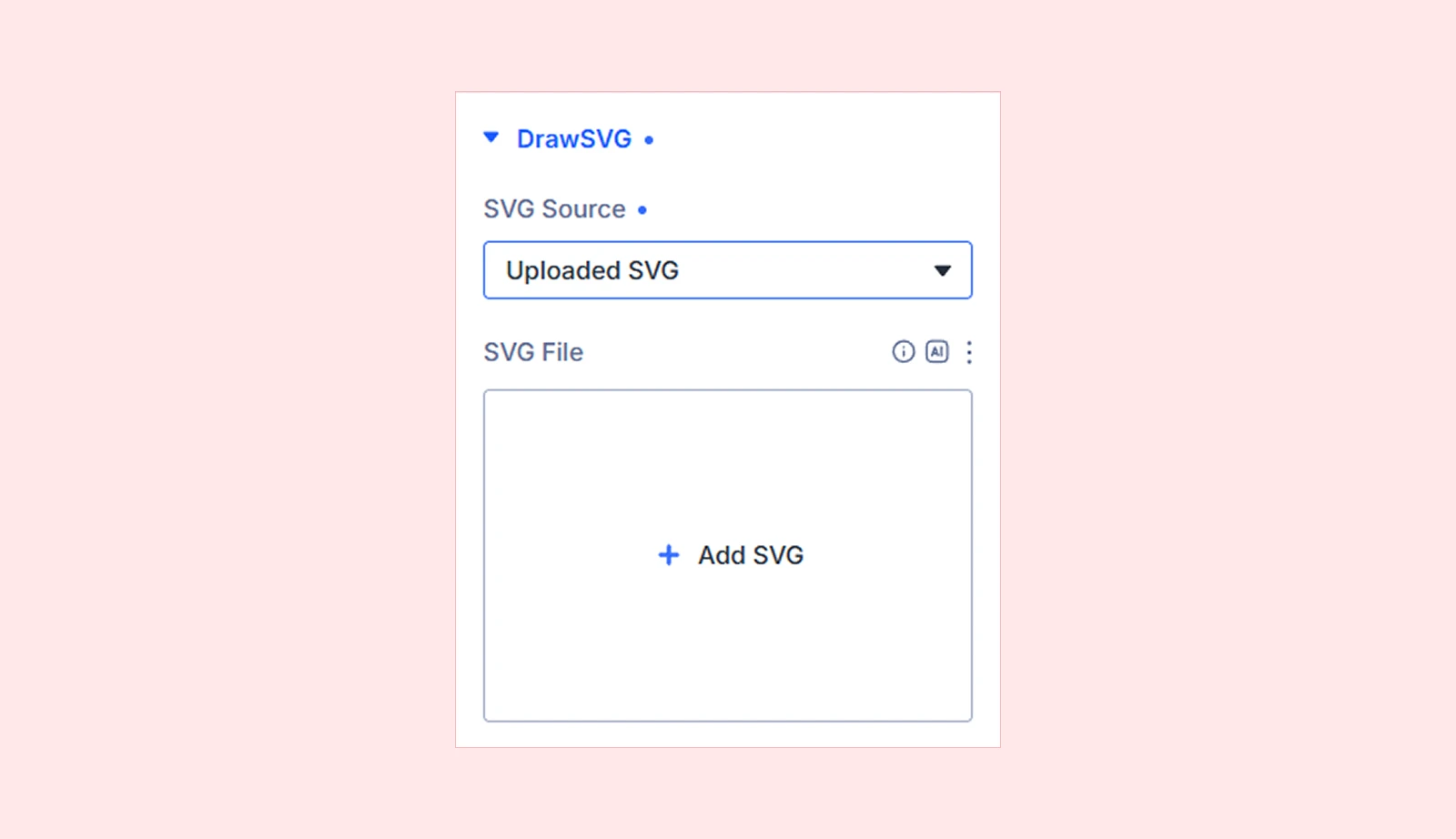
- If you choose Upload SVG
- SVG File: Upload an SVG file from your device or select one from the WordPress Media Library.
DrawSVG Animation
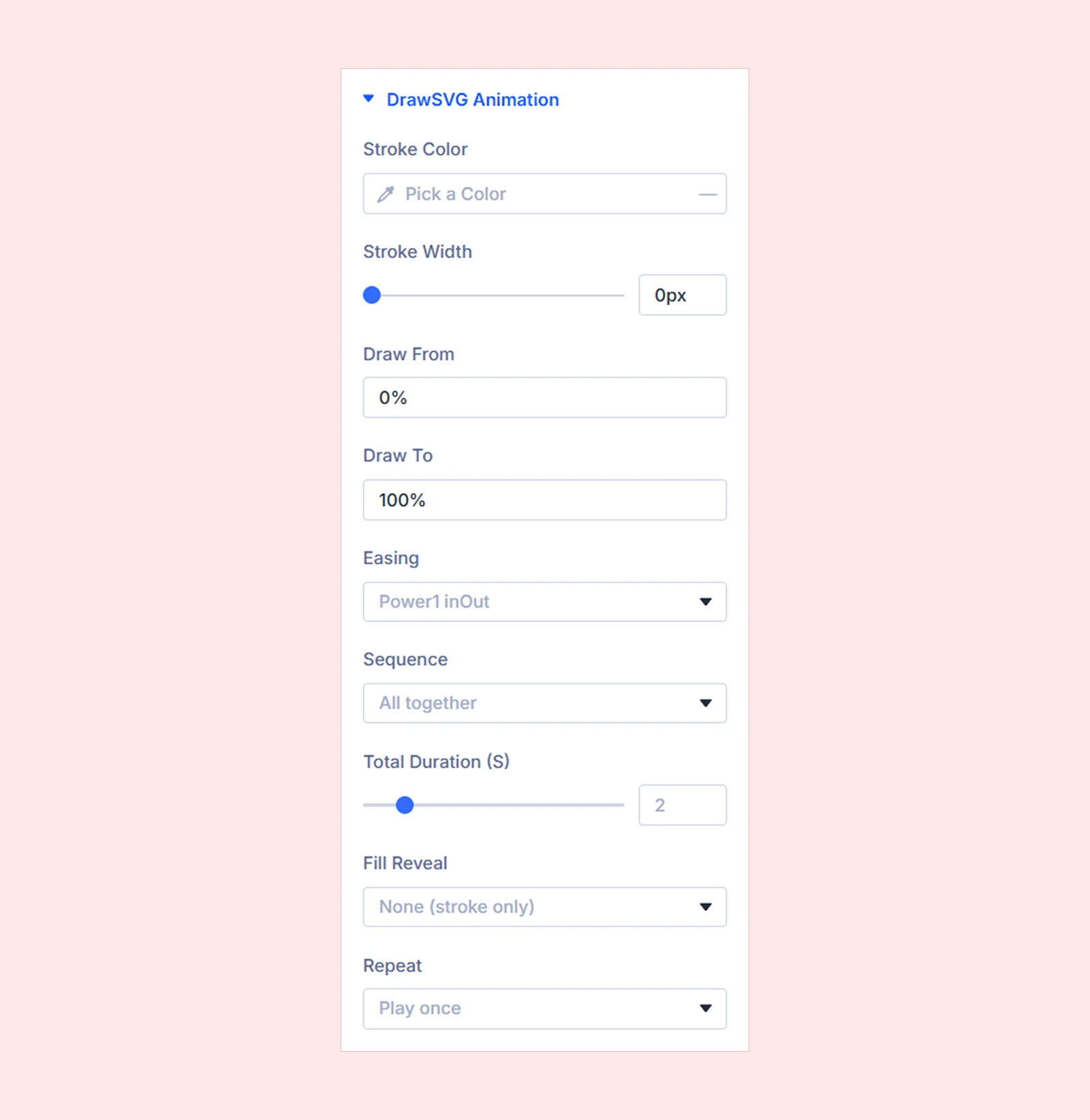
- Stroke Color: Choose the color of the SVG outline.
- Stroke Width: Control how thick or thin the SVG outline appears.
- Draw From: Set the starting point of the drawing animation along the SVG path using a percentage.
- Draw To: Set the ending point of the drawing animation along the SVG path using a percentage.
- Easing: Choose how the animation speeds up or slows down while playing.
- Sequence: Choose how the SVG paths are drawn when the SVG contains more than one path.
- Stagger (S): Add a delay between each path so they draw one after another. (Available only when Staggered is selected.)
- Total Duration (S): Set the total time it takes for the full drawing animation to complete.
- Fill Reveal: Choose how the SVG fill will appear during or after the drawing animation. Available option are:
- None (stroke only)
- Fade in
- Instant
- Wipe
- Iris (circle)
- Liquid fill)
- Fill Color: Choose the color used to fill the SVG.
- Fill Delay (S): Set how long the module waits before starting the fill animation.
- Fill Duration (S): Set how long the fill animation takes to complete. (Not available when Instant is selected.)
- Wipe Direction: Choose the direction from which the fill is revealed. (Available only when Wipe is selected.)
- Repeat: Choose how often the animation plays and you can choose from two different options, including play once and loop infinitely.
- Yoyo: Play the animation forward, then reverse before repeating. (Only available with loop infinitely)
DrawSVG Triggers
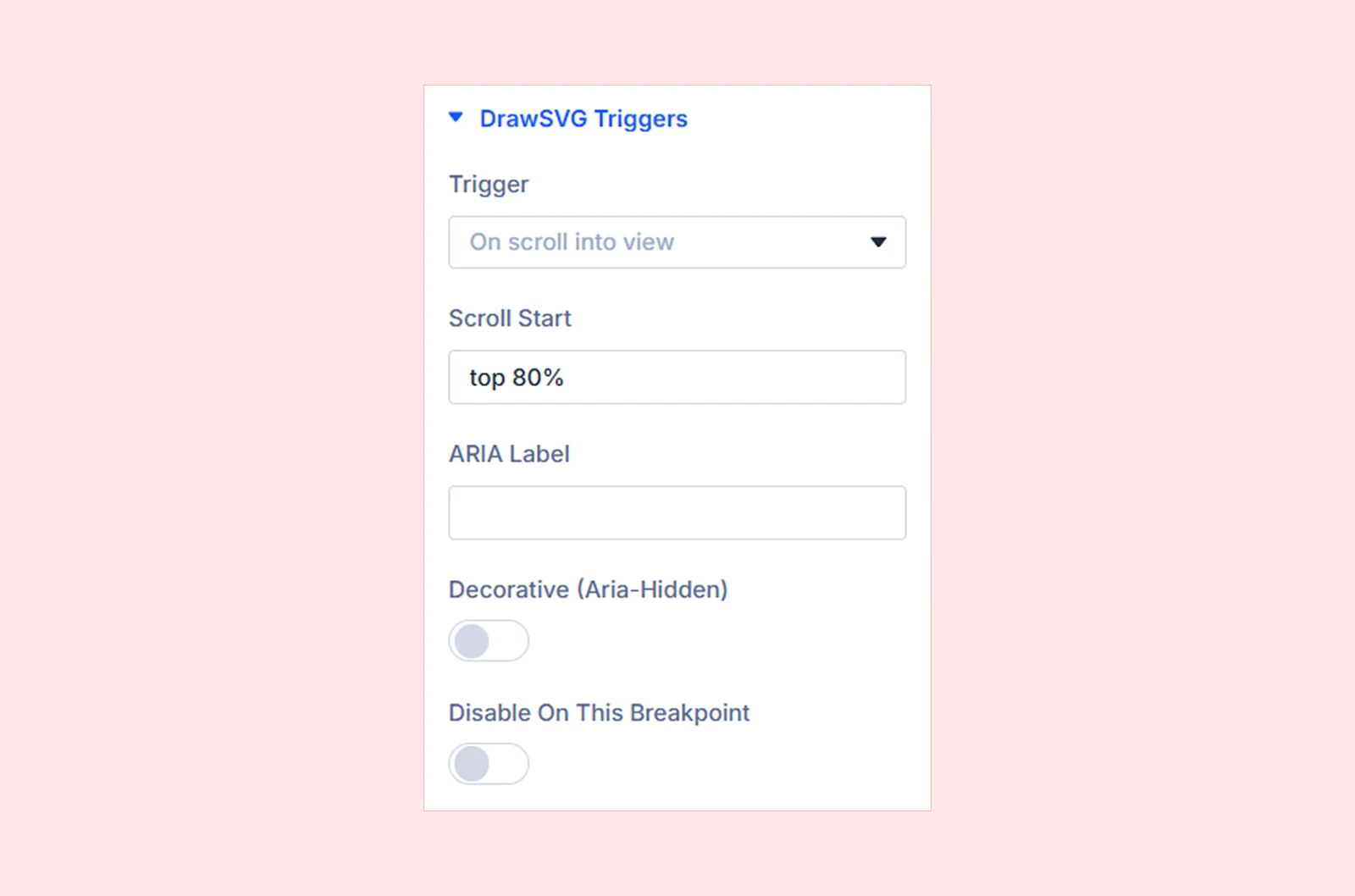
- Trigger: Choose the event that starts the SVG animation. Five different options are available:
- On page load
- On scroll into view
- Scrubbed to scroll
- On hover
- On click
- Scroll Start: Define when the animation will begin during scrolling. (Available for On Scroll Into View and Scrubbed to Scroll.)
- Pin White Scrubbing: Keep the SVG fixed in place while scrolling.(Available only with Scrubbed to Scroll.)
- Reverse On Mouse Leave: Reverse the animation when the cursor leaves the element. (Available only with On Hover.)
- ARIA Label: Add an accessibility label for screen readers.
- Decorative (Aria-Hidden): Mark the SVG as decorative so screen readers ignore it.
- Disable On This Breakpoint: Choose the screen sizes where you want to disable the DrawSVG animation, such as Desktop, Tablet, or Phone.
Element: Add and manage nested modules inside the Draw SVG module.
Background: Add a background color, gradient, image, video, pattern, or mask.
Element Label: Rename the module for easier organization in the Divi Builder. (Visible only in the builder.)
Design Tab
The Design tab lets you customize the appearance and layout of the DrawSVG module.
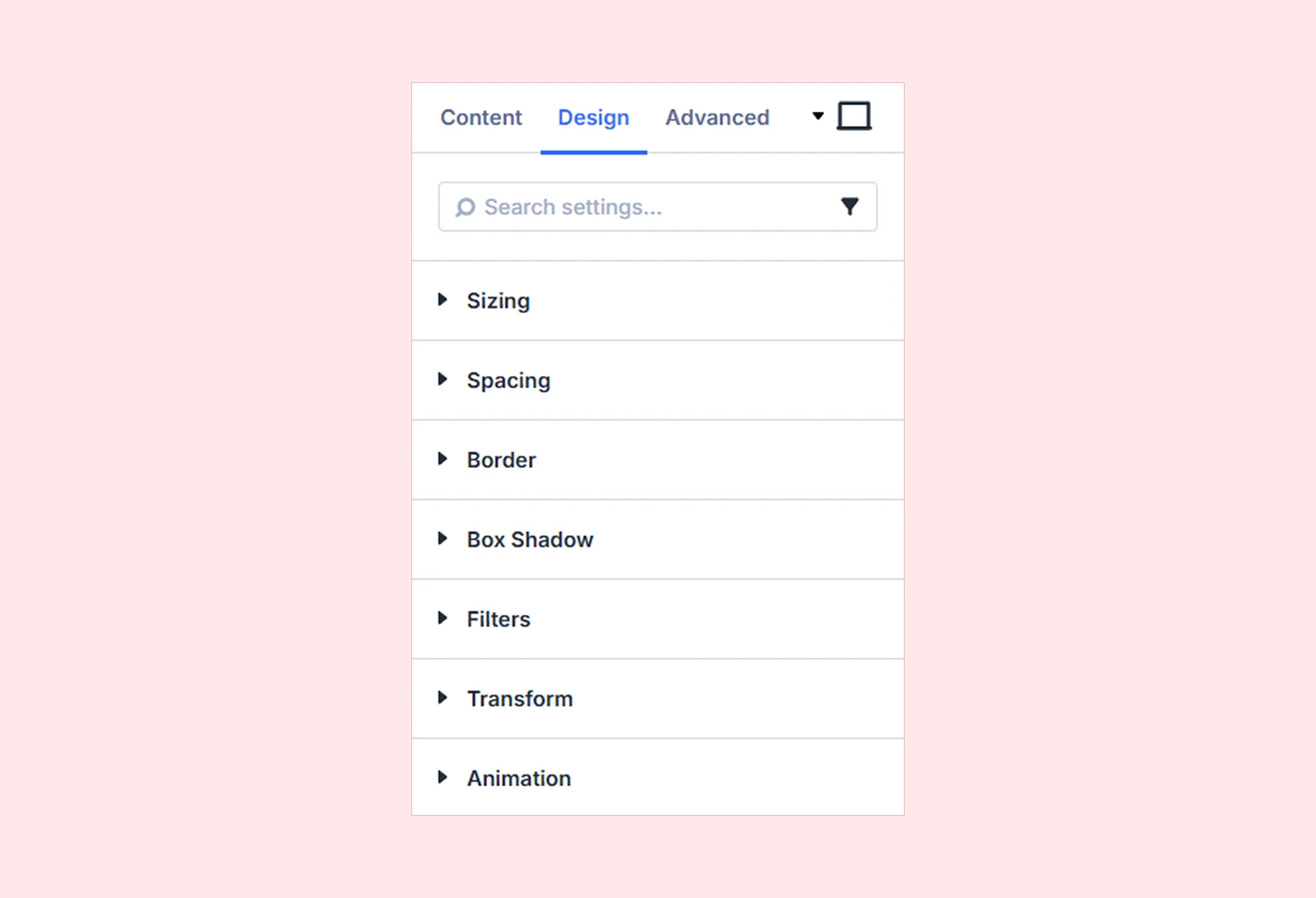
Motion: Add and customize DiviMotion’s interactions and actions within this module.
Sizing: Adjust the DrawSVG module's width, height, and alignment.
Spacing: Configure the DrawSVG module's margin and padding.
Border: Customize the DrawSVG module's border radius, style, width, and color.
Box Shadow: Add shadow effects to the DrawSVG module.
Filters: Apply visual effects to the DrawSVG module.
Transform: Scale, rotate, move, or skew the DrawSVG module.
Animation: Apply Divi's built-in entrance animations to the DrawSVG module.
Advanced Tab
This tab provides additional settings for advanced users who want greater control over the module with custom code, conditions, and more.
Need Help?
If you have any questions or need assistance, contact our support team: [email protected]


