

The Scroll Video module lets visitors control video or image-sequence playback with scrolling, or automatically plays the media when it enters the viewport.
Important Note: The Scroll Video module is disabled by default. To use it, go to WordPress Dashboard > DiviMotion > Modules and enable Scroll Video.
Let’s take a quick look at the available settings and how they work.
Content Tab
The Content tab contains the essential settings for adding media and controlling its playback, display, and scroll behavior.
Video
Video Source: Choose how to add media to the module. Available options include Uploaded Video, Custom URL, and Image Sequence.
- If you choose Uploaded Video, upload the video in one of the following formats:
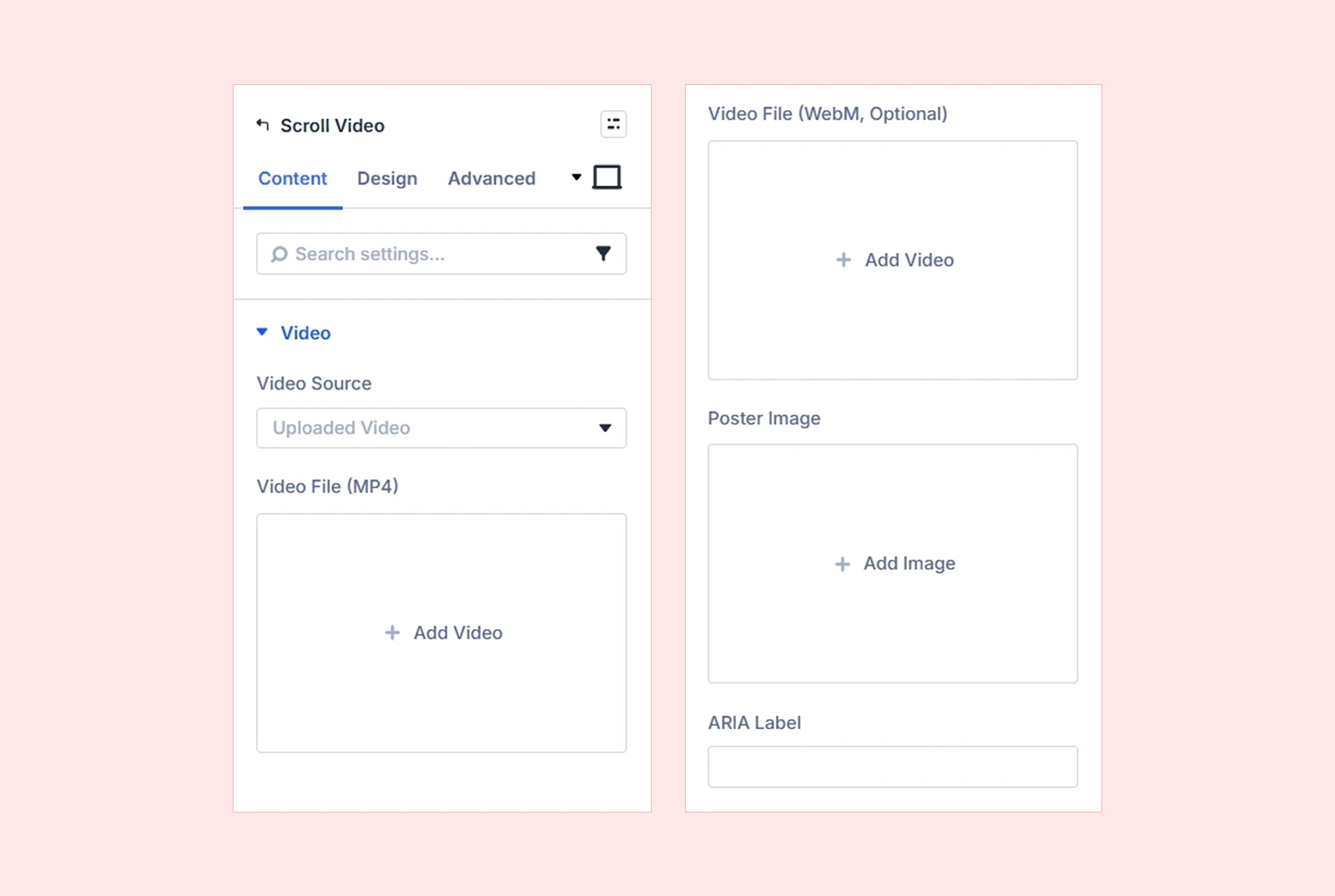
- Video File (MP4): Upload an MP4 video from the device or select one from the WordPress Media Library.
- Video File (WebM): Upload a WebM video from the device or select one from the WordPress Media Library.
- If you choose Custom URL, add a direct URL for the video in one of the following formats:
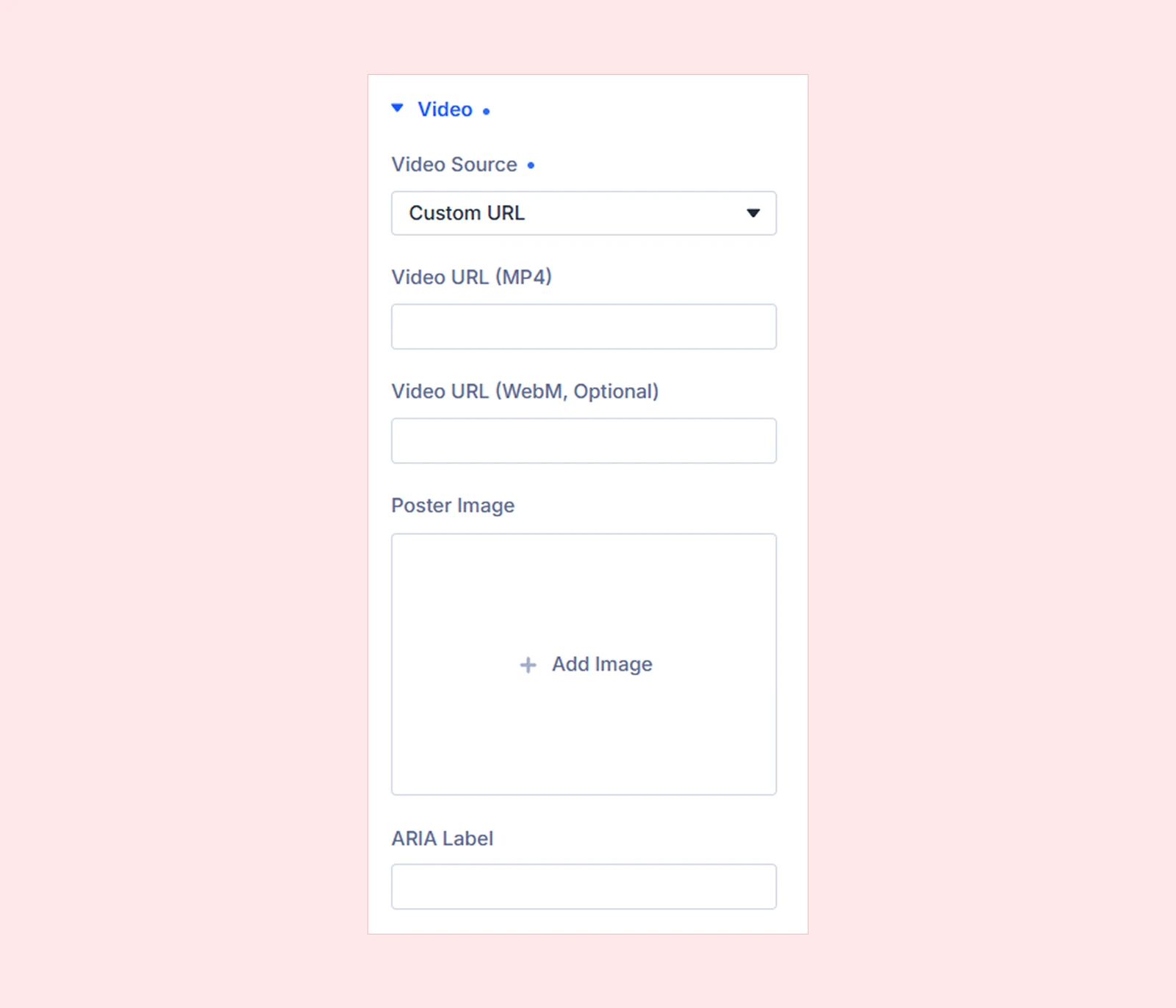
- Video URL (MP4): Add a direct URL to an externally hosted MP4 video.
- Video URL (WebM): Add a direct URL to an externally hosted WebM video.
- If you choose Image Sequence
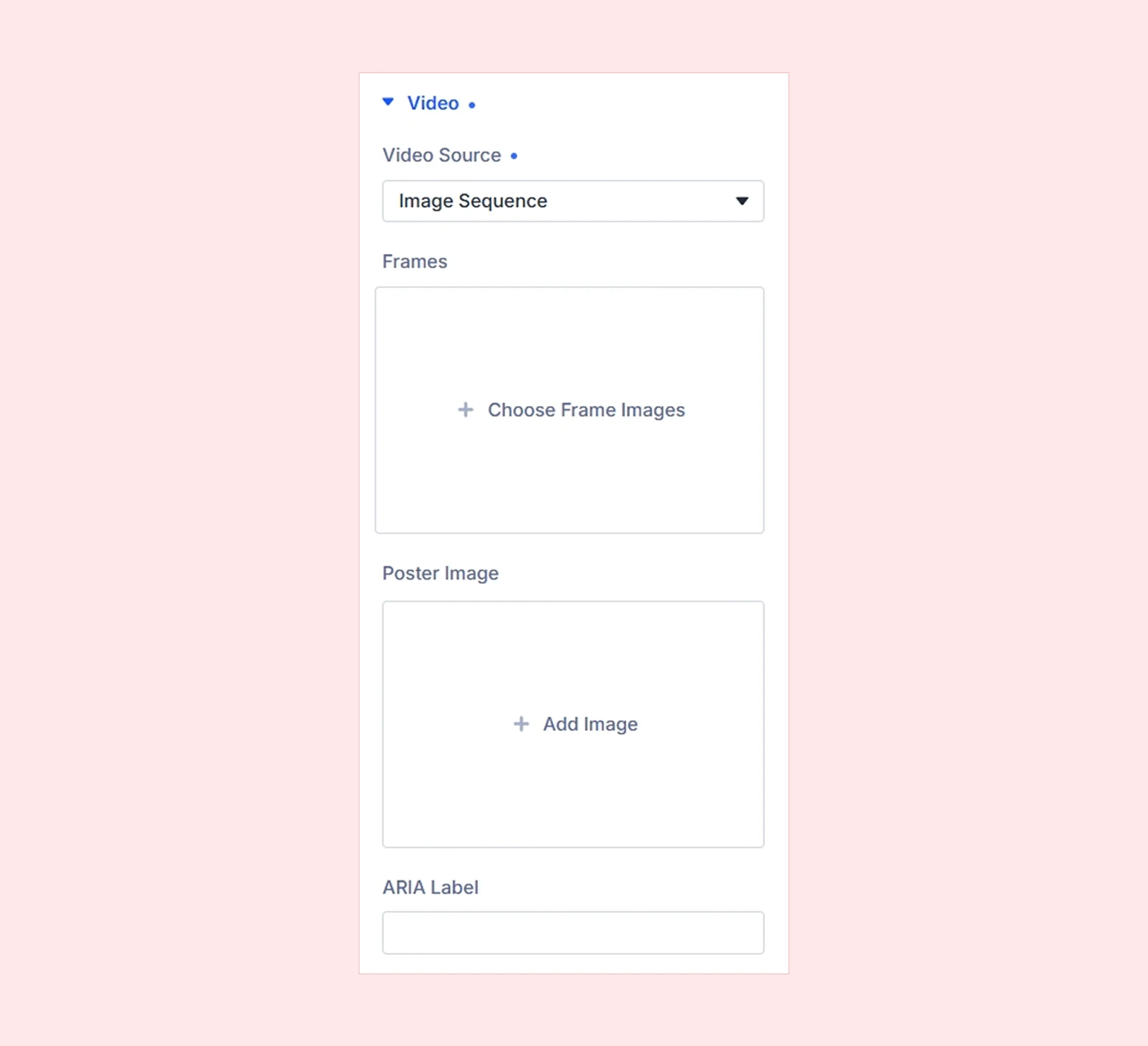
- Frames: Add a series of images and arrange them from the first frame to the last. The module displays the frames in sequence as visitors scroll to create a video-like effect.
The following settings are available with all media sources:
- Poster Image: Add an image to display before the media is ready and use as a fallback on mobile devices. Adding a poster image is recommended.
- ARIA Label: Add a label that describes the media for screen readers. Leave it blank when the media only serves a decorative purpose.
Scroll & Playback
Trigger: Choose how the media will play and the available options are Scrubbed to Scroll and Play on View.
If you choose Scrubbed to Scroll, scrolling controls the playback position, it will bring these settings:
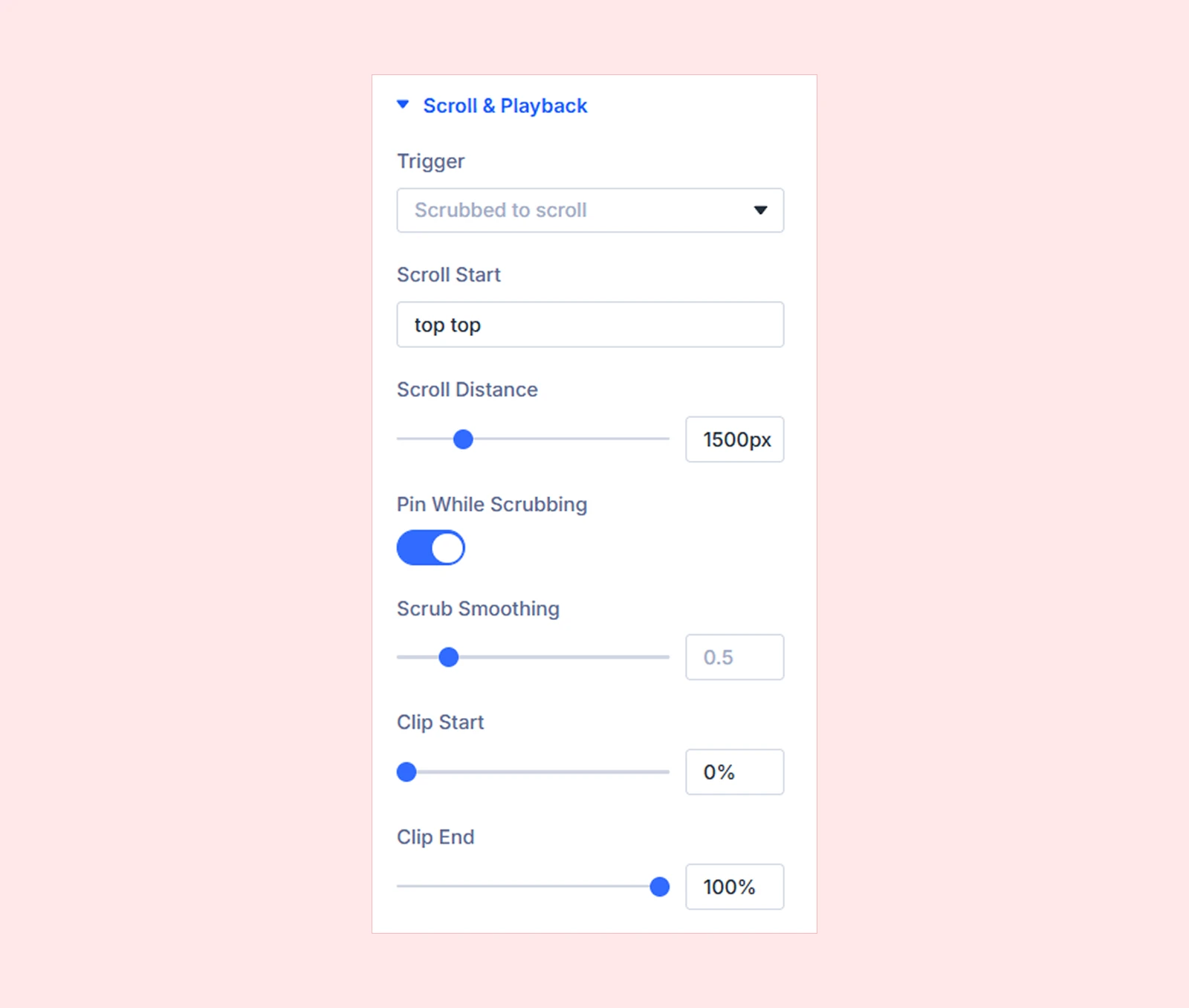
- Scroll Start: Set where in the viewport the scroll-controlled playback starts.
- Scroll Distance: Set how much scrolling the full playback requires. Larger values slow down the progression, while smaller values complete it faster.
- Pin While Scrubbing: Keep the media in place while scrolling controls the playback, then release it when the effect ends.
- Scrub Smoothing: Set how smoothly the media follows the scroll position. Lower values respond more directly, while higher values create smoother movement with a slight delay.
- Clip Start: Set where the media starts playing using a percentage.
- Clip End: Set where the media stops playing using a percentage.
If you choose Play on View, the media starts playing when it enters the viewport and pauses when it leaves.
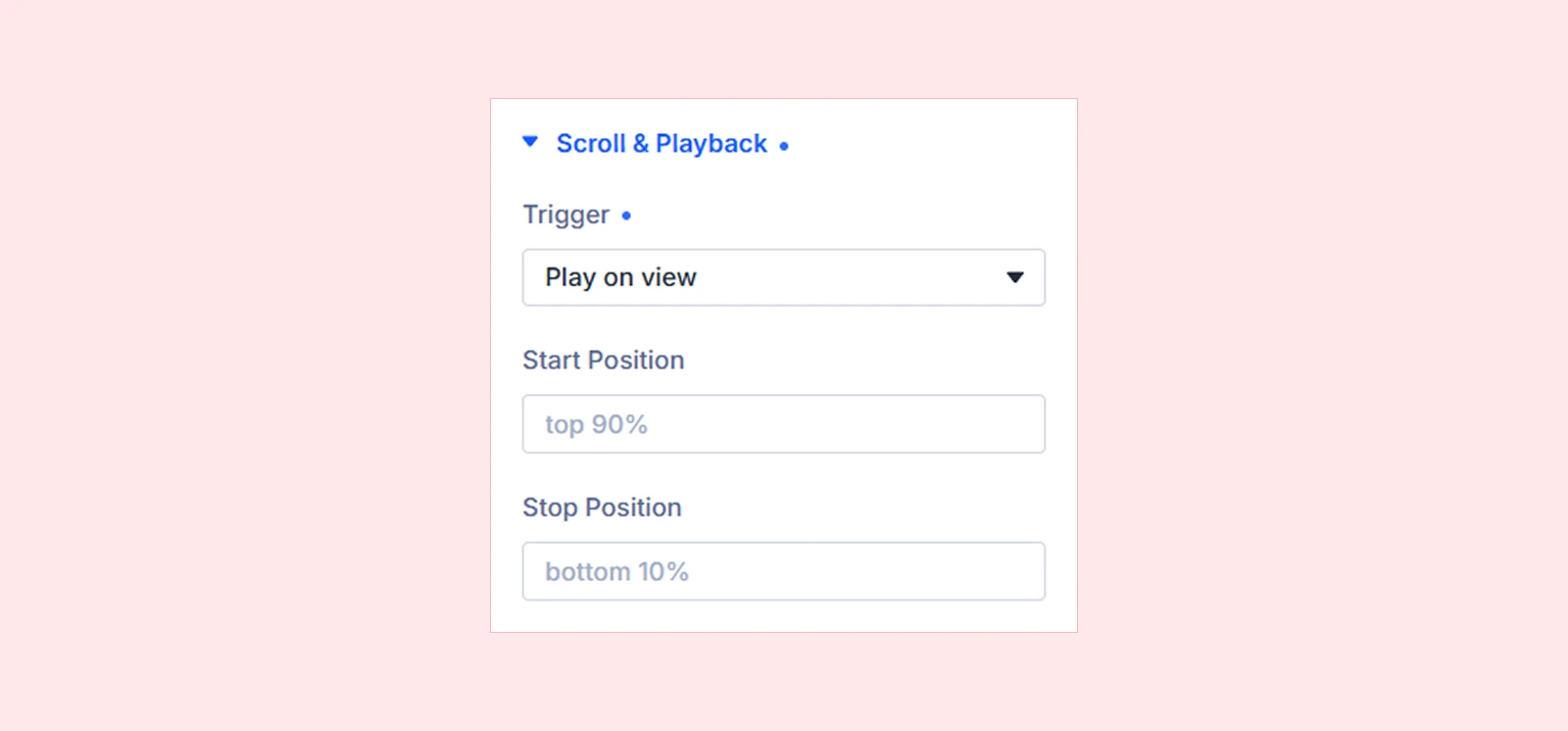
- Start Position: Set where in the viewport the media starts playing.
- Stop Position: Set where in the viewport the media pauses.
- Loop: Keep replaying the video while it remains in view. (Available with video sources only.)
The following settings apply to both triggers.
- Show Controls: Show the browser's default video playback controls.
- Muted: Play the video without sound. (Muting also helps autoplay work reliably across modern browsers.)
Media Display
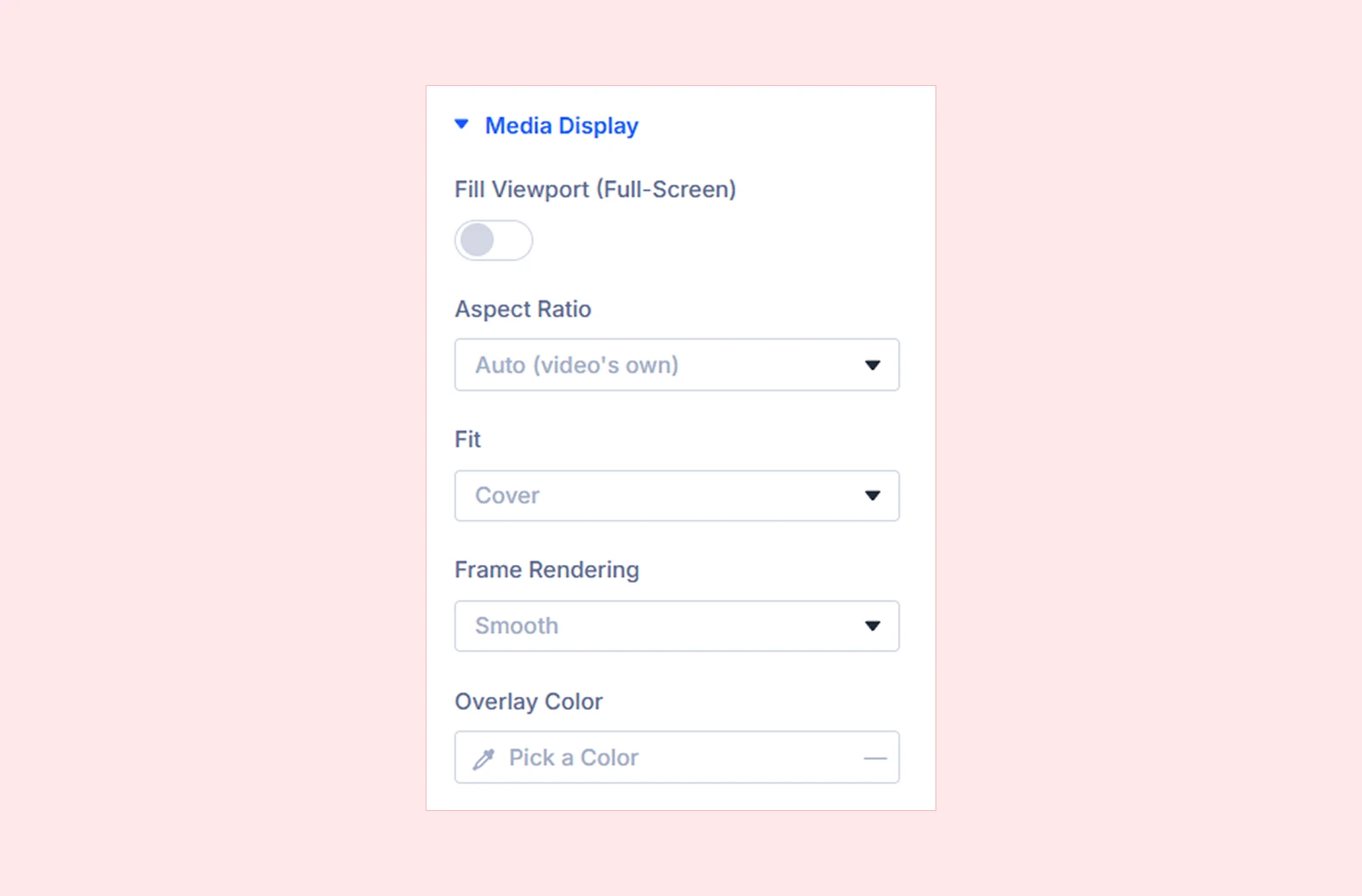
- Fill Viewport (Full-Screen): Expand the media to fill the entire viewport. Turn it off to keep the media within the normal Divi layout.
- Aspect Ratio: Set the proportions of the media area. Available options include:
- Auto
- 16:9
- 4:3
- 1:1
- 21:9
- Fit: Choose how the media fills its available space:
- Cover: Fill the entire area and crop the edges when needed.
- Contain: Show the entire media while keeping its original proportions.
- Fill: Stretch the media to fill the available area.
- Frame Rendering: Choose how the module displays image-sequence frames. (Available only with Image Sequence.)
- Smooth: Smooth the edges when scaling the frames.
- Crisp: Keep the edges sharp, which works well for pixel art and sharp graphics.
- Overlay Color: Add a color overlay over the media and adjust its strength with the opacity control.
Media Advanced
- Preload: Choose how much of the video the browser loads before playback. (Available with video sources only.)
- Metadata: Load basic video information, such as duration and dimensions.
- Auto: Let the browser preload more of the video for smoother playback.
- None: Prevent the browser from preloading the video.
- Mobile Fallback: Choose how the module handles video playback on mobile devices when scroll scrubbing does not work reliably. (Available with video sources only.)
- Poster: Show the poster image instead of the video.
- Play-through: Play the video normally.
- Inline Scrub: Keep scroll-controlled playback active where the browser supports it.
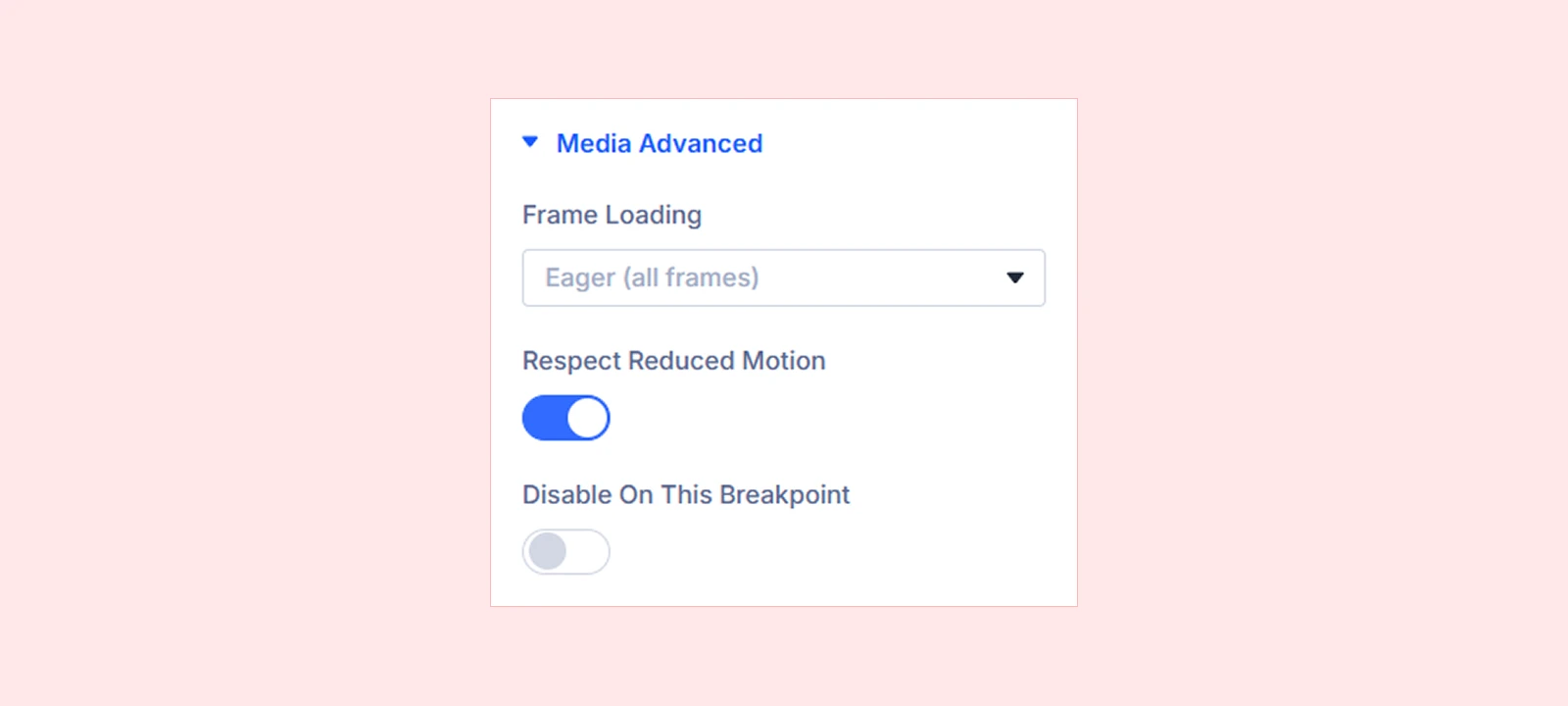
- Frame Loading: Choose how the module loads image-sequence frames. (Available only with Image Sequence.)
- Eager: Load all frames in advance for smoother scrolling.
- Lazy: Load frames as needed to reduce the initial page load.
- Respect Reduced Motion: Show a static frame for visitors who enable reduced motion on their devices.
- Disable On This Breakpoint: Turn off the scroll effect on selected device sizes, such as Desktop, Tablet, or Phone. The module shows a poster image or static frame instead.
Element: Add and manage nested Divi modules inside the Scroll Video module.
Background: Add a background color, gradient, image, video, pattern, or mask.
Element Label: Rename the module for easier identification inside the Divi Builder. (Visible only to you.)
Design Tab
The Design tab lets you customize the appearance, size, spacing, and positioning of the Scroll Video module.
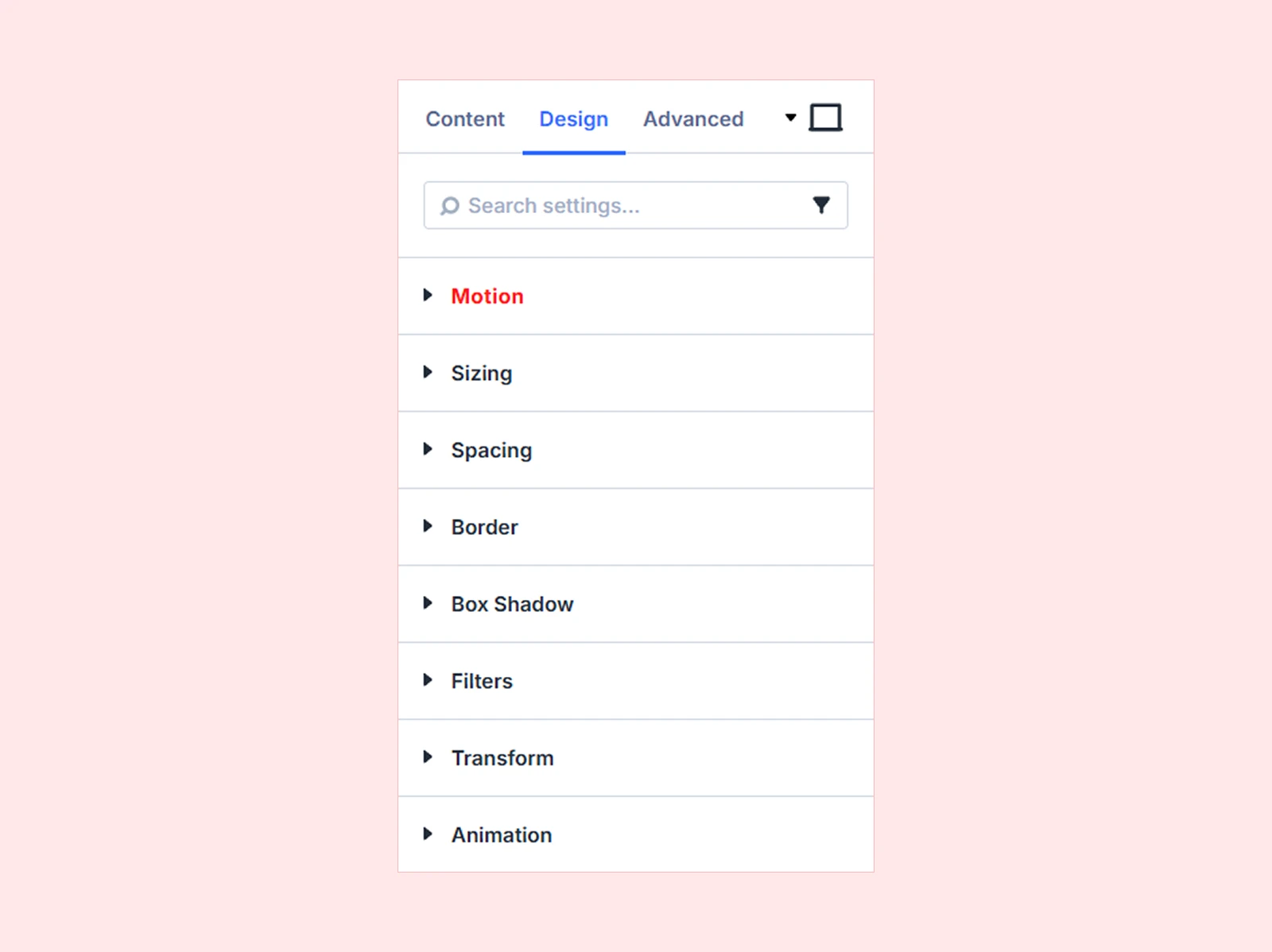
Motion: Add and customize DiviMotion’s interactions and actions within this module.
Sizing: Adjust the Scroll Video module's width, height, and alignment.
Spacing: Configure the Scroll Video module's margin and padding.
Border: Customize the Scroll Video module's border radius, style, width, and color.
Box Shadow: Add shadow effects to the Scroll Video module.
Filters: Apply visual effects to the Scroll Video module.
Transform: Scale, rotate, move, or skew the Scroll Video module.
Animation: Apply Divi's built-in entrance animations to the Scroll Video module.
Advanced Tab
The Advanced tab provides the standard Divi settings for custom CSS, visibility conditions, transitions, attributes, positioning, and other advanced controls.
Need Help?
If you have any questions or need assistance, contact our support team at [email protected].


