

The Particle Text module turns your headline into tiny particles that assemble to form the letters and react as visitors move their pointer across the text.
Important Note: Particle Text was introduced in v2.2.0 and is disabled by default. To enable it, go to WordPress Dashboard > DiviMotion > Modules, then enable Particle Text.
Here is an overview of the Particle Text module settings.
Content Tab
The Content tab lets you add your text, configure the particles, and control how the animation behaves.
Content
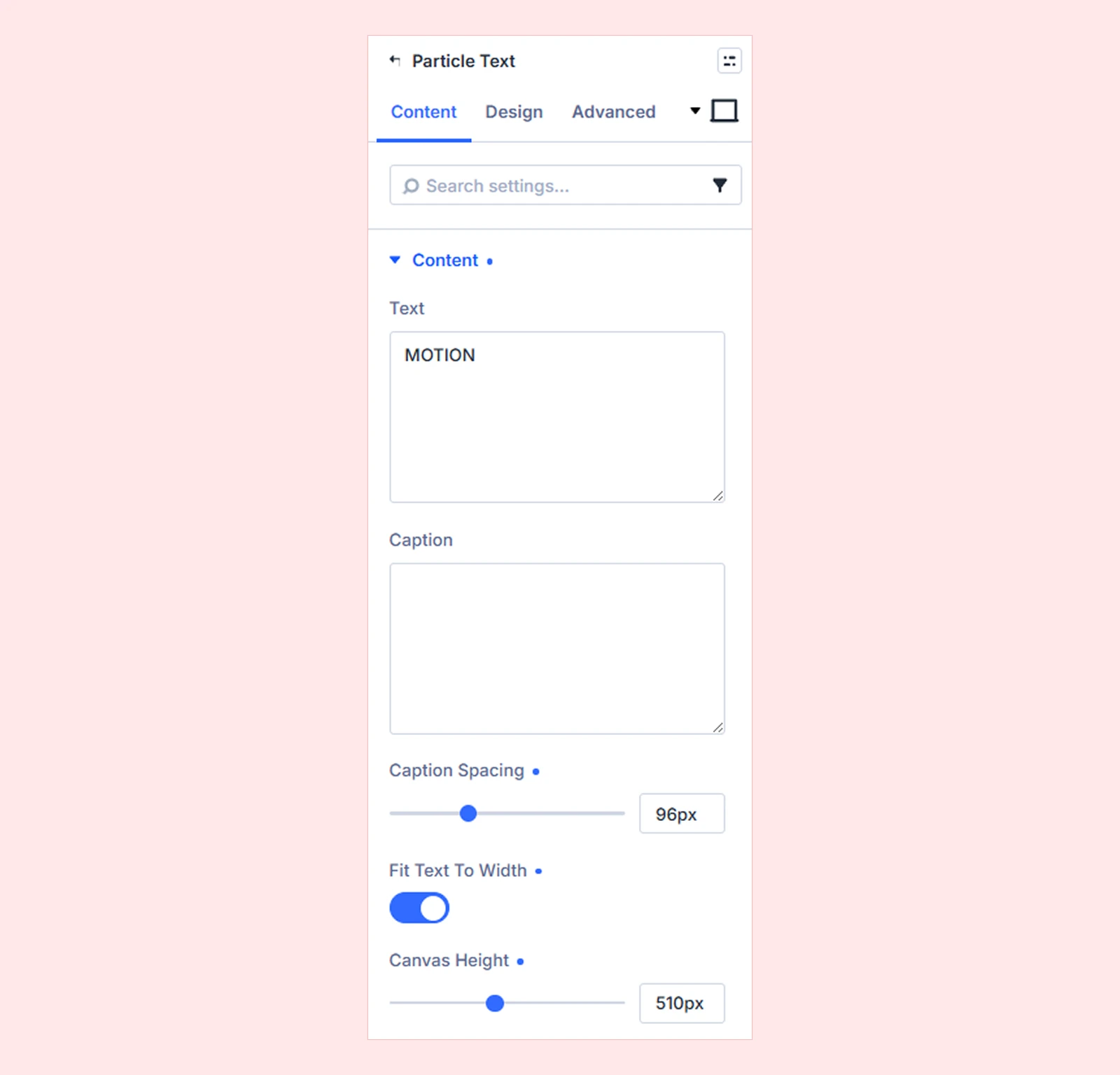
- Text: Enter the headline you want the particles to form.
- Caption: Add an optional secondary line below the main particle text.
- Caption Spacing: Adjust the space between the main text and caption.
- Fit Text To Width: Enable this to automatically scale the particle text to fill the available module width.
- Canvas Height: Set the height of the particle animation area. Increase it for larger hero sections or reduce it for smaller text displays.
Particles
Use these settings to control how the particles forming the text appear.
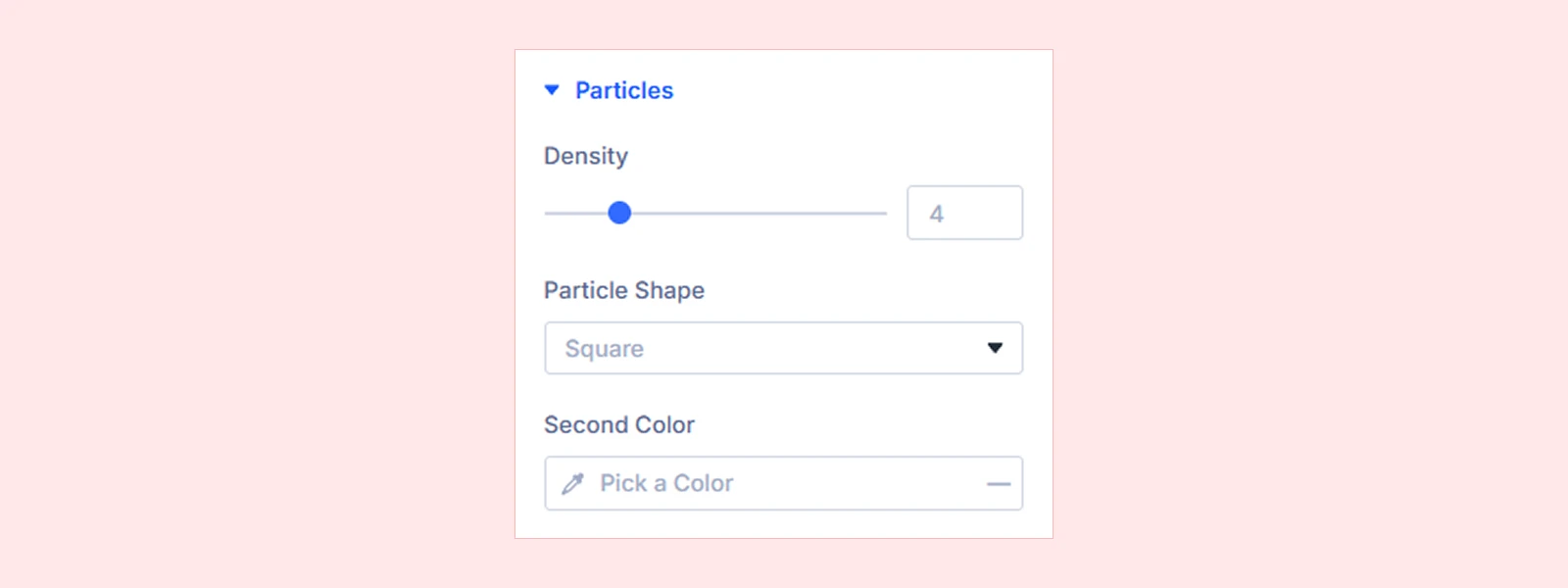
- Density: Control the spacing between particles. A lower value creates denser text with more particles, while a higher value creates a lighter, more spaced-out effect.
- Particle Shape: Choose between Square and Dot particle shapes.
- Second Color: Add an optional secondary color to create a two-tone particle effect.
- Second Color Mix: Control how much of the lower portion of the text uses the second color. (Only option appears only after a second color is selected.)
Motion
The Motion settings control how particles assemble, move, and respond to user interaction.
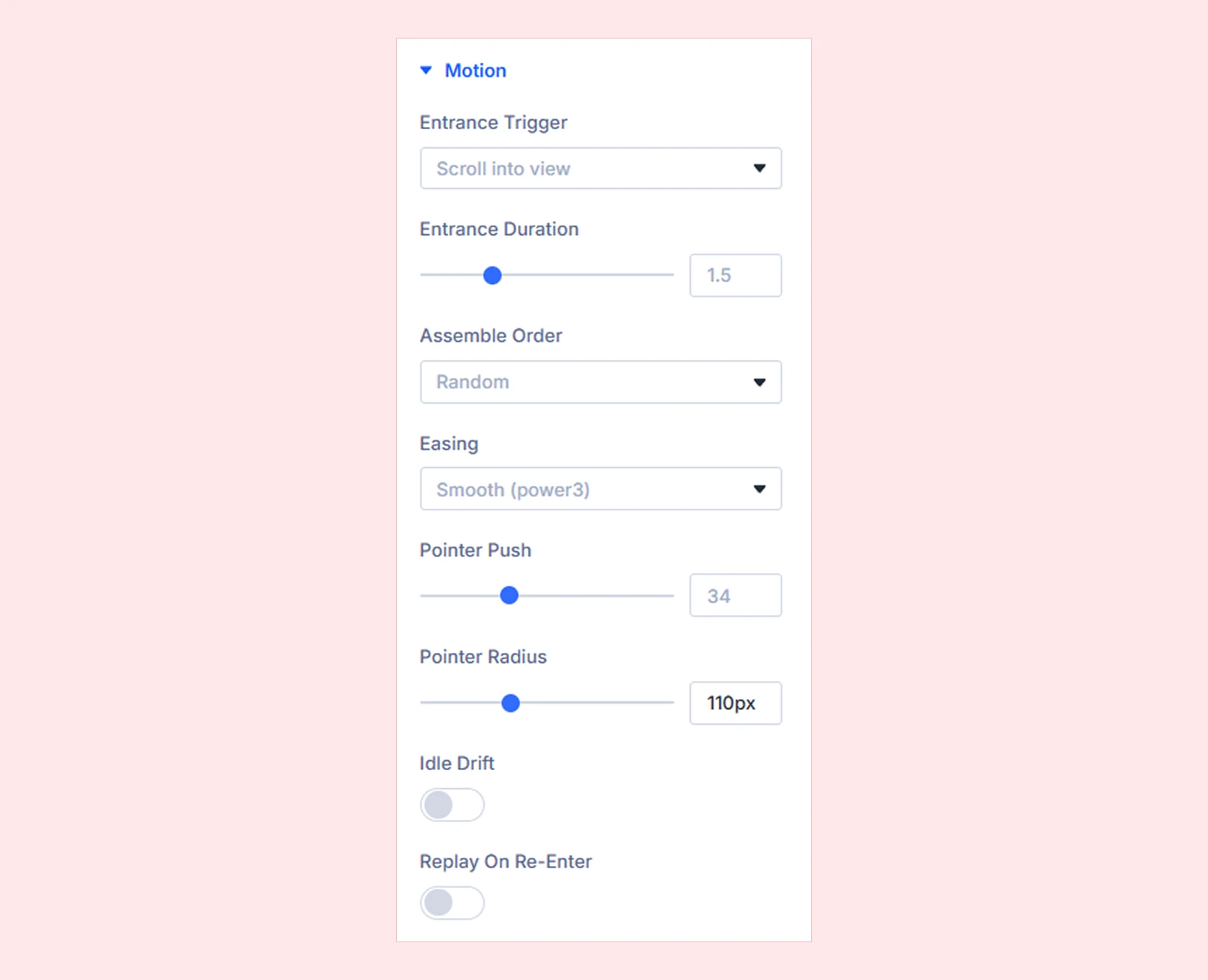
- Entrance Trigger: Choose when the particle animation begins.
- Scroll Into View: Starts when the module enters the viewport.
- On Page Load: Starts as soon as the page loads.
- Entrance Duration: Set how long the particles take to assemble into the text.
- Assemble Order: Choose how the particles arrive and form the letters. Available options are:
- Random
- Left to Right
- From the Center
- From the Edges
- Easing: Choose how the particle movement accelerates and slows during the entrance animation. (Six easing options are currently available.)
- Pointer Push: Control how strongly nearby particles move away from the visitor’s pointer. (Set the value to 0 to disable the effect.)
- Pointer Radius: Adjust the size of the area around the pointer that affects nearby particles.
- Idle Drift: Add subtle continuous movement after the particles finish assembling.
- Replay On Re-Enter: Replay the entrance animation whenever the module re-enters the viewport. (This option is available only when Scroll Into View is selected.)
Advanced

- Respect Reduced Motion: Respect the visitor’s reduced-motion preference. When enabled, the completed text appears without the particle entrance animation for visitors who prefer less motion.
Background: Add a background color, gradient, image, video, pattern, or mask to the module.
Element Label: Rename the module for easier identification inside the Divi Builder. (Visible only to you.)
Design Tab
The Design tab lets you customize the appearance, typography, spacing, and other visual properties of the Particle Text module.
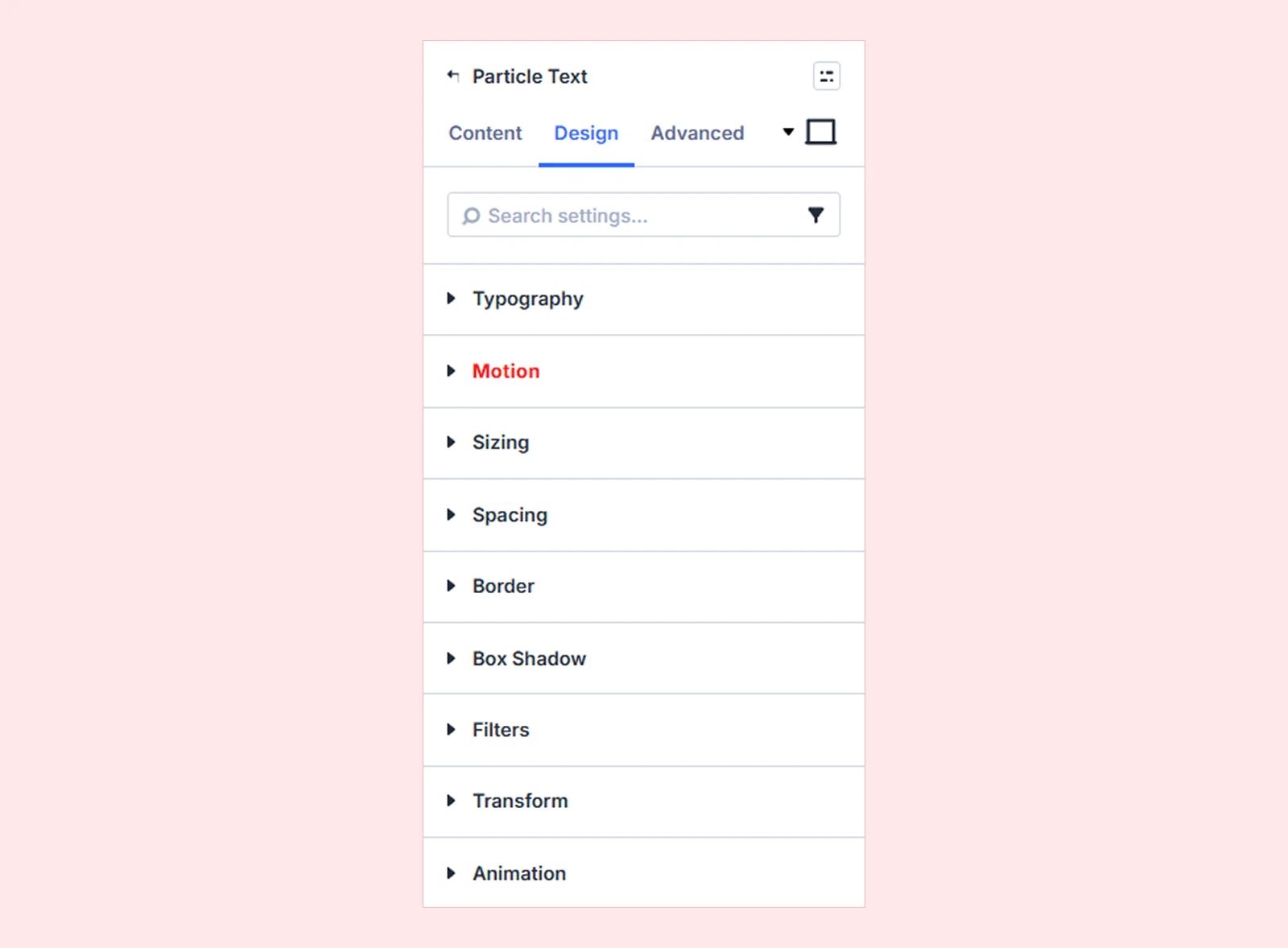
Typography
- Text: Customize the particle text font, size, weight, alignment, and other typography settings.
- Caption: Customize the caption font, size, weight, alignment, and other typography settings.
Motion: Configure interaction and animation settings for the module.
Sizing: Adjust the Particle Text module's width, height, and alignment.
Spacing: Configure the module's margin and padding.
Border: Customize the module's border radius, style, width, and color.
Box Shadow: Add shadow effects around the Particle Text module.
Filters: Apply visual effects such as opacity, brightness, contrast, or other supported filters.
Transform: Scale, rotate, move, or skew the Particle Text module.
Animation: Apply Divi's built-in entrance animations to the entire Particle Text module.
Advanced Tab
The Advanced tab provides the standard Divi settings for custom CSS, visibility conditions, transitions, attributes, positioning, and other advanced controls.
Need Help?
If you have any questions or need assistance, contact our support team: [email protected]


