

The Scroll Header extension controls how your Divi header behaves as visitors scroll. You can keep the header sticky, reveal it after a set delay, or show it when visitors scroll back up. It supports Divi’s default header and Theme Builder headers.
Important Note: Scroll Header was introduced in v2.2.0. And before using the extension, go to Divi > Theme Options > General and turn off Fixed Navigation Bar. Using Divi’s fixed header and the DiviMotion Scroll Header extension at the same time may cause conflicts.
How to Enable Scroll Header
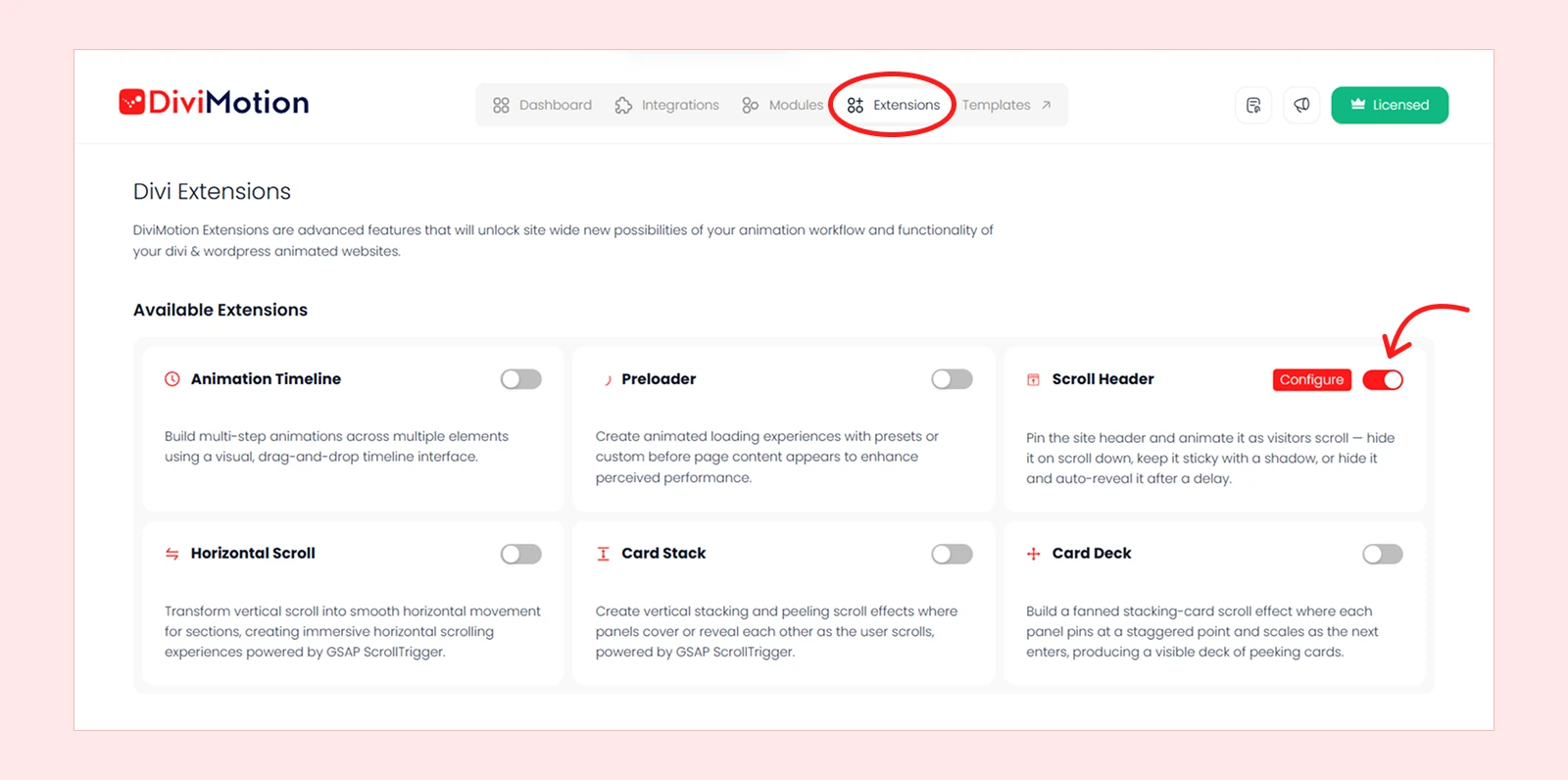
- Go to your WordPress Dashboard.
- Navigate to DiviMotion > Extensions.
- Enable Scroll Header.
- Click Configure to open the Scroll Header settings.
The Header effect is applied only on the frontend and does not run inside the Divi Visual Builder.
Settings Overview
Click Configure to open the Scroll Header settings panel. Here is what each setting does.

Effect
The Effect setting controls how the header behaves as visitors scroll. You can choose from four options:
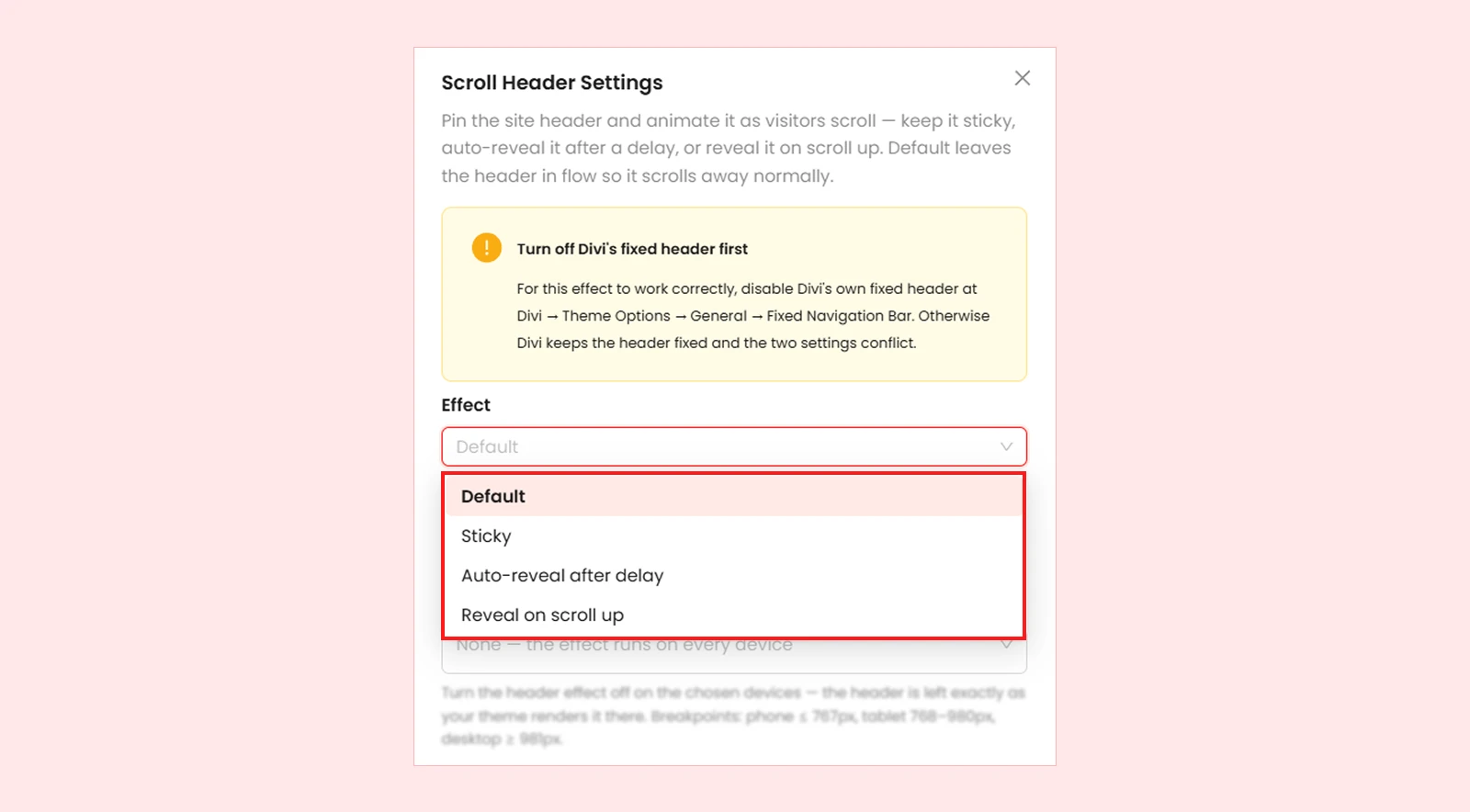
| Effect | What it does |
| Default | The header stays in its normal position and scrolls away with the page. |
| Sticky | The header stays fixed at the top of the screen while visitors scroll. |
| Auto-reveal after delay | The header scrolls away first. After the set delay, it slides back in and stays fixed at the top. If the visitor scrolls back up before the delay ends, the reveal is cancelled. |
| Reveal on Scroll Up | The header scrolls away as visitors scroll down. It slides back in when they scroll up, then hides on scroll down and reappears on scroll up. |
Tip: Choose Reveal on Scroll Up if you want the header to respond to scroll direction. Choose Auto-reveal After Delay if you want it to reveal once and then stay fixed.
Transition (ms)
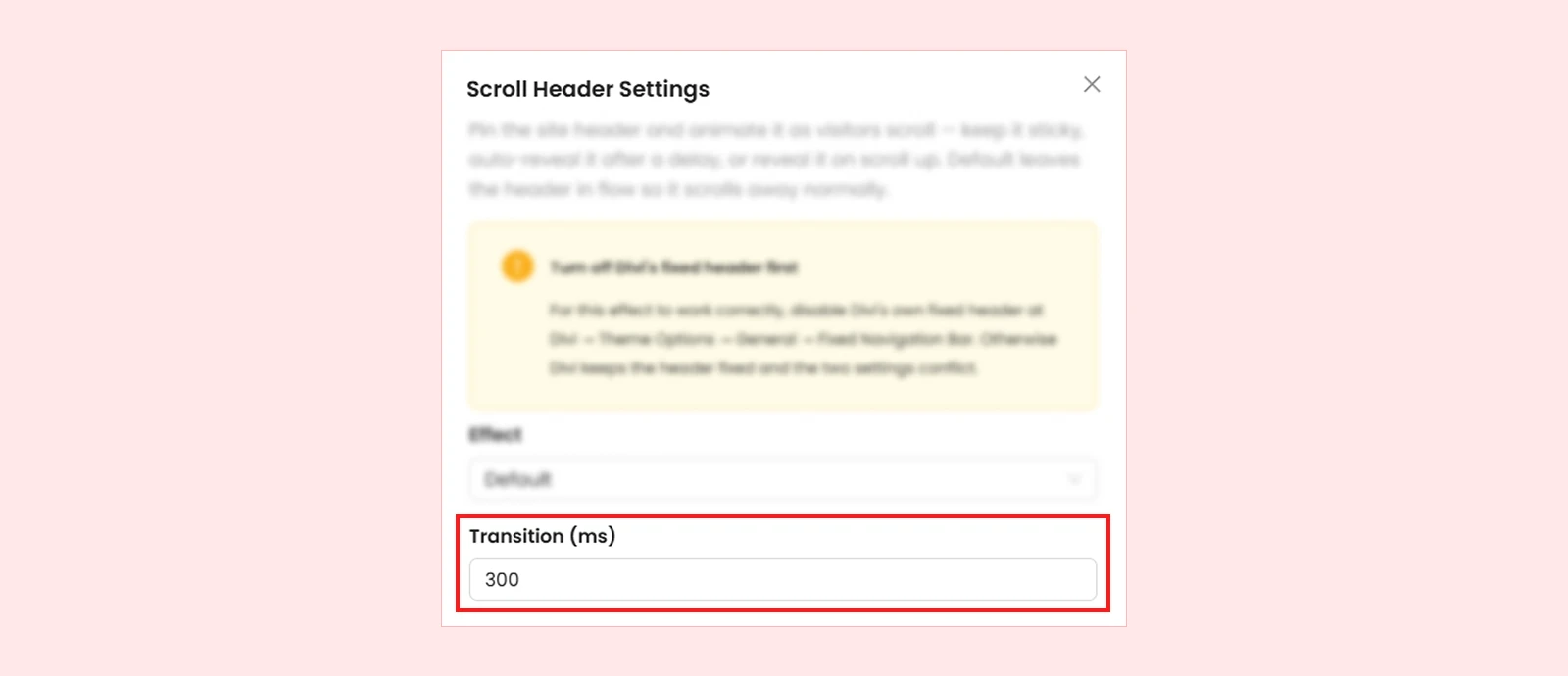
The Transition (ms) setting controls how long the header takes to slide in or out. It applies to Auto-reveal After Delay and Reveal on Scroll Up. It has no visible effect with Default or Sticky.
- Range: 0 - 2000 ms
- Default: 300 ms
Here is what different transition values mean:
| Value | Result |
| 0 | No transition, the header snaps into place |
| 300 | 0.3 second slide (default) |
| 500 | 0.5 second slide |
| 1000 | 1 second slide |
Lower values make the transition faster. Higher values make it slower.
Disable On
The Disable On setting lets you turn off the selected Header effect on specific device types. Available options are:
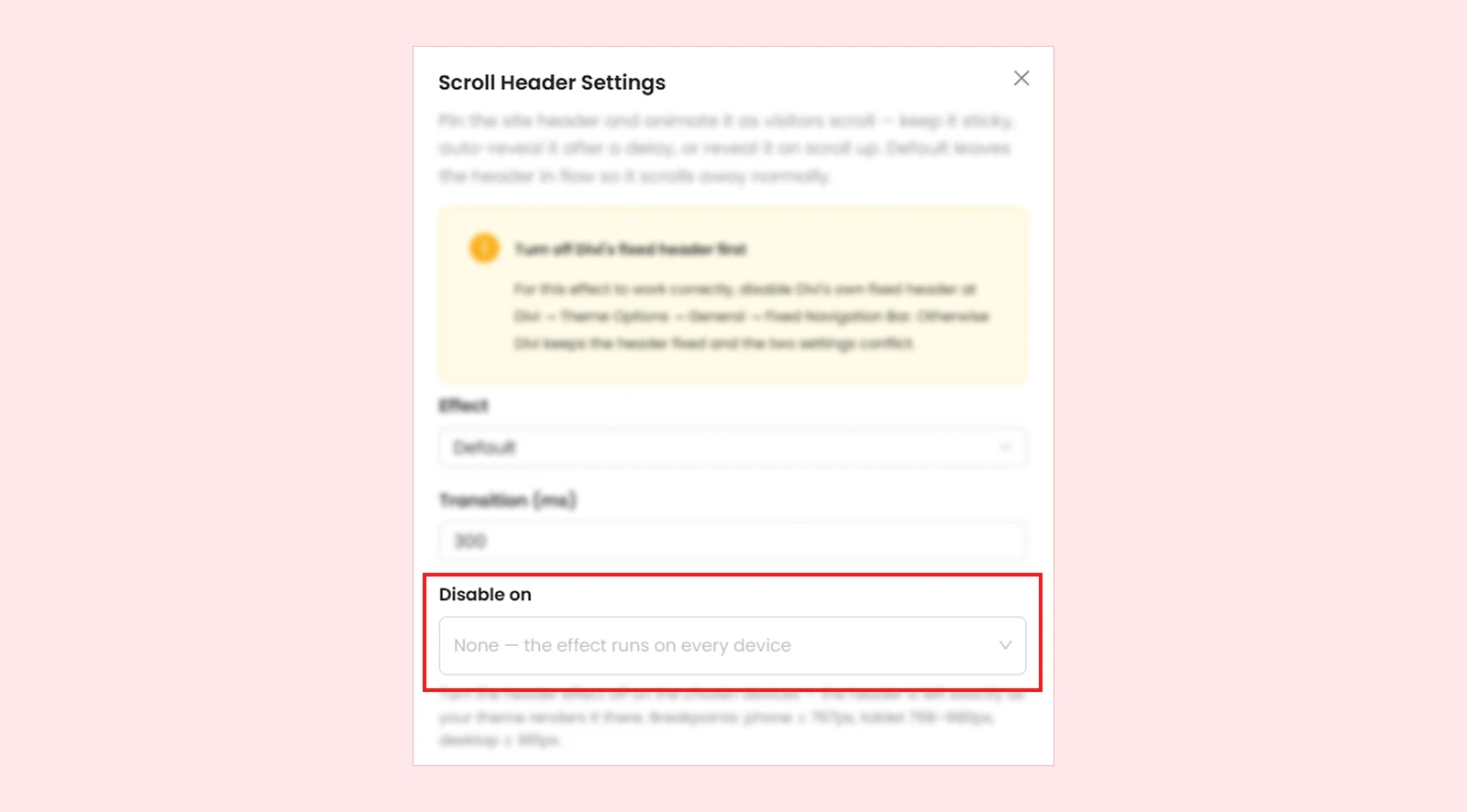
- Desktop
- Tablet
- Phone
You can select one or more devices and DiviMotion uses the following responsive breakpoints:
| Device | Screen Width |
| Phone | 767px and below |
| Tablet | 768px–980px |
| Desktop | 981px and above |
When the effect is disabled on a device, DiviMotion leaves the header under the normal control of Divi or your active theme. DiviMotion checks the device again when the screen width changes, so the effect can turn on or off when moving between breakpoints.
Reveal After (ms)
The Reveal After (ms) setting controls how long DiviMotion waits before bringing the header back into view. It applies only to Auto-reveal After Delay.
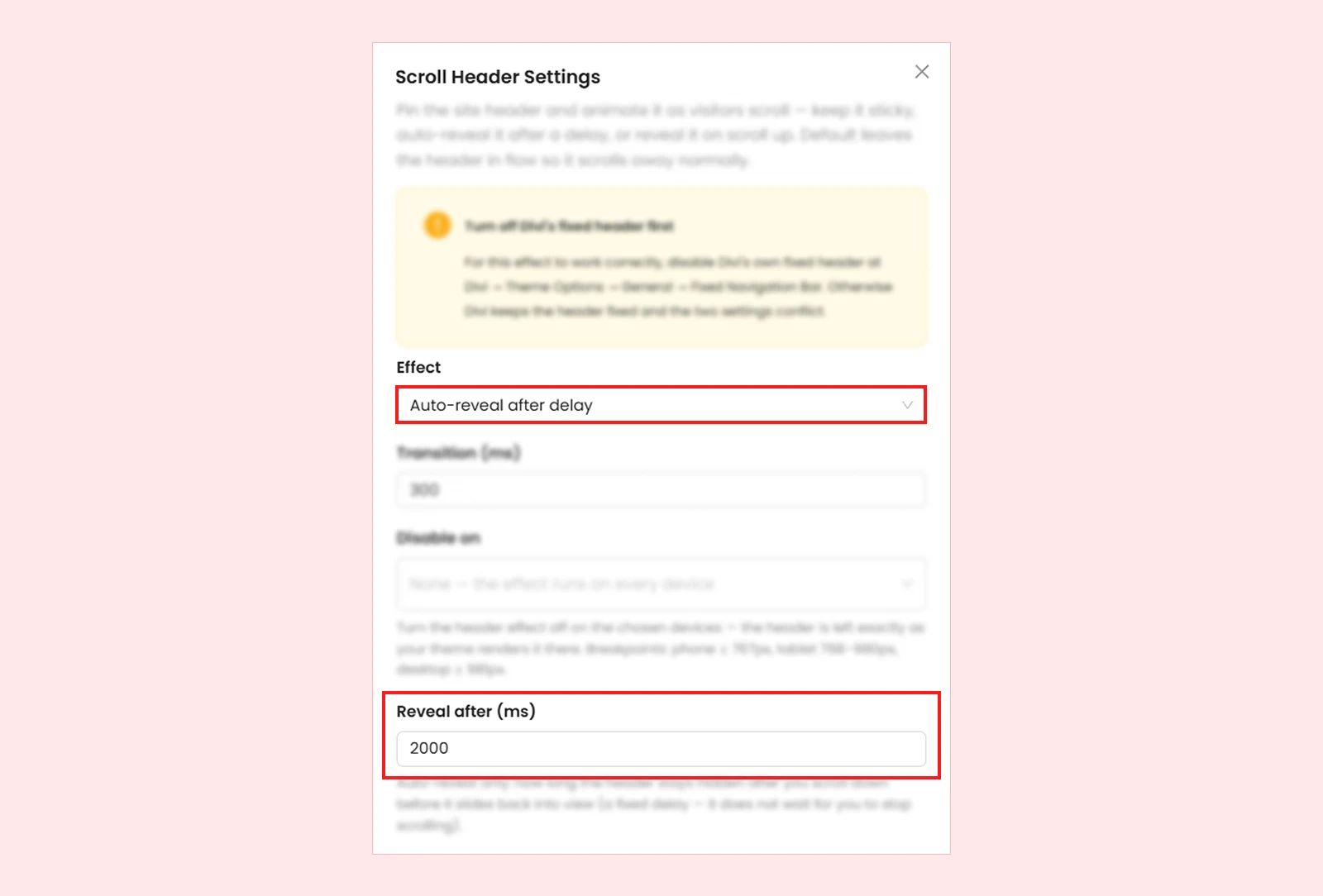
- Range: 0 - 10000 ms
- Default: 2000 ms
Here is what different reveal delay values mean:
| Value | Result |
| 1000 | Reveals after 1 second |
| 2000 | Reveals after 2 seconds (default) |
| 5000 | Reveals after 5 seconds |
The countdown starts after the visitor scrolls past the header and continues even while they are still scrolling. If the visitor returns near the top before the countdown finishes, the pending reveal is cancelled.
Target Selector (Optional)
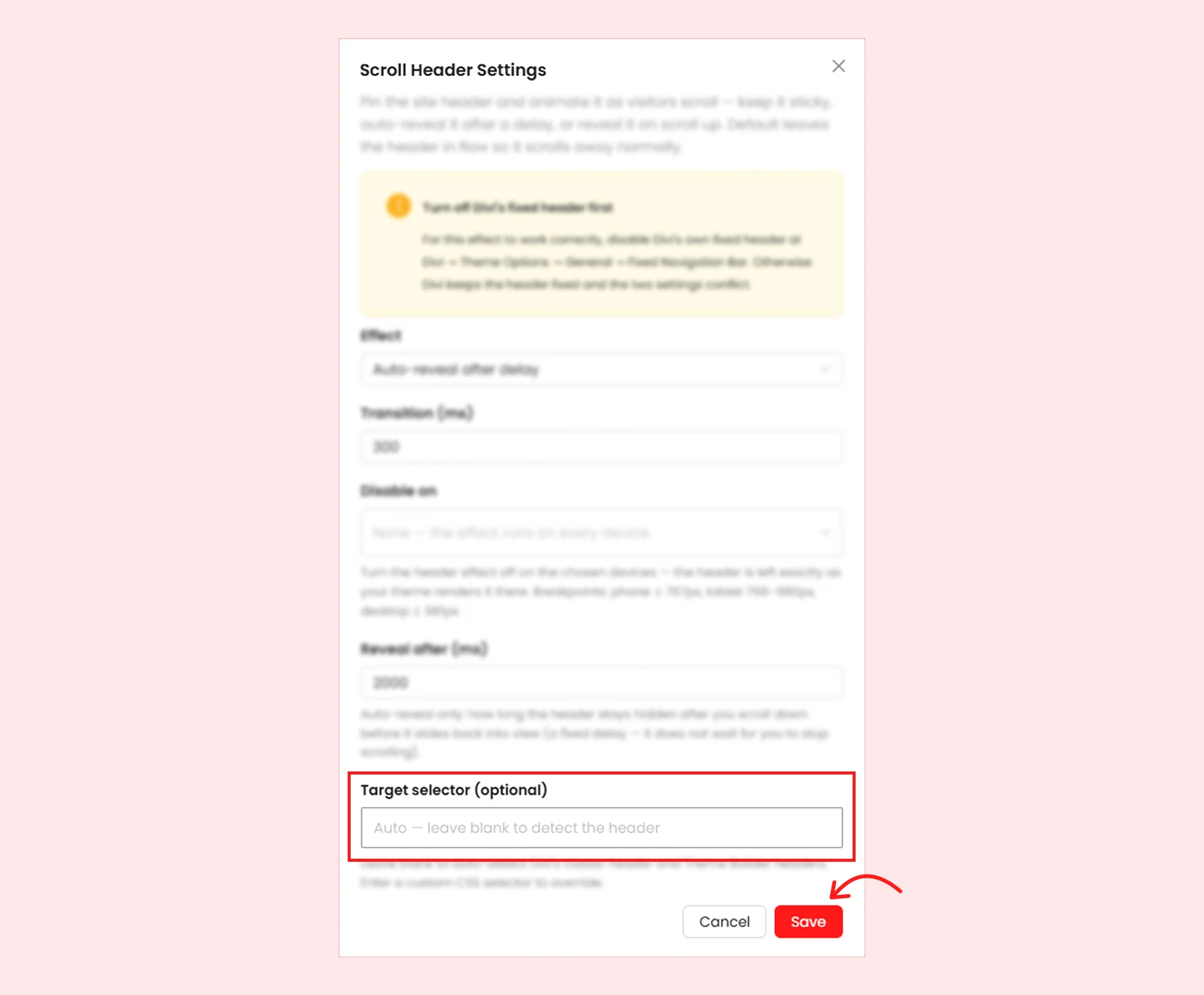
The Target Selector setting lets you manually tell DiviMotion which header to control.
In most cases, you should leave this field blank. DiviMotion automatically detects both Divi’s default header and Theme Builder global headers.
Use this option only if you are using a heavily customized or third-party header that DiviMotion cannot detect automatically. In that case, enter the CSS selector for the header you want the effect to apply to.
Example: #custom-header
If your standard Divi or Theme Builder header is working correctly, no Target Selector is needed.
What’s Next?
After saving the settings, open the page on the frontend and scroll to check the selected effect. If you use Disable on, also test the relevant screen sizes. If the header does not behave as expected, make sure Divi > Theme Options > General > Fixed Navigation Bar is turned off.


