

The DiviMotion Custom Scrollbar extension lets you style your website’s main scrollbar and add smooth mouse-wheel scrolling. You can choose its position, visibility, width, colours, and shadow from the DiviMotion dashboard.
Important Note
- Your settings apply site-wide to the main page scrollbar. Scrollbars inside popups, tabs, and other scrollable areas keep their usual appearance and behaviour.
- The extension runs on the frontend. Use the live preview in the settings panel to test changes while you configure it.
- Custom Scrollbar requires DiviMotion (v2.4.0).
How to Enable Custom Scrollbar

- Go to WordPress Dashboard > DiviMotion > Extensions.
- Turn on Custom Scrollbar.
- Click Configure to open the settings.
The settings panel has three tabs: General, Appearance, and Advanced.
General
Use the General tab to choose which side the scrollbar sits on, when it appears, how mouse-wheel scrolling feels, and whether phones and tablets use it.
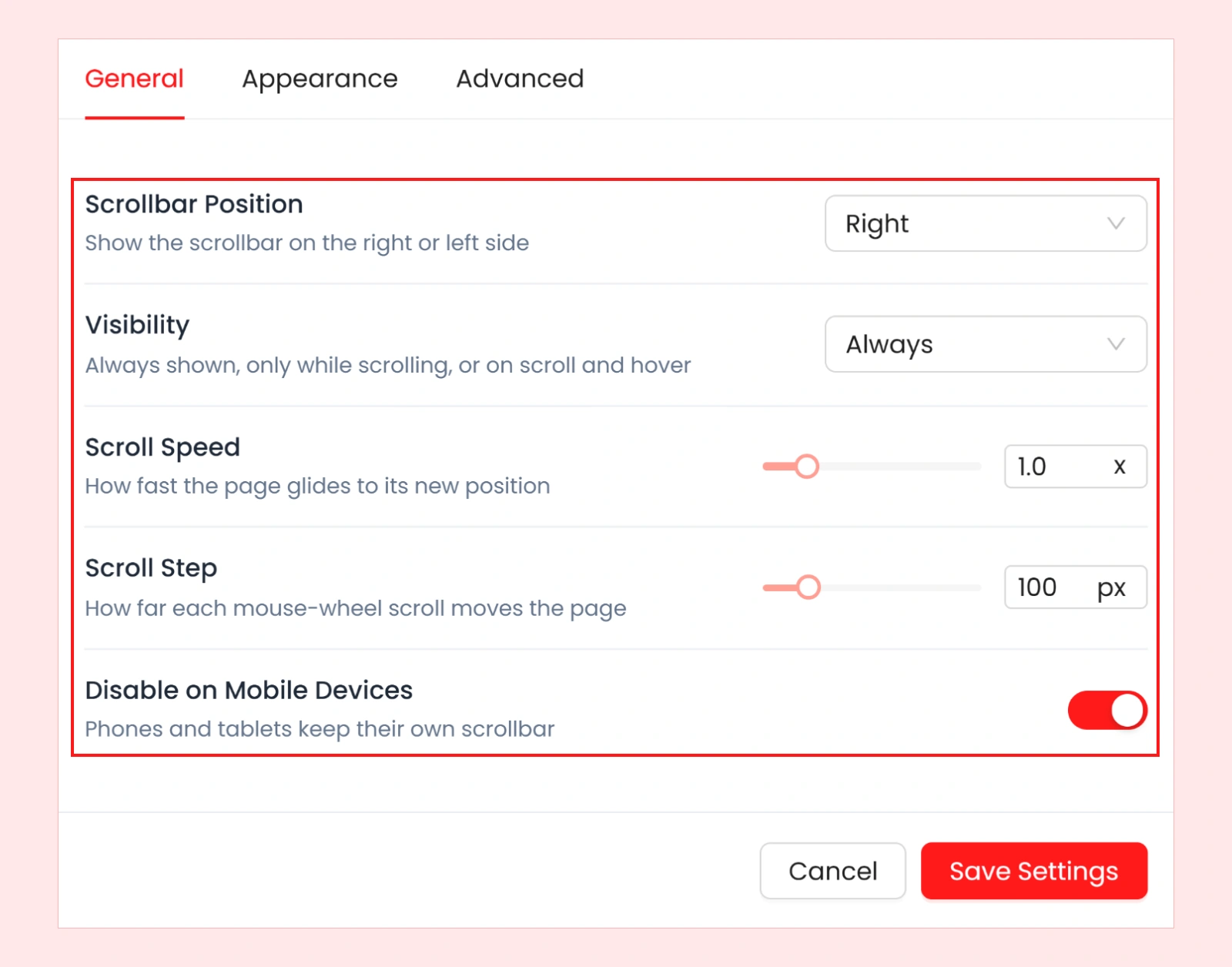
Scrollbar Position
Choose Right or Left to place the scrollbar on that side of the page. On right-to-left sites, select Left manually if you want the scrollbar on that side.
Visibility
Choose when the scrollbar appears.
| Option | What It Does |
| Always | Keeps the scrollbar visible. |
| On Scroll | Shows the scrollbar while the page scrolls. It fades out one second after scrolling stops. |
| Auto | Works like On Scroll and also shows the scrollbar when the pointer is near the edge where it appears. |
Scroll Speed
Controls how fast the page glides to its new position after a mouse-wheel turn.
Range: 0.5×–3×
| Value | Result |
| 0.5× | A slower, gentler glide |
| 2× | A faster glide |
| 3× | The snappiest glide |
Scroll Step
Controls how far the page moves with each notch of the mouse wheel.
Range: 20–400 px
| Value | Result |
| 20 px | A very small move per notch |
| 100 px | A medium move per notch |
| 400 px | A large move per notch |
Note: If ScrollSmoother is on (DiviMotion > Integrations), Custom Scrollbar takes over the mouse wheel and uses your Scroll Speed and Scroll Step. ScrollSmoother keeps running its scroll effects. Turn off Custom Scrollbar to give the wheel back to ScrollSmoother.
Disable on Mobile Devices
Choose whether phones and tablets use the custom scrollbar. Touch scrolling works as usual in either case.
| Option | What It Does |
| On | Phones and tablets use their own scrollbar. |
| Off | Phones and tablets show the custom scrollbar, and visitors can drag it with a finger. |
Appearance
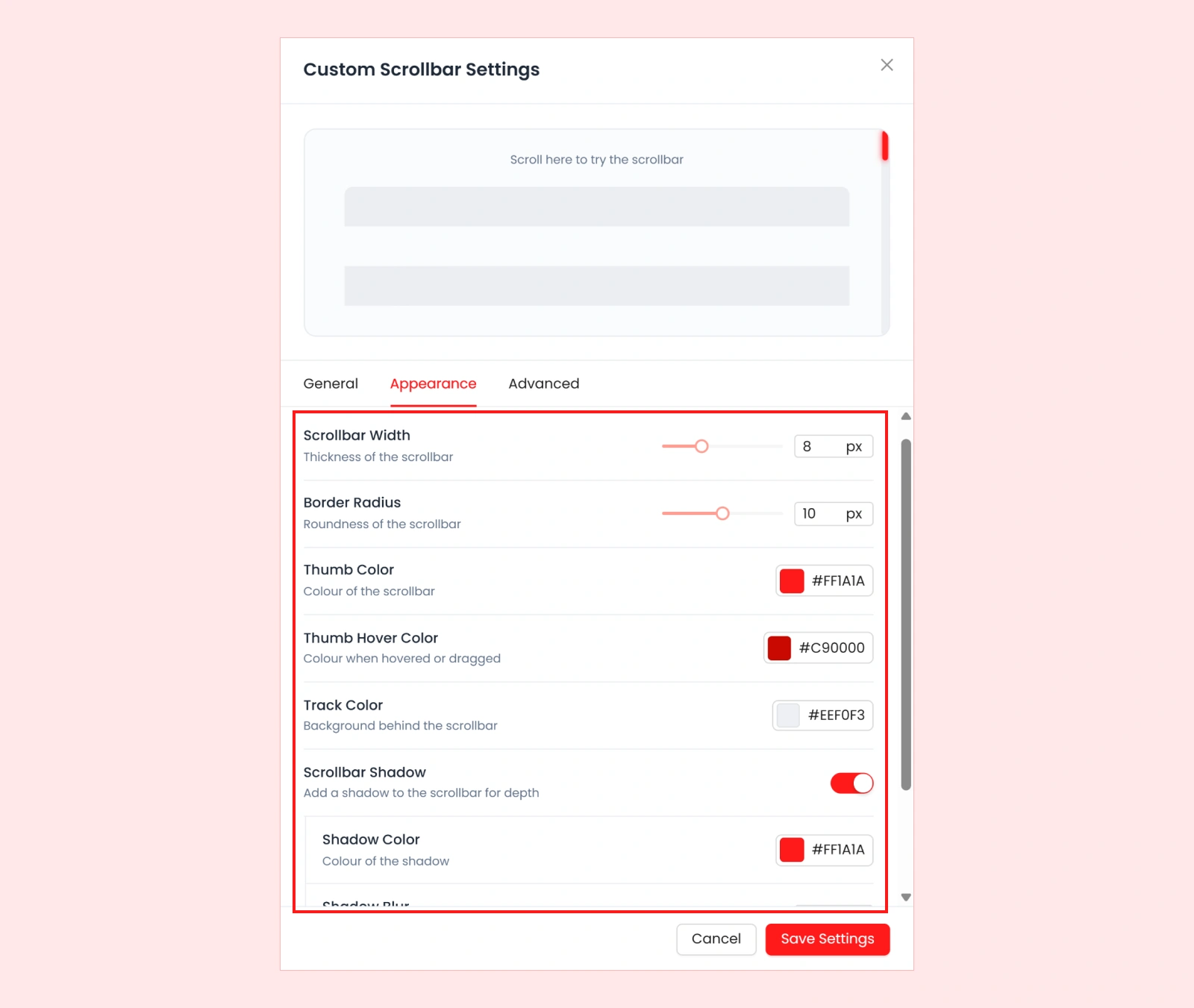
Use the Appearance tab to style your site’s main scrollbar. The thumb is the part visitors drag to scroll. The track is the area behind it.
Scrollbar Width
Set the width of the scrollbar track from 2 to 20 px. The thumb sits 1 px inside each side of the track.
| Track Width | Thumb Width |
| 6 px | 4 px |
| 10 px | 8 px |
| 20 px | 18 px |
Border Radius
Set how rounded the scrollbar’s corners are, from 0 to 20 px. Use 0 px for square corners. Increase the value for a more rounded look.
Thumb Color
Choose the colour of the part visitors drag. A colour that contrasts with the track makes the thumb easier to see.
Thumb Hover Color
Choose the colour of the thumb when visitors move the pointer over it or drag it. For example, use a darker shade of the Thumb Color to make the change visible.
Track Color
Choose the background colour behind the thumb. Use a transparent colour to let the page show through.
Scrollbar Shadow
Turn this on to add a shadow around the scrollbar. This reveals Shadow Color, Shadow Blur, and Shadow Offset.
Shadow Color
Choose the colour of the shadow around the scrollbar.
Shadow Blur
Set how soft the shadow’s edges look, from 0 to 30 px. Use 0 px for a sharp edge or increase the value for a softer shadow.
Shadow Offset
Set how far the shadow shifts from the scrollbar, from −10 to 10 px. At 0 px, the shadow stays centred. Positive and negative values move it in opposite directions. Use the live preview to check where it falls.
Advanced
Custom CSS
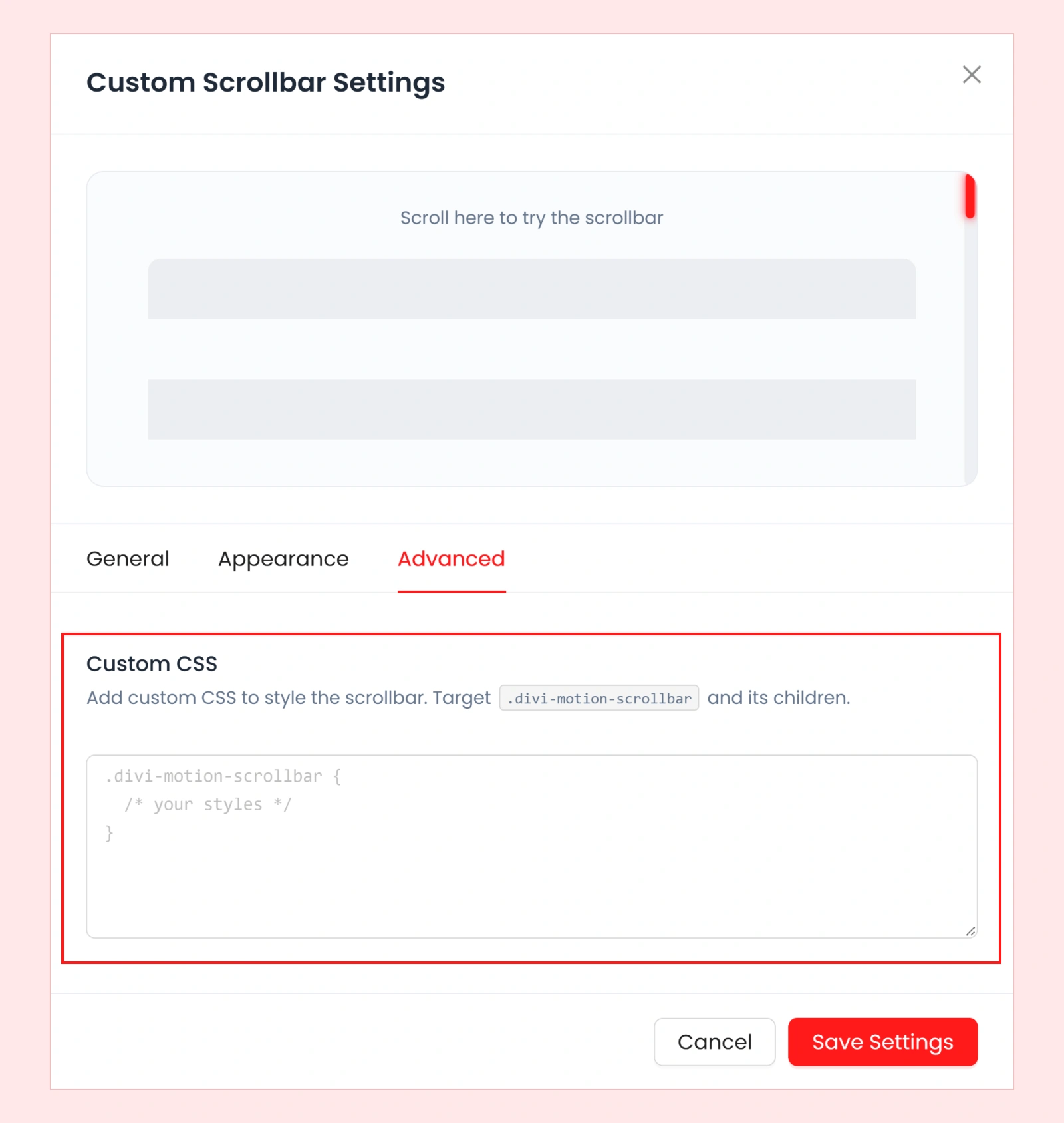
Use Custom CSS to add your own styles to the scrollbar. Use the selectors below to target the track or the thumb.
| Selector | What It Targets |
| .divi-motion-scrollbar | The track, which is the area behind the thumb. |
| .divi-motion-scrollbar-thumb | The thumb, which is the part visitors drag to scroll. |
Note
While you edit, your CSS only affects the live preview. Click Save Settings to apply it to your site’s main scrollbar.
What’s Next?
After saving, open a page on the frontend. Use the mouse wheel and drag the thumb to check how it behaves. If you enabled the custom scrollbar on mobile devices, test it on a phone or tablet too


