

The DiviMotion Ken Burns Background extension adds slow zoom and pan effects to background images in Divi. Apply it to a section, row, column, or module, then adjust the direction, duration, intensity, and repeat behaviour. The background image moves while text, buttons, and other content stay in place.
Important Note
- Ken Burns Background was introduced in DiviMotion v2.4.0.
- The effect applies to the element’s main background image under Content > Background > Image.
- If Use Parallax Effect is enabled, turn it off to reveal the Ken Burns controls.
- Visitors who enable reduced motion on their device see a still background image.
- Divi presets do not store Ken Burns settings.
How to Enable Ken Burns Background

- Go to WordPress Dashboard > DiviMotion > Extensions.
- Find Ken Burns Background and turn it on.
How to Apply the Ken Burns Effect
- Open a page in the Divi Visual Builder.
- Open the settings for the section, row, column, or module you want to animate.
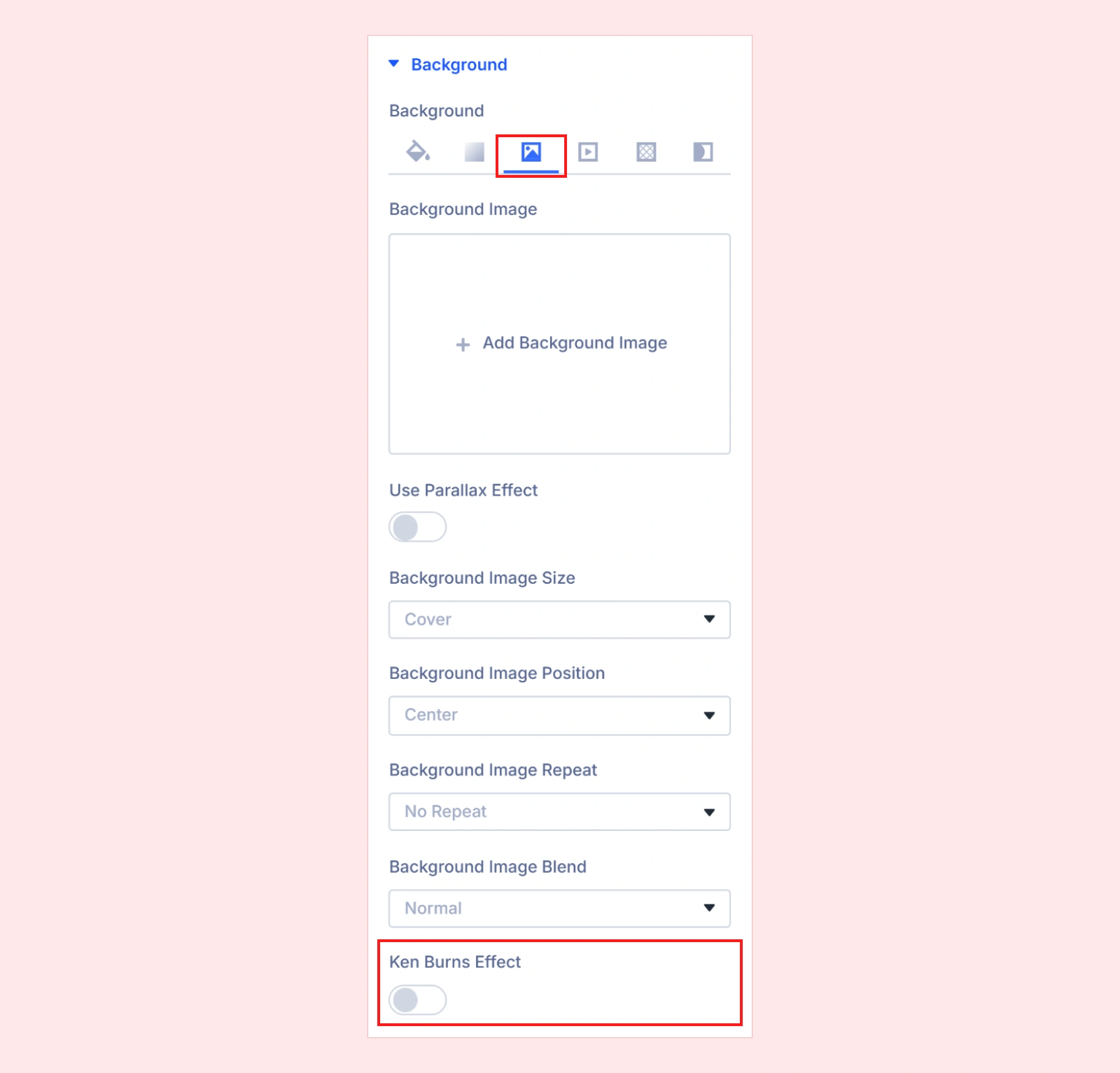
- Go to Content tab > Background > Image and select a background image.
- Below the background image fields, turn on Ken Burns Effect.
- Choose a Ken Burns Style, adjust the settings, and save the page.
Ken Burns Background Settings
Ken Burns Effect
Turn this on to animate the background image and reveal the Ken Burns controls.
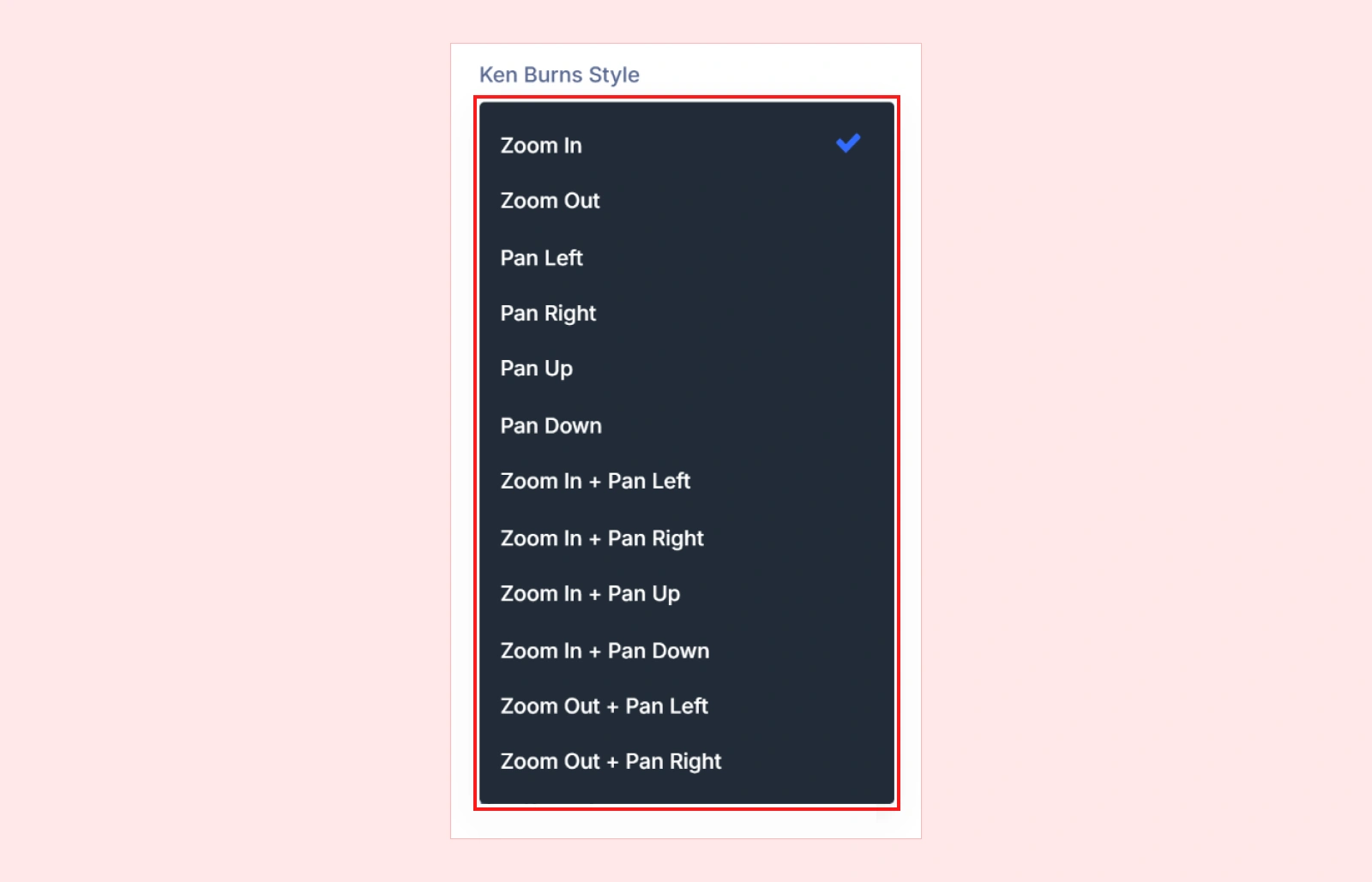
Ken Burns Style
Choose how the image moves. The 12 styles include zoom, pan, and combinations of both.
| Style | What it does |
| Zoom In | Gradually enlarges the image. |
| Zoom Out | Starts with the image enlarged and gradually zooms out. |
| Pan Left, Pan Right, Pan Up, Pan Down | Moves the image in the selected direction. |
| Zoom In + Pan Left, Zoom In + Pan Right, Zoom In + Pan Up, Zoom In + Pan Down | Enlarges the image as it moves in the selected direction. |
| Zoom Out + Pan Left, Zoom Out + Pan Right | Zooms out while moving the image left or right. |
Zoom Focal Point
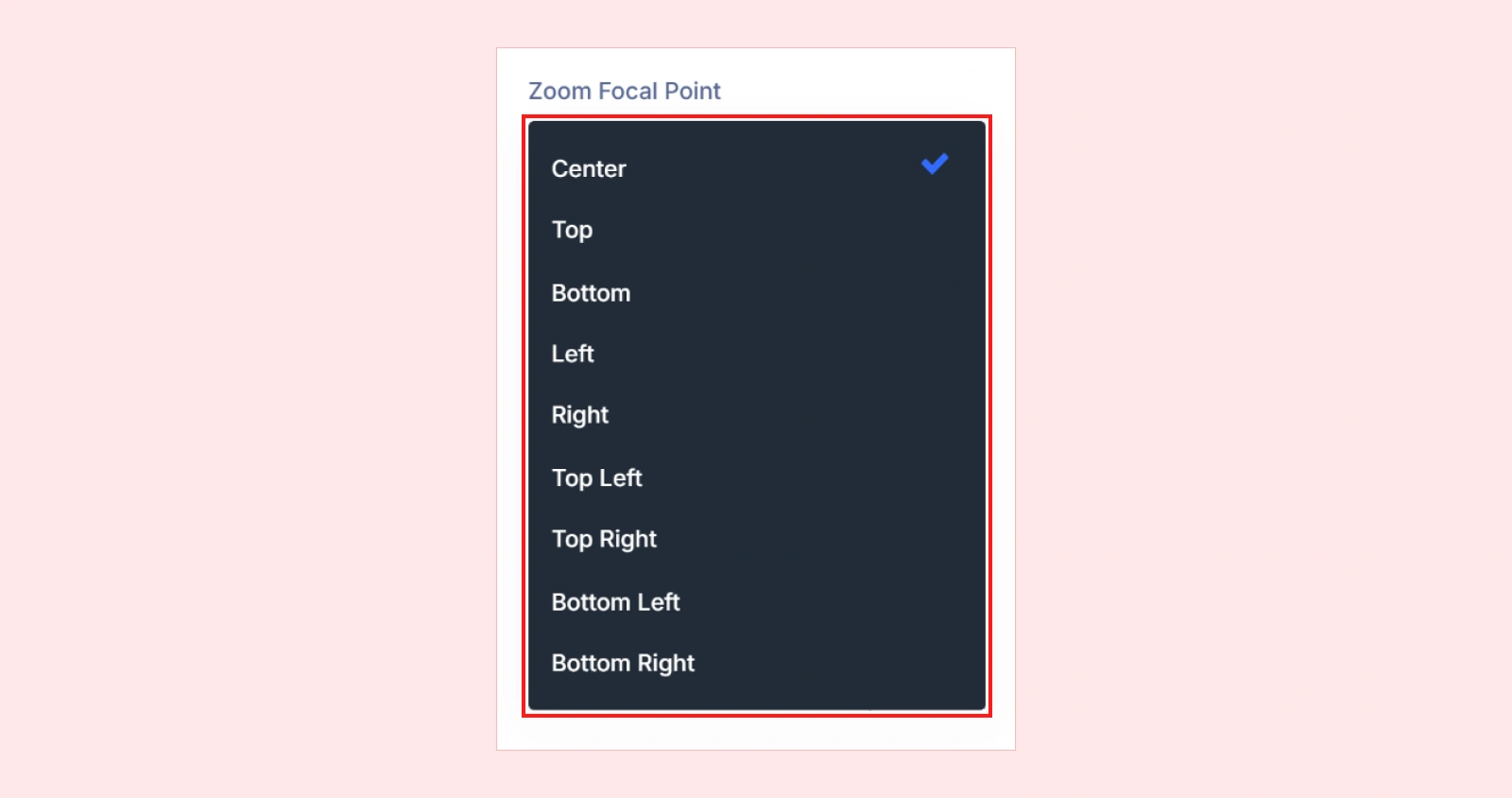
Choose where the zoom is anchored. For example, select Top Left to anchor the zoom to the upper-left corner. You can choose Center, any edge, or any corner. This setting appears only when Ken Burns Style is set to Zoom In or Zoom Out.
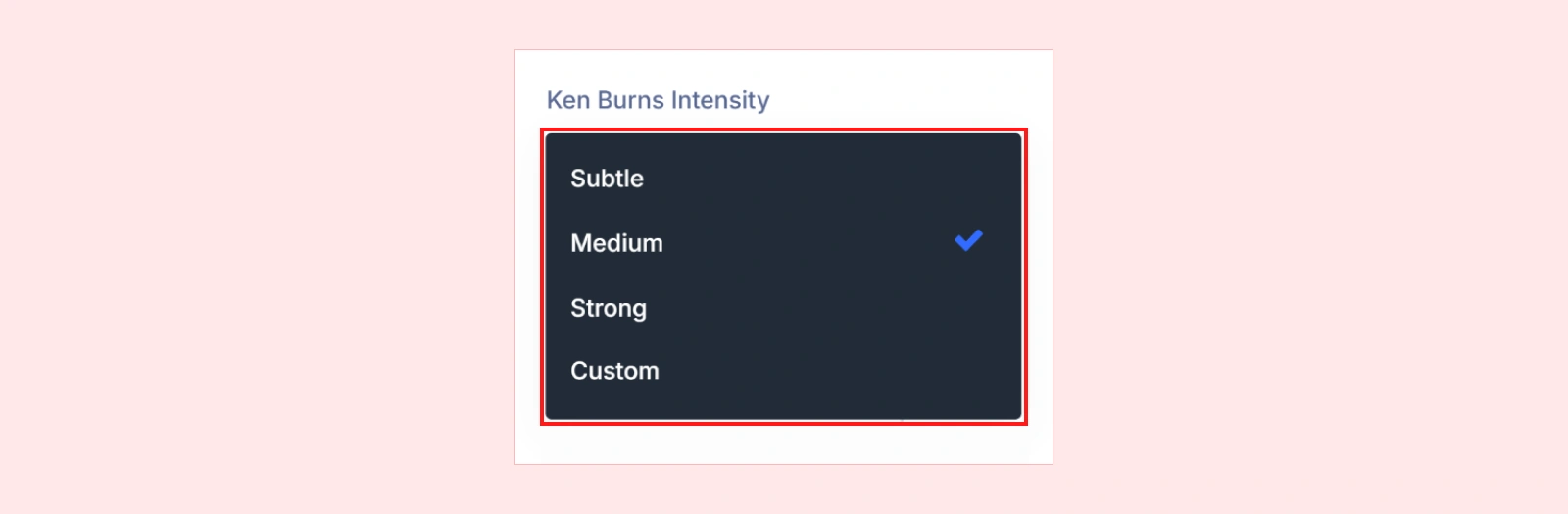
Ken Burns Intensity
Choose how much the image zooms or pans. The selected style determines which movement applies.
| Option | Zoom | Pan |
| Subtle | 12% | 4% |
| Medium | 20% | 7% |
| Strong | 32% | 12% |
| Custom | Set with Zoom Amount | Set with Pan Distance |
Select Custom to reveal the controls that match your style. Zoom styles show Zoom Amount, pan styles show Pan Distance, and styles that combine zoom and pan show both.
Zoom Amount

Set how much the image changes size during a zoom, from 0% to 60%. This setting appears when Ken Burns Intensity is set to Custom and the selected style includes zoom.
Pan Distance

Set how far the image moves, from 0% to 25% of the element’s size. This setting appears when Ken Burns Intensity is set to Custom and the selected style includes pan.
Ken Burns Duration

Set how long one pass takes, from 3 to 60 seconds. With a 20-second duration and Loop (back and forth), the image takes 20 seconds to move forward and another 20 seconds to return.
Ken Burns Delay

Set how long the animation waits after the page loads, from 0 to 10 seconds. Use 0 seconds to start the movement immediately.
Ken Burns Easing
Choose how the movement speeds up or slows down during each pass.

| Option | What it does |
| Smooth (ease in-out) | Starts slowly, speeds up, and slows down near the end. |
| Linear | Moves at a steady speed throughout. |
| Ease out | Starts quickly and slows down near the end. |
| Ease in | Starts slowly and speeds up toward the end. |
Ken Burns Repeat
Choose what happens after the image completes one pass.

| Option | What it does |
| Loop (back and forth) | Plays the movement forward, then smoothly reverses it. The cycle repeats. |
| Play once and hold | Plays the movement once and holds the image at its final size and position. |
Ken Burns Disable On

Select Desktop, Tablet, or Phone to show a still background image on those devices.
Respect Reduced Motion

Turn this on to show a still background image for visitors who have enabled reduced motion on their device.
What’s Next?
Save the page and open it on the frontend to check the movement. If you set a delay, reload the page to check when the animation starts. In the Visual Builder, changing a Ken Burns setting restarts the preview.


