

The DiviMotion Staggered Entrance extension adds scroll-triggered animations to elements inside a Divi section, row, or column. Choose from 21 entrance effects and control when elements animate, how their animations overlap, and whether they replay when visitors scroll back.
Important Notes
- Staggered Entrance requires DiviMotion v2.4.0.
- Elements with their own DiviMotion animation keep that animation and are skipped by Staggered Entrance.
- Each section, row, or column stores its own Staggered Entrance settings. Divi presets do not store these settings.
How to Enable Staggered Entrance
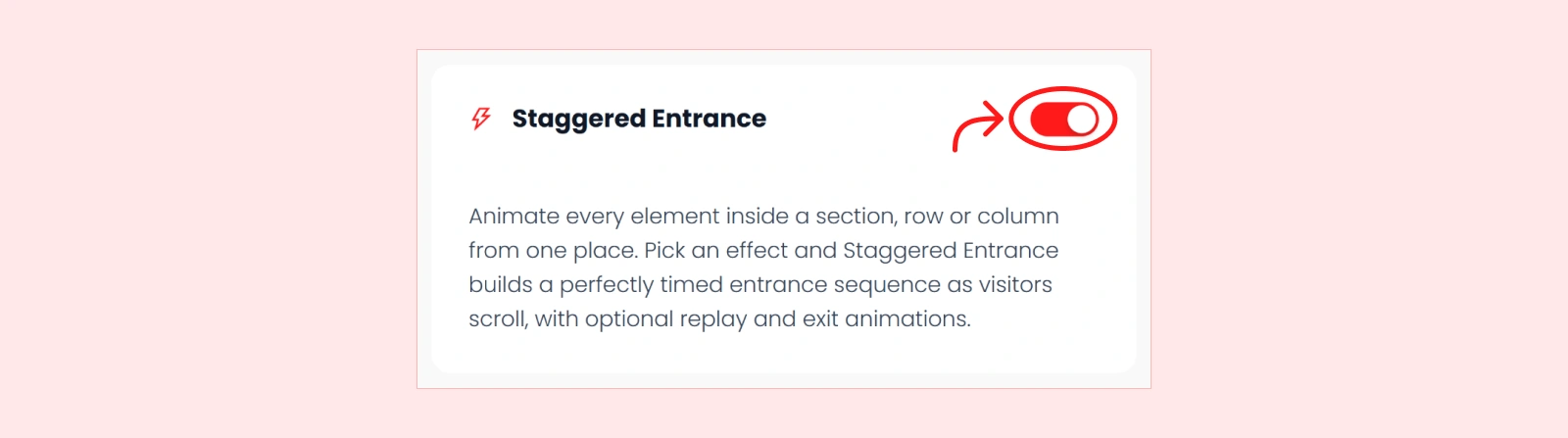
- Go to WordPress Dashboard > DiviMotion > Extensions.
- Turn on Staggered Entrance.
How to Apply Staggered Entrance
- Open a page in the Divi Visual Builder.
- Open the settings for the section, row, or column you want to animate.
- Go to Design > Staggered Entrance and turn on Staggered Entrance.
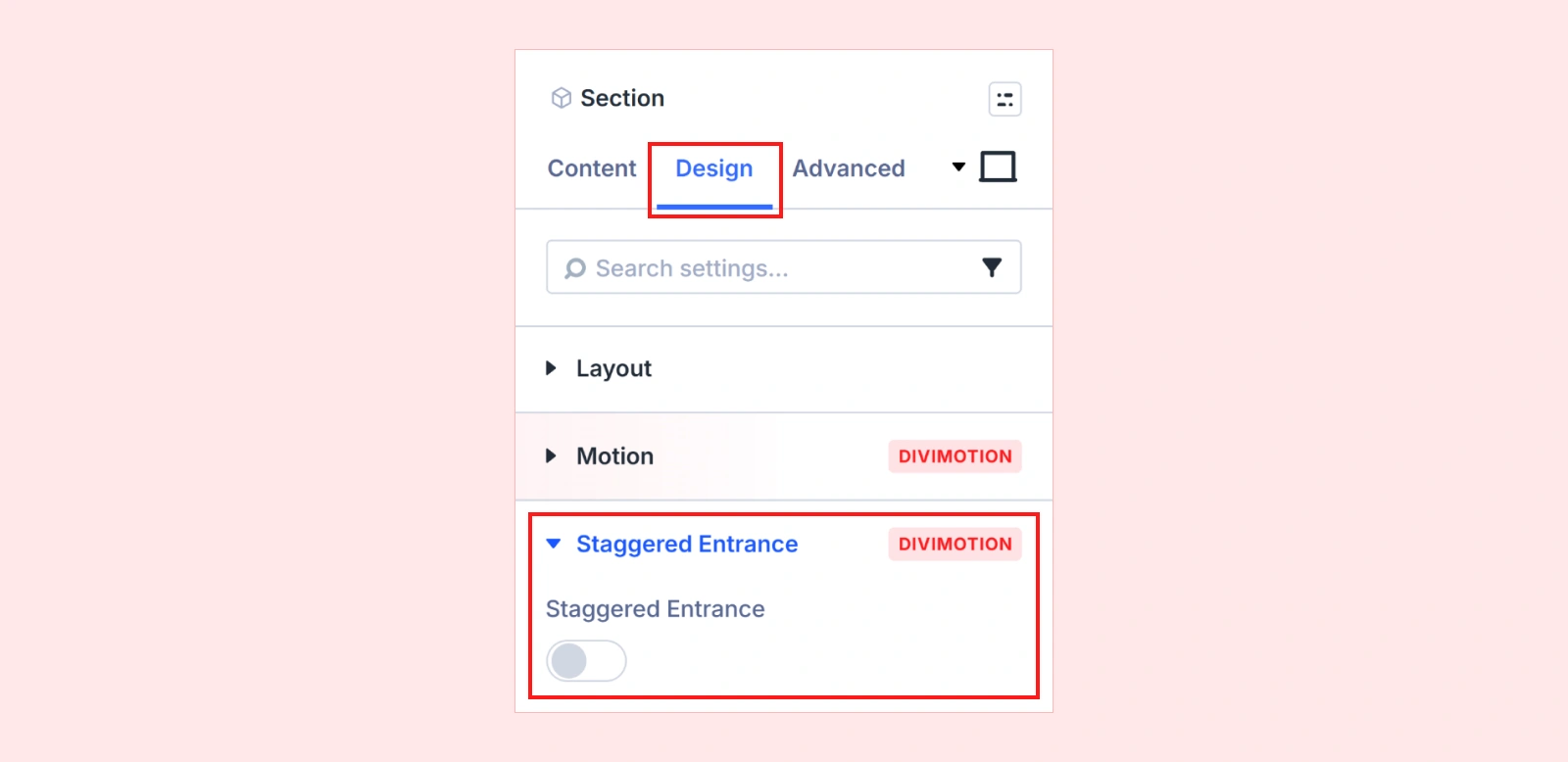
Staggered Entrance Settings
Staggered Entrance
Turn this on to reveal the animation controls for the selected section, row, or column.
Animate
Choose what animates inside the selected section, row, or column. The available options depend on where you apply Staggered Entrance.
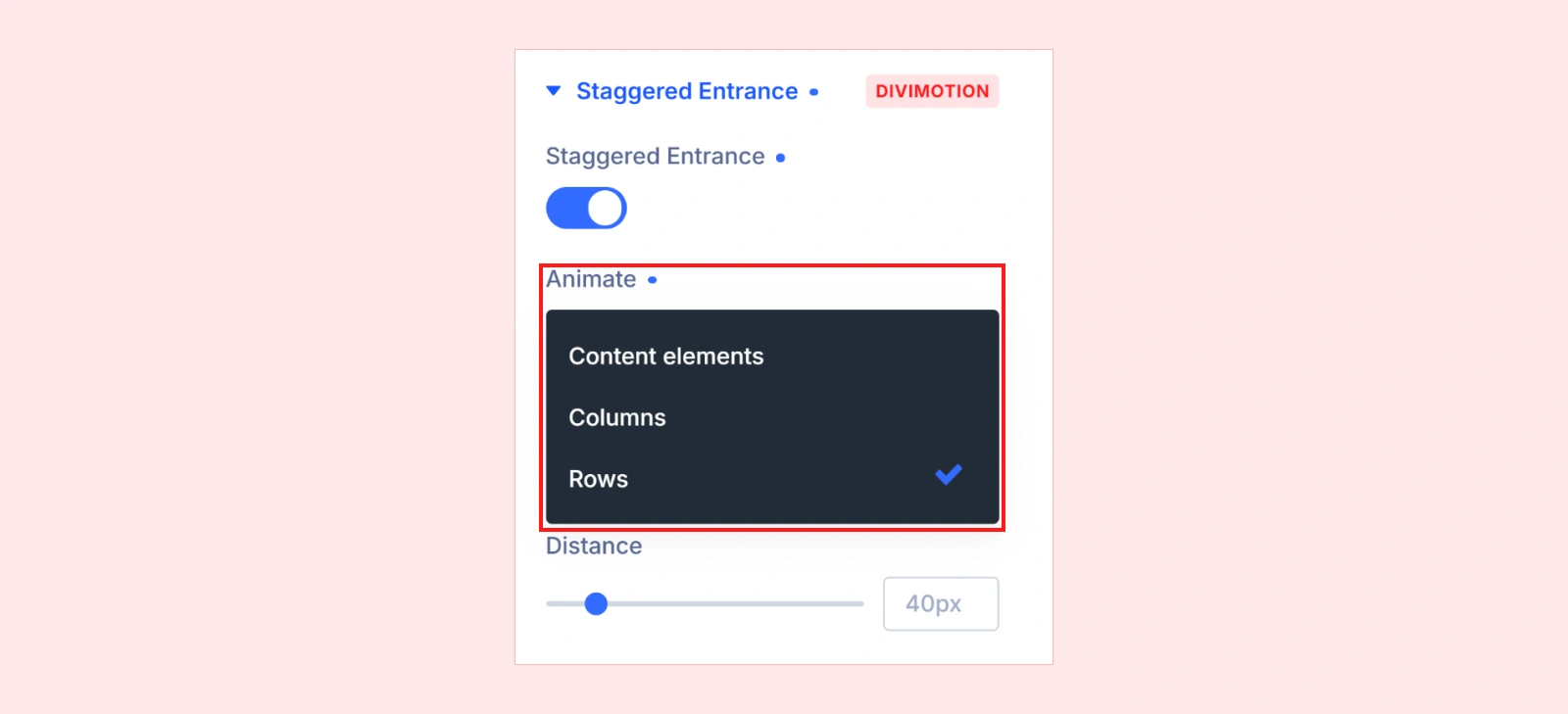
| Option | What animates |
| Content elements | Each module, such as Text, Image, or Button, animates on its own. |
| Columns | Each column animates as one block with everything inside it. |
| Rows | Each row animates as one block with everything inside it. |
| Direct children | Each item directly inside the selected section or row animates as one block. For example, in a section, each row animates as one block. |
| First-level elements | Each item directly inside the selected column animates as one block. For example, a Group containing an image, text, and a button animates as one card. |
On columns, you can choose Content elements or First-level elements. New elements are included automatically if they match your selection.
Effect
Choose how each element enters. Staggered Entrance offers 21 effects.
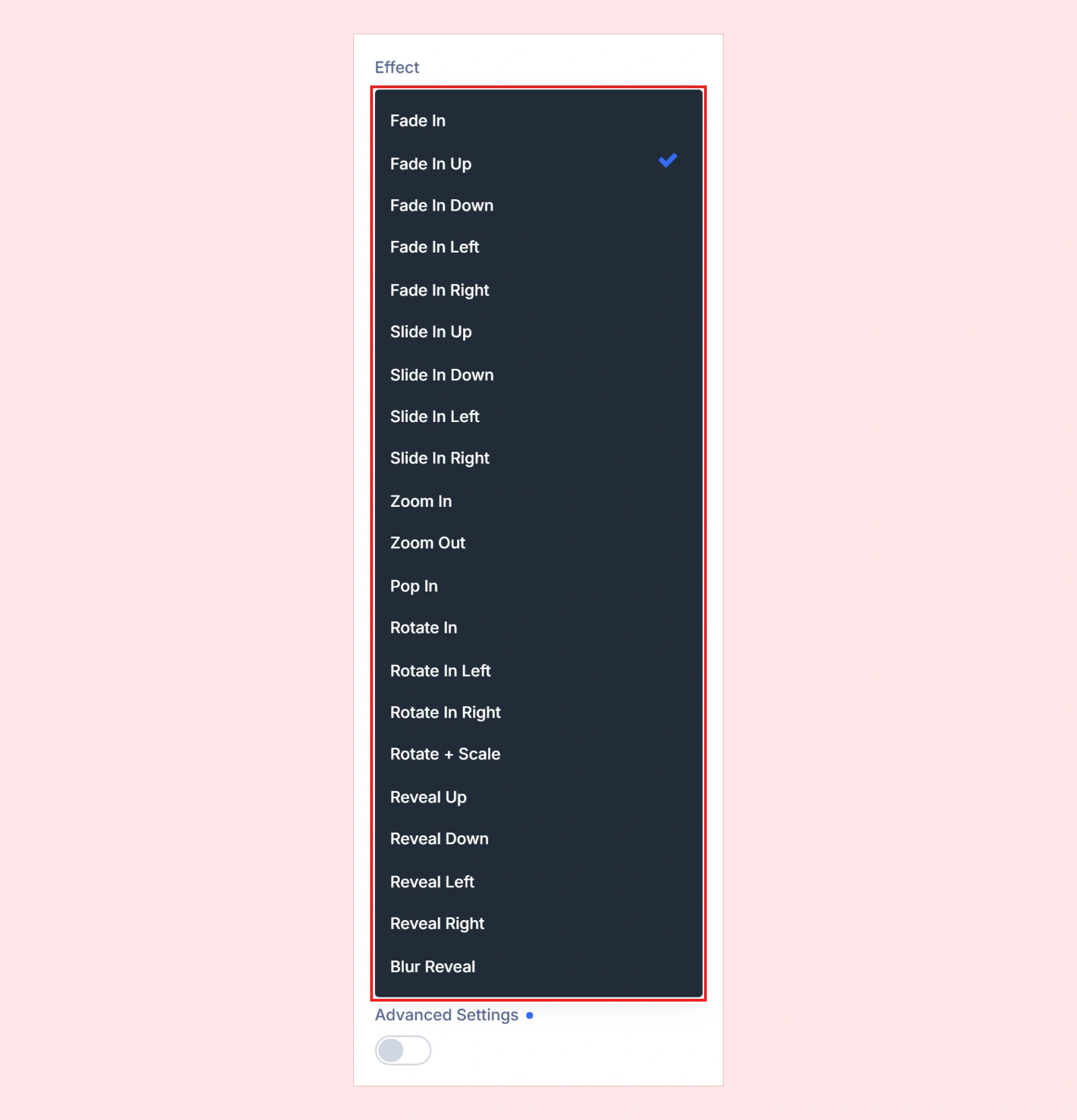
| Effects | What they do |
| Fade In, Fade In Up, Fade In Down, Fade In Left, Fade In Right | Fade elements into view. The directional options also move the elements as they fade in. |
| Slide In Up, Slide In Down, Slide In Left, Slide In Right | Slide elements into place in the selected direction. |
| Zoom In, Zoom Out, Pop In | Change the size of elements as they enter. |
| Rotate In, Rotate In Left, Rotate In Right, Rotate + Scale | Rotate elements as they enter. Rotate + Scale also changes their size. |
| Reveal Up, Reveal Down, Reveal Left, Reveal Right | Uncover elements with a wipe in the selected direction. |
| Blur Reveal | Brings elements into focus as they enter. |
Distance

Set how far elements move, from 0 to 300 px. This applies to directional entrance effects such as Fade In Up and Slide In Left, as well as directional exit effects.
Start Scale
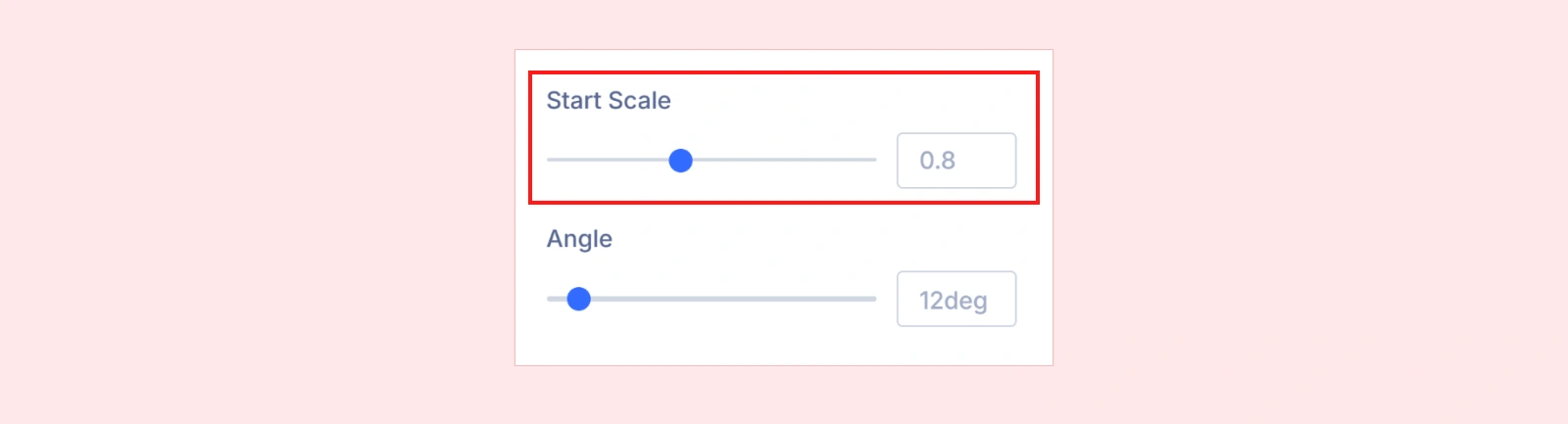
Set the size of each element at the start of its entrance, from 0 to 2. A value of 1 is normal size. At 0.8, the element starts at 80% of its normal size and grows into place. This is available for Zoom In, Zoom Out, Pop In, and Rotate + Scale.
Angle
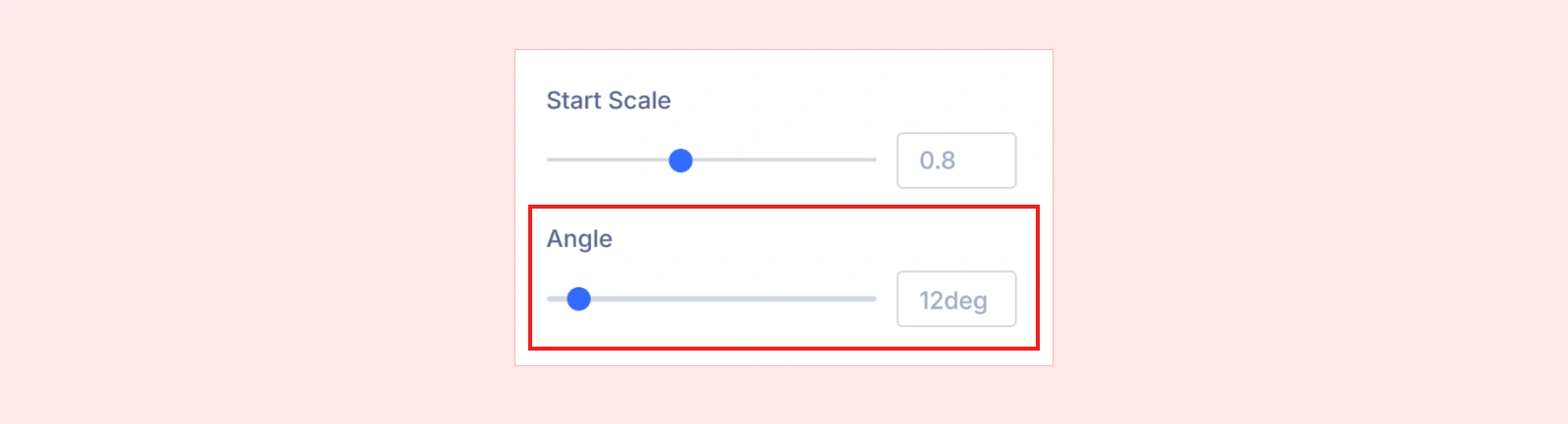
Set how far elements rotate as they enter, from 0° to 180°. This is available for Rotate In, Rotate In Left, Rotate In Right, and Rotate + Scale.
Rotation Origin
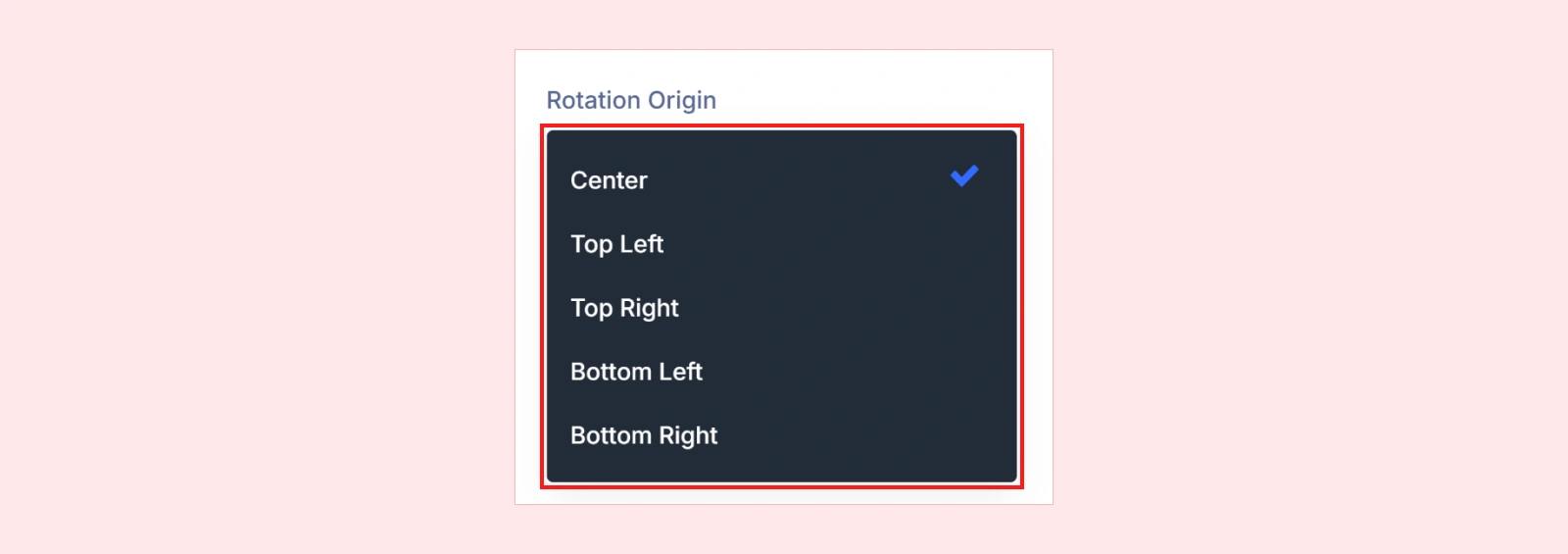
Choose where the rotation is anchored. Select Center or one of the four corners. This is available for Rotate In and Rotate + Scale.
Blur

Set the amount of blur, from 0 to 40 px. With Blur Reveal, elements start to blur and come into focus. With Blur Out, they become blurred as they exit.
Sequence
Choose when each entrance starts relative to the others.
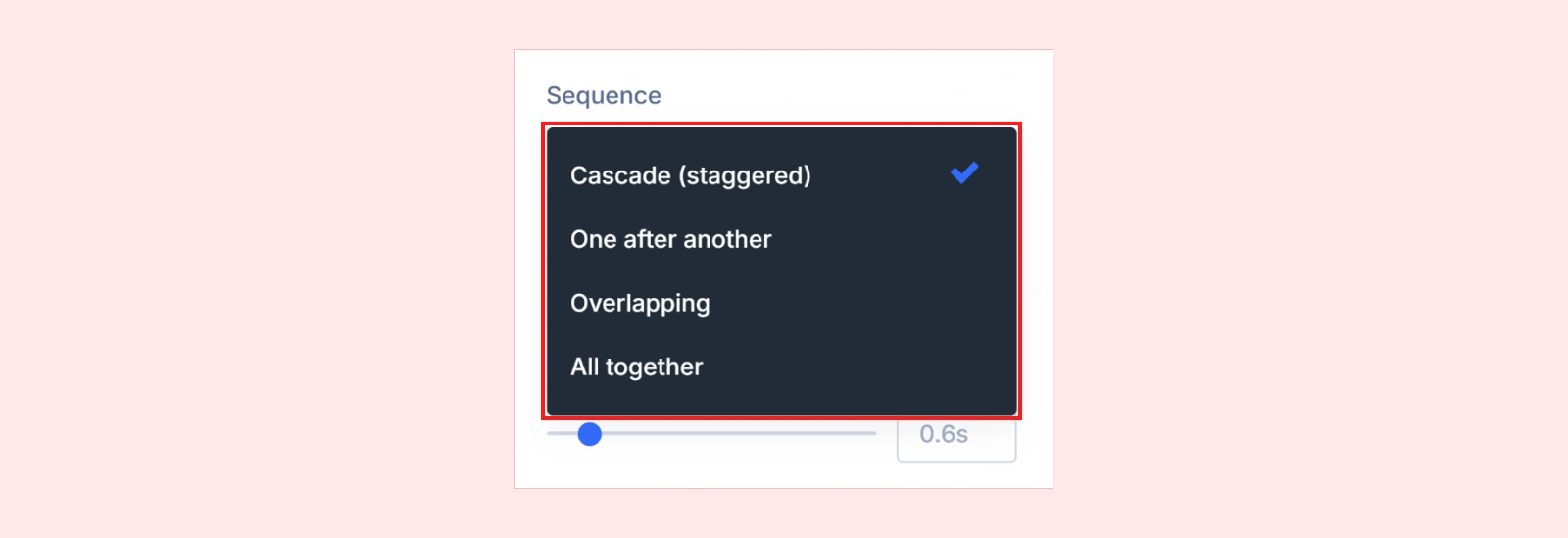
| Option | What it does | Setting it reveals |
| Cascade (staggered) | Starts each animation a fixed time after the previous one starts. | Interval |
| One after another | Waits for one animation to finish before starting the next. | Gap |
| Overlapping | Starts each animation partway through the previous one. | Overlap |
| All together | Starts all animations at the same time. |
Interval

Set the time between the start of one animation and the start of the next, from 0 to 2 seconds. This appears when Sequence is set to Cascade (staggered).
Pause Between Elements

Set how long to wait after one animation finishes before the next begins, from 0 to 3 seconds. This setting appears when Sequence is set to One after another
Overlap Amount

Set how much consecutive animations overlap, from 0% to 95%. At 50%, the next animation starts halfway through the previous one. This setting appears when Sequence is set to Overlapping.
Duration

Set how long each element takes to complete its entrance, from 0.1 to 5 seconds.
Start Delay

Set how long to wait after the trigger is reached before the animation starts, from 0 to 5 seconds.
Playback
Choose what happens when visitors scroll past the animated elements and return to them.
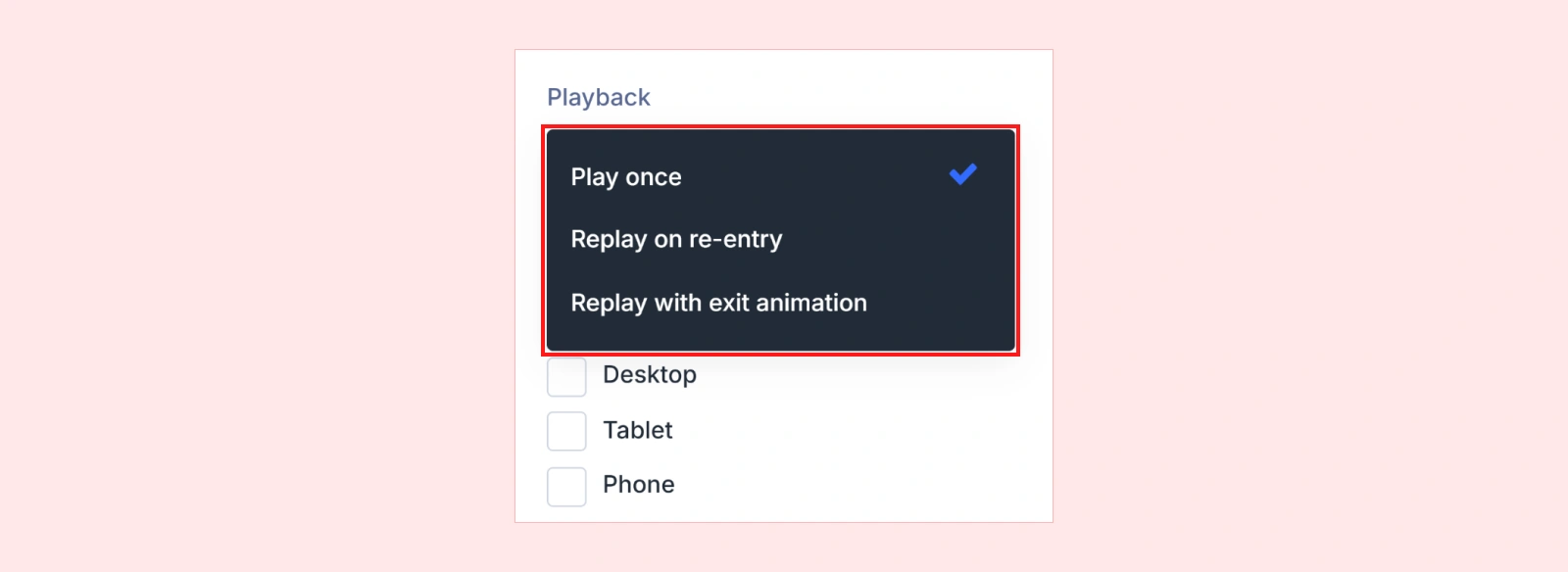
| Option | What it does |
| Play once | Plays the entrance the first time the content scrolls into view. The elements stay visible afterward. |
| Replay on re-entry | Resets the animation off-screen and plays it again when the content returns to view. |
| Replay with exit animation | Animates the elements out as visitors scroll past them and plays the entrance again when they return. |
Exit Effect
Choose how elements animate out. This appears when Playback is set to Replay with exit animation.
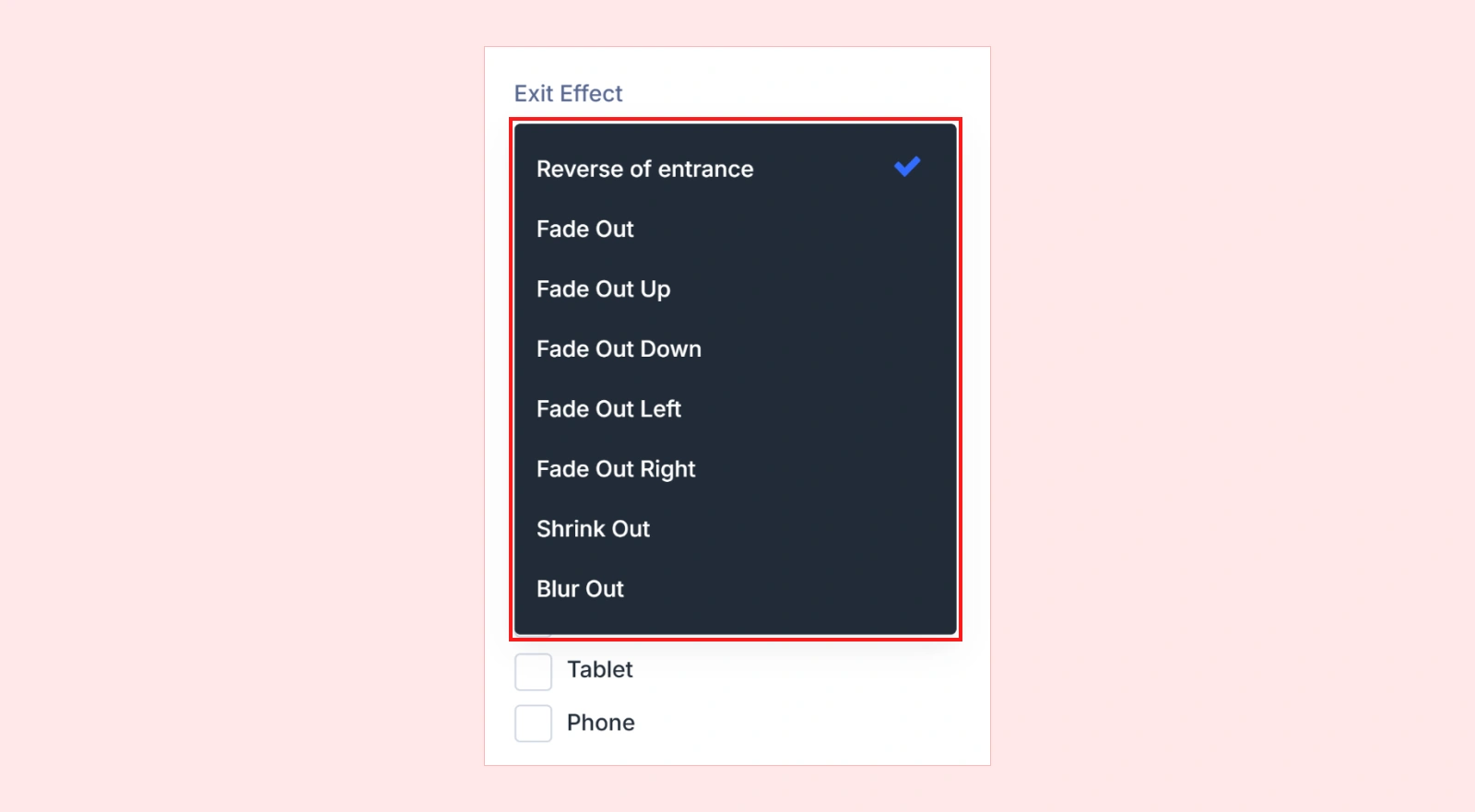
| Option | What it does |
| Reverse of entrance | Plays the selected entrance effect backward. |
| Fade Out | Fades the elements away. |
| Fade Out Up, Fade Out Down, Fade Out Left, Fade Out Right | Fade the elements out as they move in the selected direction. |
| Shrink Out | Shrinks the elements as they leave. |
| Blur Out | Blurs the elements as they leave. |
Exit Duration

Set how long each element’s exit takes, from 0.1 to 3 seconds. This appears when Playback is set to Replay with exit animation.
Exit Point

Set where on the screen the exit animation starts. The exit begins when the bottom of the container or element moves above the selected point. 0% is the top edge of the screen. This appears when Playback is set to Replay with exit animation.
Preview

Click Preview to play the entrance in the Visual Builder.
Disable On
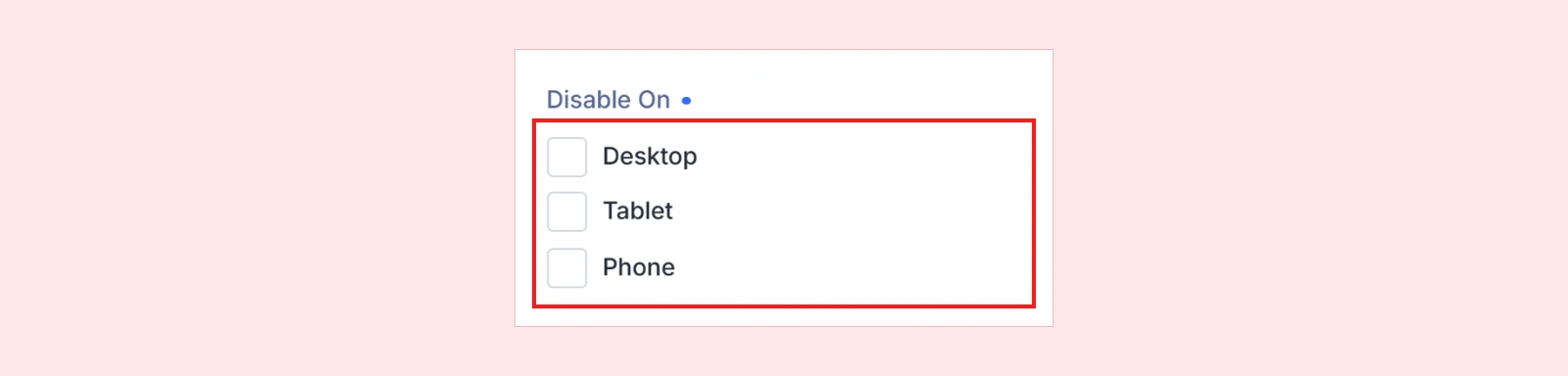
Select Desktop, Tablet, or Phone to show the content without an entrance animation on those devices.
Respect Reduced Motion

Turn this on to show content without the entrance animation for visitors who prefer reduced motion.
Advanced Settings
Turn on Advanced Settings to reveal the controls below. If you turn it off, your saved values still apply. A notice lists any hidden values that are in use.
Elements
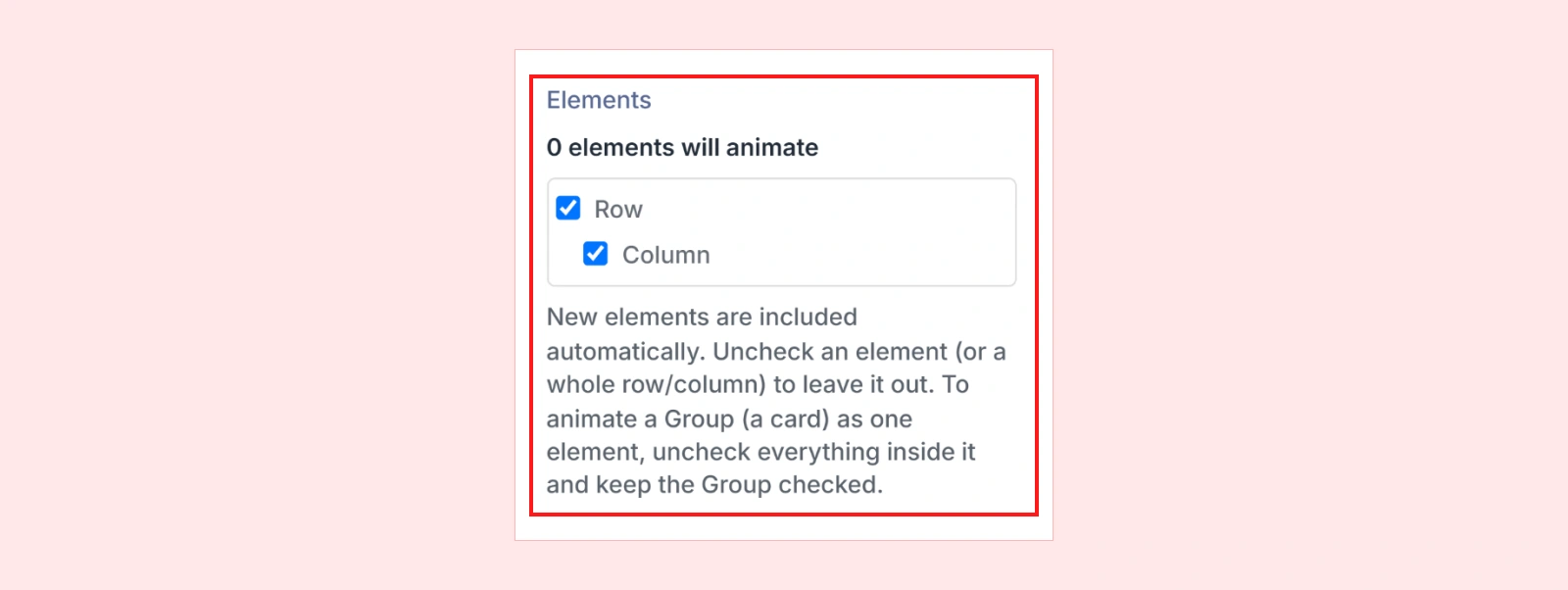
Review the list of elements in the animation. Uncheck any element you want to leave out. It will appear normally while the selected elements animate.
Order
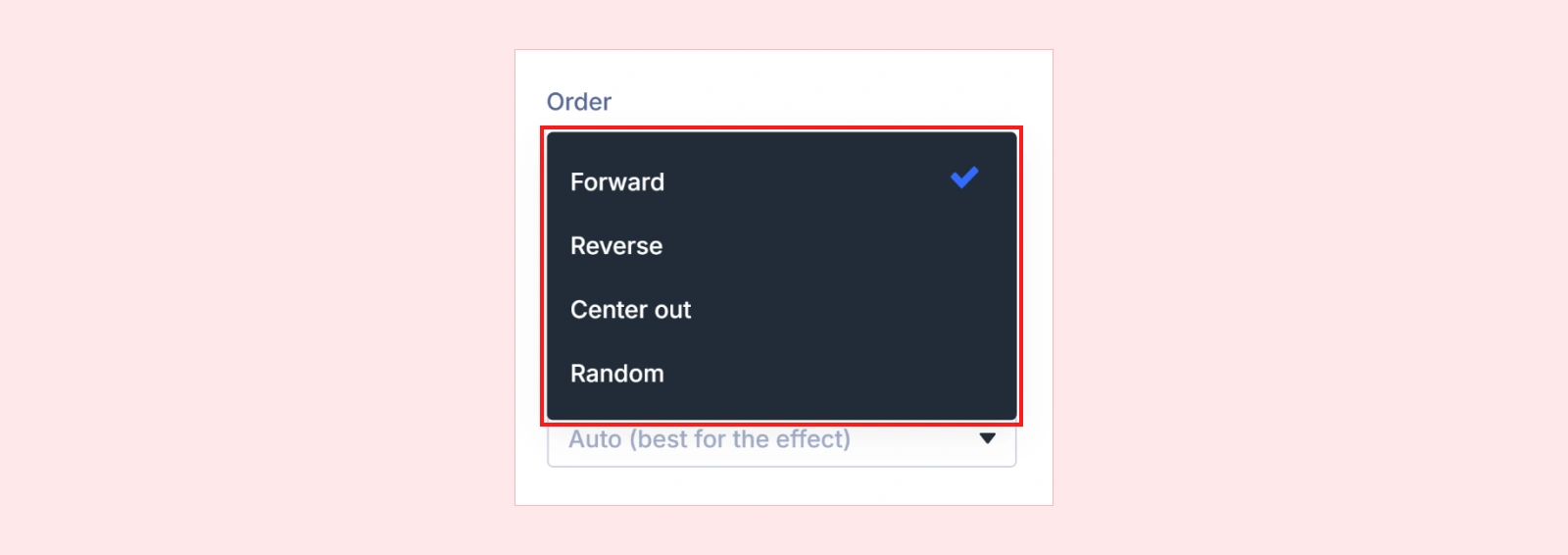
Choose which elements animate first.
| Option | What it does |
| Forward | Starts with the first element and works toward the last. |
| Reverse | Starts with the last element and works toward the first. |
| Center out | Starts in the middle of the list and works outward. |
| Random | Animates the elements in a random order. |
Exit Order
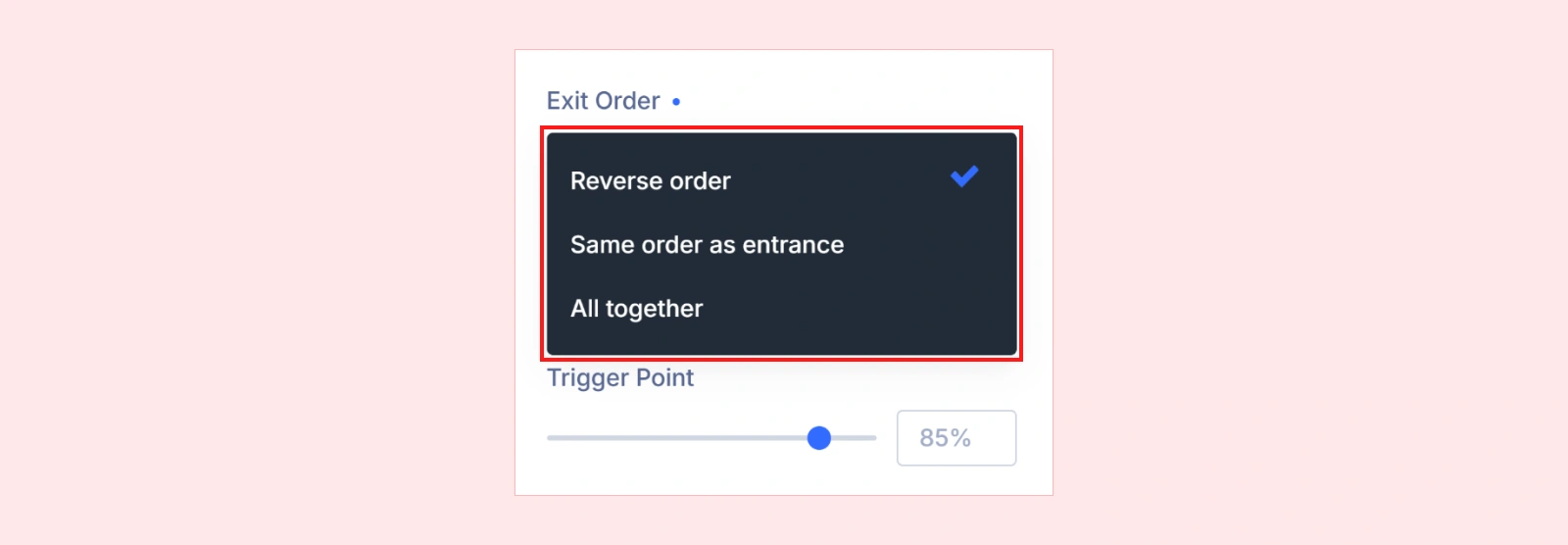
Choose the order in which elements animate out. This setting appears when Playback is set to Replay with exit animation.
| Option | What it does |
| Reverse order | The last element to enter exits first. |
| Same order as entrance | The first element to enter exits first. |
| All together | All elements start exiting at the same time. |
Easing

Choose how the animation speeds up or slows down as it plays. Select Auto to let DiviMotion choose an easing curve for the selected effect.
Trigger Point

Set where on the screen the entrance starts. The percentage is measured from the top of the screen, so 100% is the bottom edge. The animation starts when the top of the container or element reaches that point.
Trigger
Choose whether the entrance is triggered by the whole container or by each element.

| Option | What it does |
| Whole container | Starts the sequence when the section, row, or column reaches the Trigger Point. |
| Each element as it scrolls in | Starts each element’s entrance when it reaches the Trigger Point. Use this when the container is taller than the screen and its elements come into view at different times. |
What’s Next?
Save the page and open it on the frontend. Scroll to the animated section, row, or column to check the timing and order. If you selected a replay mode, scroll past the content and return to check how it replays.


